
How to Update Your ARK Server and Manage Its Version
Studio Wildcard pushes updates to ARK regularly, and your server has to be on the same version as your players or they won't be able to connect. On gamever, updating is largely automatic — but you also get control over exactly which version you run. Here's how it works.
Updates are automatic on restart
Every time your server starts or restarts, it checks Steam for a new build before launching. You'll see it in the Console:
Checking for updates before starting
Checking for update; PID: 389
Your server is already up to date! The most recent version is 21241282.
So the simplest way to pull a fresh ARK patch is to Restart your server from the top bar — it updates on the way back up. No files to download by hand.
Pin or change the version
If you'd rather control the build, go to Settings → Server Settings → Server Version. The default is Latest, which always takes the newest patch on restart.
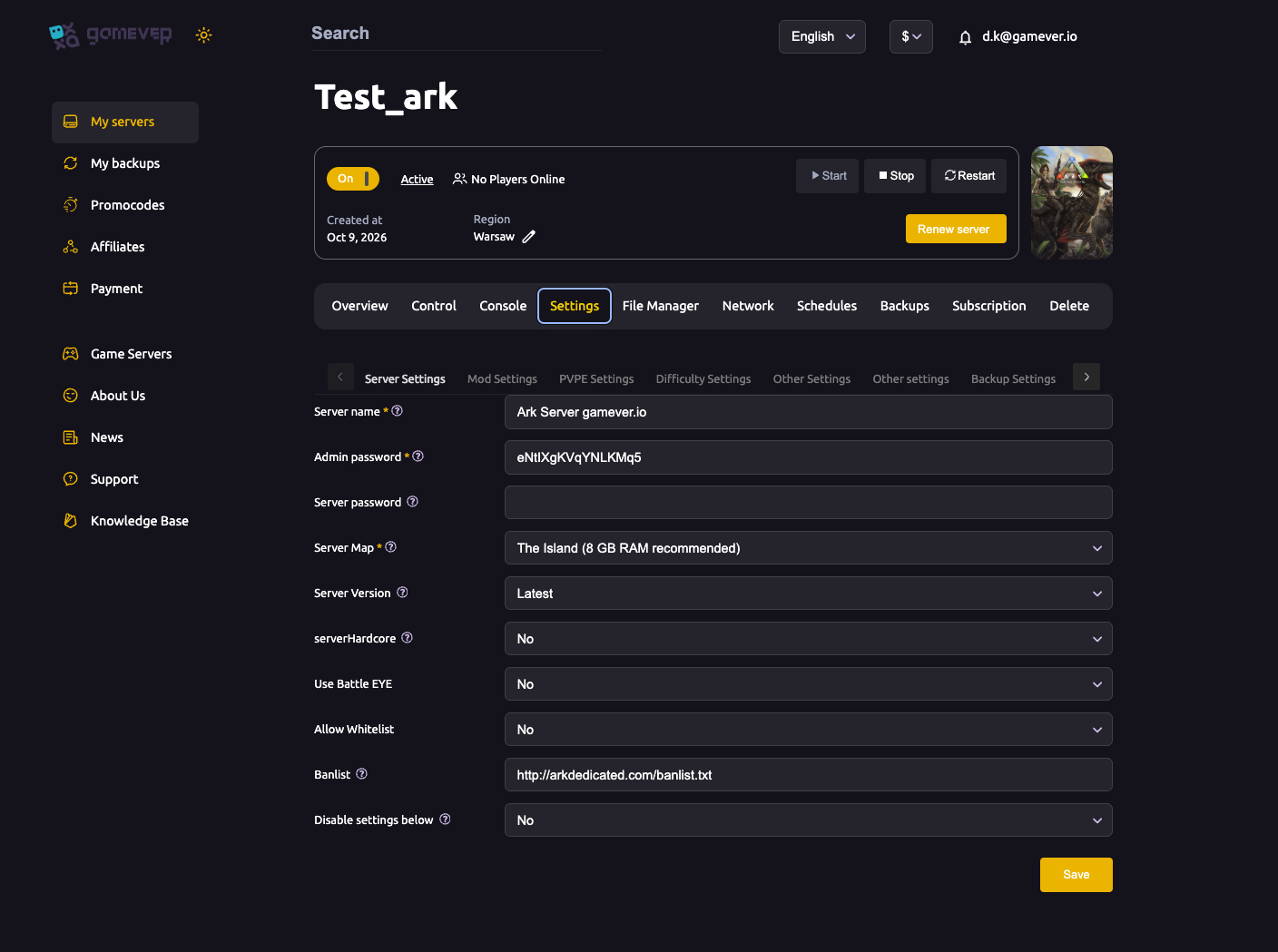
Leave it on Latest for a normal public server so you stay in step with the client. Pin a specific version only when you have a reason — for example, waiting for a mod to catch up to a brand-new patch.
The usual update day flow
When Wildcard releases a client patch:
- Your players update their game through Steam/Epic.
- Restart your server so it pulls the matching server build.
- Everyone reconnects. Done.
If players get a version mismatch error, it almost always means the server hasn't been restarted onto the new build yet — restart it.
Mods update too
If you run Steam Workshop mods, the server refreshes them on restart as well. After a big ARK patch, give mods a little time — a mod may need its own update before it works on the new build. If a modded server misbehaves right after a patch, check the mod's Workshop page, then restart again once it's updated. See our mod installation guide.
Back up before a major patch. Big updates occasionally shift save formats. A quick backup first means you can always roll back — see backups & schedules.
Additional Tips
- Restart = update — that's the whole trick on gamever; there's no separate "update" button to hunt for.
- Keep Server Version on Latest for public servers so you never fall behind the client.
- Version mismatch on join? Restart the server; it's behind the client build.
- After a patch, restart modded servers twice if needed — once to update ARK, once more after mods catch up.
- Schedule a daily restart to keep the server current and healthy without thinking about it — set it on the Schedules tab.
Conclusion
Keeping an ARK server current on gamever is mostly automatic: it checks for updates every time it boots, so a simple restart pulls the latest patch. Keep Server Version on Latest, restart on patch day, and your tribe is always on the right build.
Rent your ARK server at gamever.io — automatic updates, one-click restarts and scheduled maintenance keep you patch-ready with zero hassle. Free trial, promo code WELCOME.