
How to Tune a Build 42 Project Zomboid Server for Performance
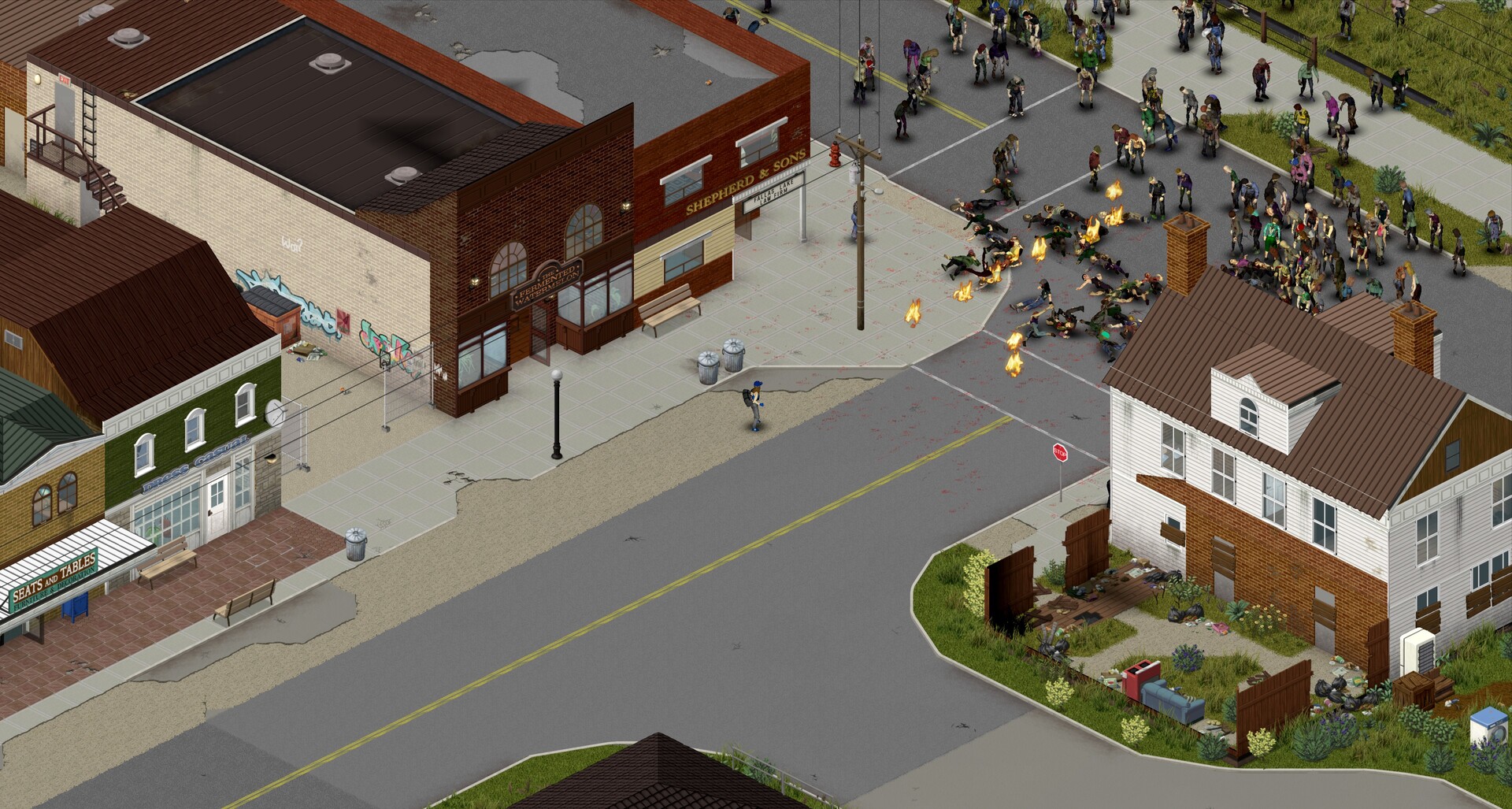
Build 42 is now the stable branch of Project Zomboid, and it's a much larger game than Build 41 — new crafting, animal husbandry, basements, and a reworked map all mean there is simply more for a server to simulate. The Indie Stone has said it is continuing to ship a Build 42 "Support Update" focused on optimization through the rest of the year, so some overhead is still being tuned at the engine level. That makes a little server-side housekeeping worthwhile. This guide covers the settings that actually move server load on a gamever-hosted Build 42 server, and — just as important — which fixes you can make in the panel for free versus when it's time to give the server more resources.
Start with the Usage meters
Before changing any setting, find out what's actually under strain. On the Overview tab, watch the Usage bars while the lag is happening:
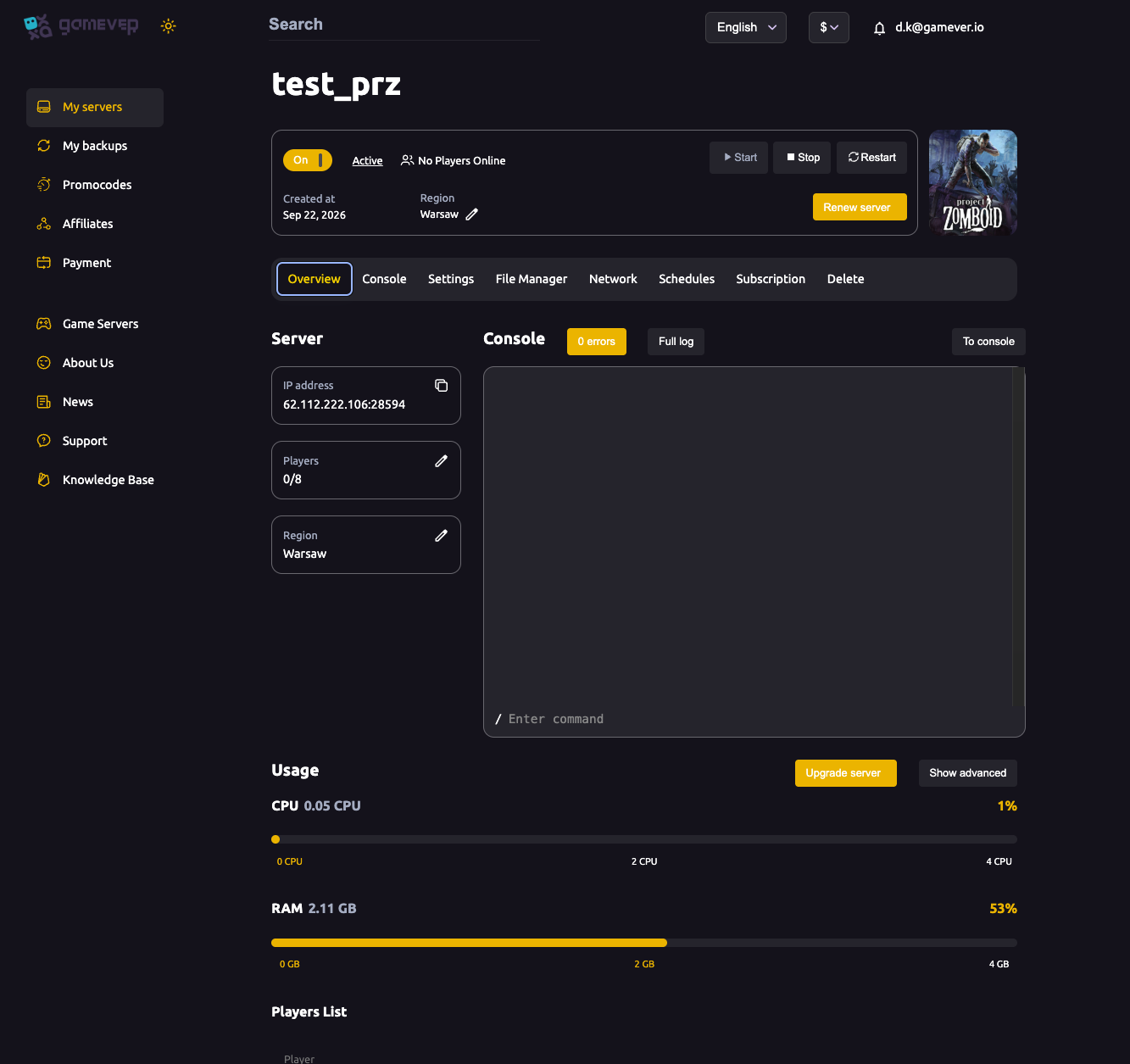
- RAM near the top is the classic Project Zomboid bottleneck, and Build 42 leans on memory harder than Build 41 did — more so with mods.
- CPU near 100% shows up in dense hordes and heavily built-up areas, where the server simulates a lot at once.
If a meter is pinned at maximum with your group online, no setting will fully fix it — that's the plan sizing talking, covered at the end. If there's headroom, the load-trimming settings below will help.
What affects server load
Project Zomboid is demanding because it loads and simulates the world around every connected player. These are the levers that change how hard it works:
| Setting | Where to change it | Effect on load |
|---|---|---|
| Zombie population | Sandbox file (File Manager) | A denser Knox County is the single biggest CPU cost — fewer zombies, less work per tick. |
| Loot & zombie respawn | Sandbox file | Frequent respawns keep the simulation busier; stretching the interval eases it. |
| Player count | Your plan (Overview) | Each player loads their own area of the map, so more players means more world active at once. |
| Mod count | Settings → Mods | Every mod adds memory and simulation on top of vanilla; overhauls and NPC mods are the heaviest. |
| PauseEmpty | Server config (File Manager) | Pauses the world while the server is empty, so it uses almost no CPU when nobody's online. |
Zombie population and respawn
The most expensive thing a Project Zomboid server does is simulate zombies. A very high population multiplier and frequent respawns cost real CPU, especially in built-up parts of the map. These values live in the sandbox file, <Server name>_SandboxVars.lua, which you edit through the File Manager — see our sandbox settings guide for how to change them safely with the server stopped. If the server struggles during hordes, a more moderate population is the first dial to turn.
Mods
Mods are the fastest way to multiply a server's requirements — a heavily modded server needs far more memory headroom than vanilla. Keep the list to what your group actually plays, and remember that mods must be updated for Build 42: a leftover Build 41 mod list is a very common reason a server fails to load or behaves badly after the jump to B42. See install mods for managing the list in Settings → Mods.
PauseEmpty
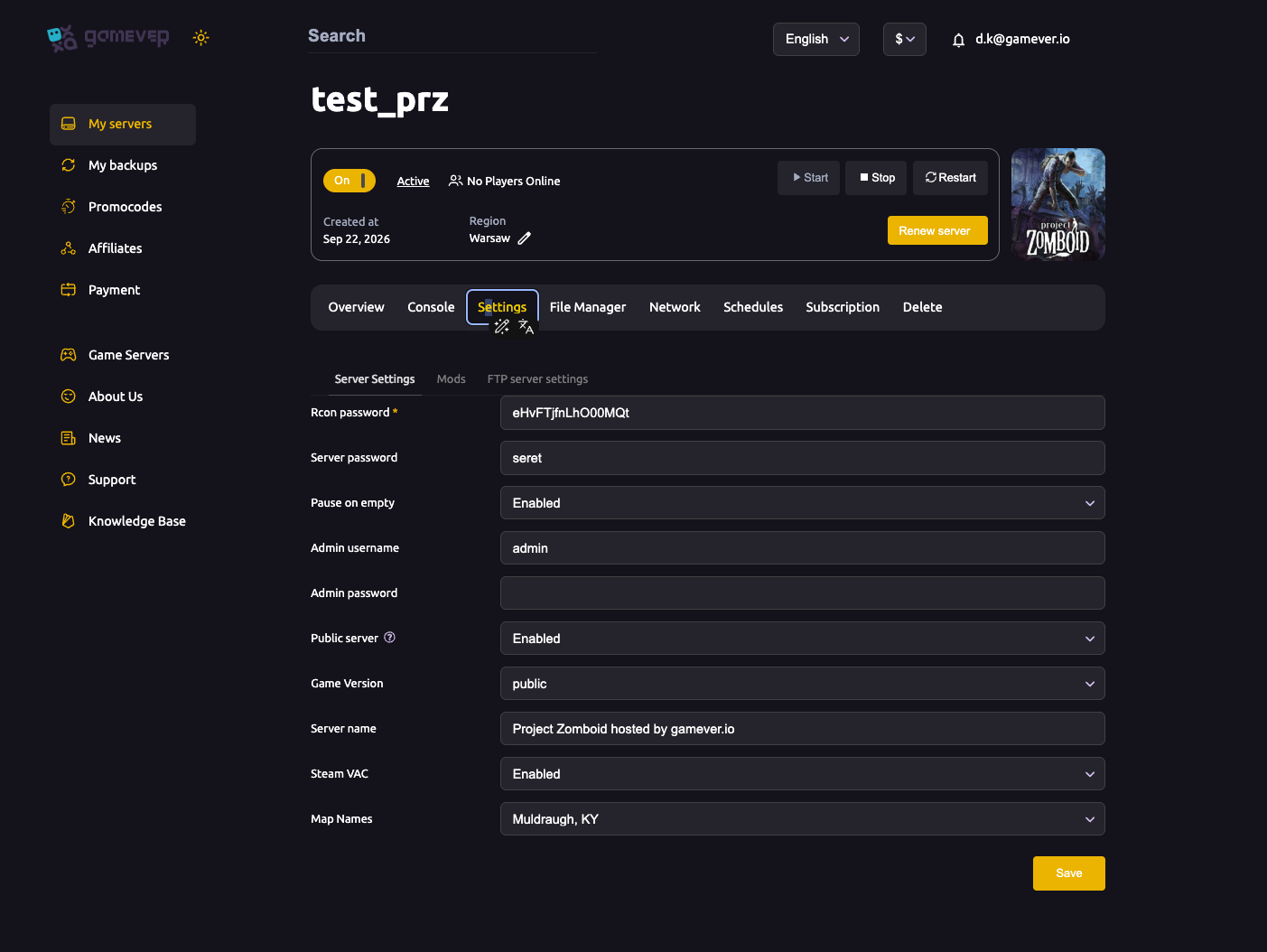
PauseEmpty tells the server to pause its simulation whenever no players are connected, which means an idle server barely touches the CPU. It's normally enabled by default and is well worth leaving on for a small co-op server. It isn't exposed as its own field on the Settings tab — it lives in the server's config file under /home/configs/Server/, which you open in the File Manager (stop the server first, keep the syntax intact, then save and start).
Scheduled restarts
A Project Zomboid server left up for days drifts in memory and gets hitchy — this matters more on Build 42 than most games because of its memory use. A daily scheduled restart at a quiet hour clears accumulated memory and keeps performance steady over a long-running world.
When to upgrade the plan instead
Some things a setting change can't fix — they come down to the resources behind the server:
- RAM or CPU pinned at maximum with your group online means you've outgrown the plan, not misconfigured it. Build 42 is memory-hungry, and more players plus more mods both raise the requirement.
- Player count scales load directly, because every extra player loads another slice of the map. Your slot count comes from your plan — see max players and sizing.
When the Usage meters say you're out of headroom, use Upgrade server on the Overview tab. It scales RAM and CPU in place without starting your world over — the most direct fix for a demanding build like B42. For a wider walkthrough of diagnosing slowdowns, see our fix lag guide.
Additional Tips
- Check Usage first — it tells you instantly whether to trim load or upgrade.
- Lower zombie population in the sandbox if dense areas are choking the CPU; it's the biggest single saving.
- Prune mods to what you play, and make sure every mod is a Build 42 version.
- Leave PauseEmpty on so an empty server costs you almost nothing.
- Restart daily to clear memory drift — it matters more on Build 42.
- Budget extra RAM for mods — a modded B42 server needs noticeably more than vanilla.
- Build 42 is still being optimized by the developers, so keeping a little RAM headroom now pays off.
Conclusion
Smooth Build 42 performance is mostly about matching load to resources: watch the Usage meters, trim zombie population and your mod list, leave PauseEmpty on, and schedule a daily restart. When the meters stay maxed with your crew online, that's your cue to use Upgrade server rather than chase settings — Build 42 simply asks more of a server than Build 41 did, and a bit of RAM headroom goes a long way.
Rent your Project Zomboid server at gamever.io — plenty of RAM for Build 42, live Usage meters and one-click upgrades so you can see exactly what to fix. Free trial, promo code WELCOME.