
How to Teleport in 7 Days to Die 1.0
Ever get tired of trudging across the vast and perilous landscape of 7 Days to Die? Wish you could just zap yourself from one end of the map to the other? In this guide, we’re diving deep into the teleportation commands available in 7 Days to Die 1.0.
Opening the Console
Before you start teleporting like a pro, you need to open the console where all the magic happens. Hit F1 key based on your keyboard layout.
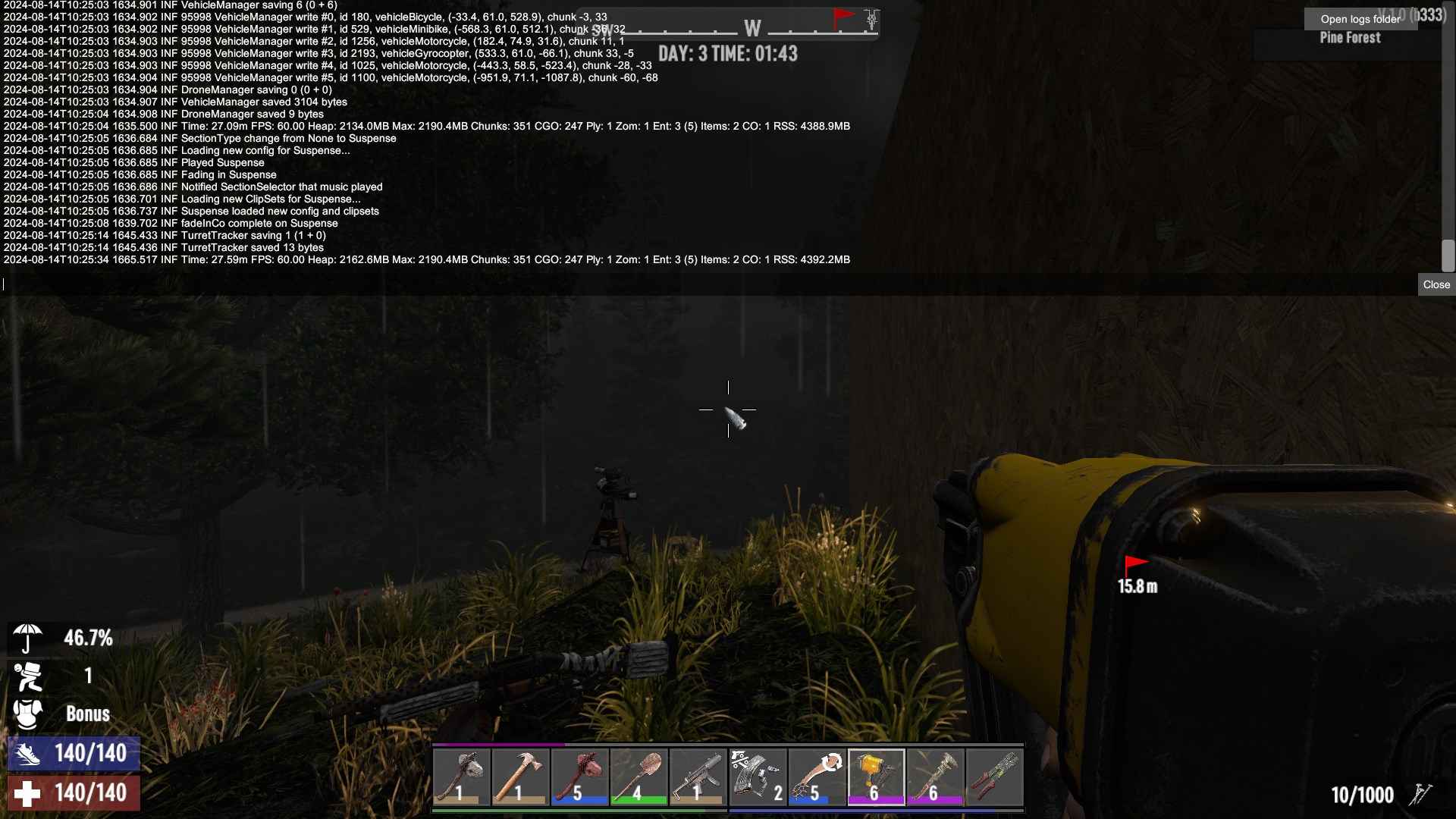
This brings up the console where you’ll input all your teleportation commands. If you’re playing on a different layout or platform, the key might vary, so make sure you check the settings or community guides specific to your version.
Teleport a Player to You
Want to bring a friend or fellow survivor right to your location? Use the `teleportplayer` command. Here’s how:
1. Find Player IDs: Open the console and type `lpi` to get the list of players and their IDs. Look for the underlined number next to the player’s name.
2. Execute the Command: Use the command teleportplayer [Target Player ID] [Your Player ID]. Replace [Target Player ID] with the ID of the player you want to teleport and [Your Player ID] with your own ID.

And your friend will instantly appear at your location. It’s a game-changer for teaming up or helping out in a pinch.
Teleport to Another Player
If you want to zip over to a friend or another player’s location, use the `teleport` command. Here’s the lowdown:
1. Find the Player ID: Just like before, use `lpi` to find the ID of the player you want to teleport to.
2. Input the Command: Enter `teleport [Player ID]` into the console, replacing `[Player ID]` with the target player’s ID.
And just like that, you’re at their location, ready to join the action or explore together.
Teleport to Specific Coordinates
Lost a cool spot and can’t remember where it was? No worries! You can teleport to specific coordinates with ease:
1. Find Coordinates: Use the `lp` command to get your current coordinates. Note down the X, Y, and Z values.
2. Use the Command: Enter `teleport [X] [Y] [Z]`, replacing `[X]`, `[Y]`, and `[Z]` with the coordinates of the destination.
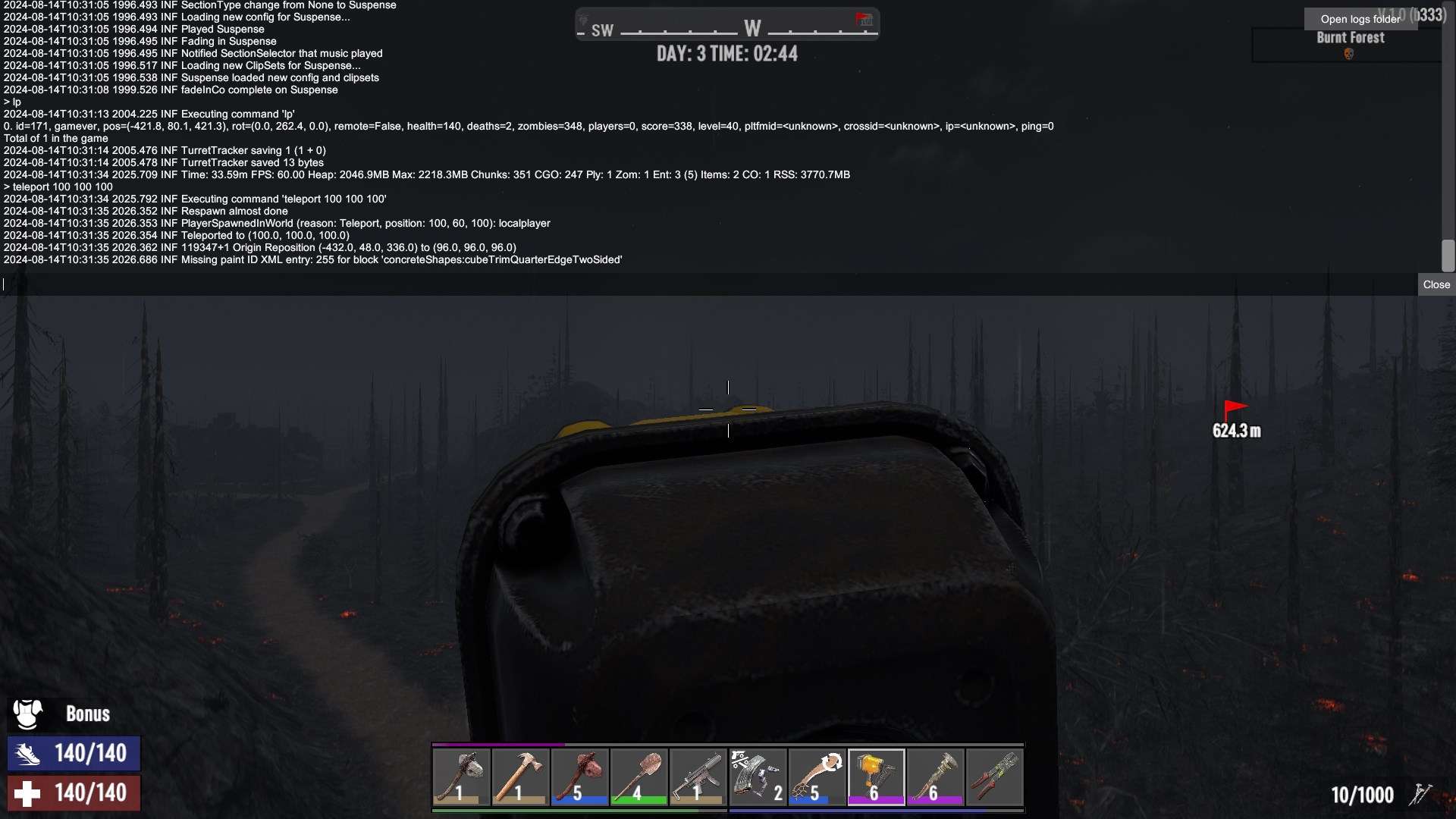
This is perfect for revisiting favorite spots or getting to a specific point on the map quickly.
Debug Mode
Keep in mind that teleportation commands often require cheats or debug mode to be enabled. To activate these modes:
1. Activate Debug Mode: Press F1 and type `dm` to turn on Debug Mode. This mode gives you access to advanced commands and cheats.
2. Use Commands Wisely: Cheating can disrupt the game’s balance and fairness, so use these commands thoughtfully and considerately.
Teleporting Tips and Tricks
- Check for Restrictions: You can only teleport within the same dimension. If a player is in a different game environment or dimension, teleportation won’t work.
- Coordinate Safety: Ensure that the coordinates you teleport to are safe. Teleporting to high or dangerous locations might result in instant damage or death.
- Inventory Check: Teleporting doesn’t affect your inventory, so you don’t need to worry about losing your gear.
Be careful where you teleport, as it could result in your character's death.

There you have it, survivors! With these teleportation commands, you can move around 7 Days to Die’s massive world with ease, either by bringing players to you, visiting them, or zooming to specific coordinates. It’s a handy way to navigate the game’s vast landscapes and coordinate with your teammates effortlessly. Just remember to use these commands responsibly and keep the game fun and challenging!