
How to Switch Between PvE and PvP on Your Soulmask Server

One of the first decisions for your gamever Soulmask server is how players treat each other: cooperatively against the world, or in open combat. Soulmask settles this with a single Game mode dropdown in your control panel, with two values — pve and pvp. You don't need to touch a config file or reinstall anything; the setting lives right in your server's Settings tab, and you flip it in a couple of clicks. This guide explains what each mode means, how to change it safely, and why switching on a server people already play on is a decision worth taking seriously.
What PvE and PvP mean in Soulmask
Soulmask runs in one of two modes at a time, and the difference is straightforward:
| Mode | Panel value | What it means |
|---|---|---|
| PvE (Player vs Environment) | pve | The cooperative mode. Players cannot attack one another — your tribe faces the world, wildlife and enemies, not each other. This is the usual default for friendly and community servers. |
| PvP (Player vs Player) | pvp | Player-versus-player combat is enabled. Players can fight each other, turning the island into contested ground where rival groups compete directly. |
In short: PvE is cooperative, PvP opens combat between players. Which one suits you depends entirely on the group — a close group of friends building together usually wants PvE, while a server that thrives on rivalry and raiding wants PvP. There's no wrong answer, only the experience you want to host.
Switching the mode in the panel
The mode lives under Settings → Server Settings, the first sub-tab. It's the Game mode dropdown, sitting just below the Server and Admin password fields.
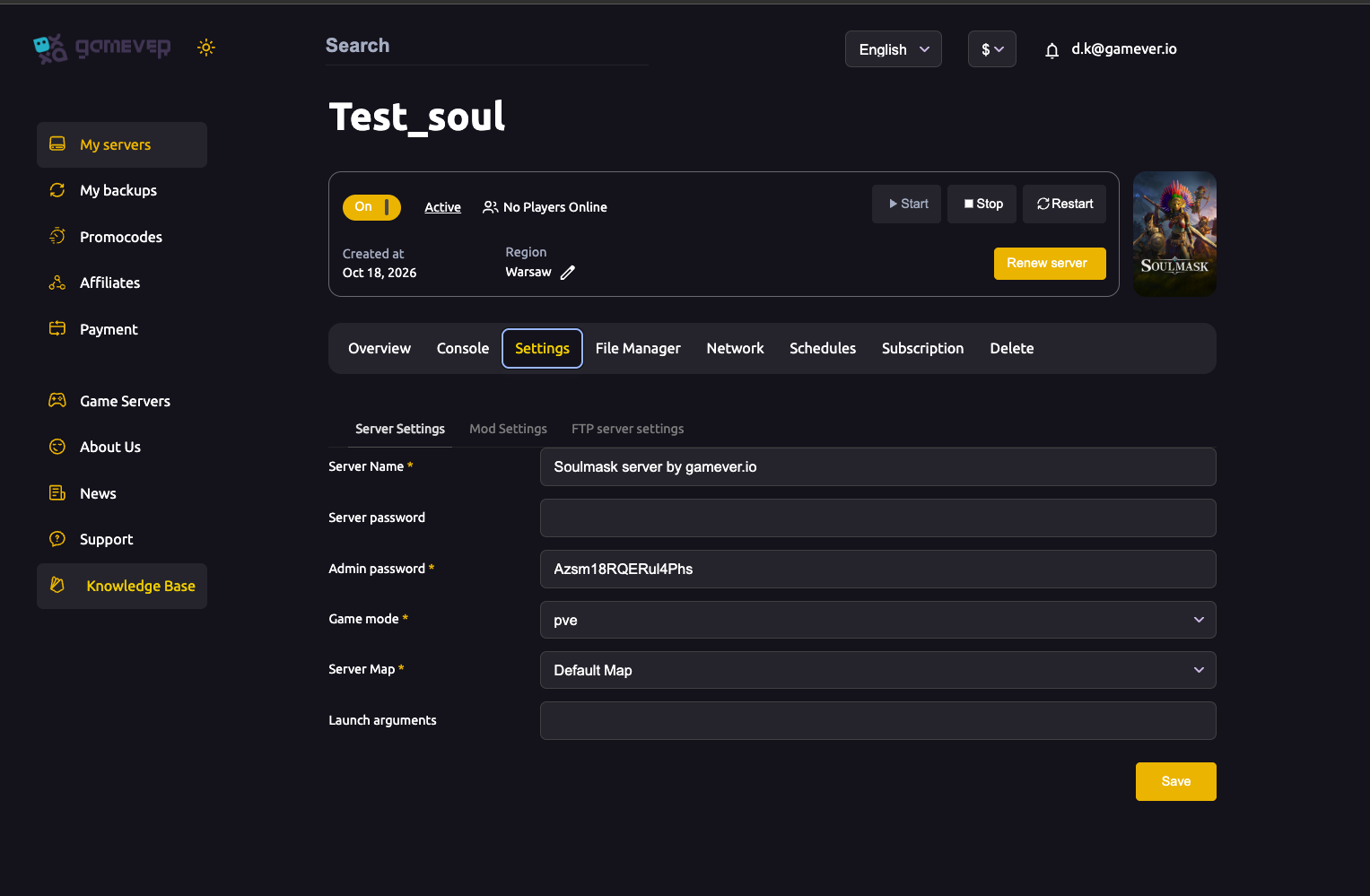
To change the mode:
- Open the Settings tab, then the Server Settings sub-tab.
- Find Game mode and open the dropdown.
- Select pve or pvp.
- Click Save at the bottom of the form.
- Go to the Overview tab and click Restart so the server reloads with the new rule.
That's the whole process — the panel manages everything else, including the ports shown on the Network tab, which you never set by hand. For a tour of the other fields on this tab — server name, passwords, map and launch arguments — see our Soulmask server settings guide.
| Step | Where |
|---|---|
| Change Game mode | Settings → Server Settings |
| Apply the change | Save, then Restart (Overview) |
Switching an established server changes the rules for everyone
Flipping the mode on a brand-new server is harmless — nobody has built anything yet. On a server people already play on, it's a bigger deal, because the mode is a rule that applies to everyone at once.
- Going PvE → PvP suddenly makes every player a potential target. Bases, stored resources and your tribe's work become things other players can act against. A group that signed up for a peaceful build may not expect that overnight.
- Going PvP → PvE switches off player combat, which can feel like pulling the rug out from under a server whose whole appeal was the rivalry.
Because the change affects the entire player base, treat it as a community decision, not a quiet tweak:
- Tell your players first. Agree on the change before you make it, so nobody logs in to a different game than they left.
- Consider the impact on existing bases and progress. Think through what open combat (or the loss of it) means for the structures and groups already established on your world.
- Back up before you switch. Take a manual backup from My backups in the left sidebar so you have a known-good copy to restore if the change doesn't land the way the group hoped.
A mode switch doesn't wipe your world, but it does rewrite how players interact with each other and with everything they've built — so a backup and a heads-up to the group are the two safeguards worth taking every time.
Additional Tips
- Decide the mode early. Setting pve or pvp on day one, before anyone has invested hours, avoids the disruption of switching on a populated server later.
- Always back up before a switch. Grab a fresh copy from My backups so you can roll back if the new mode doesn't suit the group.
- Announce the change in advance. A mode flip surprises players if it's silent — give them notice and get buy-in first.
- Pair the mode with the right passwords. A private PvE group may want a Server password set; an open PvP server usually leaves it blank. Both live on the same Server Settings tab.
- Remember to Restart. The new mode only takes effect after you Save and then Restart the server from the Overview tab.
- Fine-tune the rest of the experience with difficulty and multiplier settings — see our custom gameplay guide.
Conclusion
Switching your Soulmask server between PvE and PvP comes down to one dropdown: Settings → Server Settings → Game mode, set to pve for a cooperative world or pvp for open player combat. Save, Restart, and the new rule is live. The only real caution is that the mode governs everyone — so on an established server, back up from My backups first, weigh what the change means for existing bases and players, and tell your group before you flip it.
Rent your Soulmask server at gamever.io — switch between PvE and PvP in a couple of clicks, with backups a tab away whenever you want a safety net. Free trial, promo code WELCOME.