
How to Spawn Items in 7 Days to Die 1.0
Spawning Commands
Want to spice things up a bit? There are more commands you can use to enhance your gaming experience:
- ‘spawnsupplycrate’: This command spawns a supply crate at your location, packed with random items that could come in handy during your adventures.
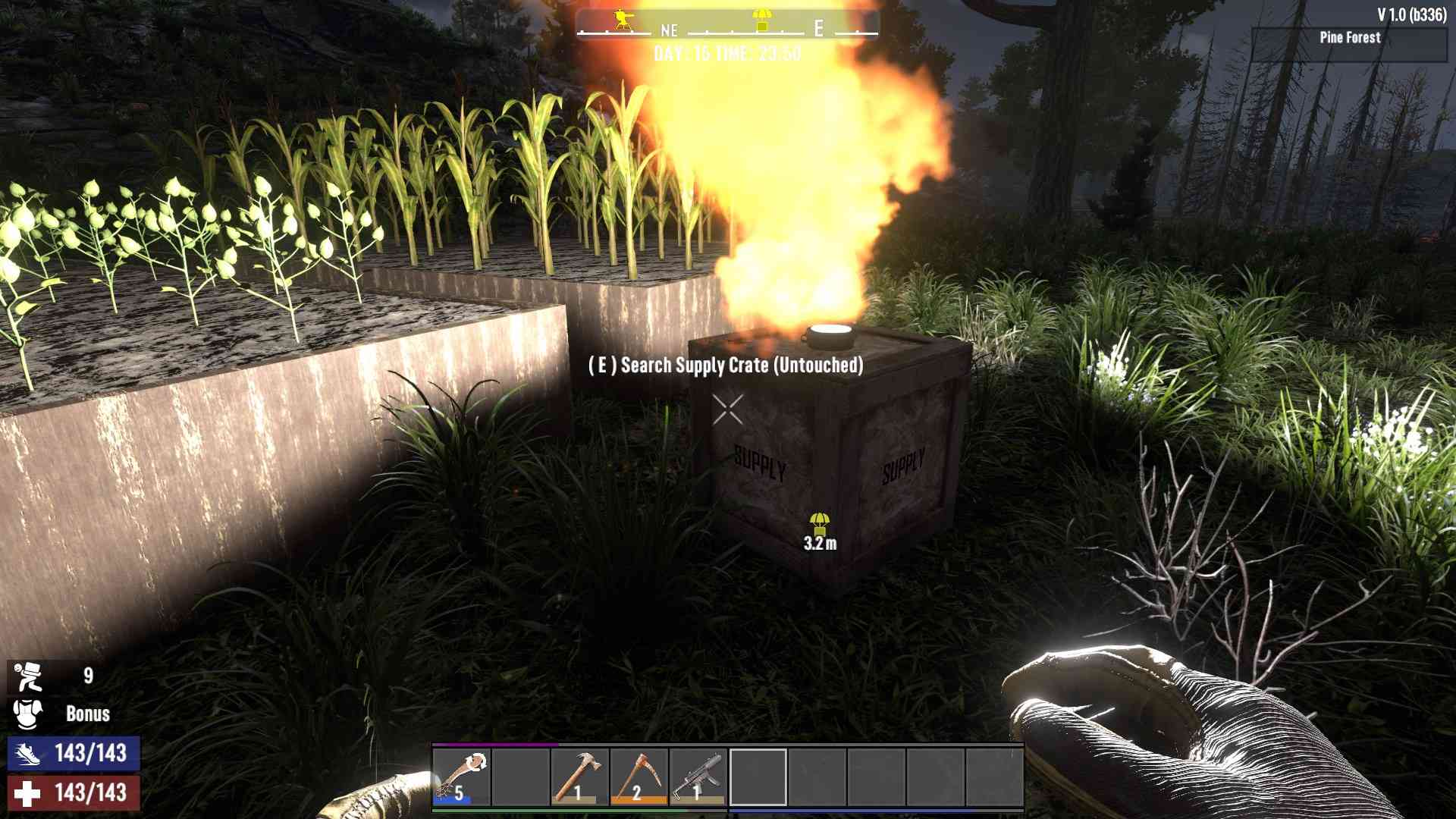
- ‘spawnairdrop’: Use this command to drop a supply crate from the sky, filled with valuable loot.

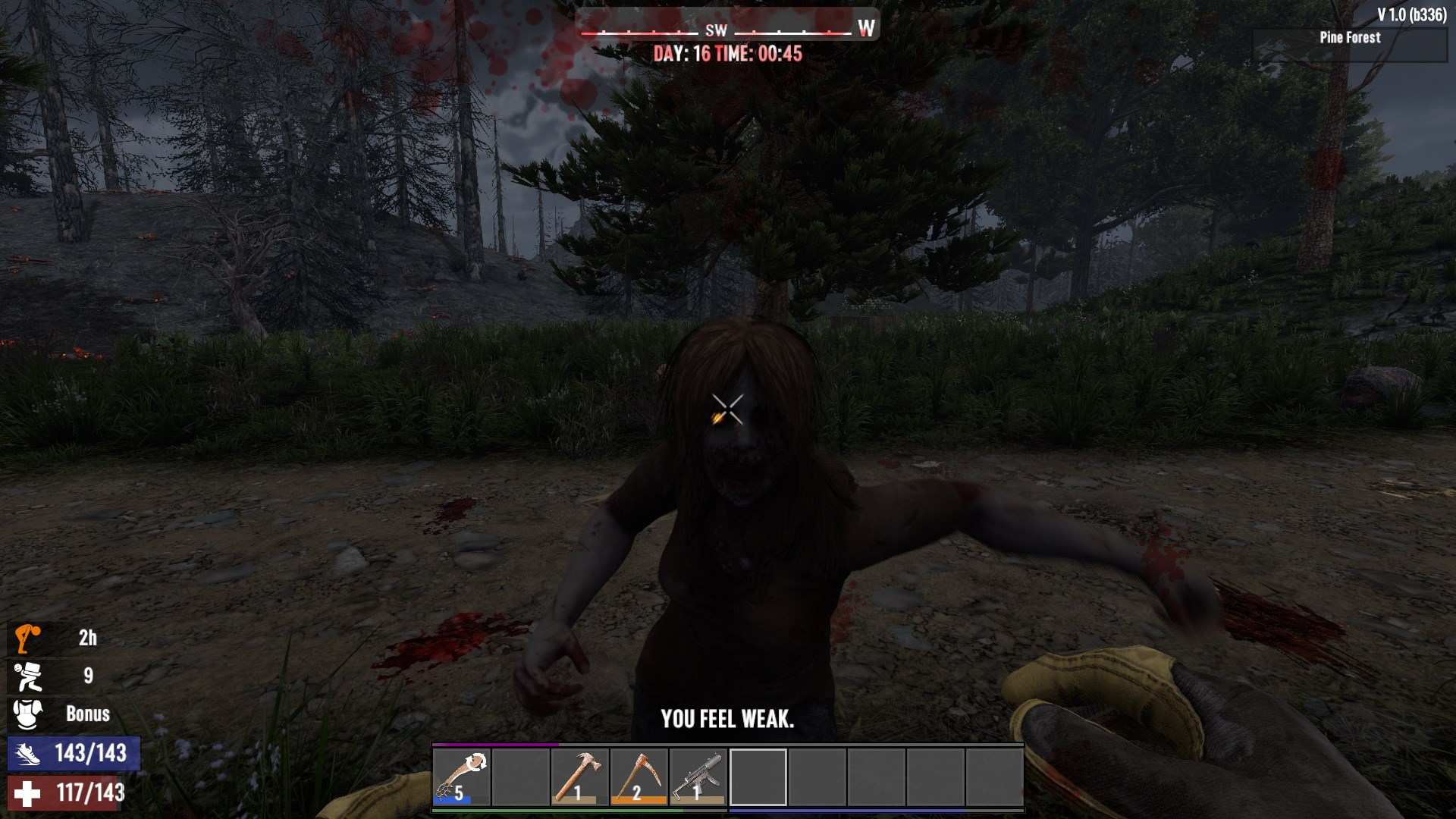
- ‘spawnentity’: This command allows you to spawn specific entities like zombies or animals for a bit of extra challenge or fun: spawnentity ‘playerID’ ‘itemID’ -> spawnentity 171 50
Debug Mode
For those who want to go deeper into the console commands, enabling Debug Mode provides additional functionality. Here’s how to use Debug Mode to spawn specific entities and create some chaos:
Enable Debug Mode: Open the console by pressing F1. Type dm and hit ENTER to activate Debug Mode. This unlocks advanced features and commands.
Access Debug Menu: Press ESC to bring up the debug menu. This menu lets you interact with various options that are not available in the standard game mode.
Choose Your Spawn Location: To point where you want to spawn zombies or other entities, press F6. This will bring up a targeting interface that allows you to select the exact spot for your spawns.
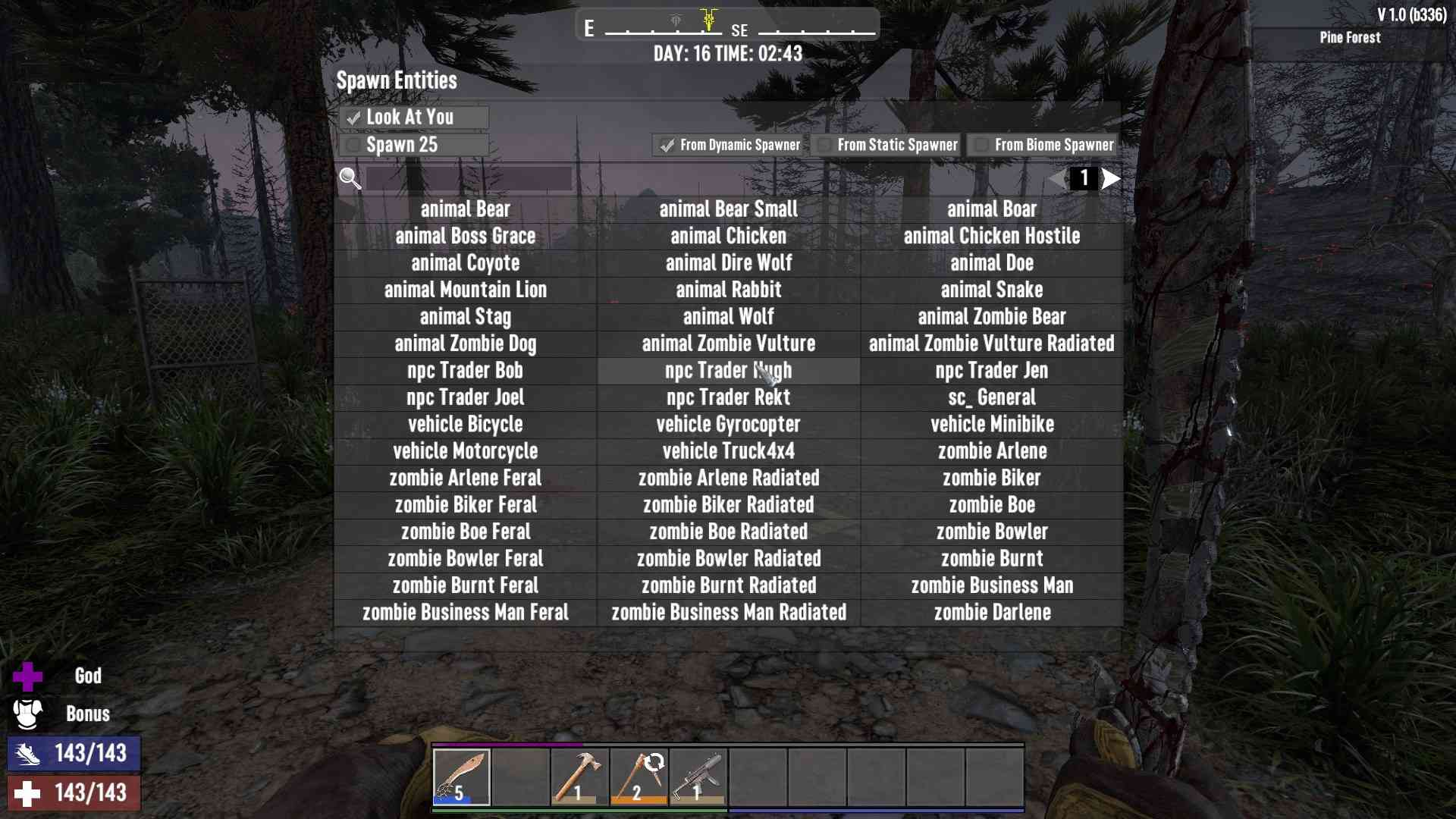
Select and Spawn Entities: Press the button corresponding to the type of entity you want to spawn. You’ll have options to spawn zombies, animals, or other entities. After selecting, hit ESC to finalize and see your new spawns appear.
Creative Menu
Enable Cheat Mode: First, you need to have Cheat Mode enabled. You can find this option in the Advanced tab on the Continue Game or Start New Game screen. Toggle it on to get access to the Creative Menu – Press F1 and type cm or creativemenu.

Open the Creative Menu: Press the U key to open up the Creative Menu. This menu gives you access to a wide array of items and resources. You can browse through categories or search for specific items.
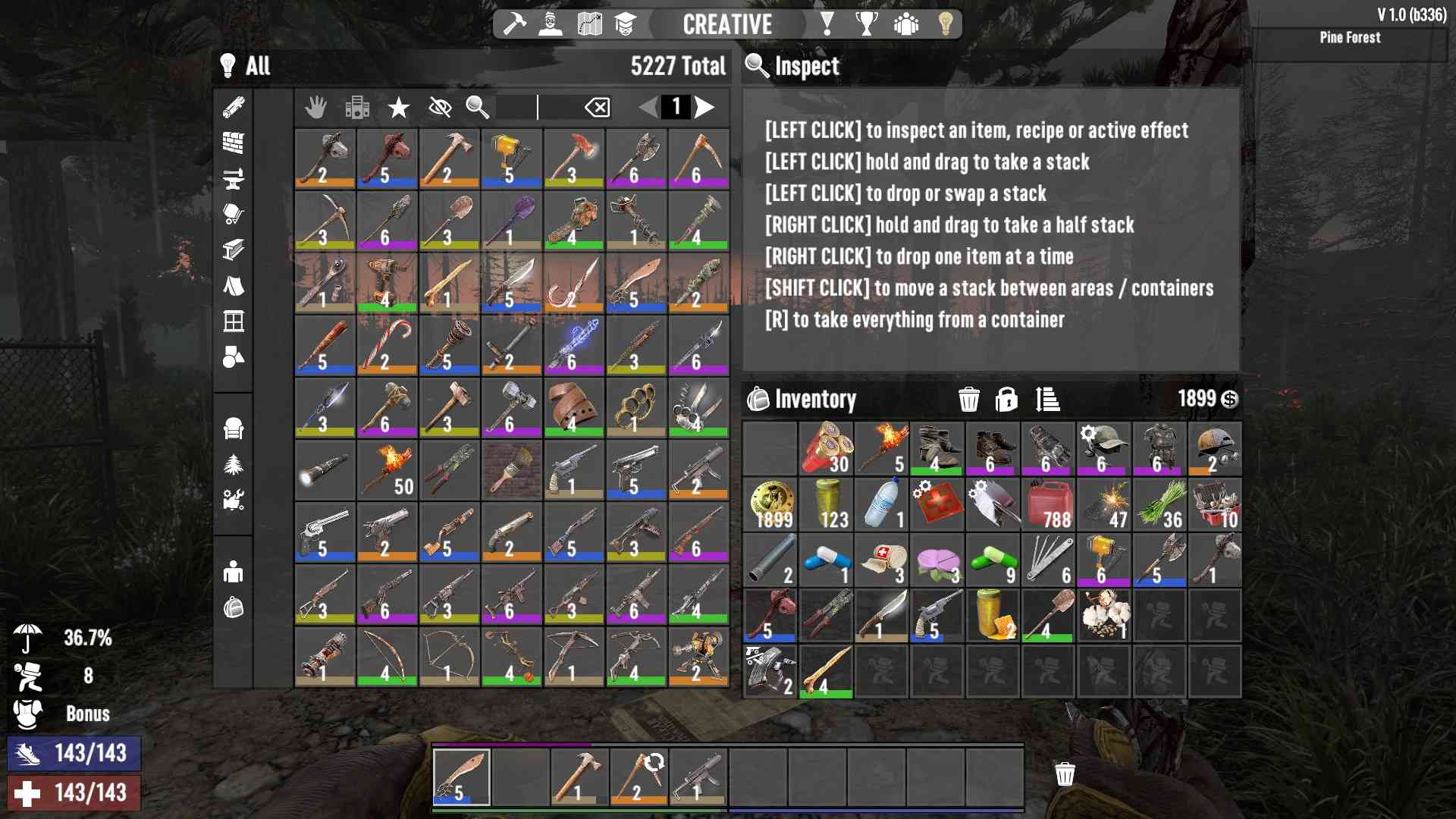
Select and Place Items: Once you’re in the Creative Menu, you can select any item you want and place it directly into your inventory or into the game world. It’s a great way to experiment with different items or quickly stock up on supplies.
God Mode and Flying: In Creative Mode, you also have the option to enable or disable God Mode by pressing Q. This makes you invincible and immune to damage. To fly around the map, you can enable Flying mode. Press the item button associated with flying to soar above the world and explore every nook and cranny.
Spawning items in 7 Days to Die 1.0 is a fantastic way to enhance your gameplay and experiment with different strategies. Whether you're gearing up for a tough fight or just having fun, the console commands give you the power to shape your game world. So, fire up that console and start spawning your way to survival and adventure!