
How to Set Your Factorio Server Name, Description and Tags
When players open Factorio's in-game public server browser, three things decide whether they stop on your server or scroll past it: its name, its description and its tags. On a Factorio server you rent from gamever, these aren't set from a dropdown in the control panel — they live inside the headless server's main config file, server-settings.json, which you edit through the panel's File Manager (or over FTP). This guide shows exactly which keys to change, how to edit them without breaking the file, and how to make sure your server actually shows up in the browser once it's named.
Where these settings live
Factorio runs as a headless server driven by a strict JSON config. The fields that appear in the server browser are the top-level keys name, description and tags in server-settings.json. The gamever panel's Settings tabs cover the server build, saves, RCON and your factorio.com authorisation, but the browser-listing text itself is edited in the file. Open the panel's File Manager and browse to the config folder:
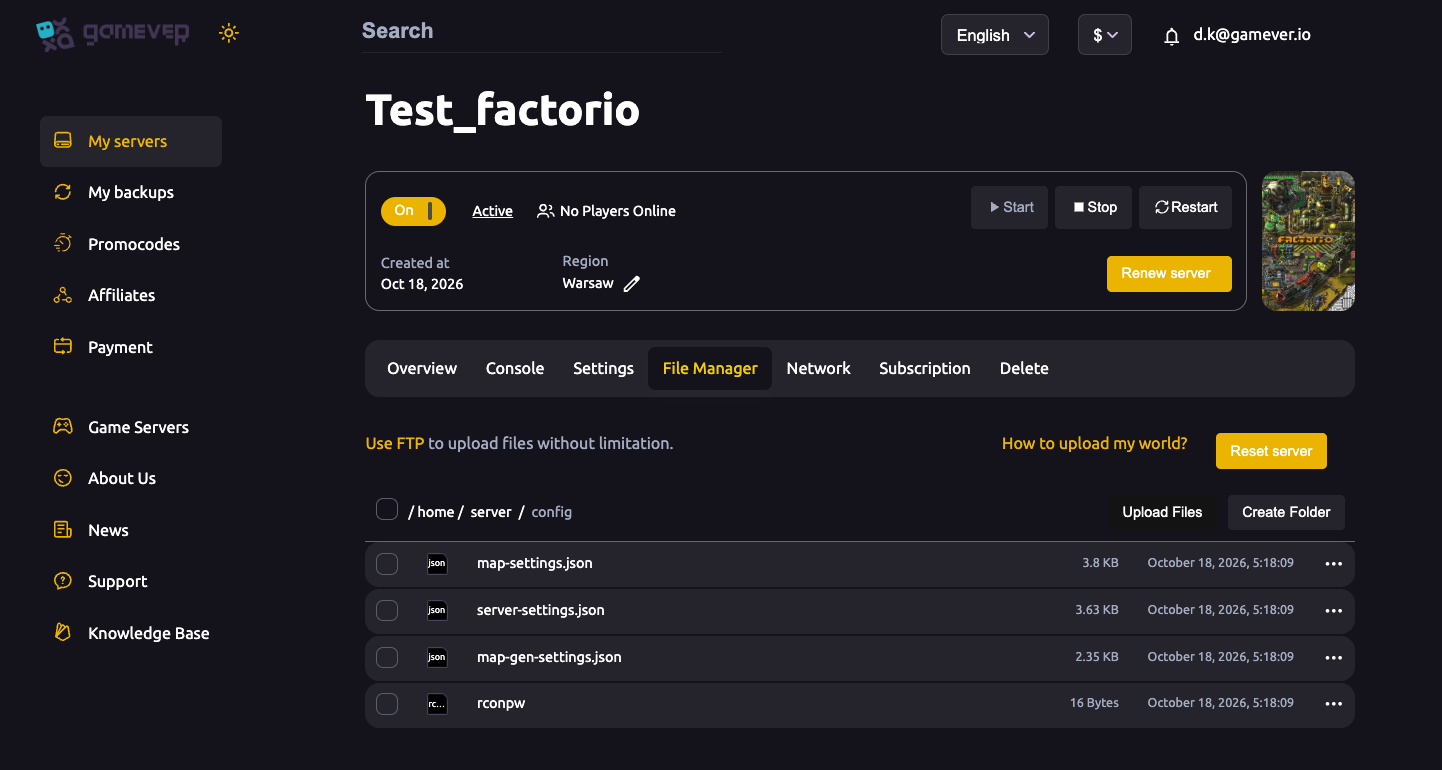
The config path is /home/server/config/, and the file you want is server-settings.json. The same folder holds map-settings.json, map-gen-settings.json and the rconpw file — leave those alone for this task.
The three keys that matter
These keys are verified against Factorio's own server-settings.json (wiki.factorio.com/Multiplayer). Mind the value types — they are not all plain text:
| Key | Type | What it does |
|---|---|---|
name | string (in quotes) | The server name shown at the top of each browser entry. |
description | string (in quotes) | A longer blurb beneath the name; Factorio allows a generous character count, so you have room to describe the server. |
tags | array of strings | A list of short labels players can filter and search by, e.g. ["vanilla", "pve", "space-age"]. |
A minimal, valid edit looks like this:
"name": "gamever.io Space Age — PvE",
"description": "Chill co-op factory. Space Age enabled. All welcome.",
"tags": ["space-age", "pve", "co-op"],
Note that name and description are wrapped in double quotes, while tags is a bracketed list of quoted strings. Getting those brackets or quotes wrong is the most common way to stop the server booting.
Editing it safely
Factorio reads server-settings.json at startup, and the file is strict JSON — a single trailing comma or missing quote will stop the server loading. Work in this order:
- Stop the server from the Overview tab. Editing config while it's running risks your change being overwritten on the next save, and the file is only read at boot anyway.
- In File Manager, open
/home/server/config/server-settings.jsonin the editor (or download it over FTP, edit locally, and re-upload — get your FTP login from Settings → FTP server settings, and the host/port from the Network tab). - Change the
name,descriptionandtagsvalues, keeping every existing quote, comma and bracket in place. Do not leave a trailing comma after the last item in a list or after the last key in an object. - Save the file.
- Start the server from the Overview tab and watch the Console. A clean boot means the JSON parsed; an error about the settings file means a stray comma or quote — fix it and restart.
If you prefer a safety net, validate the file in any JSON linter before starting, or keep a copy of the working version so you can roll back.
Making sure the server actually appears
Naming the server is only half the job. Factorio only lists a server on the public browser once the host is authenticated with a factorio.com account. That means setting your Factorio username and Factorio Token on the panel's Settings → Authorisation tab, and the server's visibility must allow public listing. Until that's done, your carefully named server simply won't show up for strangers — only direct-connect and LAN will work. See make your server public for the full walkthrough, and Factorio server settings for the other panel-driven options.
Additional Tips
- Lead with what players search for. Put the mode or theme in the name — "Vanilla", "Space Age", "PvE", "Megabase" — rather than a generic "My Server". The name is the first filter players apply.
- Use tags as filters, not decoration. Short, lowercase, specific tags (
space-age,pve,modded,friendly) help players find you in the browser's search; vague tags don't. - Keep the description honest and current. Mention the key facts a joiner needs — Space Age on/off, modded or vanilla, language, whether there's a password — so nobody joins the wrong kind of game.
- Watch the commas. In JSON, every item except the last gets a comma. The most common boot failure after an edit is a trailing comma — check that first.
- Edit while stopped. Always stop the server before editing JSON and start it after; the file is read at boot, so a live edit does nothing until the next restart anyway.
- Keep a backup. Download a copy of
server-settings.jsonbefore you change it, so a bad edit is a quick restore rather than a rebuild.
Conclusion
Your Factorio server's name, description and tags are the three keys in server-settings.json that control how it reads in the in-game public server browser. On a gamever server you edit them through the File Manager at /home/server/config/ (or over FTP): stop the server, change the three values, keep the JSON valid with no trailing commas, save, and start. Then set your factorio.com username and token on the Authorisation tab so the server is actually listed publicly. A clear, searchable name with honest tags is the cheapest way to fill a server.
Rent your Factorio server at gamever.io — full File Manager and FTP access, RCON, and one-click restores so experimenting is safe. Free trial, promo code WELCOME.