
How to Set Operators, Whitelist and Bans on Your Minecraft Server
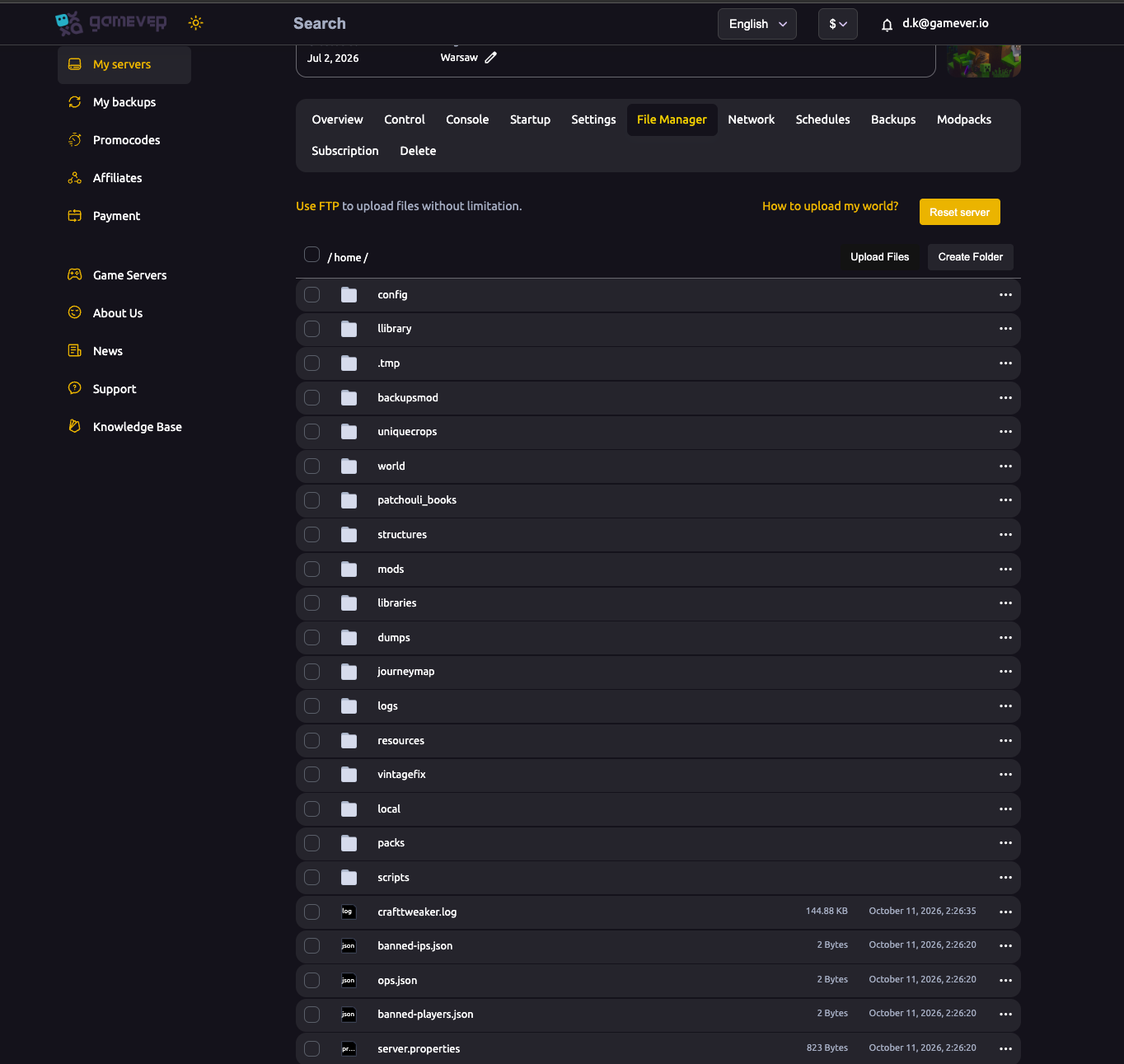
Running a Minecraft server means deciding who's an admin, who's allowed in, and who's shown the door. That's three things: operators (admins), the whitelist (allow-list of players), and bans. gamever gives you the Console, the Control tab and direct access to the JSON files that store it all. This guide covers each.
Making someone an operator (admin)
Operators can run admin commands, bypass spawn protection, and manage the server in-game. The easiest way:
- Open the Console (Overview or the Console tab).
- Run
op <playername>(no slash needed in the server console). - That player is added to
ops.jsonand now has operator level.
To remove one, run deop <playername>. You can also edit ops.json directly in the File Manager — it lists each operator's name, UUID and permission level (1–4).
The whitelist (allow only known players)
A whitelist keeps your server private to people you approve — essential if you've enabled unofficial clients, where anyone could otherwise join under any name.
| Command (in Console) | What it does |
|---|---|
whitelist on | Turns the whitelist on. |
whitelist off | Turns it off. |
whitelist add <name> | Allows a player. |
whitelist remove <name> | Removes a player. |
whitelist list | Shows who's allowed. |
Whitelisted players are stored in whitelist.json in the server root. Operators are allowed in even when not on the whitelist.
Bans
To remove troublemakers:
- Ban a player:
ban <name>→ recorded inbanned-players.json. - Ban an IP:
ban-ip <address>→ recorded inbanned-ips.json. - Unban:
pardon <name>orpardon-ip <address>. - Kick (no ban):
kick <name>.
You can review or hand-edit banned-players.json and banned-ips.json in the File Manager if you ever need to clear an entry directly.
The Control tab
The Control tab offers quick server and admin controls alongside the Console — a convenient place for everyday moderation (broadcasts, player management) without digging through files. For anything it doesn't cover, the Console runs any server command directly.
Additional Tips
- Use
opfrom the Console to grant admin — no need to be in-game. - Turn on the whitelist for any private server, especially with unofficial clients enabled — see server settings.
- Operators bypass the whitelist and spawn protection — only op people you trust.
- Ban by IP (
ban-ip) for repeat offenders who rejoin under new names. - Edit the JSON files (
ops.json,whitelist.json,banned-players.json) in the File Manager if you prefer, then restart.
Conclusion
Three files run access control on your Minecraft server: ops.json for admins, whitelist.json for who's allowed in, and banned-players.json / banned-ips.json for who's kept out. Grant ops with op, lock the door with the whitelist, remove troublemakers with ban and ban-ip — all from the Console or the Control tab, with the JSON files there in the File Manager when you want them.
Rent your Minecraft Java server at gamever.io — a live browser console, a Control tab for everyday moderation, and full file access to every admin file. Free trial, promo code WELCOME.