
How to Set a Server Password on Your Soulmask Server

Your Soulmask server at gamever runs on our hosting, so making it private is a one-field change in the control panel — no launch commands, no reinstalling anything. By default a fresh server is public: anyone who finds it can connect. Set a Server password and the server becomes password-gated, so only people you share the password with can join. This guide shows where that field lives, how it differs from the Admin password, and how your players enter it when connecting.
Where the Server password lives
Open your server in the gamever panel and go to Settings → Server Settings. The password is a plain text field near the top of the form, right under the server name.
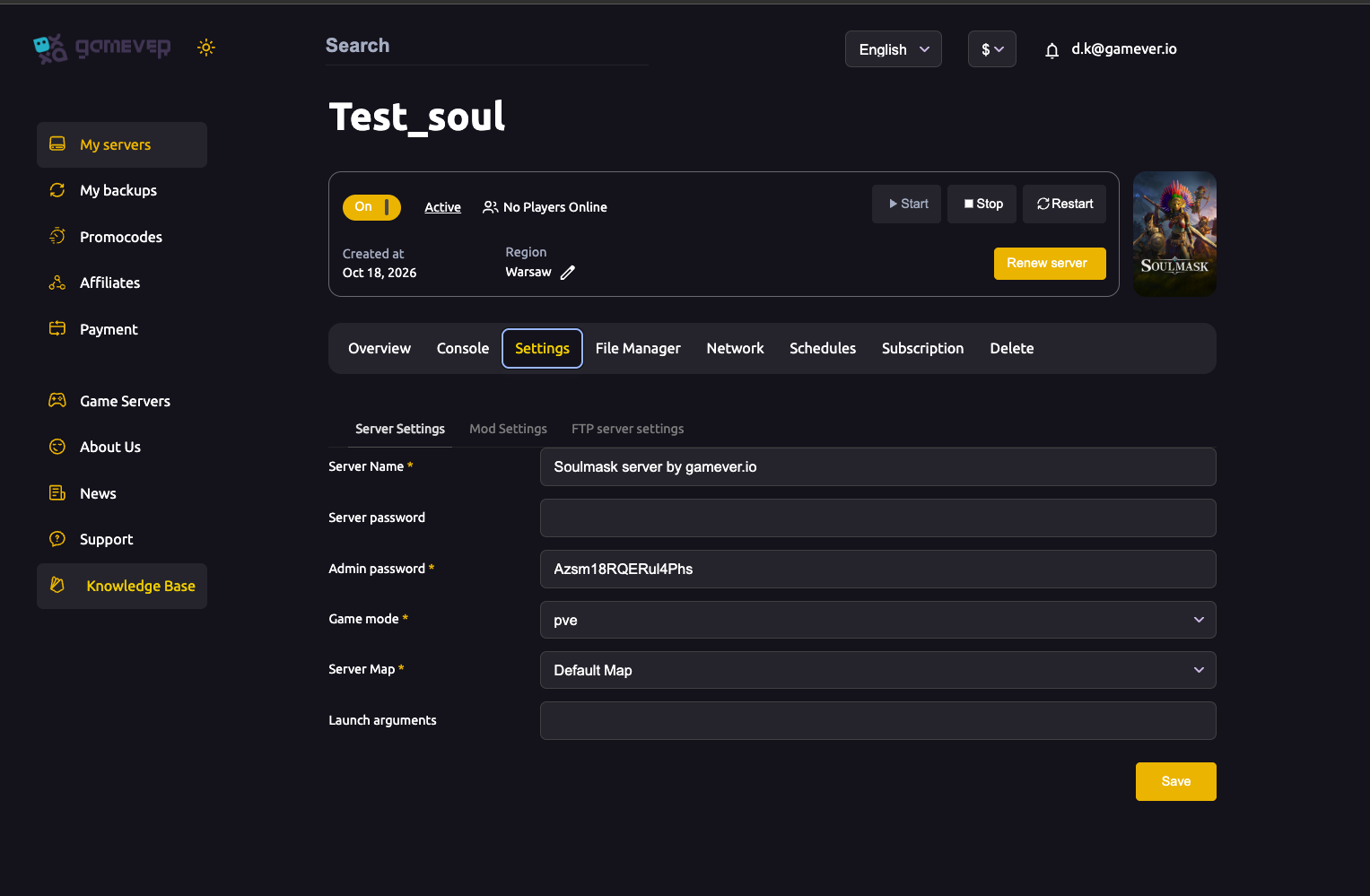
| Field | What it does |
|---|---|
| Server Name | The name shown in the server list — unaffected by the password. |
| Server password | Blank = public (anyone can join); set = players must type the password to connect. |
| Admin password | The in-game admin/GM password. This is not the join password. |
| Game mode | PvE or PvP. |
| Server Map | The world the server loads. |
To make the server private, type a password into the Server password field and leave everything else as it is.
Blank versus set
The field has only two meaningful states:
- Blank — the server is open. Anyone who can reach it in the browser or by direct connect can join with no password. This is the default for a new server.
- Set — the server is password-gated. Players are prompted for the password when they connect, and only those who type the correct one get in.
One honest caveat: a password controls who can join, not necessarily whether the server appears in listings. A password-protected Soulmask server can still show up in a browser or discovery list — but players without the password simply can't connect. Treat the password as an access gate, not an invisibility cloak. If you need the server fully hidden, that's a separate concern from the join password.
Server password versus Admin password
These are two different fields on the same tab, and mixing them up is the most common source of confusion:
| Server password | Admin password | |
|---|---|---|
| Controls | Who can join the server | Who can use admin/GM powers in-game |
| Who needs it | Every player | Only you and trusted admins |
| Effect of leaving it blank | Server is public | No admin access is granted by it |
| Where it's used | At the connect screen | Logged in inside the game |
The Server password is what your players type to get through the door. The Admin password is what you use, after you're already in the game, to unlock administrative controls — it does not let anyone join, and the join password does not grant admin. Set both deliberately and keep them distinct. For the admin side, see Admin access.
Save and restart
Settings changes take effect after a restart:
- Click Save at the bottom of the Server Settings form.
- Go to the Overview tab and click Restart.
- When the server is back up, the password is live — new connections will be prompted for it.
If you skip the restart, the server keeps running on its previous configuration and the password won't apply yet.
Sharing the password and joining
Once the password is set, share it privately with the people you want on the server — a direct message or a group chat, not a public post. Anyone with the password and your server address can join.
When a player connects to a password-protected server, Soulmask prompts for the password at the connect screen. They enter your server's address (the Server address shown on your panel's Network tab), and type the password into the password field; leaving it empty won't let them in while a password is set. Walk your players through the full connection flow in How to connect and join.
Additional Tips
- Pick something memorable but not guessable. A short passphrase your group can remember beats a complex string nobody can type correctly.
- Change it when membership changes. If someone leaves the group, set a new password and reshare it — anyone who kept the old one loses access on the next change.
- Never reuse the Admin password as the join password. Handing every player the admin password would give them GM powers. Keep the two values different.
- Share the address alongside the password. Players need both; your Network tab shows the current Server address to pass along with the password.
- Blank it to go public again. Clear the Server password field, Save, and Restart to reopen the server to everyone.
- Restart is required. Saving alone doesn't apply the change — always Restart from Overview afterward.
Conclusion
Making a Soulmask server private is a single field: go to Settings → Server Settings, type a value into Server password, then Save and Restart. Blank keeps the server public; a set password gates it so only people you've shared it with can join. Keep it separate from the Admin password — one is the join door, the other is in-game GM access — and share the password privately alongside your server address so your group can connect.
Rent your Soulmask server at gamever.io — the whole panel at your fingertips, so toggling between a private group and an open server is a thirty-second change. Free trial, promo code WELCOME.