
How to Set a Server Password on Your ARK Server

Want a private ARK server just for you and your friends? The quickest way is a join password: anyone connecting has to type it before they can get in, so random players browsing the server list can't join. ARK calls this setting ServerPassword, and it's a completely different thing from your admin password — a distinction that trips up a lot of new server owners. This guide shows how to set a join password in the gamever control panel, how it differs from the admin password, and the optional spectator password. It works the same on ARK: Survival Evolved and ARK: Survival Ascended.
The three ARK passwords (they're not the same)
ARK has three separate password settings, and they do completely different jobs. All three live under the [ServerSettings] section of your configuration and are managed from the panel's Settings → Server Settings tab:
| Setting | Config key | What it protects |
|---|---|---|
| Server password | ServerPassword | Who can join the server at all. Set it = private server. |
| Admin password | ServerAdminPassword | Who can run admin / cheat commands in-game (and it doubles as your RCON password on gamever). |
| Spectator password | SpectatorPassword | Lets a non-admin player enter spectator mode. Optional. |
The most important thing to understand: the server password controls joining, the admin password controls powers. Someone can join with the server password and still be a normal player — they don't get admin unless you give them the admin password separately. Never hand out your admin password to let someone join; that's what the server password is for.
Set your join password
- Open your server in the gamever control panel and go to Settings → Server Settings.
- Find the Server password field (
ServerPassword). - Type the password you want players to use. Leave it blank for an open, public server.
- Click Save. The panel applies it on the next restart.
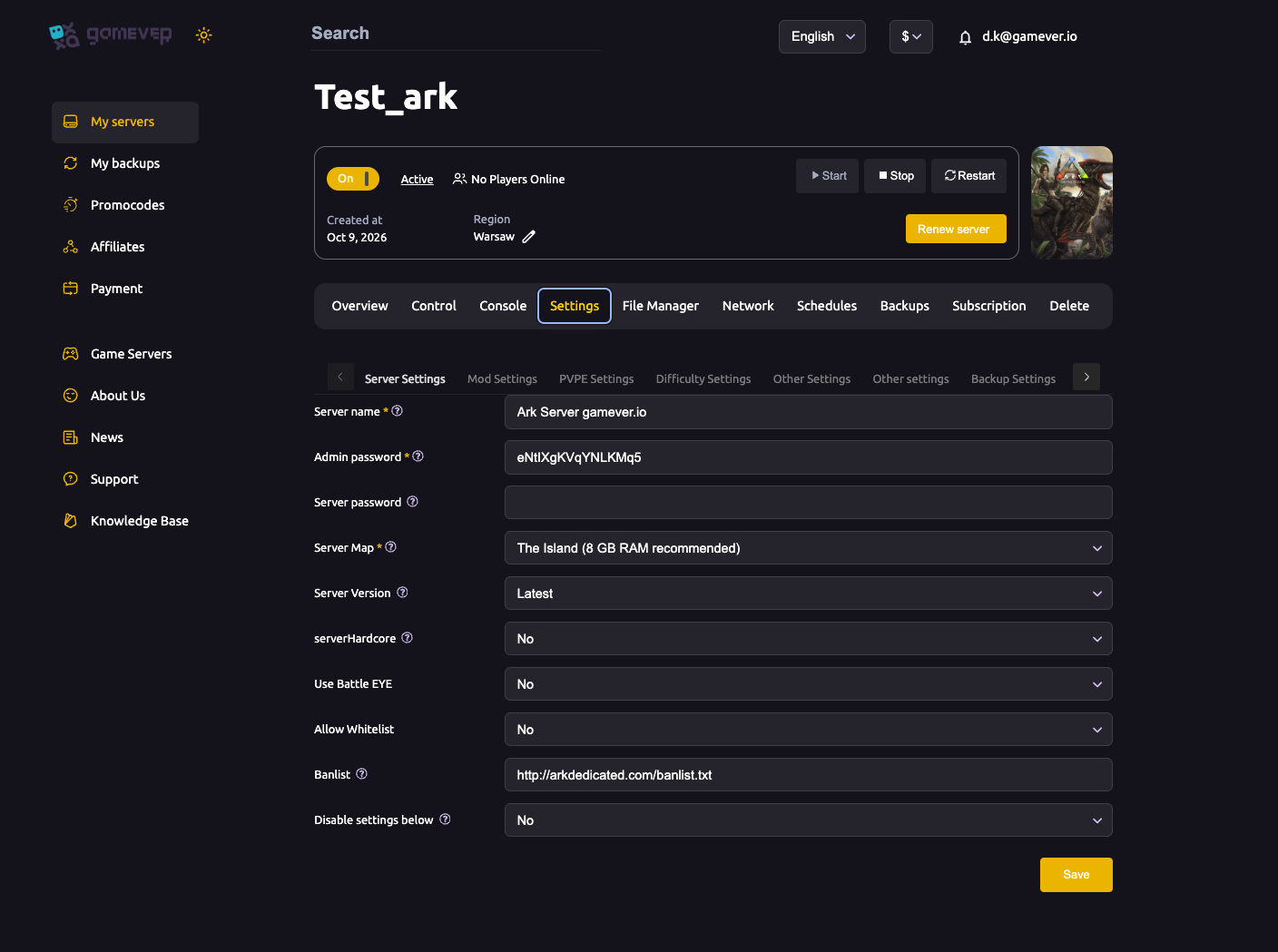
Once it's set, anyone selecting your server from the in-game session browser is prompted for the password before they can connect. Share it only with the people you want on the server.
Admin password vs. server password
It's worth repeating because mixing these up is the #1 password mistake on ARK servers:
ServerAdminPassworddoes not let anyone join. It's the password a player types into the in-game console (enablecheats <password>) to unlock admin and cheat commands — spawning items, flying, kicking players and so on. On a gamever server this same password is also your RCON password. Always set it, and keep it private.ServerPasswordis purely the gate at the front door. It decides who can connect; it grants no powers.
So a typical private-server setup is: a server password you share with your group, plus a separate admin password that only you (and any co-admins) know.
Optional: spectator password
If you want trusted players to be able to watch the action without a character — handy for event hosts or streamers — set the Spectator password field (SpectatorPassword). A player then opens the console and types requestspectator <password> to go into spectator mode, and stopspectating to return. This is separate from the admin password; admins can already spectate with cheat enablespectator and don't need it. Leave the field blank if you don't need spectators.
Making your server fully private
Setting ServerPassword is the core of it, but a couple of extra touches help:
- The password hides the server's contents, not its listing — a password-protected server still appears in the session list, just with a lock. That's normal; players simply can't get in without the password.
- Changed the password? Everyone currently connected stays on until they disconnect, but they'll need the new password to reconnect — so announce changes in advance.
Additional Tips
- Keep the server password and admin password different. If they're the same, every player you let in also has admin — exactly what you don't want.
- Use a strong admin password. It's also your RCON password (see our RCON setup guide), so anyone with it has total control of the server.
- Blank = public. Clearing the Server password field reopens the server to anyone. Don't leave it blank if you meant it to be private.
- Save and restart. Password changes apply on the next restart; use the panel's Control tab or Schedules to restart cleanly.
- Can't get friends in? A wrong or mismatched password is a common cause — see can't join troubleshooting.
Conclusion
A join password is the fastest way to lock an ARK server down to just your group: set ServerPassword in Settings → Server Settings, keep it separate from your admin password, and you've got a private world in under a minute. For the full list of options you can tune alongside it, see our server settings guide.
Rent your ARK server at gamever.io and manage every password from a one-click control panel — no file editing, instant restarts, and your world stays online 24/7. Free trial, promo code WELCOME.