
How to Set a Password on Your Core Keeper Server
By default, a Core Keeper server you rent from gamever is open: anyone who has your Game ID can join. If you want to keep the server to friends only, you set a join password, and then players must type it when they connect. The one thing to know up front is that the gamever panel's Settings page has no password field for Core Keeper — the password lives in a config file called ServerConfig.json, which you edit through the File Manager. This guide walks through exactly that: stop the server, edit one key, save, and start again.
Why it's in a config file, not Settings
The Core Keeper Settings tab in your panel exposes the common options — world seed, server name, world mode, season, and the mod.io fields — but it deliberately does not surface the join password or the player cap. Those two settings live in Core Keeper's own ServerConfig.json. That's not a limitation of your plan; it's just where Core Keeper keeps them. Editing the file over the web takes less than a minute, and once set the password sticks across restarts.
If you only need to change the seed, name, world mode or season, do that on the Settings tab instead — this guide is specifically for the password.
Step 1 — Stop the server
Core Keeper reads ServerConfig.json when it boots, so a change made while the server is running won't take effect, and in-use files don't always save cleanly. Go to the Overview tab and click Stop, and wait for the server to show as stopped before continuing.
Step 2 — Open the File Manager
Switch to the File Manager tab. For Core Keeper the config files live at the root path /home/configs/. In there you'll see two folders, mods and modloader, and two files: Admins.json and ServerConfig.json.
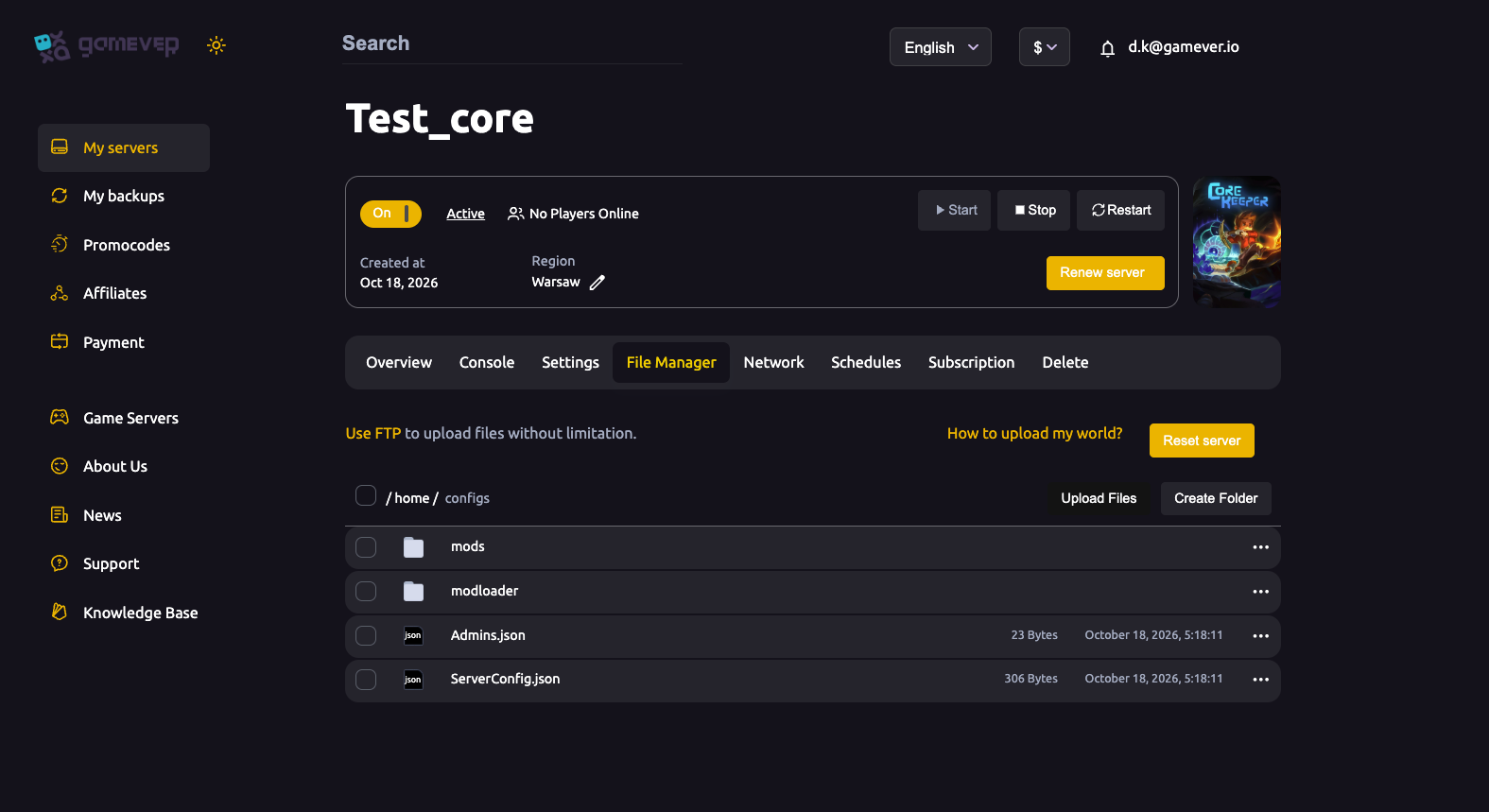
Click ServerConfig.json to open it in the editor. (If you'd rather use a desktop FTP client, grab your login from Settings → FTP server settings and connect to the FTP address shown on the Network tab — the file is in the same place.)
Step 3 — Edit the password key
ServerConfig.json is a small block of "key": value pairs. The ones you'll recognise from this guide are:
| Key | What it controls |
|---|---|
password | The join password. Blank = open server (anyone with the Game ID can join); set = players must enter it to connect. |
name | The server name shown to joiners. |
gameId | Pins a permanent Game ID; leave blank and the server generates a fresh one each boot. |
worldSeed | The seed used only when the world is first created. |
worldMode | The world type / difficulty. |
maxNumberPlayers | The player cap (co-op is designed around 8). |
Find the password line and put your password between the quotes, for example:
"password": "digsite2026",
To make the server open again later, simply clear the value back to empty quotes ("password": ""). Keep the surrounding quotes and the comma exactly as they were — ServerConfig.json has to stay valid JSON, so don't delete brackets or trailing commas by accident.
Step 4 — Save and start
Click Save in the editor, then go back to Overview and click Start. That's it — the new password is live from the next boot.
How players join once it's set
With a password set, nothing changes about how people connect — only that they'll now be prompted for the password. Core Keeper's primary join method is the Game ID: your players open Join Game → Join via Game ID, paste the ID, and then enter the password when asked. Direct Connect by IP works the same way, with the password prompt following the connection. Everyone across Steam, Epic, GOG, the Microsoft Store and Xbox shares the one Game ID, so a single password covers the whole group. For the full joining walkthrough, see connect via Game ID.
Reading the session line in the Console
You can confirm everything from the Console tab. Each time the server boots it prints a session line in the form:
IP;port;gameId;password
The gameId in that line is exactly what players paste to join, and the password field at the end reflects what you set in ServerConfig.json — a quick way to check your change actually took without leaving the panel. The Console also prints the world creation version (e.g. Ck130) and the activated content bundles at startup.
Additional Tips
- Blank means open. If you ever see unexpected players, check that
passwordisn't empty — an open server is the default, not a sign something broke. - Keep it valid JSON. The most common mistake is deleting a quote or comma. If the server won't start after an edit, re-open
ServerConfig.jsonand check the punctuation around your line. - Change the Game ID too, if needed. A password keeps strangers out, but if an old Game ID has leaked you can pin a new permanent one via the
gameIdkey, or clear it to regenerate on the next boot. - Back up before editing. Download
ServerConfig.json(and your numberedN.world.gzipsave) via the File Manager or FTP first, so a bad edit is easy to undo. - Admins are separate. The join password doesn't grant admin — admin identities are held in
Admins.jsonin the same folder. - Share the password privately. Send it to your group over a private channel, not in a public server listing or stream.
Conclusion
Core Keeper doesn't put the join password on the Settings page, but setting one is still a quick job: stop the server, open File Manager at /home/configs/, edit the password key in ServerConfig.json, Save, and Start. Blank leaves the server open to anyone with the Game ID; a set value means every joiner is prompted — and you can confirm it on the Console's session line. Pair it with the Settings tab for seed, name and mode, and point your friends at the Game ID guide to get them in.
Rent your Core Keeper server at gamever.io — full File Manager and FTP access so settings like this are always yours to change, plus one-click restores. Free trial, promo code WELCOME.