
How to See Who Is Online on Your Rust Server

Knowing exactly who is on your Rust server — their names, Steam IDs and ping — is the first step for almost every admin task: catching a cheater, grabbing the right ID before a ban, or just checking how busy the server is. On a gamever-hosted server you have two ways to do it: a one-glance player count on the Overview tab, and a set of console commands you run straight from the panel's Console tab. This guide covers both and shows how to read the output.
The quick way — the Overview tab
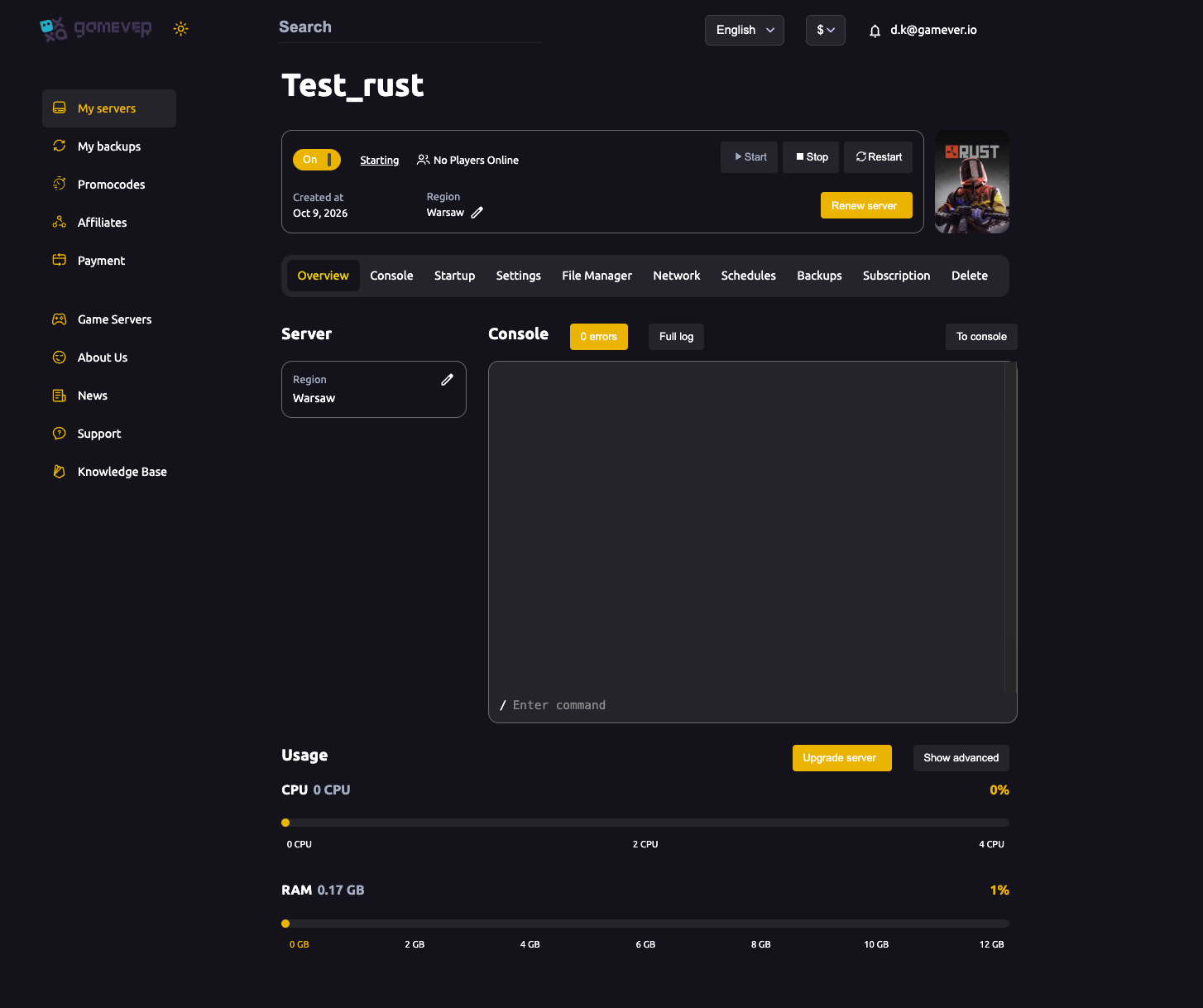
For a simple "how many people are on right now?" you don't need any commands. Open your server's Overview tab in the gamever panel and it shows the live player count (connected players against your maximum slots) alongside the server's running status. It's the fastest way to see at a glance whether anyone is on before you dig deeper.
The console commands — names, IDs and ping
When you need detail — names, Steam IDs, ping, connection time — use the Console tab. It's already connected and authenticated to your server, so you just type a command and read the reply. (The same commands also work over WebRCON from a tool like RustAdmin or BattleMetrics.)
Three commands list connected players, each with a different level of detail:
| Command | What it shows |
|---|---|
status | The richest view: a header (hostname, version, map, Total/Max/Queued/Joining counts) followed by one row per player — Steam ID, name, ping, connected time, address, owner/auth level, violation level and kick count. |
players | A quick table of connected players (id, name, ping and a few network columns). Names longer than 15 characters are truncated — use users for the full name. |
playerlist | Structured output (an array of records per player: SteamID, DisplayName, Ping, Address, ConnectedSeconds and more) — handy for tools and bots that parse it. |
A fourth command, users, prints each connected player's Steam ID and full profile name plus the total count — useful when players has cut a long name short.
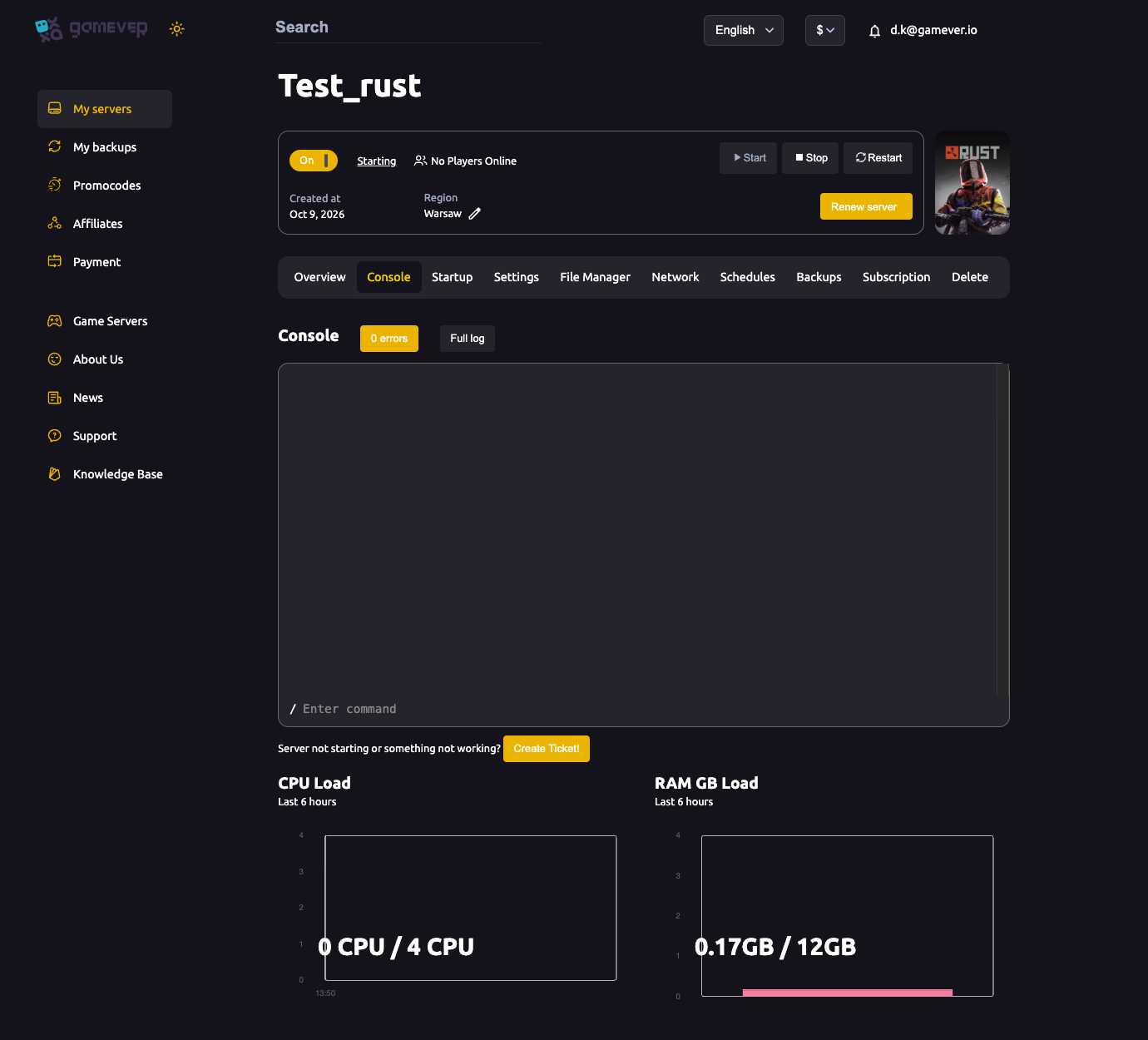
For most admin work, status is the one to remember: it gives you everything in a single readout.
Reading the output
In a status readout, each player line gives you the three things you'll use most:
- Steam ID (the
idcolumn) — the 17-digit SteamID64. This is the value to copy for a kick, ban, or for granting admin — never the display name, which a player can change or copy from someone else. - Name — the player's current display name.
- Ping — round-trip latency in milliseconds. Consistently high ping (or players stuck "Joining") can point to connection trouble on their end or a laggy server.
Vanilla Rust restricts these player-list commands to admins and moderators, so run them from the panel Console (which has full rights) or as an authed admin — see setting admins and moderators if a command comes back empty in the in-game F1 console.
Before you kick or ban
Always list players first, then act on the Steam ID you copied. Rust's kick and ban commands accept a name or an ID, but matching on the exact Steam ID avoids hitting the wrong person when two players use similar names:
kick "<SteamID64>" "<reason>"
ban "<SteamID64>" "<reason>"
Pull the ID from status or playerlist, paste it in, and you've banned exactly who you meant to. Moderators can kick and ban; granting those rights is covered in how to set admins and moderators.
Additional Tips
- Use
statusas your default — one command gives you names, Steam IDs, ping and connection time together. - Copy the Steam ID, not the name, before any kick or ban — names aren't unique and can be spoofed.
- Watch the ping and "Joining" columns — stuck-joining players or very high ping often explain "I can't connect" complaints.
- The Overview tab is enough for a quick head-count — no command needed.
- Run player-list commands as an admin — on vanilla servers they're limited to admins and moderators; the panel Console is already authed.
Conclusion
Seeing who's on your Rust server takes seconds: glance at the Overview tab for a live player count, or run status (or players / playerlist) in the Console tab for names, Steam IDs and ping. Grab the Steam ID from that list before you kick or ban, and you'll always act on the right player.
Rent your Rust server at gamever.io — a built-in web console, WebRCON on by default and a live Overview dashboard, so you always know who's online. Free trial, promo code WELCOME.