
How to Safely Edit and Reset Player Data on Your Minecraft Server
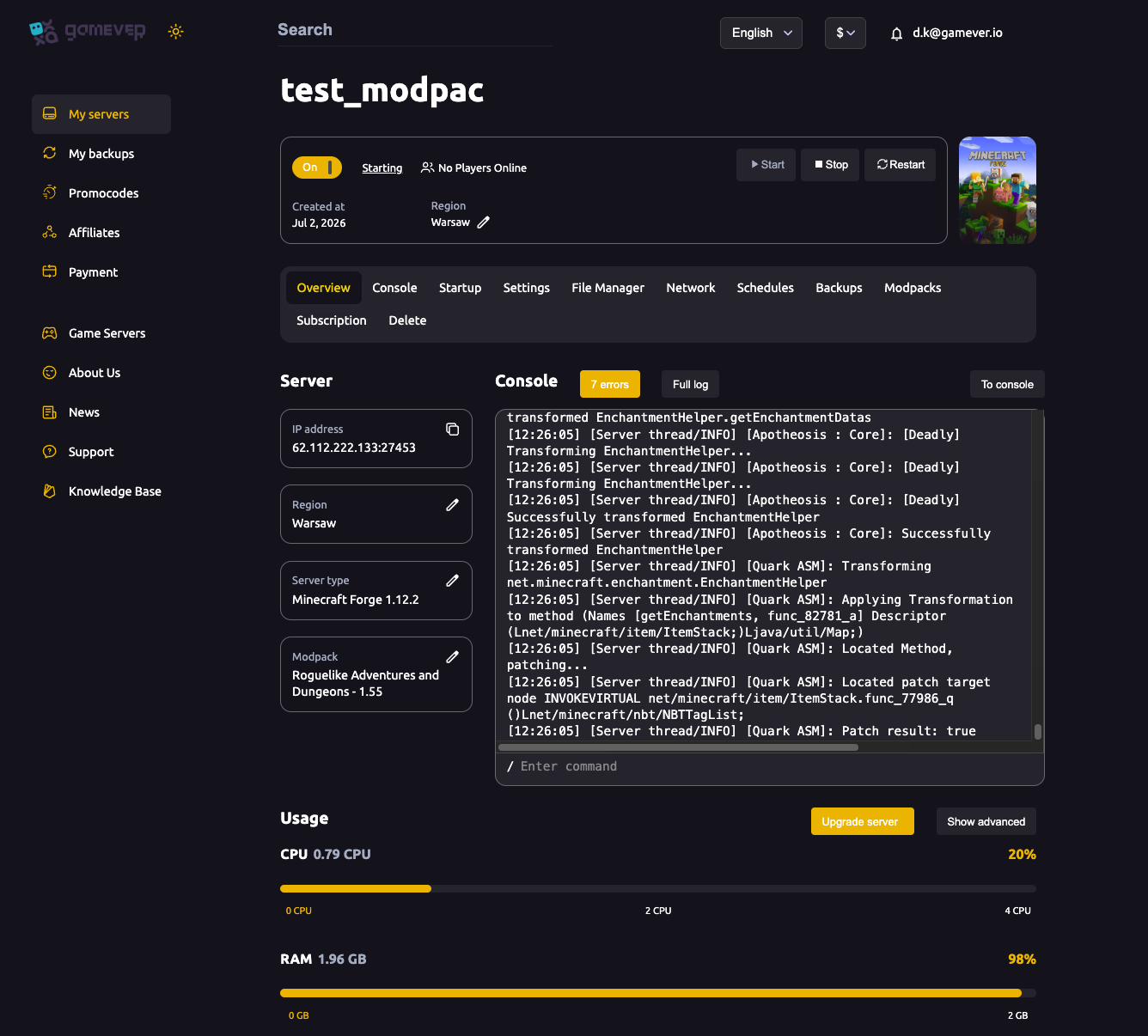
Every player on your Minecraft Java server has a small save file that records where they are, what's in their inventory, their health, XP and game mode. Sometimes you need to touch it — a player is stuck in a wall, spawned in the void, or you want to clear a problem item. This guide shows where that data lives on your gamever server, how to reset a stuck player the safe way, and why you should almost always reach for an in-game command before hand-editing the raw file. The golden rule throughout: back up first, because a half-edited .dat file corrupts just as easily as a full world.
Where player data lives
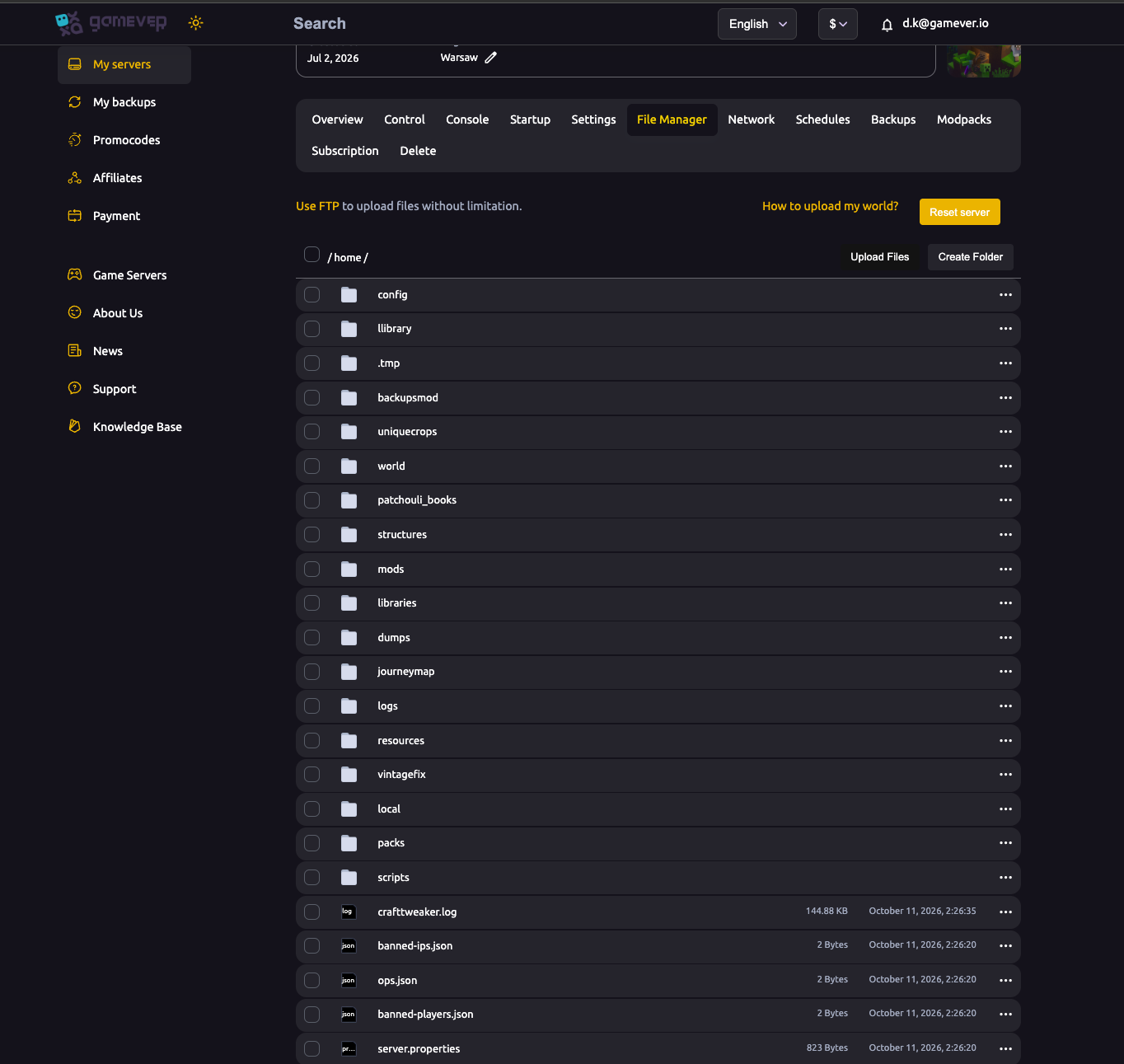
On a gamever server your world sits in the world/ folder at the server root, and each player's save is inside it. Open the File Manager tab and browse to /home/world/:
| Path | What it holds |
|---|---|
world/playerdata/<uuid>.dat | One file per player — position, inventory, health, XP, game mode — stored in NBT (Minecraft's binary format). Files are named by the player's UUID, not their username. |
world/stats/<uuid>.json | That player's statistics (blocks mined, distance walked, and so on). |
world/advancements/<uuid>.json | That player's advancement progress. |
Because the filenames are UUIDs, not names, you first need to know which file belongs to which player — see Finding a player's UUID below.
Prefer commands over editing the raw file
Hand-editing a .dat file means opening NBT data in a special editor, and one wrong tag can corrupt the file so the player can't log in at all. For almost everything you'd want to change, Minecraft already has a safe, built-in command you can run from the Console (Overview or the Console tab) or in-game as an operator:
| Command | Use it to |
|---|---|
/clear <player> | Remove items from a player's inventory (optionally a specific item). |
/give <player> <item> | Give a player an item — the clean way to restore something. |
/data get entity <player> | Read a player's NBT data safely, without editing anything. |
/data modify entity <player> ... | Change a specific piece of a player's live data while they're online. |
/gamemode <mode> <player> | Fix a wrong game mode. |
/xp set <player> ... | Correct experience levels. |
These act on the live player and let the game write the save correctly, so they can't leave a half-written file behind. Reach for the raw .dat only when there's genuinely no command for the job.
Resetting a stuck player
If a player is trapped in terrain, fell through the world, or their save won't load, the reliable fix is to delete their playerdata file. When their file is gone, Minecraft treats them as brand new on next join: they respawn at the world spawn with an empty inventory. This wipes their inventory, position and XP, so only do it when a reset is genuinely what you want — and back up first.
- Take a backup. Make a snapshot from the Backups tab, or download the whole
world/folder over FTP. This is your undo button. - Stop the server. Use the Start/Stop controls on Overview. Never edit or delete save files while the server is running — it's still writing to them.
- Delete the player's file. In the File Manager, go to
/home/world/playerdata/and delete that player's<uuid>.dat. (If you also want to clear their stats and advancements, remove their matching<uuid>.jsonfiles inworld/stats/andworld/advancements/.) - Start the server. The player rejoins as if for the first time, respawning fresh at spawn.
If you'd rather fix one specific thing — teleport them out, empty one item — try a command first with the server running, and only fall back to deleting the file if that isn't enough.
Finding a player's UUID
Since playerdata files are named by UUID, you need the player's UUID to find the right one. The quickest source is ops.json in your server root: when you run /op <name>, Minecraft records that player's username and UUID together there, so an operator's UUID is already written down for you. For any player who has joined, you can also look the UUID up from their username with a public Mojang UUID lookup, or match it to the name shown in your server logs. You may also see a usercache.json in the root — it's a lookup cache the server maintains on its own; leave it alone rather than editing it by hand.
Additional Tips
- Back up before you touch anything. A corrupted
.datis unrecoverable without a copy — a backup turns a disaster into a five-minute restore. - Always stop the server first before deleting or editing any save file.
- Prefer a command to a file edit —
/clear,/give,/dataand/gamemodeare safe; raw NBT editing is not. - Match the UUID, not the name. Deleting the wrong
.datresets the wrong player — confirm the UUID fromops.jsonor a lookup first. - Deleting a
playerdatafile is a reset, not a repair — it clears inventory, position and XP. Keep that in mind before using it on a player who hasn't asked for a fresh start. - Managing who's an admin or banned? That lives in separate JSON files — see operators, whitelist and bans.
Conclusion
Player data on your Minecraft server lives in world/playerdata/<uuid>.dat, one UUID-named file per player. For most fixes an in-game command — /clear, /give, /data, /gamemode — is safer and faster than opening the raw NBT. When a player is truly stuck, back up, stop the server, delete their playerdata file, and start again so they respawn fresh. Backup first, stop first, and you can hand player problems without risking the world.
Rent your Minecraft Java server at gamever.io — a full File Manager, a live console for every command, and one-click Backups so editing player data is always safe to try. Free trial, promo code WELCOME.