
How to Run a Minecraft Snapshot Server to Test the Next Version
Snapshots are Mojang's early builds of the next Minecraft update — the unstable development versions they ship, usually about once a week, so players can try new blocks, mobs and mechanics before release. Running one on a server lets you and your group test the upcoming version together instead of waiting. This guide shows how to set up a snapshot server in your gamever panel, why you must never point it at your real world, and what to expect from plugins and mods while you're on a snapshot.
What a snapshot server actually is
A snapshot is an unstable development version of a Java Edition update. It's meant for feedback and testing, not for your main survival world, and things can and do break between one snapshot and the next. The wider release cycle looks like this:
| Build type | What it means |
|---|---|
| Snapshot | A weekly development build, identified by a year-week-letter code (for example 24w44a). The most experimental stage. |
| Pre-release | Issued once the update is feature-complete, written like 1.21.4-pre1. More stable than a snapshot. |
| Release candidate | The intended final build before launch (1.21.4-rc1), barring a game-breaking bug. |
Snapshots are Java Edition only — there is no snapshot track for Bedrock servers (Bedrock uses separate beta/preview builds). Everything below assumes a Java server.
Back up first — and test on a COPY of your world
This is the one rule that matters most. Opening a world in a snapshot upgrades its save data to that version, and the change is not reversible. Once a snapshot has written to a world, older releases may refuse to load it, and in the worst case the world won't open in any version again. Minecraft even flags existing worlds in the world list to warn you before you load them in a development build.
So never test on your live world. Instead:
- Back up your main world first — use the Backups tab or download the
world/folder over FTP from the File Manager. - Work on a copy. The safest setup is a separate snapshot server (a second gamever server, or your trial server) that starts with a fresh world. If you want to test against your existing map, upload a copy of the world folder there — never the only copy you own.
- Treat the snapshot world as disposable. When the real update lands, start clean on your main server rather than migrating the snapshot save back.
Set the snapshot version in the panel
Snapshots are vanilla builds, so you select them through the same Change server type dropdown and Server Version field you'd use for any version change — no new purchase, no self-install.
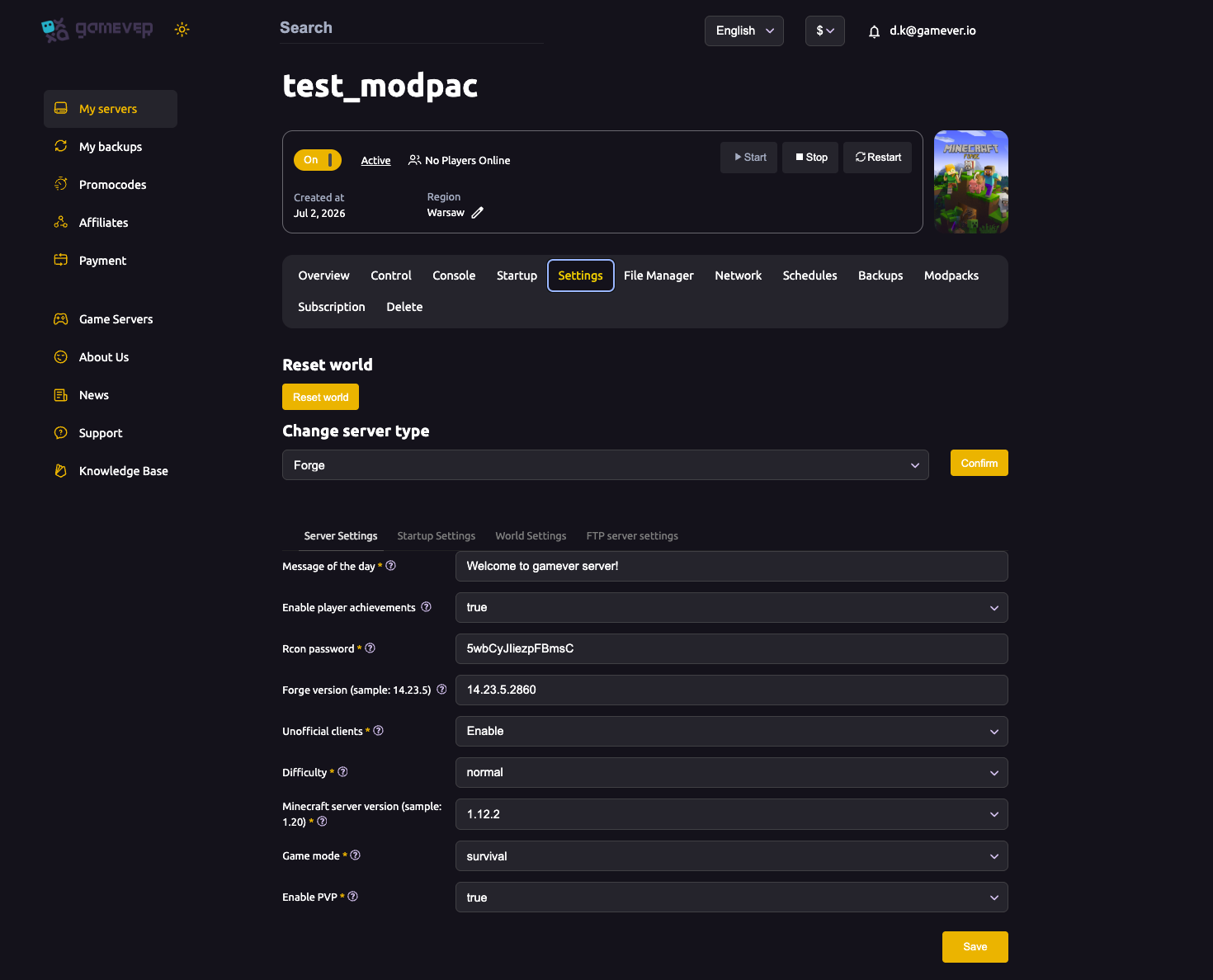
- Open the Settings tab and set the Change server type dropdown to Vanilla (snapshots run on the vanilla jar), then click Confirm.
- Go to the Startup sub-tab and put the snapshot identifier in the Server Version field — the snapshot code (
24w44a), pre-release (1.21.4-pre1) or release candidate you want to test. - Let the server reinstall so the new version is downloaded — version changes apply on reinstall, not on a plain restart (see startup settings).
If your panel won't accept a specific snapshot string, or you're not sure which identifier to enter, open a Support ticket and we'll help you get the right build installed.
Plugins and mods usually don't follow snapshots
Snapshots change the game's internals week to week, so server platforms and mods generally don't support them. Paper, Spigot and most plugins target stable releases and will typically refuse to start, or break, on a snapshot build. Forge and Fabric mods are built against specific stable versions too, and the modding toolchains often lag behind the newest snapshots by a while.
In practice this means a snapshot server is almost always a plain Vanilla server for testing new game features — not the place to try your plugin stack or modpack. If you need plugins or mods, stay on the matching stable release and its server type; see install mods & plugins for that path.
Additional Tips
- Tell your players to enable snapshots. In the Minecraft launcher they must tick Enable snapshots in the profile/installation settings and launch the matching version — a normal client can't join a snapshot server.
- Match the client to the server exactly. Snapshots aren't cross-compatible; everyone needs the same snapshot code you set in the panel.
- Keep the snapshot and your main server separate. Run tests on a second or trial server so a broken snapshot never touches your live community.
- Switch back cleanly. When you're done, set the Server Version back to your stable release and reinstall — and keep using your backed-up world, not the snapshot save.
- Expect breakage. Snapshots can crash, drop features or corrupt saves between builds. That's normal; it's why they're for throwaway test worlds.
Conclusion
A snapshot server is the best way to preview the next Minecraft update with your friends before it launches. Set the server type to Vanilla, drop the snapshot identifier into the Server Version field, and let it reinstall — all from your gamever panel. Just remember the golden rule: snapshots can upgrade and corrupt a world irreversibly, so always back up first and test on a copy, never your real save. And don't expect plugins or mods to come along for the ride — a snapshot server is a vanilla test bench.
Rent your Minecraft Java server at gamever.io — switch to a snapshot and back to stable from one panel, with one-click backups so your real world is always safe. Free trial, promo code WELCOME.