
How to Run a Custom Server Jar on Your Minecraft Server
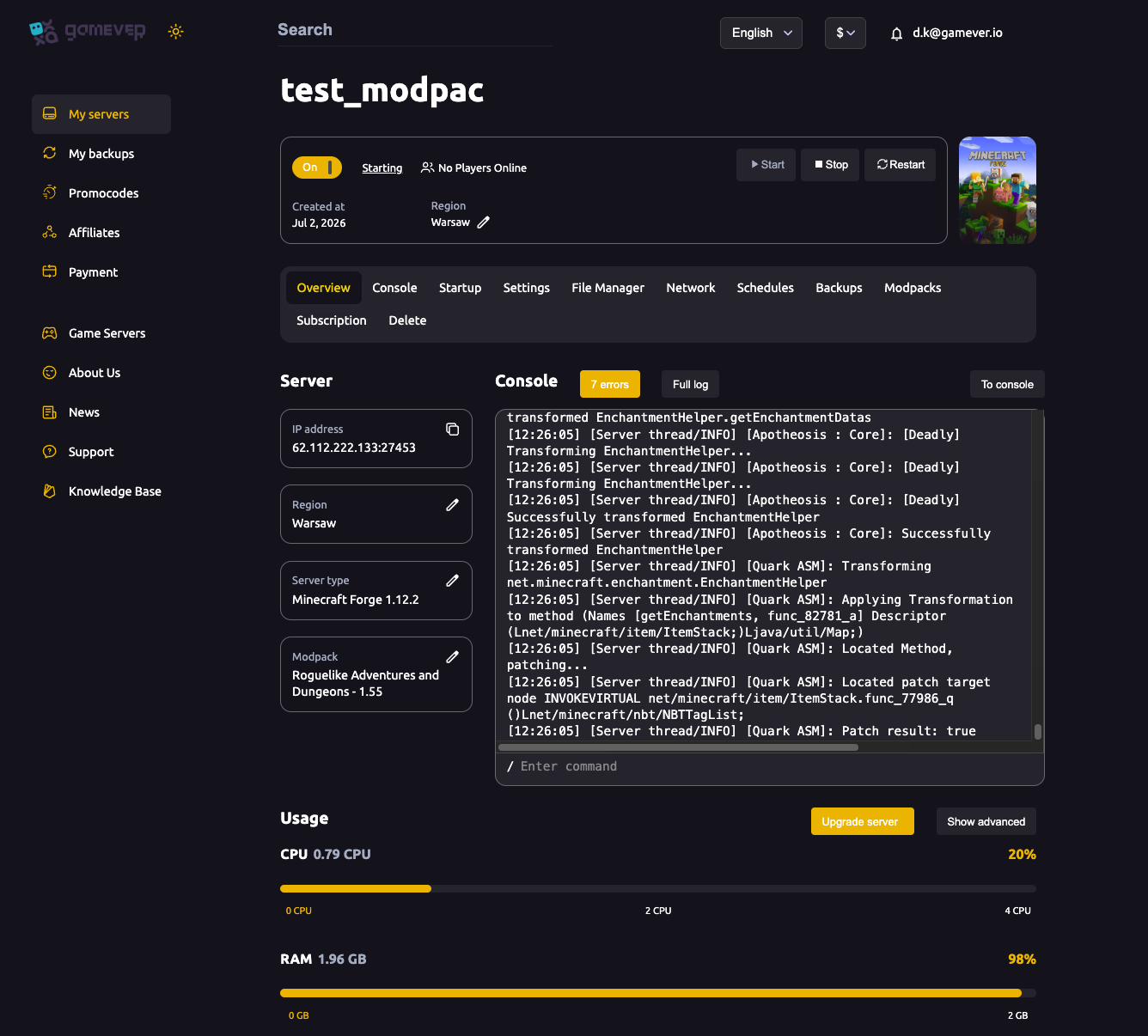
The Change server type dropdown covers the common builds — Vanilla, Forge, Fabric, Paper. But the Minecraft ecosystem is full of community forks that aren't on that list: performance forks of Paper like Purpur or Pufferfish, Forge-plus-Bukkit hybrids like Mohist or Arclight, and other experimental or custom-compiled jars. Your gamever panel can run these too, using the Custom server jar field on the Startup tab. This guide shows how to upload a jar, point the server at it, match the Java version, and read the console to confirm it booted — all from the panel, with no self-hosting.
When you need a custom jar
If the build you want is already in the Change server type dropdown, use that — it's the supported, one-click path (see change server type). Reach for a custom jar only when your build genuinely isn't listed, for example:
| Kind of build | Examples |
|---|---|
| Paper performance forks | Purpur, Pufferfish, Folia |
| Forge + Bukkit hybrids | Mohist, Arclight, Magma |
| Sponge platforms | SpongeForge, SpongeVanilla |
| A specific self-compiled or pinned jar | a build you've prepared yourself |
These are third-party, unofficial builds. They can be a great fit for a specific plugin or mod setup, but they are not maintained by Mojang or by us — treat running one as at your own risk (more on that below).
Step 1 — Upload the jar via File Manager
Download the server jar you want from its own official project site, then put it on the server using the panel:
- Open the File Manager tab (or connect over FTP — see the getting-started guide).
- Upload the
.jarinto your server's root folder (/home/), alongsideserver.properties. - Note the exact filename — it's case-sensitive and must match later (for example
purpur-1.21.jar).
Everything here happens inside the panel's File Manager; there's no SteamCMD, shell script or router step involved.
Step 2 — Point the Custom server jar field at it
Open the Startup tab. The Custom server jar field accepts either a direct download URL or the path/filename of a jar already on the server. Since you've just uploaded the file, enter its filename:
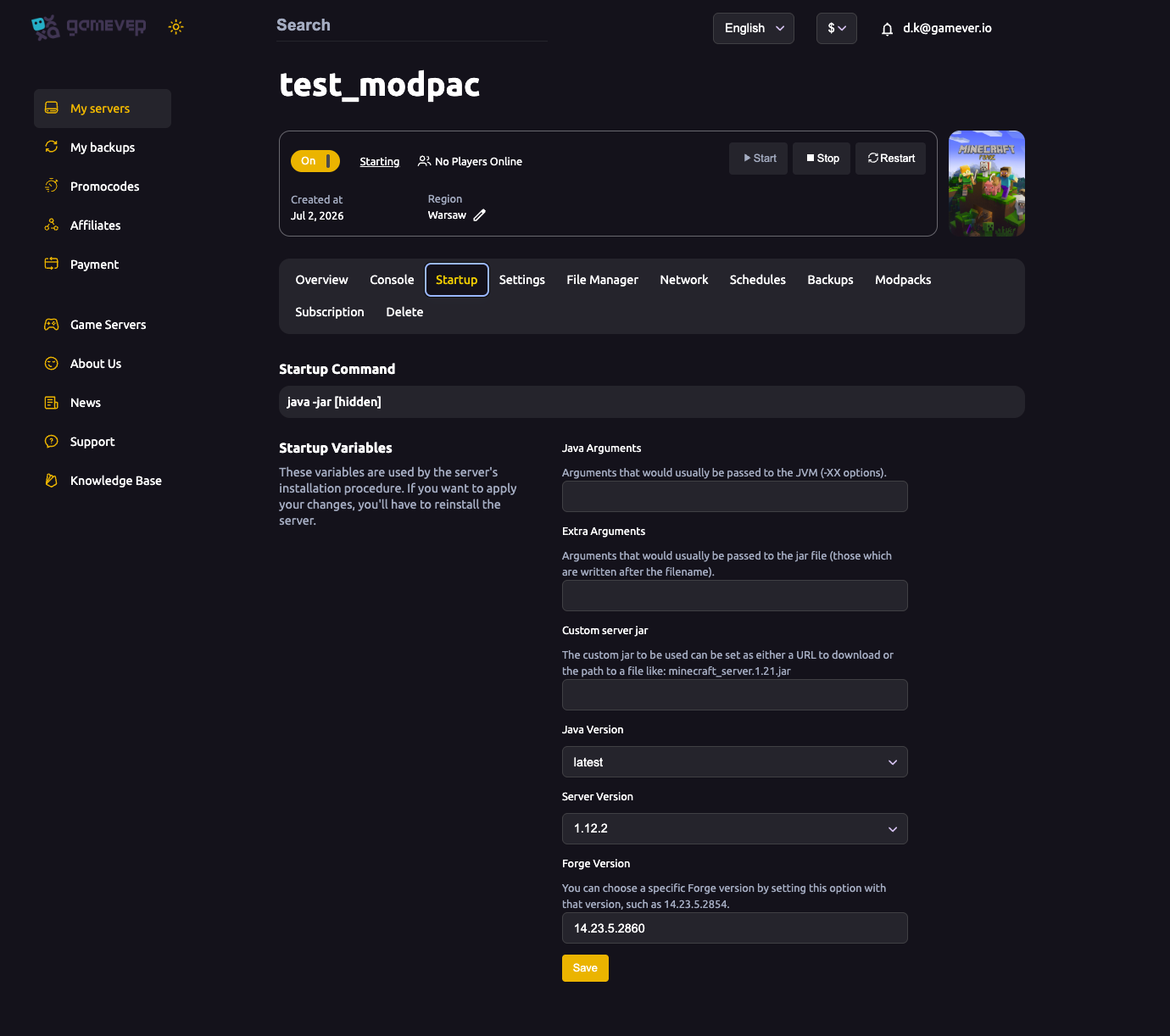
- Put your jar's filename (e.g.
purpur-1.21.jar) in Custom server jar. - Leave the field blank at any time to go back to the managed install for your selected server type.
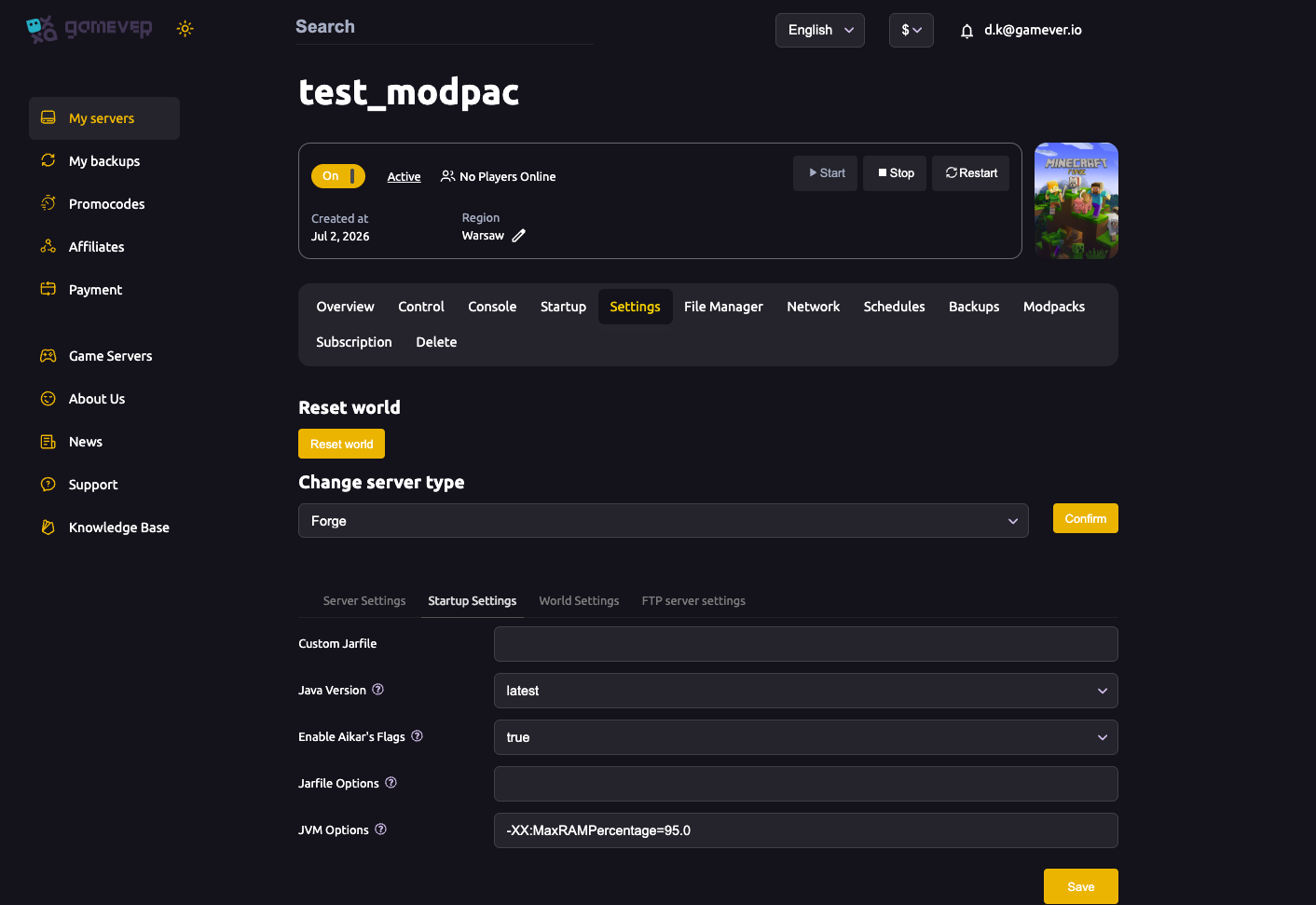
The same value appears as Custom Jarfile on the Settings → Startup Settings sub-tab — they refer to the jar your server launches.
Step 3 — Match the Java version, then reinstall
A forked jar still targets a specific Minecraft version, and Minecraft versions are tied to Java versions — current releases expect Java 17/21+, while older builds (1.12.2 and earlier) need an older Java. Set the Java Version dropdown to the one your jar requires (see startup settings & Java for the full field reference).
Startup variables apply on reinstall, not on a plain restart — the panel states this directly: "These variables are used by the server's installation procedure. If you want to apply your changes, you'll have to reinstall the server." So after setting the jar and Java version, let the server reinstall.
Step 4 — Start and read the console
Start the server and watch the Console tab as it boots. A healthy start prints the build's name and version and ends with Done (...)! For help, type "help". If it fails, the console is where the reason shows up — the most common ones are:
- Wrong Java version — a
UnsupportedClassVersionErroror an exit before the world loads usually means the jar needs a different Java; change the dropdown and reinstall. - Filename mismatch — the console reports it can't find the jar if the name doesn't match exactly what you uploaded.
- The jar simply doesn't run on this version — forks support specific Minecraft versions; check the project's own notes.
Since Paper forks (Purpur, Pufferfish) run Bukkit/Spigot plugins and the Forge hybrids load mods, you install those the normal way once the server is up — see install mods & plugins.
A note on support and risk
Custom jars are community software we don't build or test, so they're unsupported and used at your own risk. Mojang's EULA still applies to any server you run. Because a fork can behave differently from the stock build, back up your world before you switch to one, test on a trial or second server first, and keep the jar updated from its official source. If a custom jar misbehaves, the quickest recovery is to clear the Custom server jar field and reinstall to return to a managed build.
Additional Tips
- Only download jars from the project's own official site — never a random re-upload — and keep them updated.
- Match Java to the jar's Minecraft version — the number-one cause of a server that won't boot.
- Reinstall to apply — jar and Java changes take effect on reinstall, not a restart.
- Back up first. A fork can change world data; grab a backup before switching and keep a copy of your
world/folder. - Blank the field to revert. Clearing Custom server jar and reinstalling returns you to the managed install for your server type.
- Prefer the dropdown when you can. If Vanilla, Forge, Fabric or Paper already covers you, the supported path is easier to keep running.
Conclusion
Running a custom or forked server jar on gamever is a four-step panel job: upload the .jar in File Manager, enter its filename in the Custom server jar field on the Startup tab, set a matching Java Version, and let the server reinstall — then confirm the boot in the Console tab. It's the way to run a build the Change server type dropdown doesn't list, from Purpur to Mohist. Just remember these are unofficial, unsupported builds: back up first, test on a throwaway server, and clear the field to fall back to a managed install if anything goes wrong.
Rent your Minecraft Java server at gamever.io — drop in a custom jar, pick your Java version, and read the live console, all from one panel, with one-click backups to keep your world safe. Free trial, promo code WELCOME.