
How to Roll Back or Change Your V Rising Server Version
Most of the time your V Rising server should run the latest build — a restart pulls it automatically, as covered in updating your server. But occasionally you want the opposite: pin the server to an older version. A new patch might break a mod you depend on, destabilise your world, or change rules you weren't ready for. V Rising supports this through Steam's legacy branches, and on a gamever server the switch is handled for you by Support. This guide explains when to roll back, which legacy versions exist, and how to request the change safely.
Rolling back is not the same as updating
Updating is the easy, routine path — restart and the server moves to the current build (see updating & versions). Rolling back is deliberate and rarer. You'd do it when:
- A new patch introduces a bug that affects your server or a specific feature your clan relies on.
- A mod hasn't been updated for the newest build and you want to stay on the version it supports until it catches up.
- You want to open an old save — a world from an earlier release that the current version can no longer load.
A word of warning before you start: legacy versions can't read saves made on newer versions. A world advanced on the current build will not open on an older one, so rolling back is really about staying on, or returning to, a version your save already matches.
V Rising's legacy branches
V Rising exposes a set of public legacy Steam branches, each tied to a past content release. The current branch is the default (no branch selected); the named legacy branches below exist specifically so older saves and servers keep working:
| Branch | Version it pins to |
|---|---|
| (default — none) | The current live release (1.1 — Invaders of Oakveil) |
legacy-1.0.x | The 1.0 Launch build |
legacy-0.6.x | Secrets of Gloomrot |
legacy-0.5.x | Early Access |
These names come from Stunlock's own help center, so when you ask Support to change versions you can name the exact branch you need. If you only know the content update ("we want to stay on Gloomrot"), that's enough — Support can map it to the right branch.
How to change the version on a gamever server
The gamever V Rising panel is built around running the current build — the Settings page is a single page with no version or beta-branch field, because a normal restart keeps you up to date. To pin the server to a legacy branch instead, open a Support ticket and tell us:
- Which branch or version you want (e.g.
legacy-1.0.x, or just "the 1.0 Launch build"). - Why — a broken patch, mod compatibility, or an old save — so we can advise if there's a simpler fix.
- Confirm you've backed up (see below).
We'll switch the server onto the branch and reinstall it on that version. You stay in control of everything else — settings, world, admins — exactly as before.
Back up your world first
Changing branches reinstalls the server files for the target version, so always take an off-server backup before you ask for the switch — and keep it until you're sure the rolled-back server is behaving.
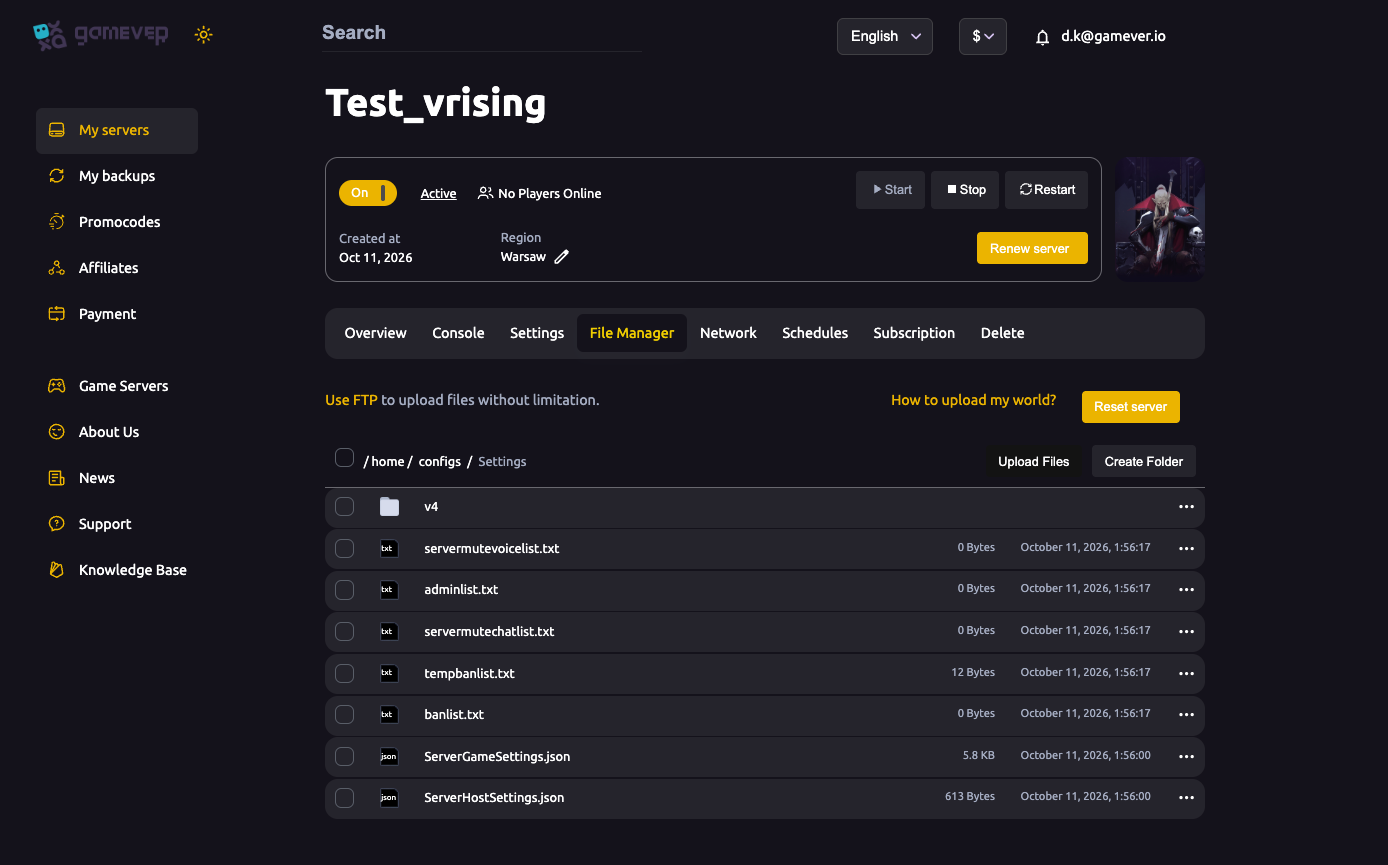
The backup routine is the same one covered in backup & restore: Stop the server, download the save folder from the File Manager or over FTP, and keep that copy safe. If the rollback doesn't go the way you hoped, you have a clean save to restore. Because a legacy build can't read a newer save, this copy is also your only way back to exactly where you were.
Players have to match the branch too
A server on a legacy branch only accepts clients on the same branch. So once your server is pinned:
- Each player switches their own Steam client to the matching legacy branch (Steam → V Rising → Properties → Betas → pick the branch; None returns to the current version).
- Join by direct IP. Servers on an outdated version may not show in the in-game browser, so share your server address (from the Network tab) and have players connect directly.
- Everyone must be on the same build — the usual version-mismatch rule from updating & versions still applies, just pointed at an older build.
Additional Tips
- Note your current version before a risky update so you know which legacy branch to request if you need to go back.
- Back up first, every time — a rollback reinstalls the server and a legacy build can't read a newer save.
- Prefer a fix over a rollback when a patch misbehaves — a config tweak or a restart often clears it; Support can advise.
- Tell players ahead of time so they switch their Steam branch and don't get locked out by a mismatch.
- Plan your return to current — when the reason for rolling back is resolved (mod updated, patch fixed), open another ticket to move back to the live build.
Conclusion
Rolling a V Rising server back is a deliberate move, not the routine update a restart gives you. V Rising provides public legacy branches for its past releases, and on gamever a quick Support ticket pins your server to the one you need — after you've taken a backup, because an older build can't read a newer save. Tell your clan to switch their Steam branch to match, connect by IP, and you can sit out a troublesome patch until it's safe to come forward again.
Rent your V Rising server at gamever.io — restart-to-update by default, and a responsive Support team to pin a legacy version whenever you need one. Free trial, promo code WELCOME.