
How to Restore a Backup on Your Palworld Server
Hours of catching pals and building bases deserve protection. gamever snapshots your Palworld server so a bad update, a griefer, or a corrupted save is never permanent. This guide covers restoring from the Backups tab, and the more surgical route of restoring world data and character saves separately over FTP when you only want to roll back part of your world.
Method 1 — restore from the Backups tab
The quickest way back is the dedicated Backups tab on your server (and My backups in the sidebar), reachable from the tab bar alongside Overview, Console, Settings and the rest:
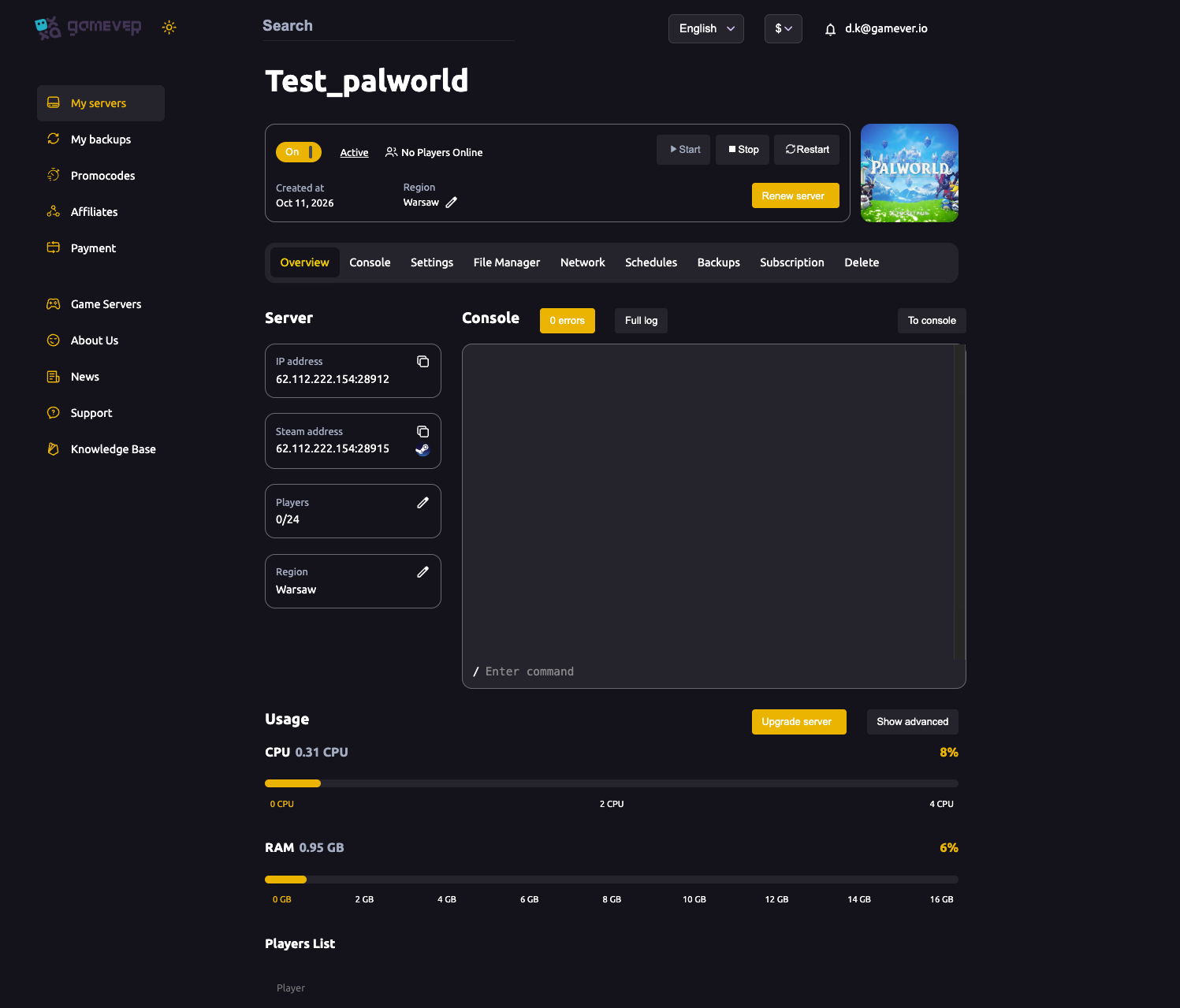
- Open the Backups tab.
- Pick the snapshot from before things went wrong.
- Restore — the server rolls the world back to that snapshot and restarts on it.
A restore overwrites the current world, so if there's any chance you'll want "now" back, take a fresh backup first. This is the right tool for a whole-server roll-back.
Understanding Palworld's save layout
Before restoring files by hand, it helps to know that a Palworld world and its characters are stored separately. Under the File Manager, saves live at:
Pal/Saved/SaveGames/<SteamID>/<WorldID>/
Inside that <WorldID> folder:
| What | Where | Contains |
|---|---|---|
| World data | the <WorldID> save files | the shared world: bases, maps, the server's progression |
| Character saves | the Players/ subfolder | each player's character — one file per player |
Because they're separate, you can roll back the whole world or just a single player's character — which is what the FTP route below is for.
Method 2 — restore world vs. character saves over FTP
If you only want to restore part of the world — say, bring back one player's character without undoing everyone else's progress, or restore the world while keeping current characters — use FTP:
- Stop the server first so the save files aren't being written while you copy them.
- Connect over FTP (see using an FTP client) and open
Pal/Saved/SaveGames/<SteamID>/<WorldID>/. - Restore what you need from your backup copy:
- World only — replace the
<WorldID>world files, leave thePlayers/folder as-is. - One or all characters — replace the relevant file(s) inside
Players/.
- Start the server and verify everyone can rejoin on the restored data.
Keep the SteamID / WorldID folder structure identical — character files are tied to that path, so dropping them in the wrong folder means Palworld won't find them.
Mind the config overwrite
If your restore involves the server config (PalWorldSettings.ini) and you're hand-editing it over FTP, remember the Overwrite config file setting in Settings → Server settings: when it's true, the panel rewrites PalWorldSettings.ini from the panel fields on restart, wiping your hand edits. Set it to false before restoring a hand-edited config, or make the changes through the panel fields instead.
Additional Tips
- Backups tab for a full roll-back — pick the snapshot before the problem and restore.
- A restore overwrites now — snapshot first if you might want the current state back.
- Stop the server before copying any save files over FTP, so they're consistent.
- World and characters are separate — you can restore one without the other.
- Keep the SteamID/WorldID folders identical or Palworld won't find the character saves.
- Set Overwrite config file = false before restoring a hand-edited
PalWorldSettings.ini.
Conclusion
Restoring a Palworld world on gamever is two layers. For a whole-server roll-back, the Backups tab (or My backups) takes you to any snapshot in a couple of clicks. For surgical restores — one character, or the world without the characters — stop the server and copy the right files inside Pal/Saved/SaveGames/<SteamID>/<WorldID>/ over FTP, keeping the folder structure intact. Either way, a disaster is never more than a restore away from undone.
Rent your Palworld server at gamever.io — automatic backups, one-click restore, and full FTP access to your world and character saves. Free trial, promo code WELCOME.