
How to Reset or Wipe Your Soulmask Server
Sometimes a server needs a clean slate: a messy test world, a corrupted save, a change of difficulty, or simply a fresh start for a new group. On your gamever Soulmask server you don't reinstall anything — you wipe the existing world through the control panel and let the server generate a new one on the next boot. This guide covers the two supported routes: the File Manager → Reset server button, and manually deleting the world save under WS/Saved/Worlds/ via the File Manager or FTP. Both are destructive and irreversible, so read the warning below before you touch anything.
Back up first — this cannot be undone. Wiping a server permanently removes the current world, every base, and all character progress on it. There is no "undo" button once the save is gone. Take a fresh backup from My backups in the left sidebar before you start, and keep a copy of the world files off-server too. See our backups and restore guide for the full procedure.
What "reset" actually does
Soulmask stores a server's entire world in a single save folder. When that save is present, the server loads it on start. When it's gone, the server has nothing to load, so it generates a new world from the current settings instead. That's the whole mechanism behind both routes below — one uses a panel button to clear the server, the other removes the save files by hand. Neither reinstalls the game; they only clear the world so a new one can take its place.
| Route | Where | Best for |
|---|---|---|
| Reset server button | File Manager | A quick, full reset from the panel with no file browsing |
| Delete the world save | File Manager / FTP, under WS/Saved/Worlds/ | Precise control, or removing one specific world folder |
Route 1 — the Reset server button
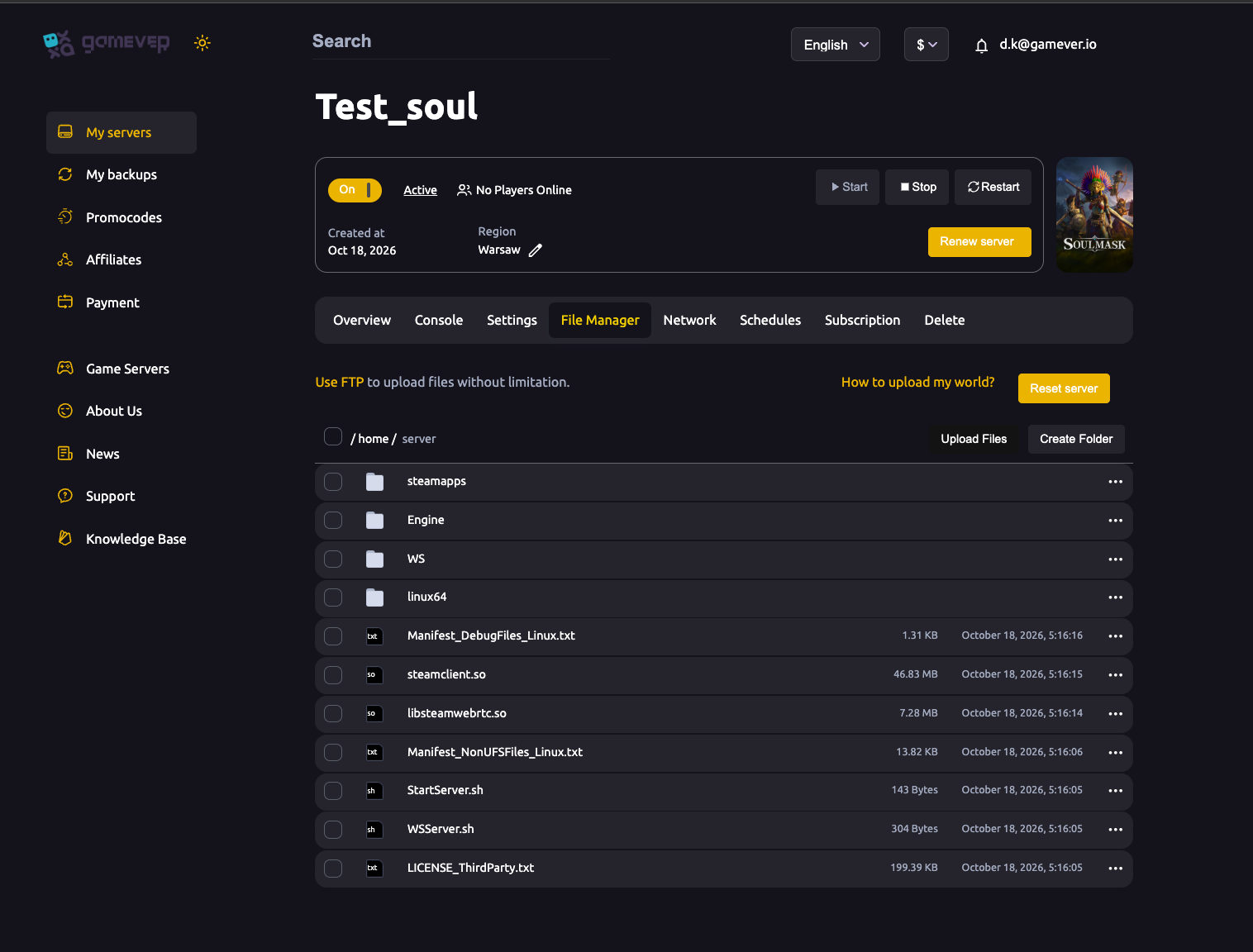
The simplest route lives in the File Manager tab. Alongside the file browser, Upload Files and Create Folder controls, you'll find a Reset server action.
- Take a backup first — My backups in the sidebar, plus an off-server copy.
- Open the File Manager tab.
- Use the Reset server action and confirm when prompted.
- Start the server from the Overview tab. On this first boot it generates a fresh world.
This is the cleanest option when you want a complete reset and don't need to pick through folders. Because it clears the server for you, double-check your backup is in hand before you confirm — once it runs, the old world is gone.
Route 2 — delete the world save manually
If you'd rather see exactly what you're removing, delete the save folder yourself. The server's files live under /home/server/, and the world save sits at:
/home/server/WS/Saved/Worlds/
Inside that folder is the world data the server loads each boot — the save itself is a world.db file within a map-specific subfolder (for example Level01_Main for the base map, or DLC_Level01_Main if you run the DLC map). Removing the folder clears the world.
- Back up first. Download a copy of
WS/Saved/Worlds/over FTP or the File Manager so you can restore if you change your mind. - Stop the server from the Overview tab. The world files are locked while the server is running, and deleting a save on a live server can fail or corrupt what's left — always stop first.
- Open the File Manager (or connect over FTP — get your login from Settings → FTP server settings, and the host:port from the Network tab).
- Browse to
/home/server/WS/Saved/Worlds/and delete the world folder (or the specific map subfolder you want cleared). - Start the server. With no save to load, it generates a brand-new world.
For the FTP walkthrough and how to put a world back, see uploading an existing world.
The new world uses your current settings
A freshly generated world isn't a factory default — it's built from whatever settings the server holds right now. That includes the Game mode (pve / pvp) and Server Map chosen under Settings → Server Settings, and the gameplay multipliers governed by the GameXishu template under WS/Config/GameplaySettings/. So if you want the reset world to play differently — a new map, PvE instead of PvP, different rates — set those before you start the server for the first time after a wipe. Getting them right up front saves you wiping a second time.
Additional Tips
- Always back up before wiping — both to My backups and as an off-server copy. This is the one step with no second chance.
- Stop the server before deleting files. Save files are locked while it runs; deleting live can corrupt the save.
- Decide your settings before the first boot. Map, Game mode and the
GameXishugameplay template all feed into the new world. - Tell your group. A wipe removes everyone's progress, not just yours — make sure it's agreed before you confirm.
- Keep one known-good backup archived separately, so a bad wipe never leaves you empty-handed.
- Test on a throwaway world if you're experimenting with settings, rather than wiping your main server repeatedly.
Conclusion
Resetting a Soulmask server is really just clearing its world so a new one can generate on the next start — either with the Reset server button in the File Manager, or by deleting the save under WS/Saved/Worlds/ over the File Manager or FTP with the server stopped. Both routes are permanent, so the golden rule never changes: back up first, confirm your map and game-mode settings, then start fresh. When it's done you've got a clean world running on the same server, no reinstall required.
Rent your Soulmask server at gamever.io — full File Manager and FTP access plus one-click backups, so a clean restart is always a couple of clicks away. Free trial, promo code WELCOME.