
How to Reset or Wipe Your Core Keeper World
Sometimes the cleanest fix for a tangled base, a mined-out map or a stale seed is simply to start again. On your gamever Core Keeper server you don't reinstall anything to do that — you tell the server you rent from us to drop the current world and generate a fresh one, all from the control panel's File Manager or over FTP. This guide covers the two supported routes: the one-click Reset server button, and the manual world-slot method for when you want more control over the new world.
This is destructive and cannot be undone. Resetting or wiping deletes your world — all terrain, builds, chests and progress in that save. Take a backup first (left sidebar → My backups, or download the save file over FTP). If there's any chance you'll want the old world back, save a copy before you touch anything.
How Core Keeper stores worlds
Core Keeper keeps each world as a single compressed save file in a numbered slot. Under the panel's File Manager (root /home/configs/), the save lives in the worlds folder as N.world.gzip — 0.world.gzip, 1.world.gzip, and so on. The server loads exactly one slot at a time, and which one it loads is set by the world value in ServerConfig.json (also in /home/configs/).
That design gives you the two things you need for a reset: you can delete the current slot's file so the server has nothing to load, or you can point world at a different, unused slot number so the server builds a new world there and leaves the old file untouched.
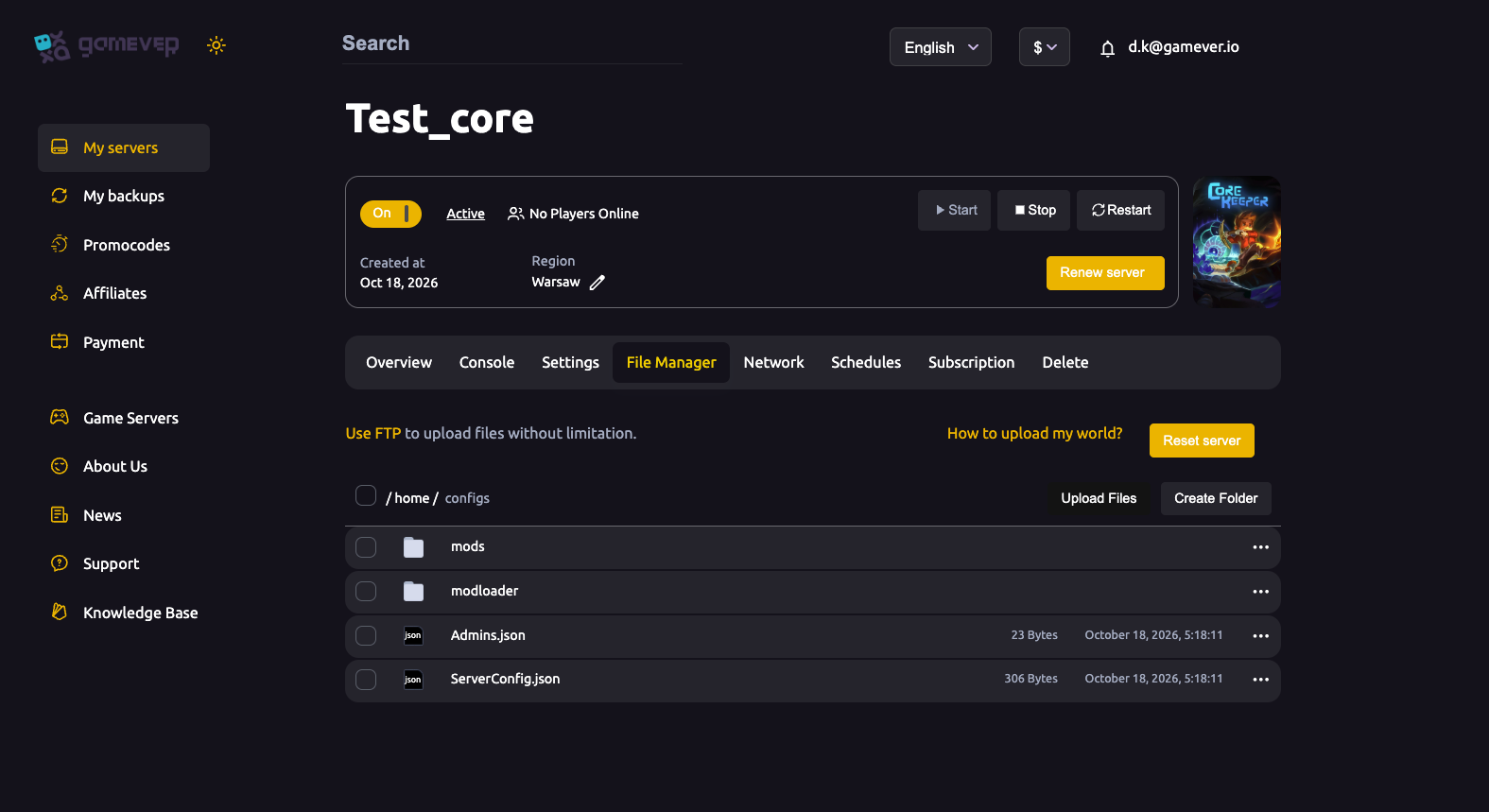
Route 1 — the Reset server button
The quickest wipe is the Reset server control inside the File Manager (alongside Upload Files, Create Folder and the FTP note). This clears the server's world data so that, on the next boot, Core Keeper generates a fresh world from your current settings.
- Back up first — take a backup from My backups or download your
N.world.gzipover FTP. - Open the File Manager tab and click Reset server.
- Restart the server from the Overview tab.
- Watch the Console. Core Keeper prints the world-creation line and a new session line (
IP;port;gameId;password) once the fresh world is ready.
Because this is a clean start, the new world is built from whatever World seed, World mode and Season are set on the Settings tab at that moment — so set those the way you want before you reset (see below).
Route 2 — manual world-slot method (File Manager / FTP)
If you'd rather keep the old file or choose exactly which slot runs, do it by hand. Everything here happens in the File Manager or over FTP (get your FTP login from Settings → FTP server settings; the host and port are on the Network tab).
Stop the server first — Core Keeper only reads the world and config at boot, so editing a running server won't take and can corrupt the save.
Option A — delete the current save:
- Stop the server (Overview → Stop).
- In the File Manager worlds folder, delete the current
N.world.gzip(the number matching yourworldvalue in ServerConfig.json). - Start the server. With nothing in that slot, Core Keeper generates a fresh world there.
Option B — point at a new, empty slot:
- Stop the server.
- Open ServerConfig.json in the File Manager and change the
worldvalue to a slot number you aren't using (for example0→1). - Optionally set a new
worldSeedin the same file for a specific layout — the seed only applies when a world is first generated, so changing it on a slot that already has a save does nothing. To get a new seed, you must pointworldat an empty slot. - Save the file and Start the server. The new slot generates fresh; your old slot's file stays on disk untouched, so you can switch back later.
| Where | Key / control | What it does |
|---|---|---|
| File Manager | Reset server button | One-click wipe → fresh world on next boot |
| worlds folder | N.world.gzip | The numbered save file for each slot — delete to wipe a slot |
| ServerConfig.json | world | Which numbered slot loads; an unused number generates a new world |
| ServerConfig.json | worldSeed | Seed for a newly generated world only; ignored on an existing slot |
The Settings tab's World seed, World mode and Season feed the next world Core Keeper creates, so confirm them before the fresh world generates. Remember the panel has no password or max-players field; those live in ServerConfig.json (password, maxNumberPlayers) and carry over, so re-check them after a reset.
Additional Tips
- Back up every time. A reset is irreversible — a one-minute backup from My backups or an FTP download is cheap insurance.
- Set seed and mode first. The new world inherits the current World seed / World mode / Season, so decide those before you reset.
- Keep the old world safe. Option B leaves your previous slot on disk; it's the gentlest way to try a new map without losing the old one.
- Players get a new Game ID. After a wipe, the Console prints a fresh session line — share the new Game ID so your group can rejoin.
- Don't edit a live server. Always Stop before deleting saves or editing ServerConfig.json, then Start to apply.
- Bringing a world in instead? See upload a world — the slot numbers must match.
Conclusion
Wiping a Core Keeper world is a panel job, not a reinstall: either hit Reset server in the File Manager for a clean one-click start, or stop the server and manage the numbered N.world.gzip slots and the world value in ServerConfig.json by hand. Set your seed, mode and season first, back up without fail, and let the server rebuild the world from scratch on the next boot.
Rent your Core Keeper server at gamever.io — full File Manager and FTP access, easy backups, and a fresh world whenever you want one. Free trial, promo code WELCOME.