
How to reset a Minecraft server?
Introduction:
Running a Minecraft server is an exhilarating experience, offering endless hours of gaming, building, and exploring with friends. However, there comes a time in the life cycle of every server when a reset becomes necessary. Whether it's to start anew, resolve persistent issues, or simply experience the latest updates in a fresh world, resetting your Minecraft server can rejuvenate your gaming experience. In this extensive guide, we’ll walk you through the process of resetting your Minecraft server step-by-step. Additionally, we’ll discuss how Gamever servers can enhance your Minecraft gameplay when you decide to start afresh.
Understanding the Need for a Server Reset
A server reset in Minecraft means starting over—creating a new world, fresh player data, and a clean slate for all your adventures. Common reasons for resetting include:
- Performance Issues: Over time, servers can become cluttered with old data, leading to lag and performance issues.
- Game Updates: Major Minecraft updates often bring new features that are best experienced in a new world.
- Player Interest: Resetting can rekindle interest among players who wish to start new projects or explore new biomes.
Preparing for a Server Reset
Before resetting your server, it’s important to prepare:
- Inform Your Players: Let your players know about the reset in advance.
- Backup Data: Always backup your server before performing a reset. This includes worlds, player data, and any other important files.
- Decide What to Keep: Sometimes, you might want to keep certain elements, like player inventories or specific builds.
Step-by-Step Guide to Resetting Your Server
Step 1: Stop Your Server
Firstly, ensure your server is not running. Stopping your server prevents any data loss during the reset process.

Step 2: Access Server Files
Use an FTP client or the control panel offered by our hosting service to access your server files.
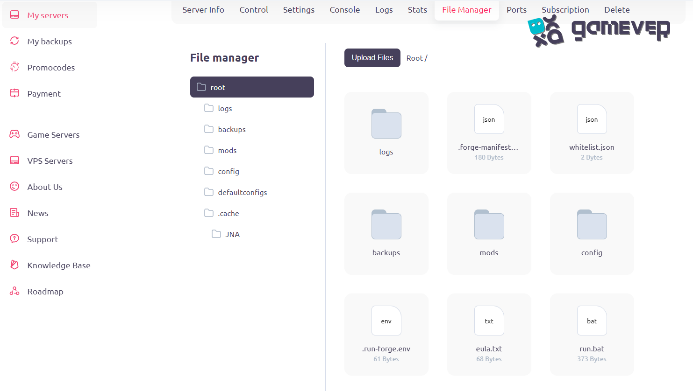
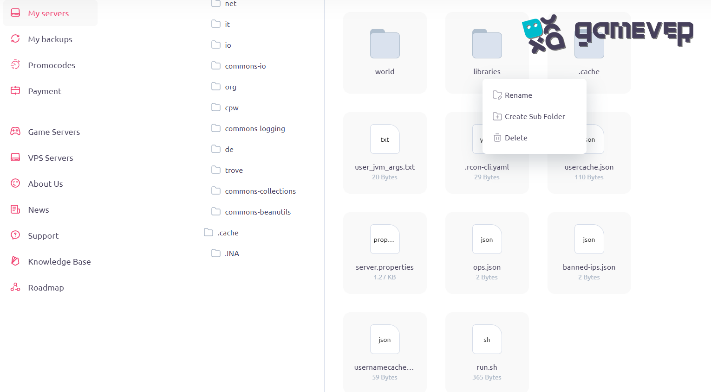
Step 3: Delete the 'World' folder.
The 'world' folder contains your server’s world data. Deleting this folder will remove the current world from your server.
- Locate the 'world' folder: Find this folder in your server’s main directory.
- Delete the folder. Simply delete or remove this folder. Ensure you have a backup before doing this.
Step 4: Remove the Libraries folder
The 'libraries' folder contains various files that Minecraft uses to run. If you’re experiencing technical issues or want a completely fresh start, you can delete this folder.
- Locate the 'libraries' folder: You can find it in the main server directory.
- Delete the folder. Remove the folder. It will be recreated when you start your server again.
Step 5: Remove 'run.sh' File
This is a script file for starting the server.
Step 6: Post-Reset Setup
After resetting, you might need to reinstall plugins or mods and reconfigure server settings. After all that, turn the server back on.

Why Consider Gamever Servers for Your Minecraft Adventures
Resetting your server offers a fresh start, but choosing the right server host is crucial for an enhanced experience. Gamever servers provide an ideal platform for those looking to reset their Minecraft server.
Advantages of Gamever Servers
- High Performance: Gamever servers are optimized for performance, providing a smooth gaming experience.
- Easy Management: User-friendly control panels make server management straightforward, even for beginners.
- Reliable Support: Access to dedicated support ensures any issues are promptly resolved.
Conclusion
Resetting your Minecraft server can breathe new life into your gaming experience. By following the steps outlined in this guide, you can ensure a smooth transition to a new world. Whether you’re tackling performance issues, exploring new updates, or just seeking a fresh start, a server reset can be the answer. Consider Gamever servers for a reliable, high-performance hosting solution that can accommodate your new Minecraft journey.