
How to Reset a Forgotten Admin Password on Your Satisfactory Server

Setting the Admin Password happens once, when you first claim your Satisfactory server — and because it's a one-time step, it's easy to forget months later when you suddenly need admin again. Satisfactory has no "forgot password" email and no reset button in the game. Instead, the fix is to unclaim the server by removing the single file that stores its claim state, then claim it again with a fresh password. This guide shows how to do that safely in your gamever panel, without touching your factory save. If you still know the password, you don't need any of this — just authenticate in the in-game Server Manager.
Where the admin password actually lives
A Satisfactory dedicated server keeps its claim state — the fact that it's been claimed, its name, the client/join password and the admin credential — in one file, separate from your factory. That file is named after the server's port:
ServerSettings.<port>.sav
For a default-port server that's ServerSettings.7777.sav; gamever assigns your server its own port (the one shown on the Network tab), so the number in the filename matches that. On a gamever server it lives in the File Manager at:
/home/server/gamefiles/FactoryGame/Saved/SaveGames/
The important part: this is not your save. Your factory lives in its own .sav files (in the server/ sub-folder of SaveGames/). Deleting ServerSettings.<port>.sav wipes only the server's settings and claim — your world is untouched and you load it back afterwards.
Before you start: back it up
Resetting is low-risk, but take a backup first so there's always a way back:
- Take an on-demand backup, and/or download the current save to your PC.
- You can also download a copy of
ServerSettings.<port>.savitself before deleting it, in case you want to restore the old state.
Only after you have a backup should you delete anything.
Reset the password: remove the settings file
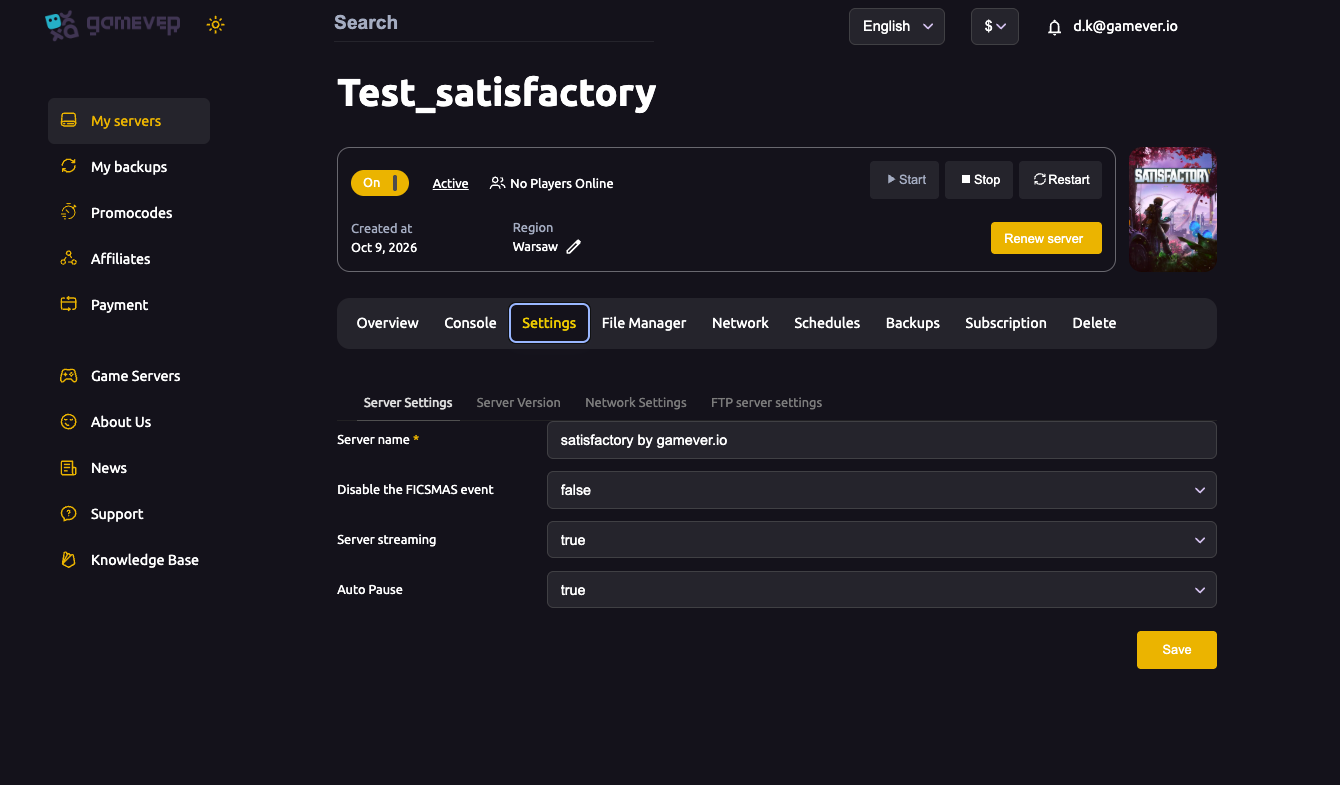
- Stop the server from the panel (Overview). The server rewrites this file on shutdown, so it must be stopped before you delete it.
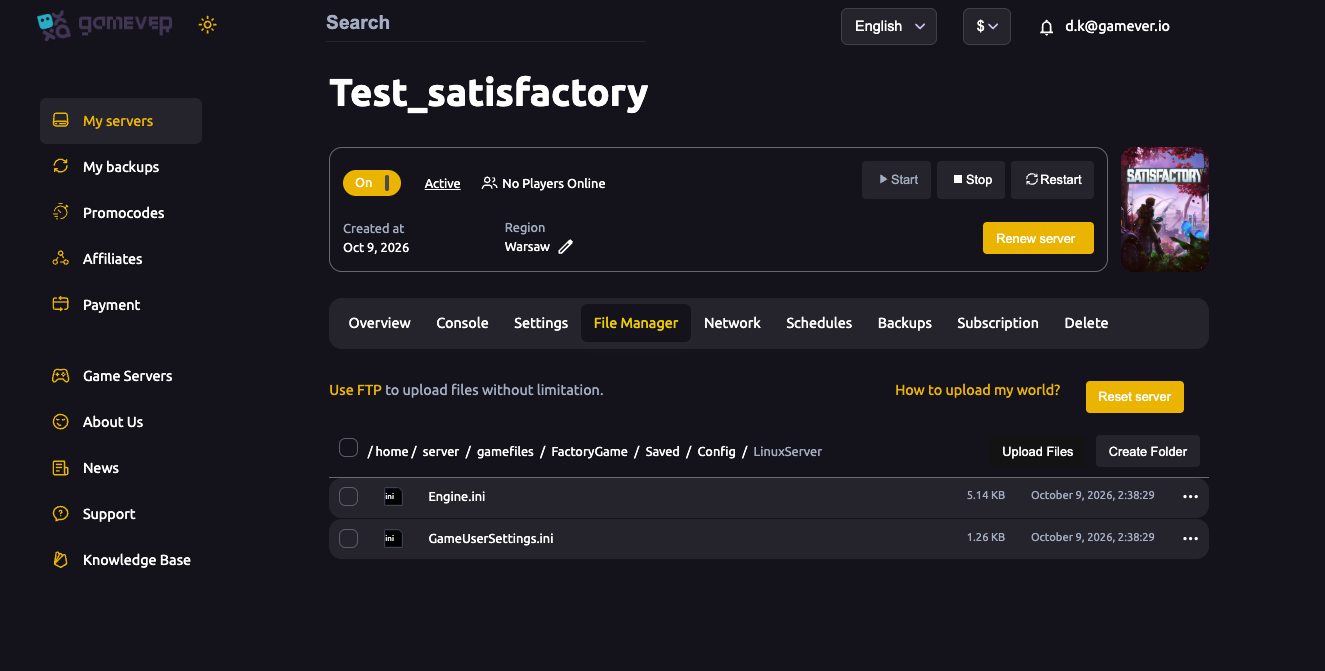
- Open the File Manager and go to
/home/server/gamefiles/FactoryGame/Saved/SaveGames/. - Find
ServerSettings.<port>.sav(the exact port number is in the filename — it matches your Network-tab port). - Delete only that one file. Leave every other
.savand theserver/folder alone — those are your factory. - Start the server again.
When the server comes back up it's unclaimed again, exactly like a brand-new server. Deleting the file resets everything it held — the server name, the client (join) password and the server certificate as well as the admin password — so expect to re-enter those too.
Re-claim it and set a new password
With the server unclaimed, repeat the first-time setup:
- Launch Satisfactory and open the Server Manager.
- Your server address hasn't changed — if it's still in your list, select it; otherwise Add Server with the
IP:portfrom the Network tab. - The server shows as unclaimed. Claim it: give it a name and set a new Admin Password.
- Open Manage Saves and load your existing factory — it was never deleted.
You're the administrator again, with a password you know. For the full claim walkthrough see connecting and claiming your server.
| What a reset clears | What it keeps |
|---|---|
| Admin password | Your factory save(s) |
| Client/join password | Installed mods |
| Server name | Panel settings (name field, network, etc. — re-enter the in-game ones) |
| Server certificate / claim state | Your server address and port |
If you can still log in as admin
If you haven't actually lost the password — you just want to change it — you don't need to delete anything. Connect as an admin through the in-game Server Manager and manage the server's settings there, or set/clear the client (join) password without ever unclaiming. The file-delete route above is only for when you're locked out and can no longer authenticate.
Additional Tips
- Back up before deleting — download the save (and optionally the settings file) first; deletion is permanent.
- Delete one file, not the folder — only
ServerSettings.<port>.sav; the factory saves live beside it. - Stop the server first — it rewrites the settings file on shutdown, so a delete while running can be undone.
- Match the port in the filename to your Network-tab port — that's how you spot the right file.
- Store the new password somewhere safe this time — a password manager beats relearning this guide in six months.
- Still locked out after reclaiming? Open a Support ticket and our team can reset access from the server side.
Conclusion
A forgotten Satisfactory admin password isn't a dead end and it never costs you your factory. The admin credential lives in one file — ServerSettings.<port>.sav in your SaveGames folder — so you stop the server, delete just that file in the File Manager, start it again, and re-claim the now-unclaimed server with a fresh password. Load your save back from Manage Saves and you're exactly where you left off, admin restored.
Rent your Satisfactory server at gamever.io — with a browser File Manager, one-click stop/start and backups that make a password reset a two-minute job. Free trial, promo code WELCOME.