
How to Place Map Markers in Core Keeper 1.0
Using Map Markers
You can access the map by pressing M on your keyboard or by clicking the Map Icon in the bottom right corner of your screen. This brings up a fullscreen view of your world where you can track your travels and locate important points of interest.

A mini-map also displays your current position and immediate surroundings in the upper right corner of your GUI, offering a real-time glance at your locale.

Types of Map Markers
Markers are crucial for navigation and planning. Here’s a quick rundown of what each marker does:
1. Basic Ping (Map marker 01): This marker is a temporary indicator that disappears after a few seconds. It’s perfect for quick notes you don’t need to remember for long.

2. Blue Crystal (Map marker 02): This permanent marker is ideal for marking important spots that you want to remember. It doesn’t vanish on its own, so you can rely on it to stay put until you decide otherwise.
3. Question Mark (Map marker 03): Use this to signify unknown or notable locations. It’s a great way to mark spots where you plan to investigate further.
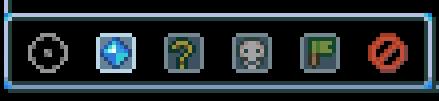
4. Skull (Map marker 04): Mark hazardous or dangerous areas with this symbol. It’s a visual warning for you and your teammates about potential threats.
5. Green Flag (Map marker 05): Place this to indicate a goal or point of interest that you want to revisit. It’s a handy way to flag something as important.
6. Clear All Markers (Map marker 06): This handy tool removes all markers from the map. Use it when you want a fresh start or to clear out old markers.

7. Active Portal Location: When interacting with a Portal, this marker helps you quickly return to it. Clicking this while a Portal is open will teleport you instantly.
8. Portal or Charging Portal Location: Marks the location of a Portal or a charging portal, ensuring you know where to head for your next teleportation.
Customizing Your Map Experience
Core Keeper’s map features a variety of customization options to enhance your navigation:
- Map Lines and Object Colors: Different biomes and areas are color-coded to make navigation easier. For example, the Forgotten Ruins and Azeos’ Wilderness each have distinct lines and colors to help you differentiate them at a glance.
- Interactive Map Tools: Utilize third-party tools to enhance your map experience. These tools can help locate bosses, resources, and other points of interest by highlighting areas on your map.
By using different types of markers and customizing your map, you’ll turn your adventures into well-planned quests. Remember to place markers thoughtfully, clear old ones regularly, and make the most of interactive map tools to stay ahead in your Core Keeper journey.