
How to Move a World to a Dragonwilds Server (& Back It Up Properly)
You have been playing RuneScape: Dragonwilds solo, your base is worth keeping, and now you want it on a dedicated server so your friends can join without waiting for you to be online. Good news: it is a file copy. The catch is that a Dragonwilds server loads the latest .sav file in its save folder automatically, so the folder has to contain exactly what you intend — which makes emptying it correctly the step that matters most.
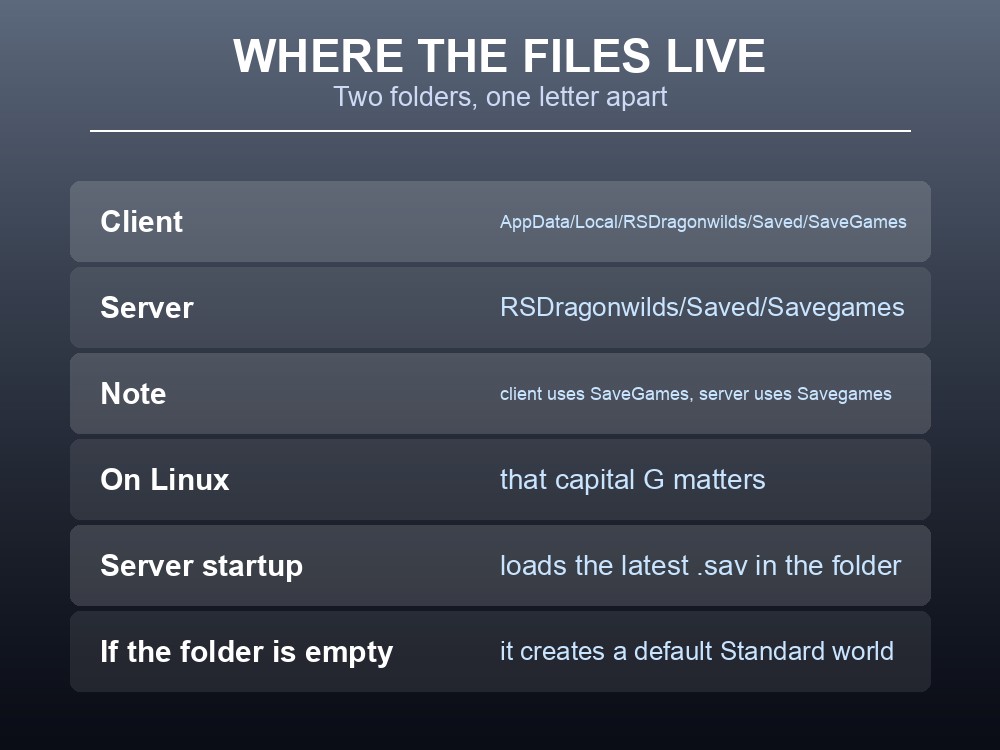
Where the Files Live
| Side | Path |
|---|---|
| Your PC (client) | C:\Users\<your_username>\AppData\Local\RSDragonwilds\Saved\SaveGames |
| Dedicated server | RSDragonwilds/Saved/Savegames |
How the server chooses a world: on startup it "loads the latest .sav file available in RSDragonwilds/Saved/Savegames". If that folder is empty, it creates a default Standard world using your config values instead.
That behaviour is the whole reason this works — and the reason a stray old save in the folder can quietly load instead of the world you meant.
Moving Your World Across
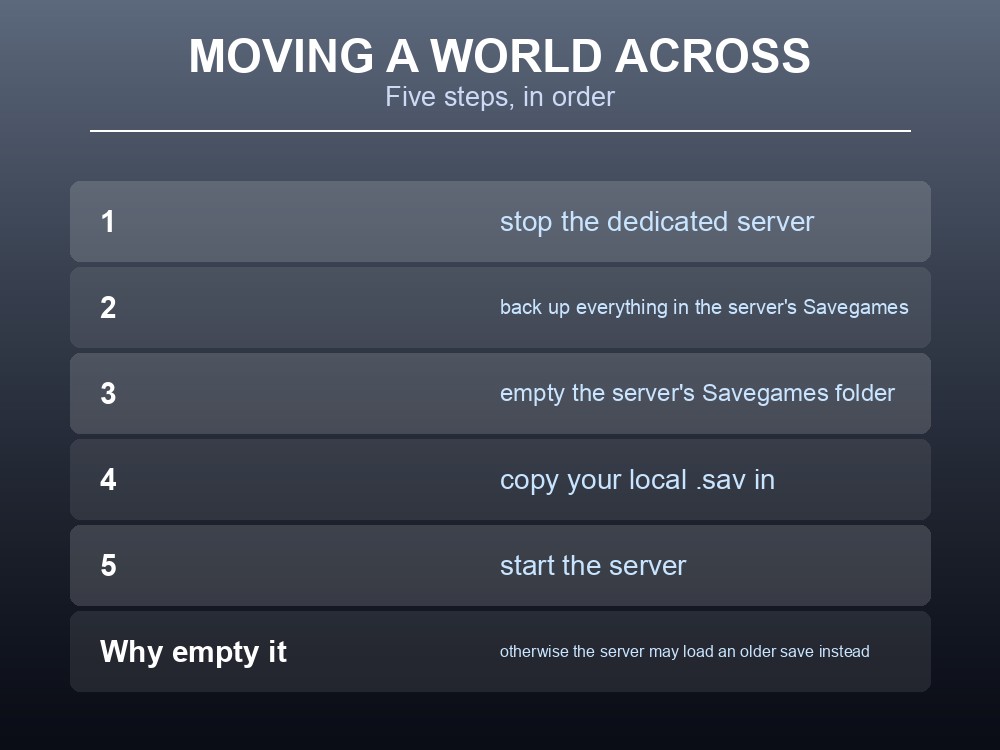
The official procedure, in order:
- Stop the dedicated server. Not "pause" — stopped.
- Back up every file from
RSDragonwilds/Saved/Savegamessomewhere safe — the server drive, your own drive, or cloud storage. - Empty
RSDragonwilds/Saved/Savegames. - Copy your local
.savfromC:\Users\<your_username>\AppData\Local\RSDragonwilds\Saved\SaveGamesinto the server'sSavegamesfolder. - Start the server.
Step 2 and step 3 are not the same step, and both matter. Emptying the folder is what guarantees your world is the latest .sav; backing up first is what makes that reversible. Skipping the backup is how people lose the default world that had a few hours in it.
Never rename the .sav. The wiki puts this in bold, italics and capitals — DO NOT CHANGE THE FILE NAME — and states that if the server was started with an edited filename, progress will be lost. If you have already renamed one, either copy the save again with its original name or rename it back before starting the server.
The file name matters a second time. The config world name must match the save file name without its .sav suffix — a save called Dragonwilds_World1.sav needs a world name of Dragonwilds_World1 — and that same value is what players type to find your server in the Public tab. A rename therefore breaks two things at once: the server stops loading the world, and nobody can search for it.
Verify by playing, not by looking. The published check is that character progress survives leaving and rejoining, and that restarting the server keeps buildings and objects. A world that loads is not proof that it saves.
Do not merge folders. Copying your save in alongside whatever was already there means the server picks whichever is newest — which may not be yours, and which will not be obvious until someone logs in and finds the wrong base.
Note the folder-name inconsistency: the client uses SaveGames and the server uses Savegames. On Linux that capital G matters.
Creating a World With Custom Settings
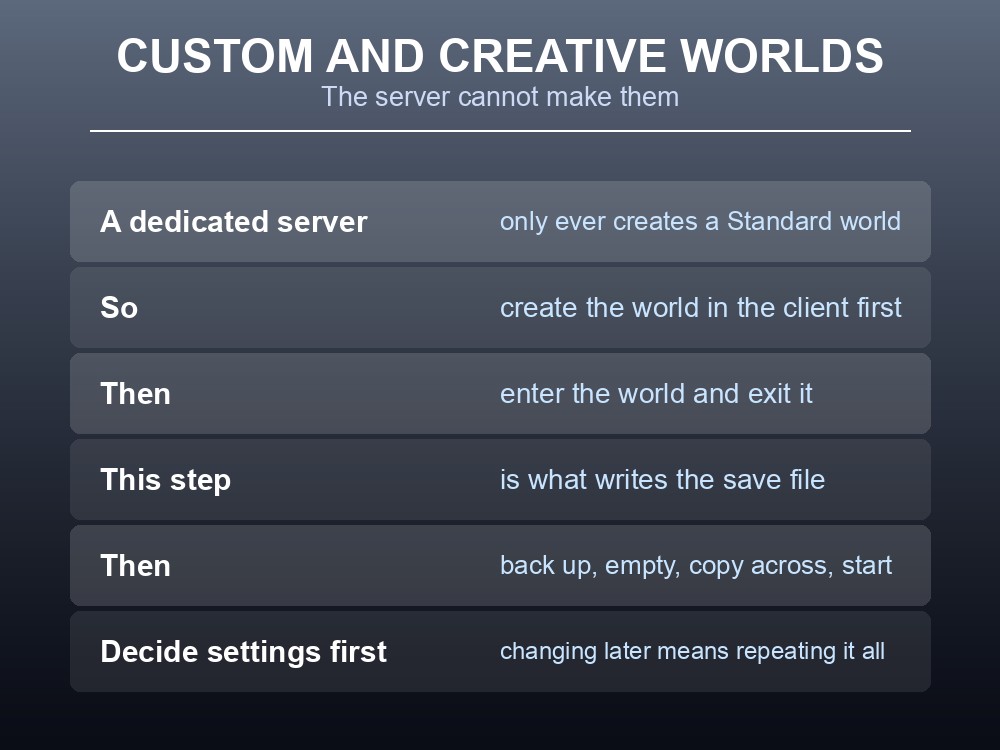
Here is something the server cannot do on its own: a dedicated server only ever creates a default Standard world. If you want Custom or Creative settings, or anything other than the defaults, you have to make the world in the game client first and then move it across.
The procedure:
- Run Dragonwilds locally through Steam.
- Create a new world with the settings you want — Standard, Custom, Creative, whatever the group agreed.
- Enter the world, then exit it. This step is not optional; the save is written properly on exit.
- Back up the server's existing
Savegamescontents. - Empty the server's
Savegamesfolder. - Copy your new
.savacross. - Start the server.
"Enter the world, exit the world" is the step people skip, and a world that was created but never entered may not produce the save file you are looking for.
Decide your settings before you do this, because changing world type later means repeating the whole process — and by then people will have built things.
Backing Up Properly
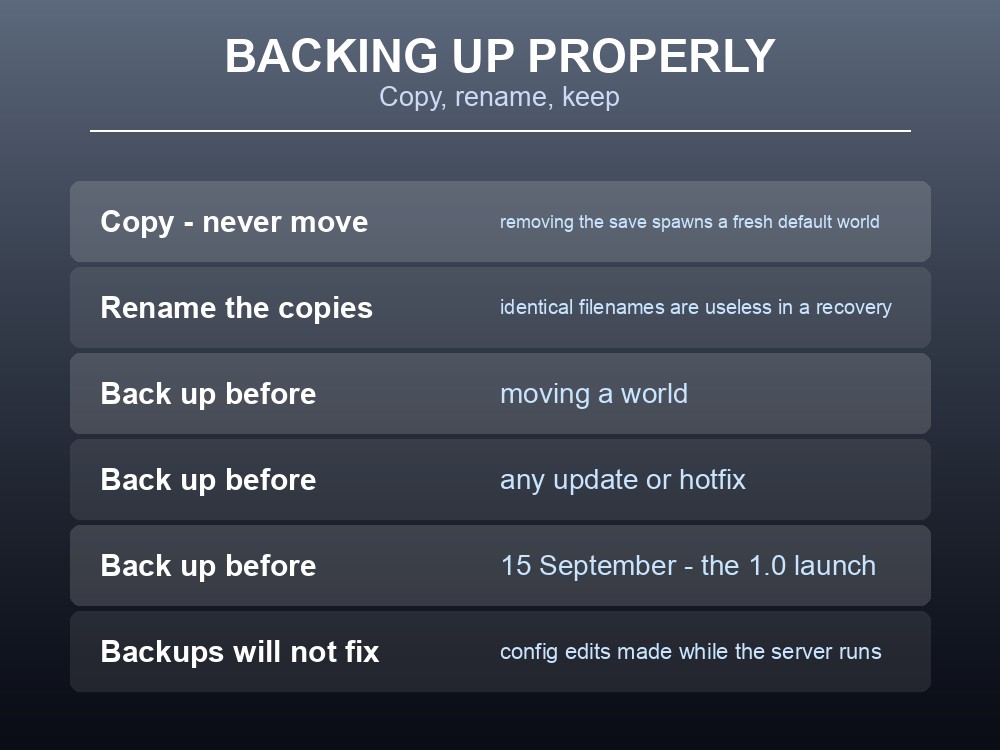
The official backup method is deliberately simple:
- Go to
RSDragonwilds/Saved/Savegames. - Copy any world save you want to keep — to elsewhere on the server drive, to your own computer, or to cloud storage.
- Rename the copies to include something identifying. Jagex's own suggestion, and it is worth doing: a folder of identically-named
.savfiles is useless in an emergency.
Copy, do not move. Taking the save out of Savegames means the server creates a fresh default world on next start.
Three moments when a manual backup is genuinely worth it:
- Before moving a world, as above.
- Before any game update or hotfix. Version changes are also when client and server versions drift apart, which makes the server vanish from the list until both match.
- Before 15 September. Dragonwilds 1.0 launches that day, ending Early Access with the Scorned Wilderness raid and the conclusion of Kuldra's saga. A major version transition is the single most disruptive moment for any save.
On managed hosting this is a button. One-click backups mean the "copy it somewhere and rename it" ritual is handled, and rolling back is a restore rather than a folder operation performed under pressure.
One thing backups will not fix: if the server is running when you edit DedicatedServer.ini, those config changes are discarded — that is documented behaviour, not corruption. Stop the server, edit, restart.
Practical tips
- The server loads the latest
.savin its folder — so empty the folder before copying yours in.- Back up before you empty, not after. They are two separate steps.
- Client path is
SaveGames, server path isSavegames. The capital G matters on Linux.- A dedicated server only creates Standard worlds. Custom or Creative must be made locally and moved.
- Enter and exit a new world before copying it — that is what writes the save.
- Copy, never move. Removing the save makes the server generate a fresh default world.
- Rename your backup copies. Identical filenames are worthless in a recovery.
Running your own RuneScape: Dragonwilds server
Moving worlds and keeping backups by hand works, but it is a folder ritual you have to remember at exactly the moment you are least calm. A gamever Dragonwilds server turns both into buttons — upload a world, restore a snapshot — and keeps the world online around the clock so your six-player group plays on their own schedules instead of waiting for a host. With 1.0 arriving on 15 September, having a backup you can restore in one click is worth setting up now rather than afterwards.
Conclusion
Moving a local RuneScape: Dragonwilds world onto a dedicated server is a five-step file copy — stop the server, back up its Savegames folder, empty it, copy your .sav in from AppData\Local\RSDragonwilds\Saved\SaveGames, start the server — and it works because the server loads the latest .sav it finds, or generates a default Standard world if the folder is empty. That same behaviour is why emptying the folder matters: leave old saves in place and the server may load one of those instead. If you want Custom or Creative settings, create the world in the client, enter it and exit it, then move it — a dedicated server will only ever build a Standard world by itself. And take a manual backup before moving anything, before any hotfix, and certainly before 15 September.
Want world uploads and backups as buttons instead of folder operations? Rent a Dragonwilds server at gamever.io — instant setup, one-click backups and updates, and 24/7 uptime. Start with a free trial and use promo code WELCOME.