
How to Move a Co-op or Singleplayer World onto Your Palworld Dedicated Server
You started a world in singleplayer or hosted co-op from inside the game, it grew, and now you want it running on a proper always-online dedicated server. The good news is the whole world — your map, bases and Pals — moves across as a single folder. The catch is that a co-op/local save and a dedicated-server save aren't quite stored the same way, so two things need a careful hand: the host player's character, and the world's settings file. This guide moves an existing world onto a gamever Palworld server through the panel's File Manager and FTP, and walks the two traps that otherwise lose your character or your settings.
This is different from moving a world that's already on another dedicated host — for that straight host-to-host copy, see migrate your server to gamever. If you'd rather weigh starting clean instead, move your world or start fresh covers that decision.
Find your local save
On a PC (Steam) copy, singleplayer and co-op-host worlds live under your local Palworld save directory:
%LOCALAPPDATA%\Pal\Saved\SaveGames\<SteamID>\<WorldID>\
Inside your numeric <SteamID> folder, each world is a folder with a 32-character hexadecimal name (<WorldID>). Fully close Palworld first so nothing is mid-write, then find the world folder with the most recent timestamp. It contains Level.sav, LevelMeta.sav, WorldOption.sav, LocalData.sav and a Players/ subfolder — that whole folder is what you'll upload.
Copy it, never move it. Keep your untouched original until the server is confirmed working.
Xbox / Game Pass saves are different. The Microsoft Store and Game Pass version stores saves in an obfuscated container, not as plain
<WorldID>folders with named.savfiles — so this file-copy method does not apply to it. If your world is on the Game Pass build, starting a fresh world on the dedicated server is the practical route.
Upload it into the dedicated server
On a dedicated server the save path is almost identical, with one change: the <SteamID> folder is replaced by a literal 0. So your world belongs at:
Pal/Saved/SaveGames/0/<WorldID>/
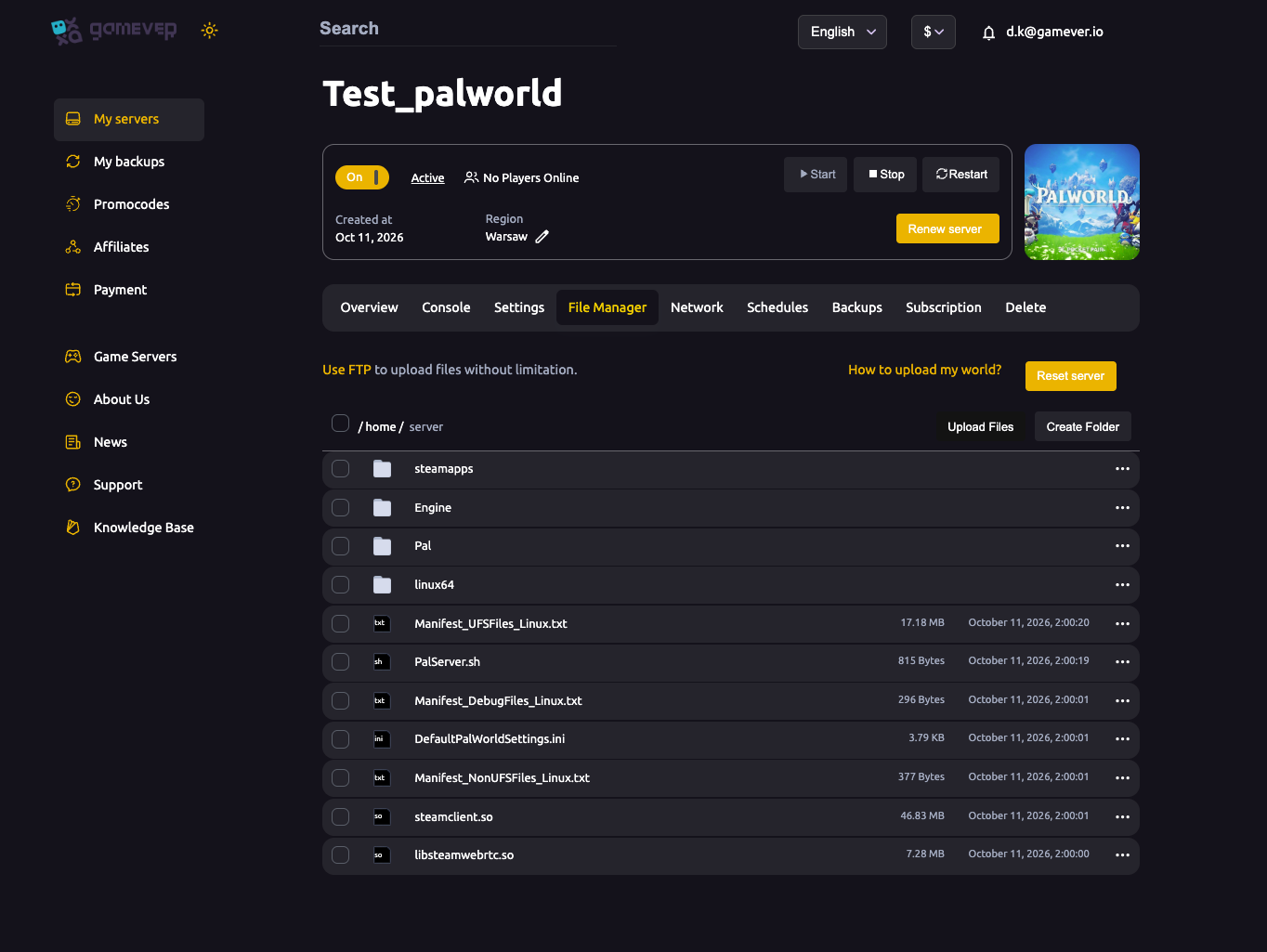
On gamever, Stop the server first, then open the File Manager (at /home/server/) or connect over FTP — grab your FTP login from Settings → FTP server settings and the FTP address from the Network tab (port 28349). Upload the entire <WorldID> folder, keeping its name and its Players/ subfolder exactly as they were.
Point the server at the world
A Palworld dedicated server loads one specific world by name. Open GameUserSettings.ini in the same config folder as your main config — Pal/Saved/Config/LinuxServer/ — and set:
DedicatedServerName=<WorldID>
to the exact 32-character folder name you just uploaded. Edit only this line — don't paste your whole local GameUserSettings.ini over the server's, as that can break the server's own authentication. Copy the name character-for-character, capitalisation included: if it doesn't match, the server doesn't throw an error — it quietly generates a brand-new empty world instead.
Trap 1 — delete WorldOption.sav
Your local world folder carries a WorldOption.sav. That file holds the game settings from your co-op/solo session — and on a dedicated server it overrides PalWorldSettings.ini. Leave it in place and the server ignores the settings you configure in the panel.
So, in the uploaded world folder, delete WorldOption.sav. With it gone, the server's own PalWorldSettings.ini — i.e. the rates, difficulty and options you set in the gamever panel — takes effect.
Trap 2 — the host character's GUID
This is the one that surprises people. In a singleplayer or co-op-host save, the host's character file is always Players/00000000000000000000000000000001.sav — a fixed, all-zeros-ending-in-1 GUID. A dedicated server doesn't use that ID; it assigns each player a new GUID derived from their account. So when the former host joins the migrated world, the server doesn't recognise ...0001 as them and makes them start a brand-new character. (Other players' character files carry over fine — only the former local host hits this.)
The fix, confirmed still necessary on 1.0, is a one-time remap:
- Start the server and have the host join once. The server creates a fresh file in
Players/— its filename is the host's new server GUID. Note that name. - Stop the server and take a backup from the Backups tab.
- On a copy of the save, run a community save-fix tool —
xNul/palworld-host-save-fixis the long-standing one — telling it the old GUID (00000000000000000000000000000001) and the new GUID from step 1. It rewrites the host's character and the references to it so the server sees the original character as theirs. - Check the tool's current README for argument order before you run it — some wrappers expect new-GUID-before-old, and reversing them silently produces a broken character.
- Upload the patched folder back over the one on the server, Start, and have the host rejoin.
There is no official Pocketpair tool for this; the save-fix utilities are community-maintained, so always run them on a copy and keep your backup.
Additional Tips
- Always copy, never move, your original local save — and keep it until the server is verified good.
- Match
DedicatedServerNameexactly to the uploaded folder name, or you'll load an empty world with no warning. - Delete
WorldOption.savso your gamever panel settings actually apply. - Only the local host needs the GUID remap — other players' characters transfer normally.
- Take a fresh backup from the Backups tab once everyone loads their own character and the world looks right.
- Connecting over FTP? See using an FTP client with your Palworld server for the login and client setup.
Conclusion
Moving a co-op or solo world onto a dedicated server is a folder copy plus two fixes: upload your <WorldID> folder into Pal/Saved/SaveGames/0/, point DedicatedServerName at it, delete WorldOption.sav so the panel's settings win, and remap the host's 0000…0001 character to its new server GUID. Do it with the server stopped, on copies, with a backup in hand, and your whole adventure comes back online — permanently.
Rent your Palworld server at gamever.io — a browser File Manager, FTP access and one-click backups make moving your world over painless, with the server online 24/7. Free trial, promo code WELCOME.