
How to Migrate Your Palworld Server to gamever

Moving an existing Palworld world to gamever means your group keeps everything — bases, captured Pals, levels and characters — on a server that's up 24/7 with a full control panel behind it. The move comes down to copying three things off your old server and uploading them into your gamever one. This guide walks the whole migration, including the two traps that catch people: the config overwrite and the character-folder mapping.
What you're moving
A Palworld server's state is three things, all under the save path:
| Part | Location | Why you need it |
|---|---|---|
| World data | Pal/Saved/SaveGames/<SteamID>/<WorldID>/ | bases, map and shared progression |
| Character saves | the Players/ subfolder in that world folder | each player's character — one file each |
| Server config | Pal/Saved/Config/LinuxServer/PalWorldSettings.ini | your rules (rates, difficulty, options) |
Grab all three and the world transfers intact. Miss the Players/ folder and everyone starts as a fresh character even though the world is there.
Step 1 — download from the old host
On your current host, locate the Palworld save path and stop that server first so the files aren't mid-write, then download over FTP:
- the whole
<WorldID>world folder (which includesPlayers/), and - the
PalWorldSettings.iniconfig file.
Keep the folder structure as you found it — you'll need the same <SteamID>/<WorldID>/ layout on the new side.
Step 2 — upload into your gamever server
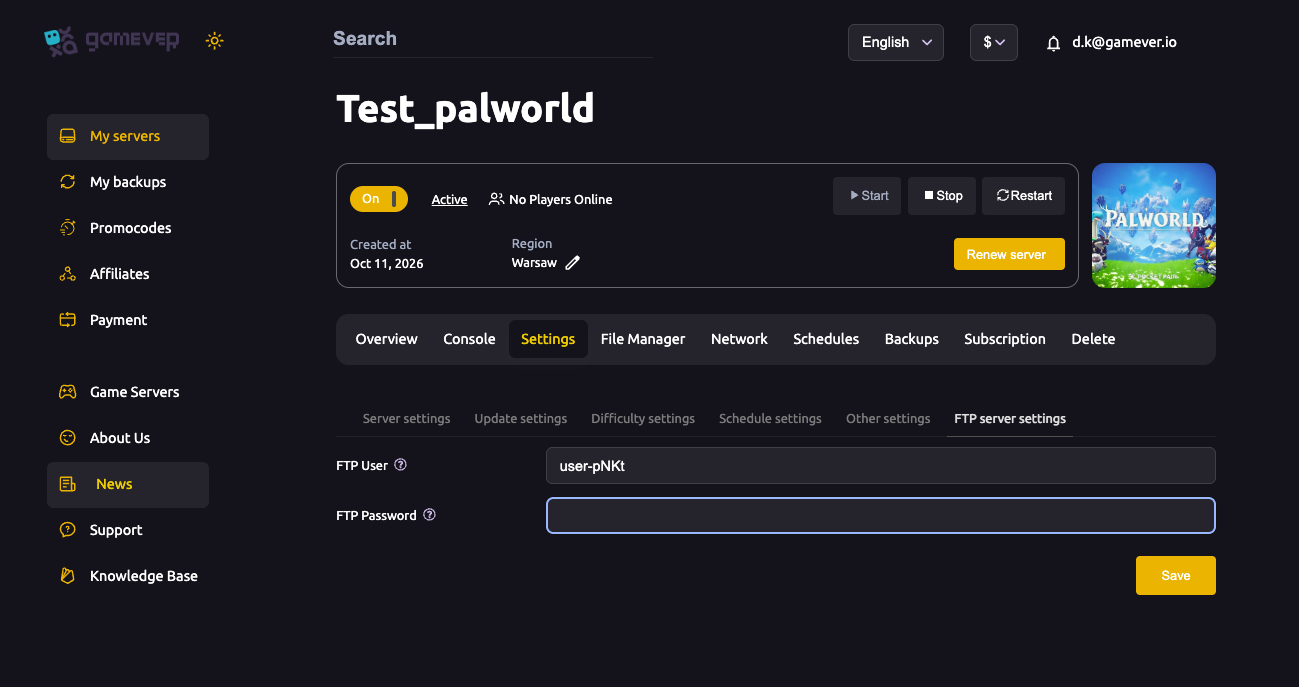
On gamever, get your FTP login from Settings → FTP server settings and the FTP address from the Network tab (port 28349):
- Stop your gamever server.
- Connect with an FTP client (see using an FTP client) and open the File Manager at
/home/server/. - Place the world folder into
Pal/Saved/SaveGames/<SteamID>/<WorldID>/, keeping thePlayers/subfolder inside it. - Upload your
PalWorldSettings.ini— but read the overwrite note below before you restart.
Trap 1 — the config overwrite
gamever's Overwrite config file setting (in Settings → Server settings) rewrites PalWorldSettings.ini from the panel fields on restart when it's set to true. If you upload a hand-tuned config and then restart with overwrite on, your settings are wiped back to the panel values.
So, before restarting with an uploaded config:
- Set Overwrite config file to
falseto keep your uploadedPalWorldSettings.ini, or - Leave it
trueand instead re-enter your rules in the panel's Server settings / difficulty fields.
Either works — just don't upload a config and leave overwrite on, expecting the file to survive.
Trap 2 — the character / Steam-ID folder mapping
Character saves in Players/ are keyed to the world folder they live in. If the <SteamID> or <WorldID> folder names differ between the old and new server, Palworld may not match players to their characters. Keep the same folder path you downloaded from, placing Players/ inside the matching <WorldID> folder, so each player's character loads as theirs.
Step 3 — start and verify
- Start the gamever server and wait for Active.
- Have each player join (by the Steam address, or once it's listed — see server not showing in the community list).
- Confirm everyone loads their own character and the world looks right.
- Take a fresh backup from the Backups tab once it's confirmed good (see restore a backup).
Additional Tips
- Move all three — world,
Players/, andPalWorldSettings.ini. - Stop both servers before copying saves so files are consistent.
- Keep the SteamID/WorldID folder names identical or characters won't map.
- Set Overwrite config file = false before restarting on an uploaded ini.
- Verify every player loads their own character before calling it done.
- Back up immediately after a confirmed-good migration.
Conclusion
Migrating a Palworld world to gamever is a straight copy: download the <WorldID> world folder (with its Players/ characters) and PalWorldSettings.ini from your old host, upload them over FTP into the same save path on gamever, and start. Keep the folder structure identical so characters map correctly, and set Overwrite config file to false before restarting if you uploaded a hand-tuned config. Then take a backup — and your whole world is now running 24/7 with a full panel behind it.
Rent your Palworld server at gamever.io — FTP access, a browser File Manager, and automatic backups make moving your world over painless. Free trial, promo code WELCOME.