
How to make a Minecraft server?
Are you interested in playing Minecraft with your friends? Have you thought about setting up a local server only to be met with limitations and inefficiencies? Then you're in the right place. Welcome to our guide on creating your own Minecraft server using Gamever, a superior alternative to local servers. This robust server rental service streamlines the process, making it effortless even for beginners.
How to play together?
To play together, you need a server. But where can you get one? To do that, you can create a local server on your computer or use a hosting service.
Which way is better?
A local server is a very inconvenient solution because it runs on your computer and requires a lot of system resources. In addition, if you host and quit the game, the server will shut down and other players will not be able to continue playing.
For a comfortable cooperative game, you need hosting. The main advantages of this solution are that such a server will not load your system and will work 24/7, which allows you and your friends to play at any time that is convenient for you.
How can I use hosting?
Gamever will help you with this. Offering an easy-to-use interface and reliable service, Gamever ensures a seamless, uninterrupted gaming experience.
Gamever stands out with its commitment to convenience. The intuitive control panel simplifies server management, enabling even novice gamers to navigate with ease. Whether it's adjusting game rules, installing mods, or managing players, everything is just a few clicks away.
How to start using Gamever?
- Registration. If you visit the site, you can see a button called "Register Now". That's exactly what we need.
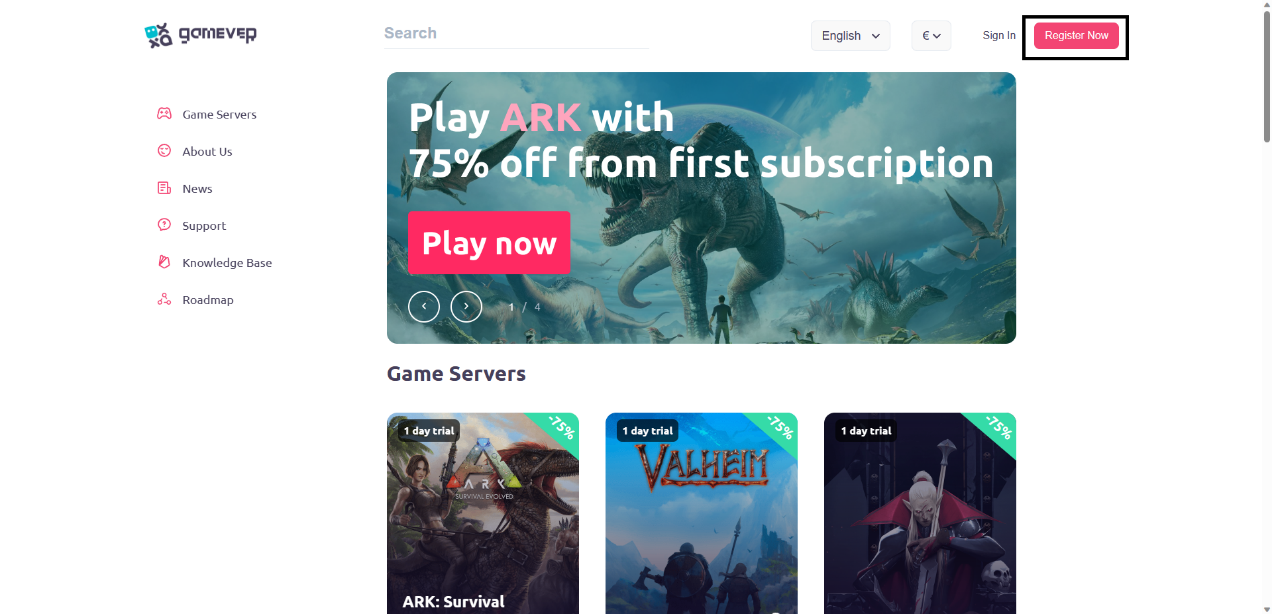
- Click on it and see the line where you have to enter your data: email and password. Also, you can use the login via Discord.
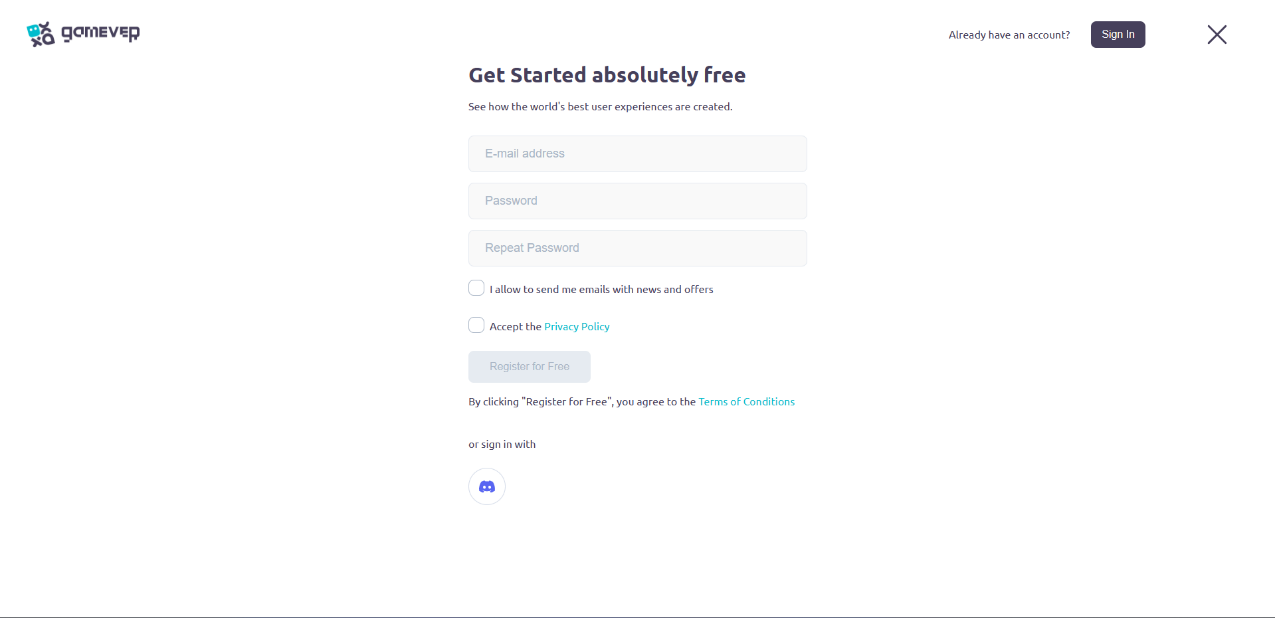
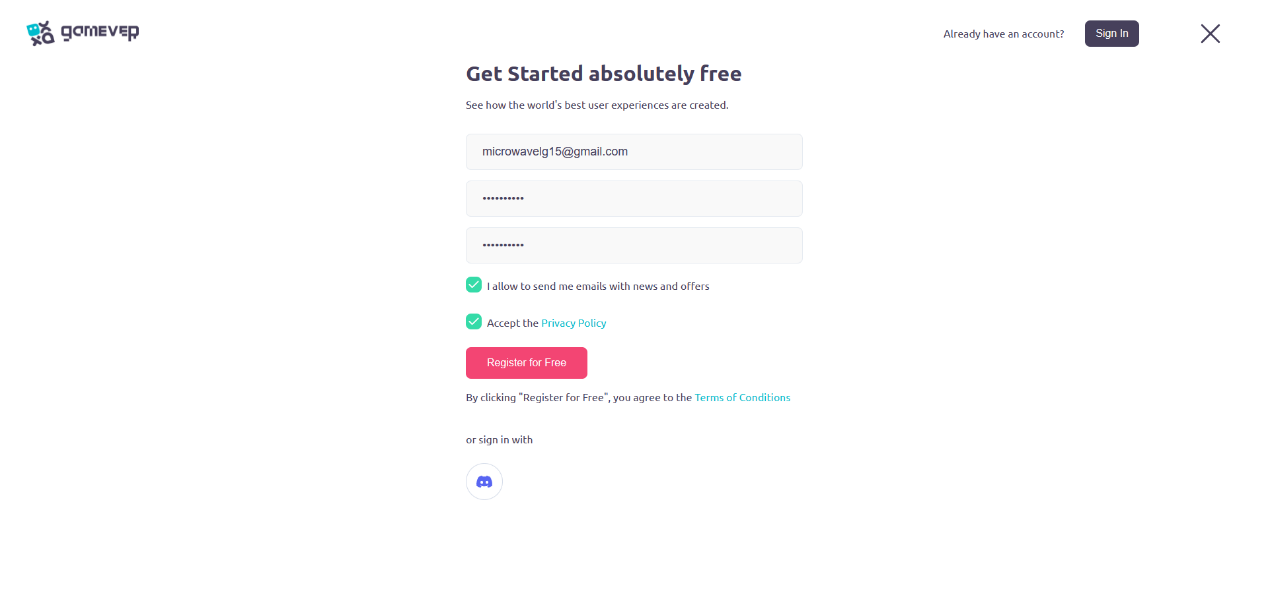
- After filling in all the data, accept the privacy policy, also advise to allow the newsletter and offers to your email, and then click "Register for Free".
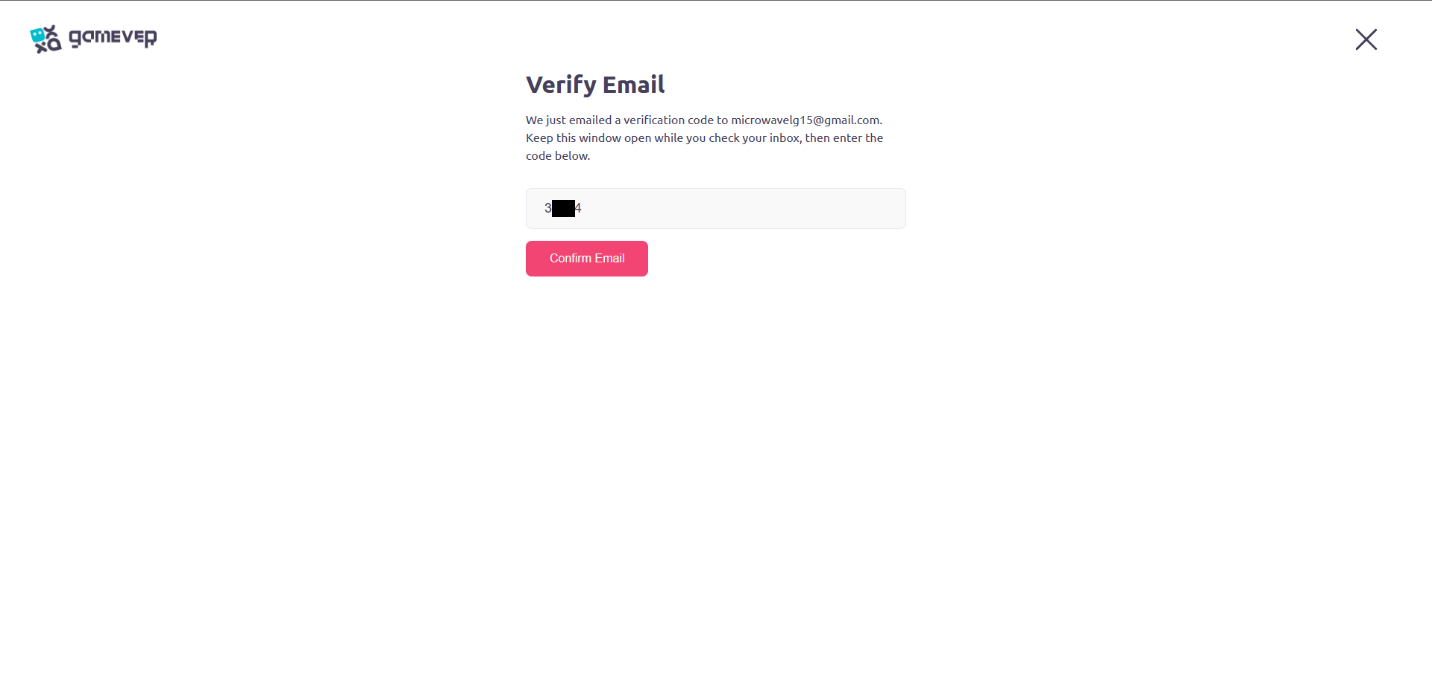
- In front of us is a verification window. A letter with a code will be sent to your email. Enter it, and voila, now you have an account!
How to make a server?
After registration, you will appear on the page with the game servers. Scroll just below and choose the right version of the game.
Gamever offers players a choice of several versions:
- Forge,
- Java,
- Spigot,
- PaperMC,
- Fabric.
For example, we chose Java. If you're not sure if you need a server yet or just want to try out our functionality, you can use one trial day. This server has four player slots.
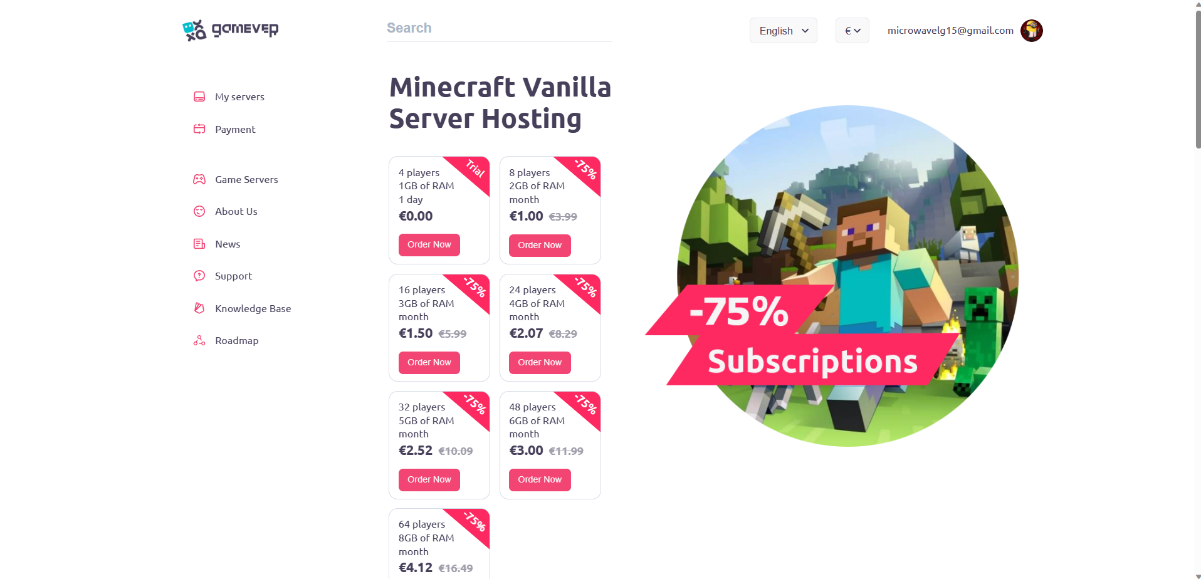
After selecting the desired server variation, you will go to the settings page. Here you can choose:
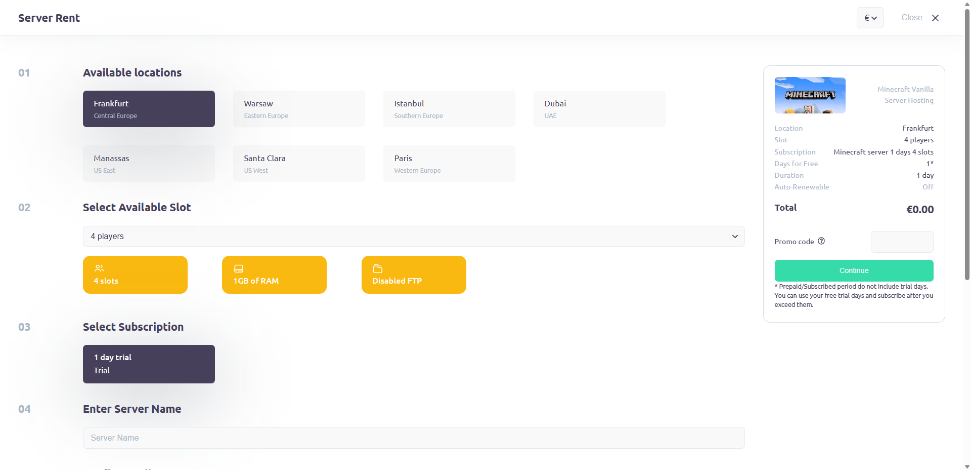
- the country where the server is located;
- number of slots
- set the server’s name.
- the ability to change the version of the Minecraft server (1.19.4)
- the choice of subscription. In the trial version, only one option is available.
If you have a server for 8 players, this section will look like this:
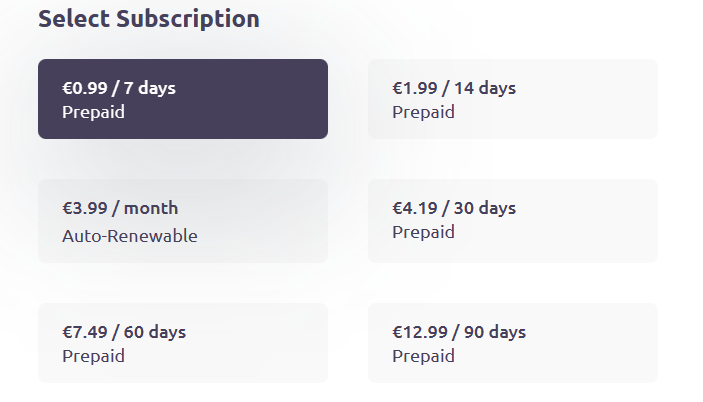
As you have already understood, the cost of the server depends on the number of players and the number of days.
After configuring your server, click "Continue" and if you select a non-trial period, you will see the payment window, where you will have to enter your payment method. After all, your server will work.
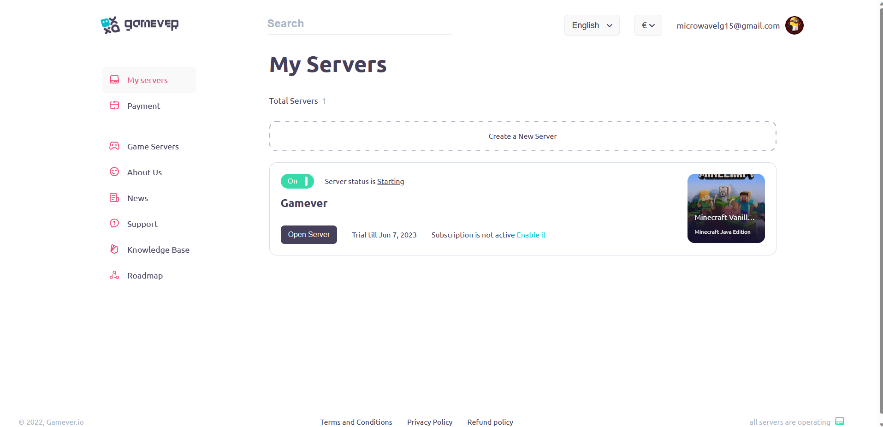
In conclusion, creating a Minecraft server with Gamever is easy and efficient. This service takes the technical hassle off your hands, allowing you to focus on building your perfect Minecraft world. This guide has hopefully shown you the simplicity of the process. Thanks for reading and keep an eye out for more informative articles on our site. Happy gaming, and enjoy creating new worlds and adventures in Minecraft with Gamever!