
How to Install the Equipment Compare Mod for Minecraft
For players who want a clear and detailed way to compare equipment stats, the Equipment Compare mod is a fantastic addition to Minecraft. It displays side-by-side comparisons of items, allowing you to make quick, informed decisions about which gear is better. This guide will walk you through the steps to install Equipment Compare and the required Iceberg mod. Plus, we’ll explain the mod's features and how it enhances gameplay on Gamever servers.
Step 1: Download Equipment Compare and Iceberg
To start, you’ll need to download both Equipment Compare and the Iceberg dependency mod from a trusted modding site like CurseForge or Modrinth.
- Visit the Equipment Compare page on CurseForge or Modrinth, and download the mod.
- Download the Iceberg mod as well, which Equipment Compare requires to function.
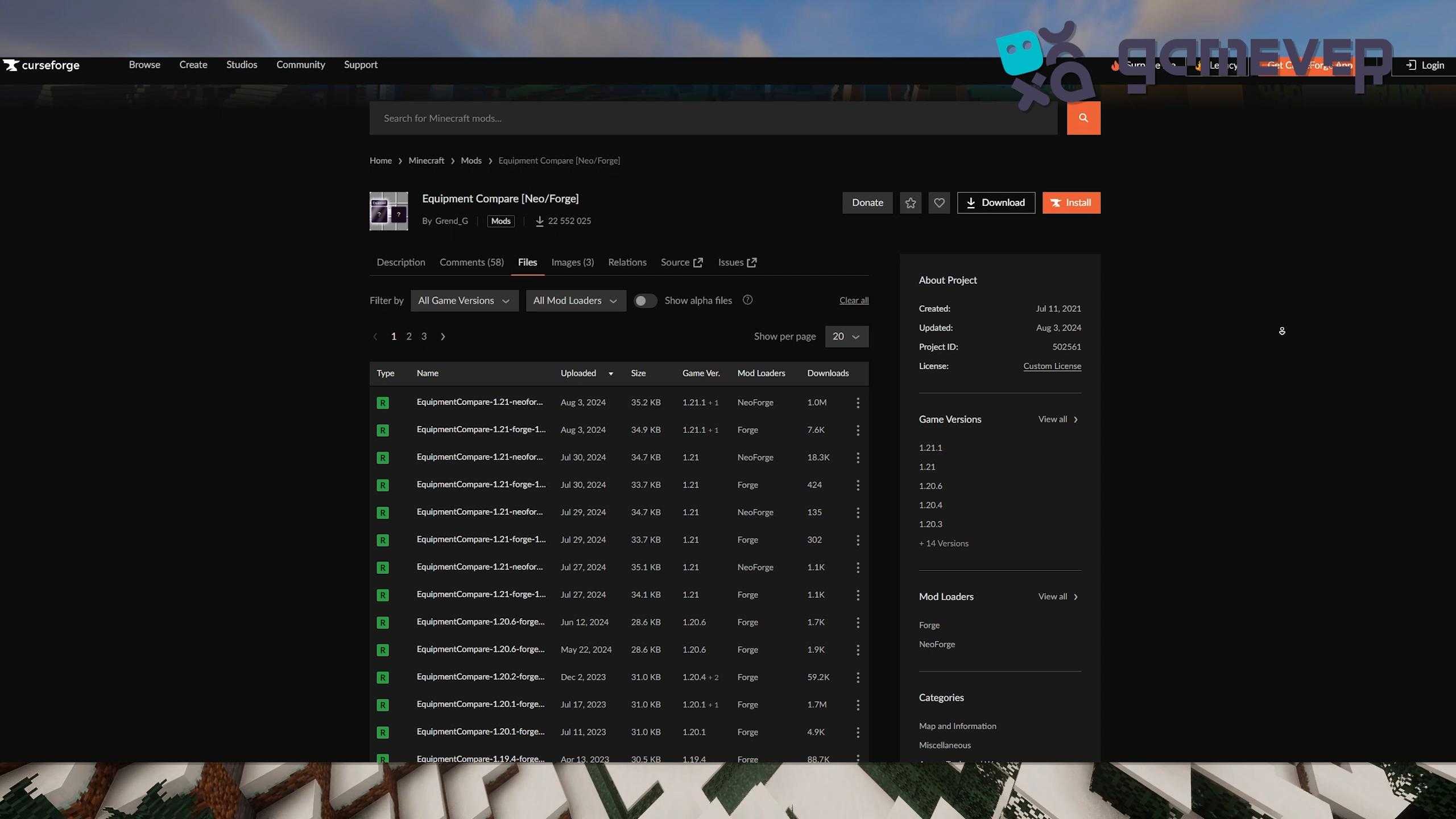
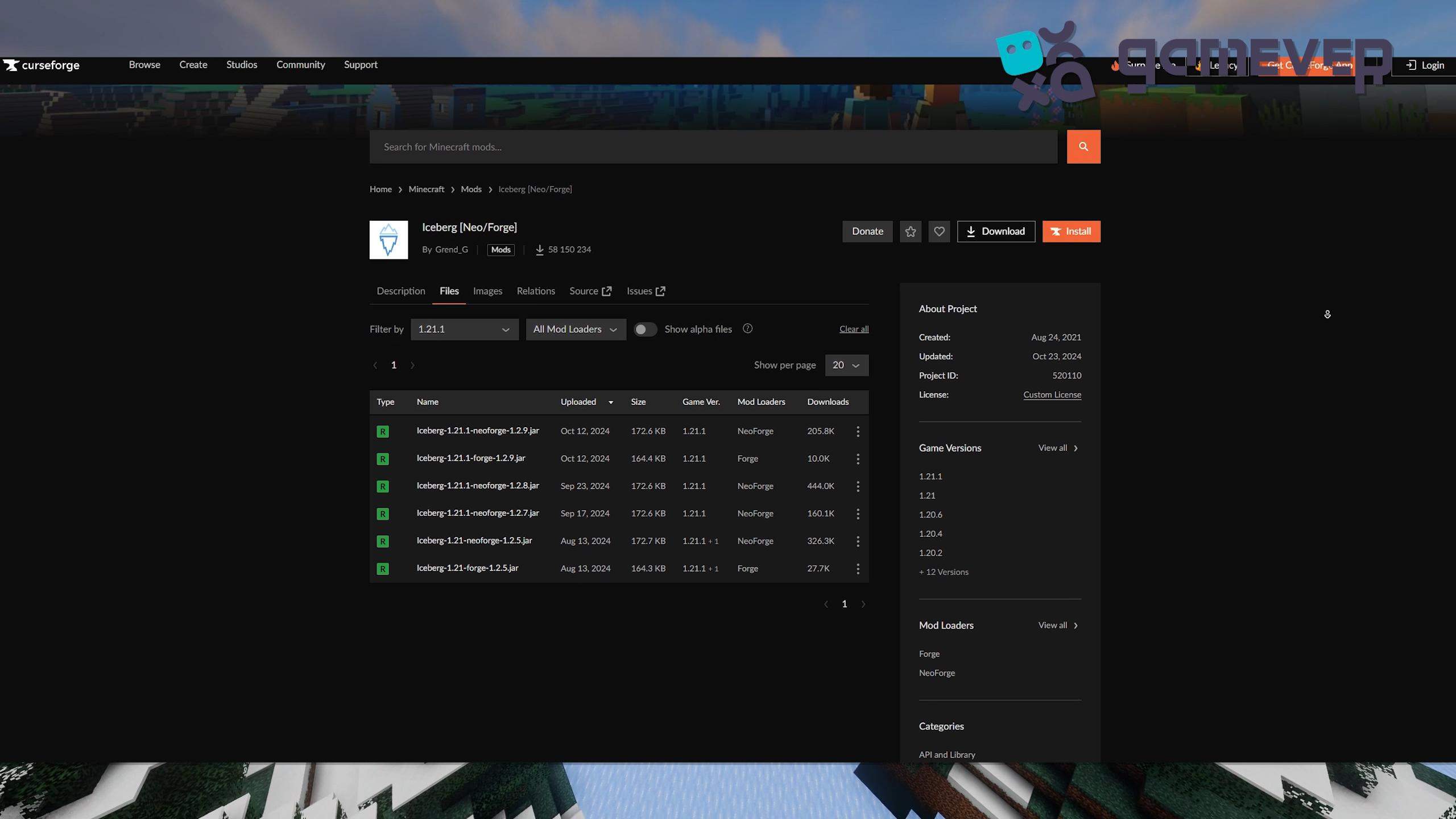
Make sure you download the correct versions of both mods that match your Minecraft version (e.g., 1.19, 1.18, etc.).
Step 2: Install Minecraft Forge or NeoForge
To run Equipment Compare, you need either Minecraft Forge or NeoForge installed.
- Download Minecraft Forge from Forge’s official site or NeoForge from its site.
- Follow the installation instructions to ensure you’re using the correct version for your mods.
- Open the Minecraft launcher, and make sure the Forge or NeoForge profile is selected.
Step 3: Place the Mods in the ‘Mods’ Folder
Once you’ve downloaded Equipment Compare and Iceberg, place the .jar files into Minecraft’s mods folder.
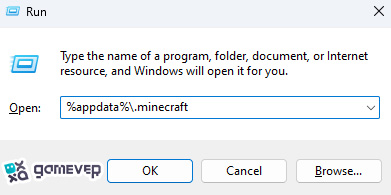
If you don’t see a mods folder, create one manually. Drag both Equipment Compare and Iceberg .jar files into this folder.
Step 4: Launch Minecraft
After placing the mods in the mods folder, launch Minecraft using the Forge or NeoForge profile. Once Minecraft loads, the Equipment Compare mod will be active, ready for use.
Using Equipment Compare in Minecraft
The Equipment Compare mod makes it easy to view detailed stats of items and gear side-by-side. Here’s how to use its key features:
1. Viewing Comparisons
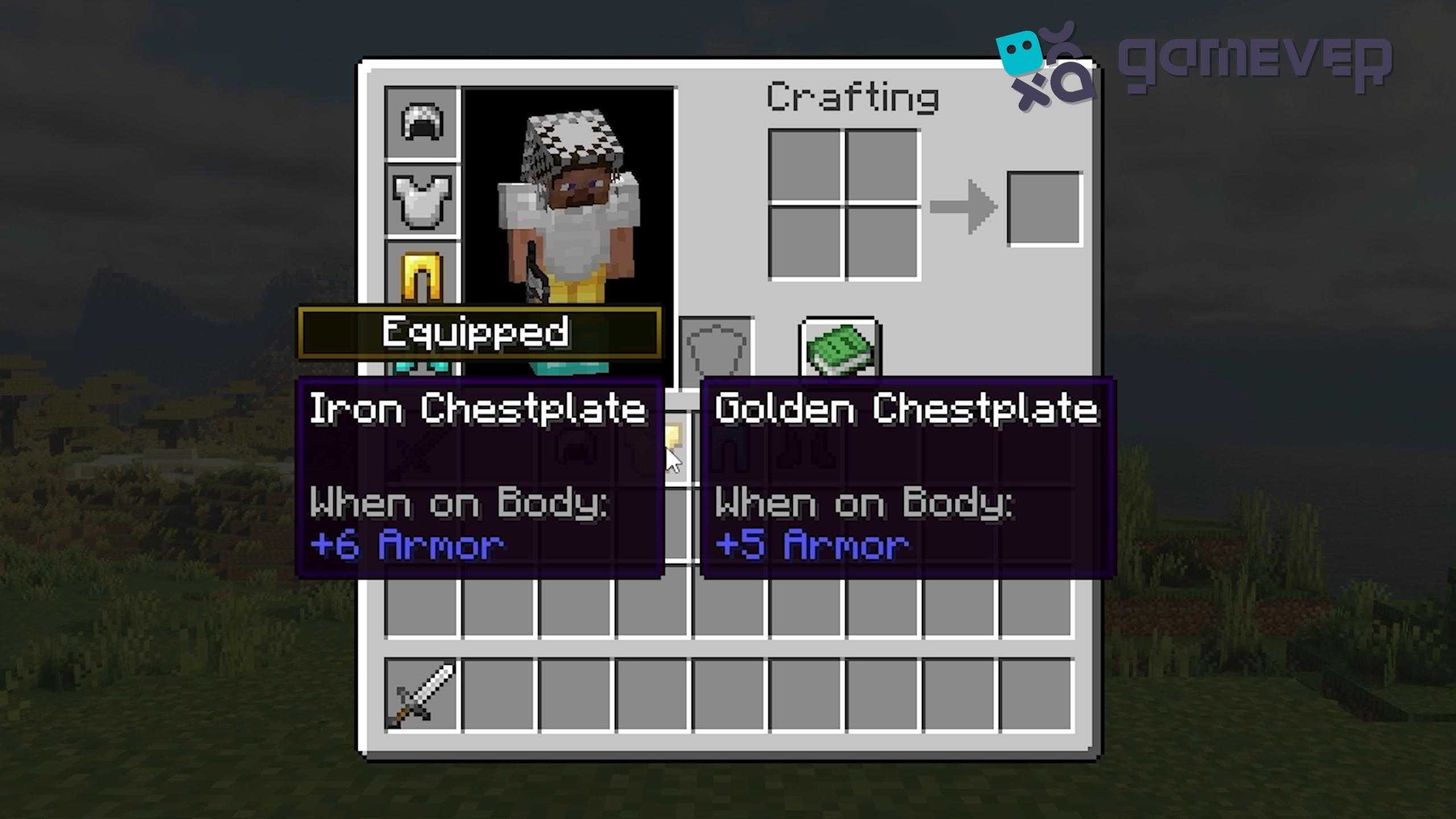
To compare items, simply hold ‘Shift’ while hovering over an item in your inventory. A tooltip will display both the stats of the equipped item and the item you’re viewing, making it simple to identify the better gear at a glance.
2. Customization Options
The mod is customizable, allowing you to adjust controls and display settings:
- Change Keybinds: If you want to use a different key than Shift, open the Controls settings to adjust the keybind for displaying comparisons.
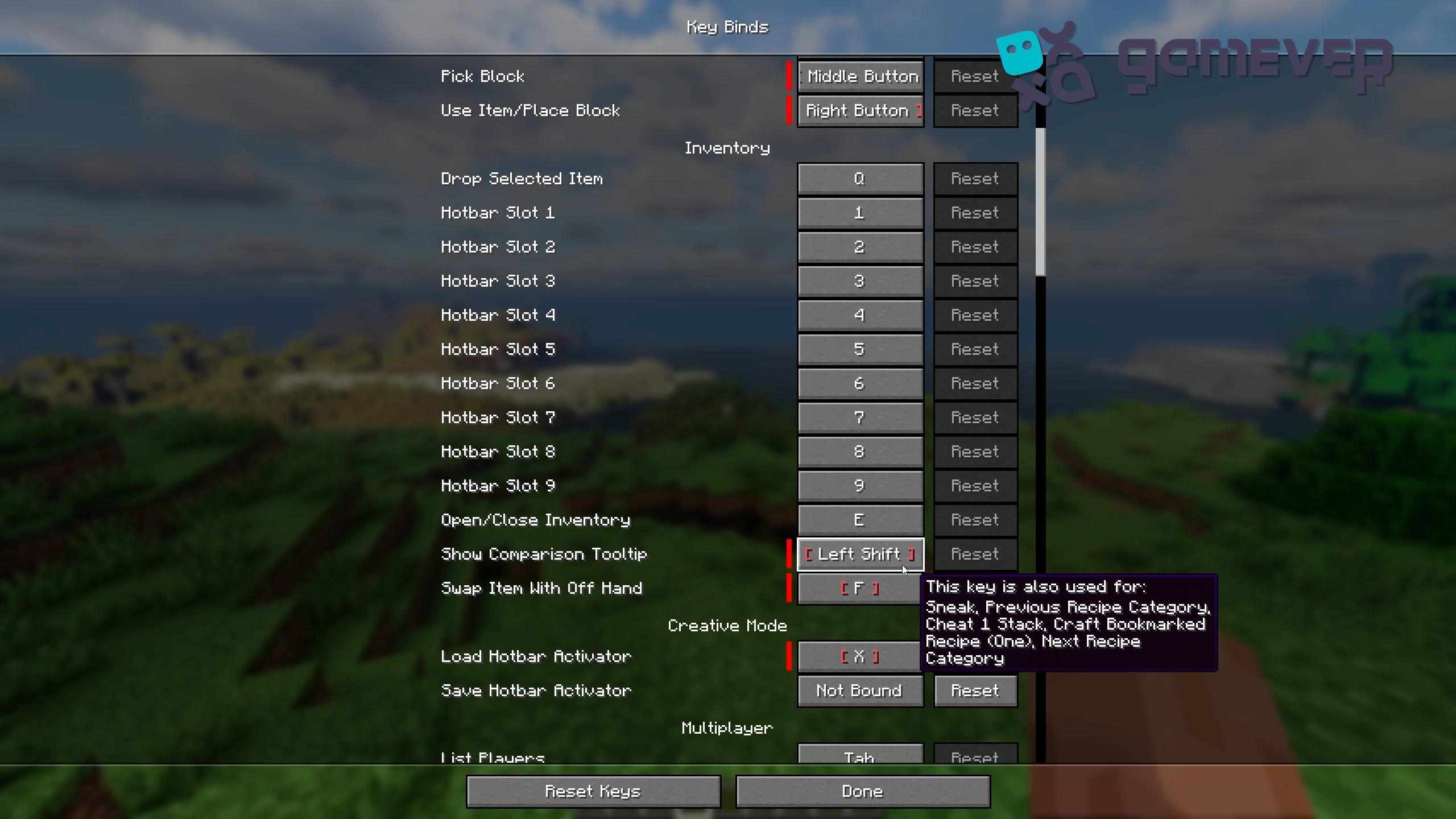
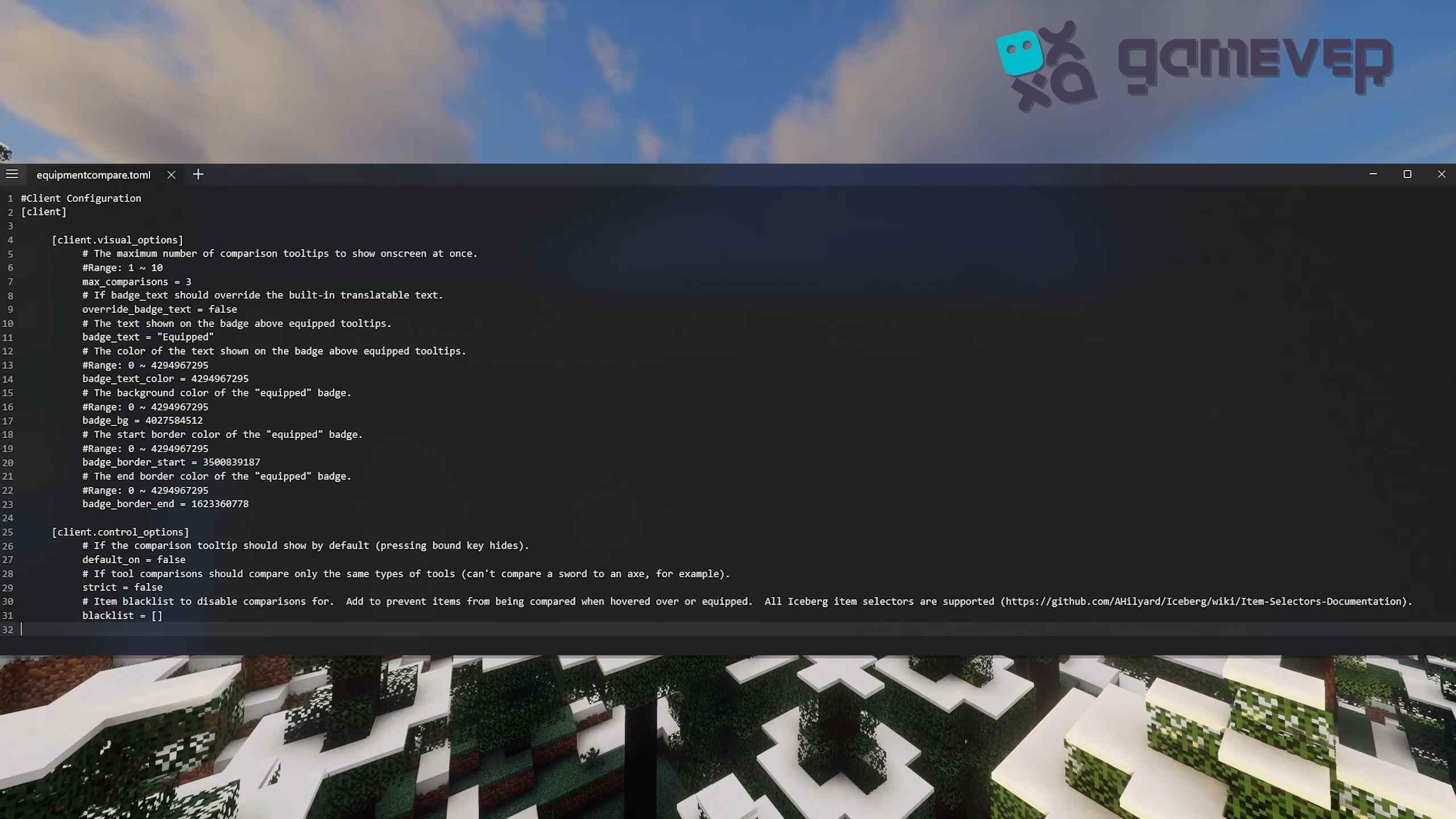
- Set Auto-Comparison: In the config file, you can choose to show comparisons automatically without holding Shift.
- Visual Customization: Adjust colors, add an ‘Equipped’ badge, or blacklist certain items from comparison, all within the mod's config file.
Benefits of Using Equipment Compare on Gamever Servers
When playing on Gamever servers, Equipment Compare is particularly useful for making quick decisions in multiplayer scenarios, such as PvP or cooperative builds:
- Efficient Gear Management: Quickly identify the best gear for fights or projects without sifting through stats manually.
- Streamlined Inventory Management: In cooperative play, Equipment Compare helps teams coordinate and decide on the best items for shared tasks or builds.
- Competitive Edge in PvP: On PvP-focused servers, switching to the best gear quickly is crucial. Equipment Compare lets you manage your loadout efficiently.
Conclusion
The Equipment Compare mod provides an invaluable tool for Minecraft players who want clear, efficient equipment comparisons. By displaying detailed stats side-by-side, it allows for quick decisions on gear, improving both solo and multiplayer gameplay. When playing on Gamever servers, this mod is a must-have, making gear management easier and providing an advantage in cooperative and competitive play.