
How to Install the Cosmetic Armor Reworked Mod for Minecraft
The Cosmetic Armor Reworked mod is a fantastic way to customize your armor look without compromising protection in Minecraft. This mod allows you to wear two armor sets simultaneously—one for style and one for functionality. If you want to explore new armor combinations or showcase your Minecraft skin, this mod makes it simple. Here’s how to install the Cosmetic Armor Reworked mod, and we’ll also touch on why it’s even better when used on Gamever servers, where multiplayer experiences benefit from personalized appearances.
Step 1: Download the Cosmetic Armor Reworked Mod
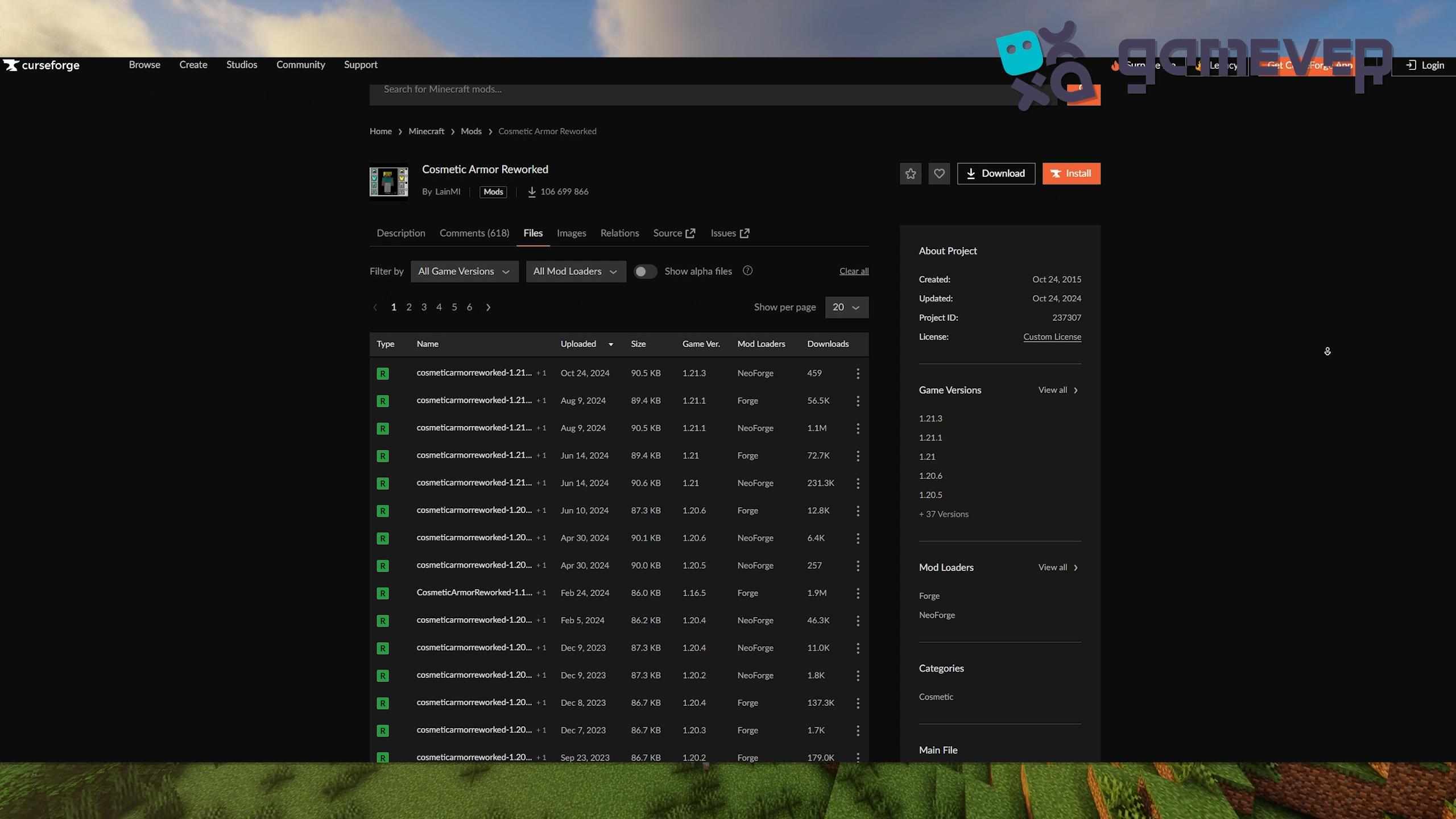
To start, download the Cosmetic Armor Reworked mod from a trusted modding site like CurseForge.
- Visit the Cosmetic Armor Reworked page on CurseForge.
- Download the version that matches your Minecraft version (e.g., 1.19, 1.18).
Step 2: Install Minecraft Forge or NeoForge
The Cosmetic Armor Reworked mod requires Minecraft Forge or NeoForge.
- Download Minecraft Forge from Forge’s official site or NeoForge from its site.
- Install Forge or NeoForge, ensuring the version aligns with your Minecraft installation.
- Open the Minecraft launcher and select the Forge or NeoForge profile.
Step 3: Add the Mod to Your ‘Mods’ Folder
Once you’ve downloaded the Cosmetic Armor Reworked .jar file, place it in Minecraft’s mods folder.
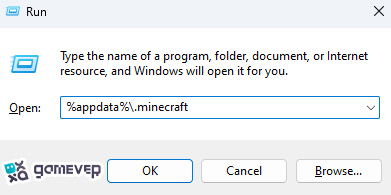
If the mods folder isn’t there, create it manually. Then, drop the Cosmetic Armor Reworked .jar file into this folder.
Step 4: Launch Minecraft
With the mod installed, start Minecraft using the Forge or NeoForge profile. The Cosmetic Armor Reworked mod will be active, ready for you to start customizing your in-game look.
How to Use the Cosmetic Armor Reworked Mod
The Cosmetic Armor Reworked mod provides you with numerous customization options for your armor.
1. Wearing Cosmetic Armor
To access the mod’s cosmetic slots:
- Open your inventory and click the Cosmetic Armor button to the side.
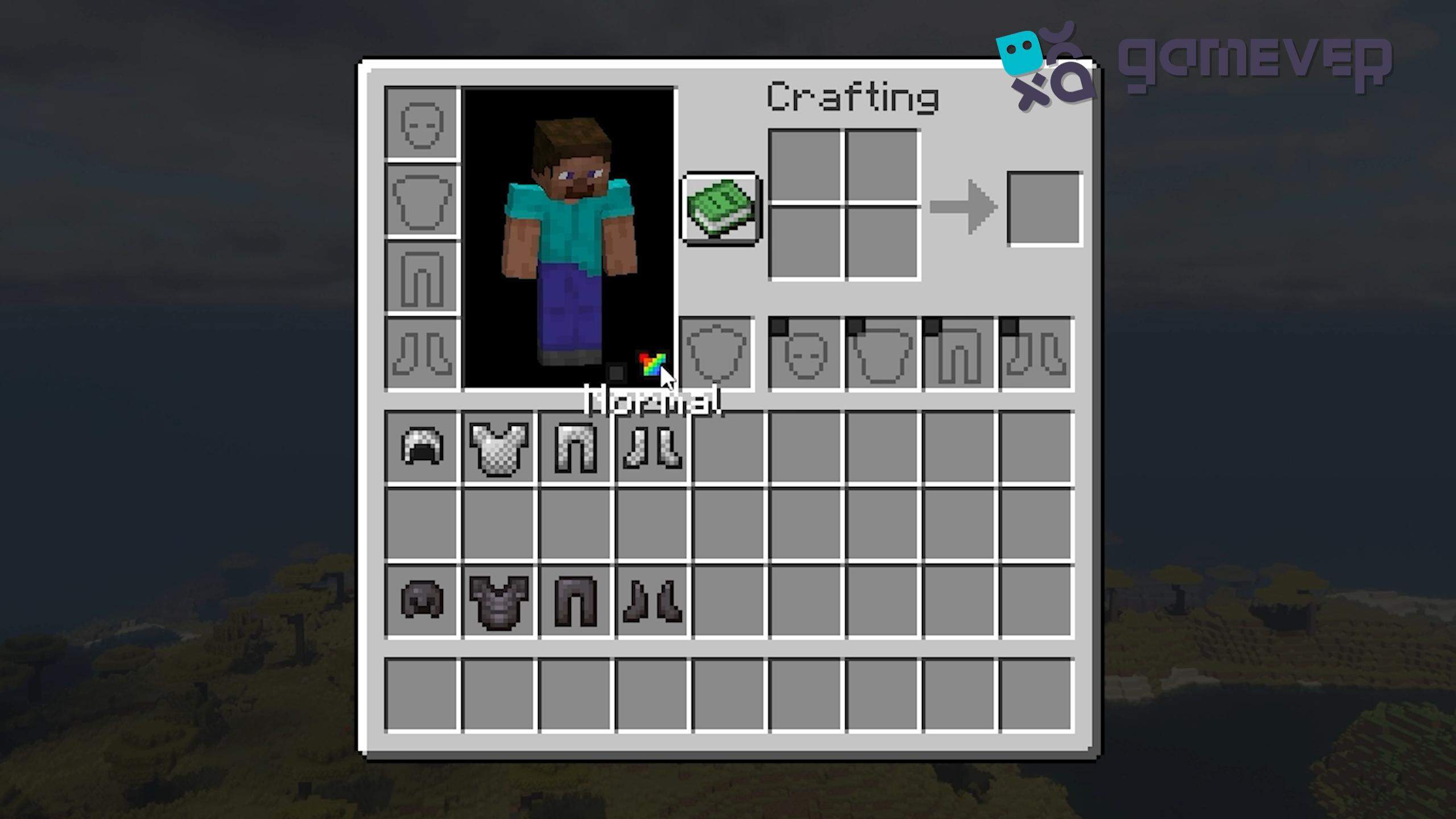
- On the left, place your protective armor. On the right, you can add any armor you desire for aesthetic purposes.
Your stats remain based on the left-side armor, but your character’s appearance will reflect the right-side armor.
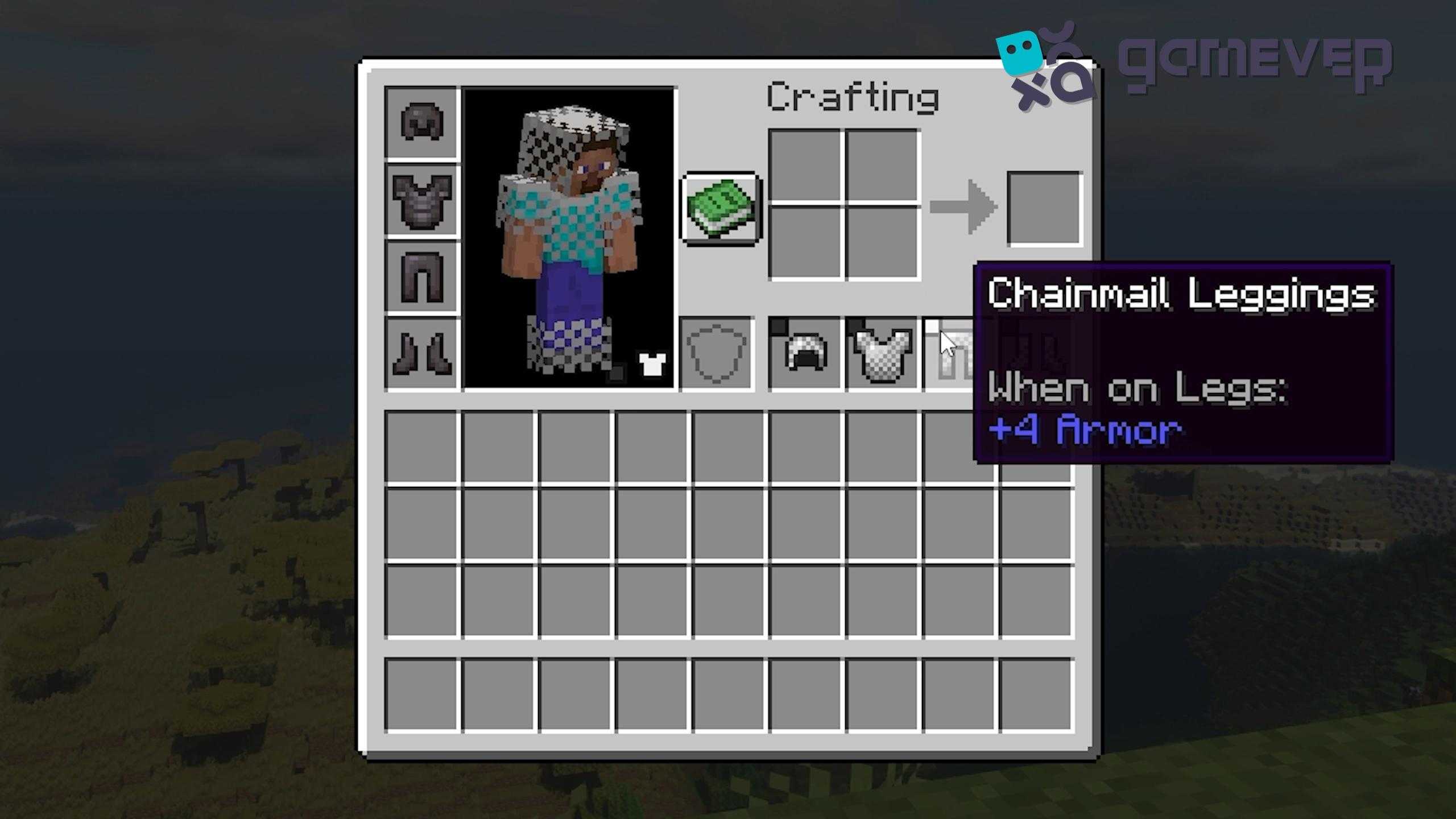
2. Hide Individual Armor Pieces
For players who want a minimalist look or to show off their Minecraft skin, the mod includes a toggle button to hide individual armor pieces. This feature is ideal for players who want control over their look in a multiplayer setting.
3. Additional Commands
The mod includes commands for quick customization:
- /clearcosarmor clears the cosmetic slots.
- /coshat allows you to swap items with your head slot, adding more flexibility in armor management.
Benefits of Using Cosmetic Armor Reworked on Gamever Servers
When playing on Gamever servers, Cosmetic Armor Reworked allows you to add a unique style to your multiplayer interactions:
- Express Yourself: Showcase your armor style without sacrificing protection. It’s perfect for role-playing or creating custom looks in group settings.
- Streamlined Team Play: On multiplayer servers, the clear cosmetic options make it simple to identify teammates, even in battle.
- Enhanced Aesthetic: Show off personalized armor combinations, making your builds or PvP sessions even more immersive.
Conclusion
The Cosmetic Armor Reworked mod is an excellent choice for Minecraft players looking to mix style with protection. From toggling visibility to managing armor combinations, this mod allows you to truly personalize your character’s look. Plus, on Gamever servers, it adds a new level of visual customization that makes multiplayer interactions more engaging.