
How to Install the Controlling Mod for Minecraft?
Managing keybinds in Minecraft can be overwhelming, especially when you have multiple mods installed. The Controlling mod simplifies this process, making it easier to search for keybindings, identify conflicts, and manage your controls efficiently. This guide will walk you through how to install the Controlling mod for Minecraft, along with the necessary Searchables mod. Additionally, we’ll explain how this mod can improve your gameplay experience, especially when playing on Gamever servers, where seamless control management is key.
Step 1: Download the Controlling Mod
To begin, download the Controlling mod from trusted modding websites such as CurseForge or Modrinth.

- Download the version of the mod that matches your Minecraft version (e.g., 1.18, 1.17, etc.).
Step 2: Download the Searchables Mod
The Searchables mod is required for Controlling to work properly. It adds a search function that allows you to filter keybindings by name.

Make sure you download the version that is compatible with both your Minecraft version and the Controlling mod.
Step 3: Install Minecraft Forge
Before running the mods, you’ll need to install Minecraft Forge, which is required for most Minecraft mods to function.

- Follow the installation instructions to install Forge for your specific Minecraft version.
- Open your Minecraft launcher and select the Forge profile to ensure it is working properly.
Step 4: Move the Mods to the ‘Mods’ Folder
Once you’ve downloaded the Controlling mod and the Searchables mod, the next step is to place the .jar files into the Minecraft mods folder.
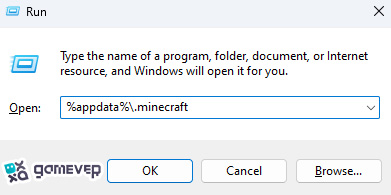
If there isn’t a mods folder in your Minecraft directory, create one manually. Then, drag and drop both Controlling and Searchables .jar files into this folder.
Step 5: Launch Minecraft
After moving both mod files to the mods folder, launch Minecraft using the Forge profile. The Controlling mod will install and be ready for use once the game loads.
How to Use the Controlling Mod in Minecraft
The Controlling mod makes managing and customizing keybindings much simpler. It offers several key features to help you organize your controls efficiently:
1. Search for Keybindings by Name
One of the most useful features of the Controlling mod is the ability to search for specific keybindings by typing in their names. This is especially helpful if you have a lot of mods installed and need to locate keybindings quickly.
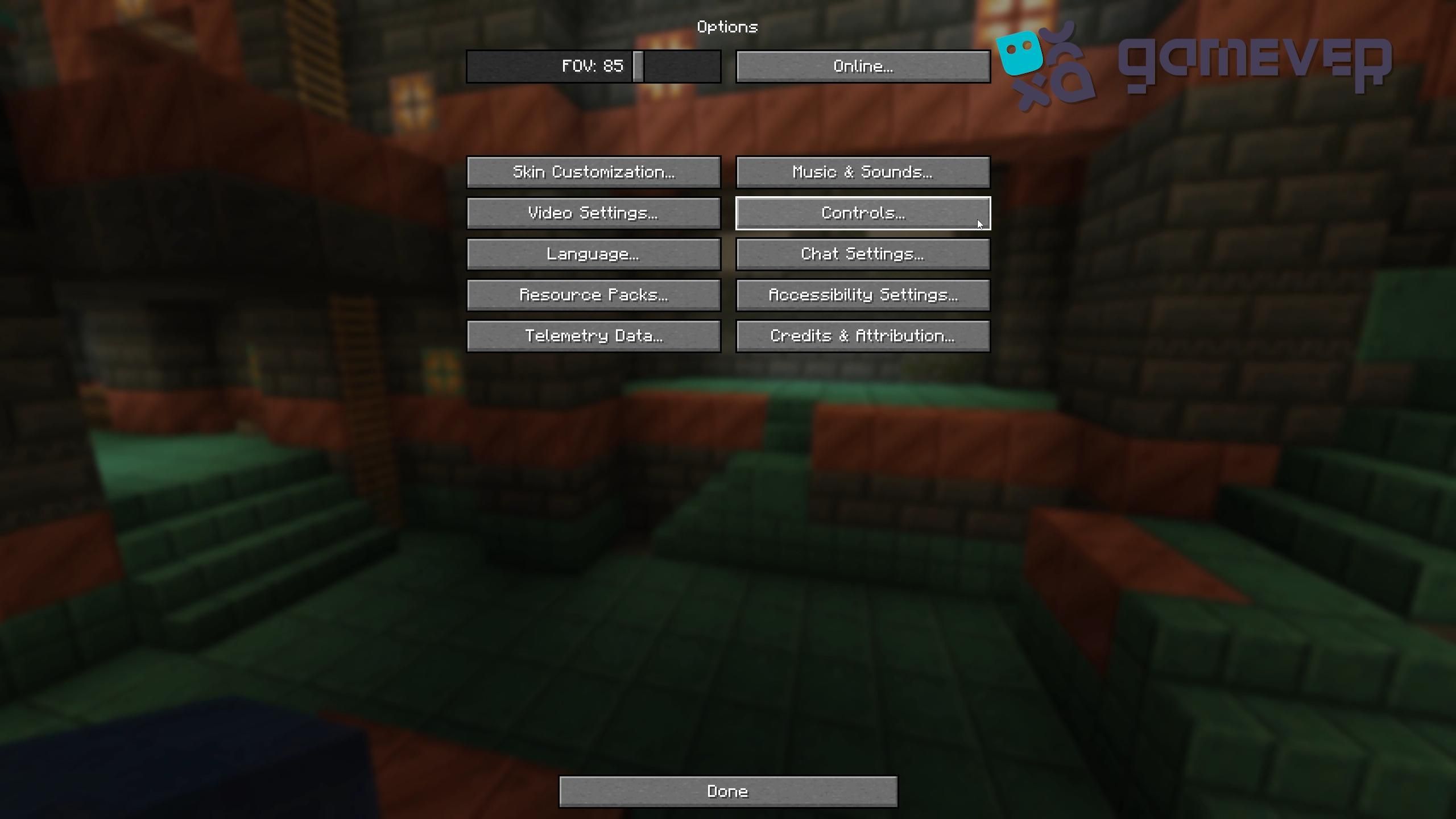
Type the name of the keybind you're looking for in the search bar the mod provides, and it will highlight instantly.
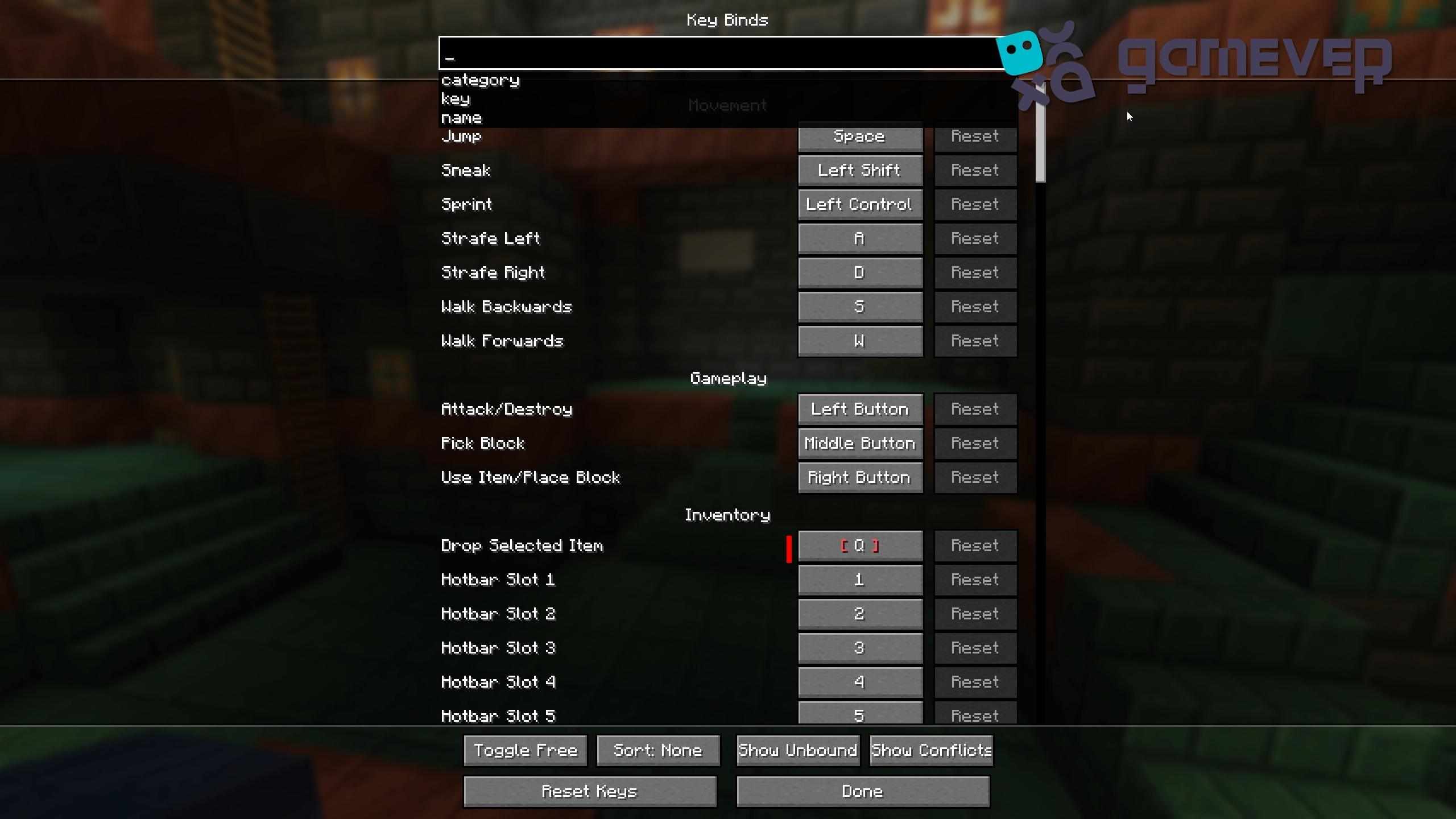
2. Identify Keybinding Conflicts
Managing keybinding conflicts can be tedious, especially with multiple mods installed. Controlling helps by highlighting any conflicting keybinds. When two functions are assigned to the same key, the mod will mark them, allowing you to fix the conflict quickly.
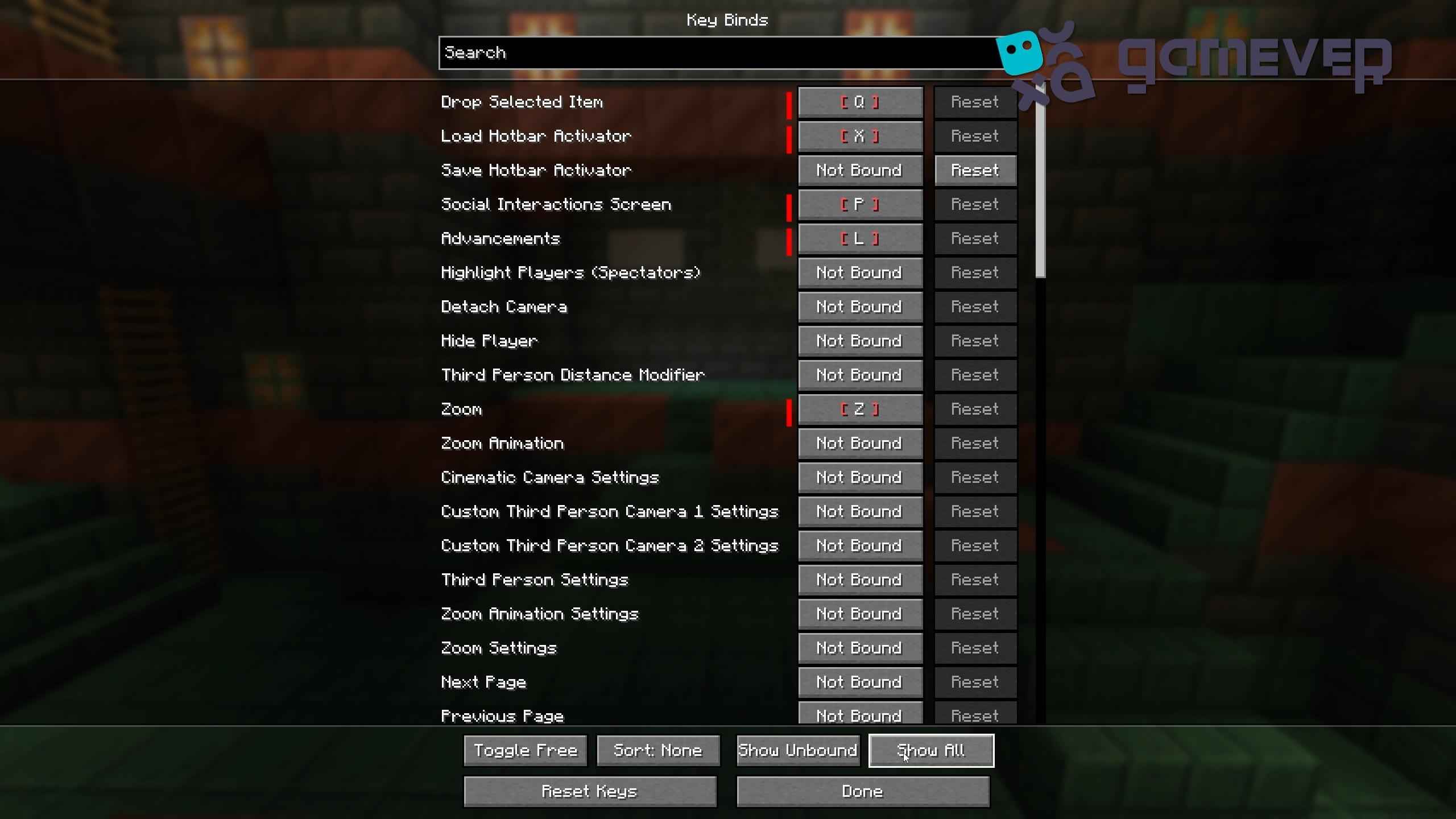
You can easily adjust or reassign the conflicting key with just a few clicks.
3. Filter Available Keybindings
If you're unsure which keys are available, Controlling lets you filter for keys that are currently unassigned. This simplifies the process of identifying keys suitable for binding to new functions without creating conflicts.
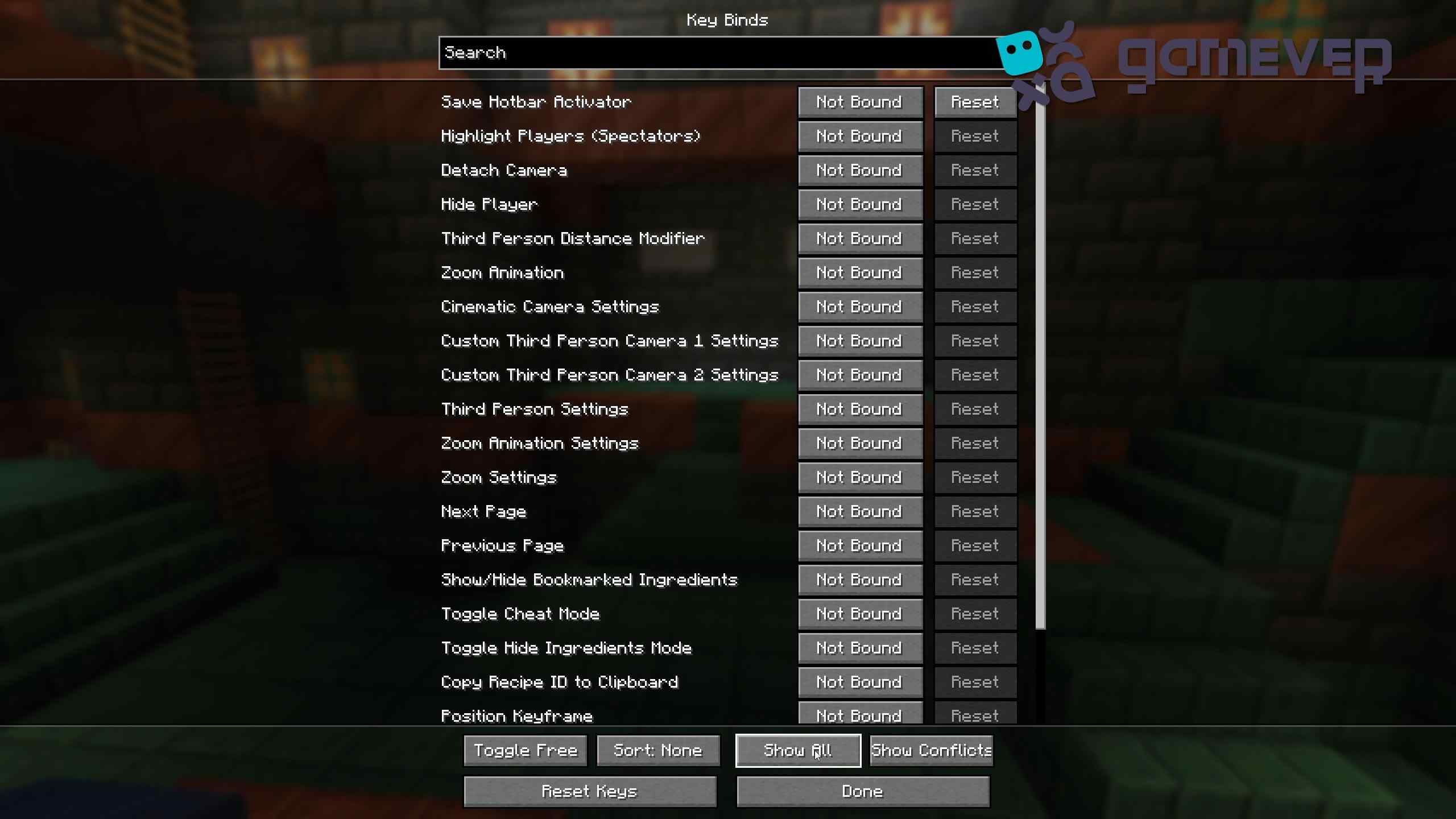
Easily assign new functions to the available keys.
Benefits of Using Controlling on Gamever Servers
When playing on Gamever servers, where custom mods and keybindings are often essential, the Controlling mod can significantly improve your gameplay experience:
- Quickly Manage Keybinds for Multiplayer: With multiple players and custom mods, it’s important to manage your keybindings efficiently. The Controlling mod ensures that you won’t have overlapping keybinds that could cause confusion during important moments.
- Streamlined Controls: Whether you’re building, exploring, or engaging in PvP, having optimized controls ensures smoother and more effective gameplay on Gamever servers.
- Collaborative Play: In a multiplayer setting, keeping your keybinds organized and conflict-free helps you respond quickly in cooperative tasks or competitive scenarios.
Conclusion
Installing and using the Controlling mod for Minecraft is a fantastic way to streamline your keybindings and take full control of your gameplay experience. Whether you’re adjusting controls for mods or organizing default keybinds, Controlling simplifies the process, allowing you to focus on enjoying the game. Combining this mod with Gamever servers optimizes your controls for multiplayer adventures, facilitating easy collaboration and competitive play.