
How to install resource packs in Minecraft?
One of the most crucial tools in Minecraft for players seeking to alter gameplay is the resource packs. With these packs, you can change the game's sounds, graphics, and user interfaces, giving it a new look and feel. Following this detailed guide will help you add resource packs in Minecraft, which will let you change the way the game looks and sounds. We'll also talk about the benefits of playing on Gamever sites, where you can share and enjoy these personalized experiences with friends.
How to Use Minecraft Resource Packs
There's more to resource packs than meets the eye. They change the game's world completely by adding new sounds, colors, and textures. Some are small, like improving the resolution of current textures, while others are large, like changing the entire theme of your Minecraft world and creating a whole new world.
Step-by-Step Guide to Installing Resource Packs
1. Choosing Your Resource Pack
Selection: Browse a variety of websites and Minecraft forums to find a resource pack that suits your tastes. Ensure it's compatible with your Minecraft version for optimal performance.
2. Downloading the Resource Pack
Secure Download: To avoid harmful software, always download resource packs from reputable sources. Store the resource pack in a convenient location on your computer for easy access.
3. Installing the Resource Pack
Accessing Minecraft : Launch Minecraft and navigate to the game menu.
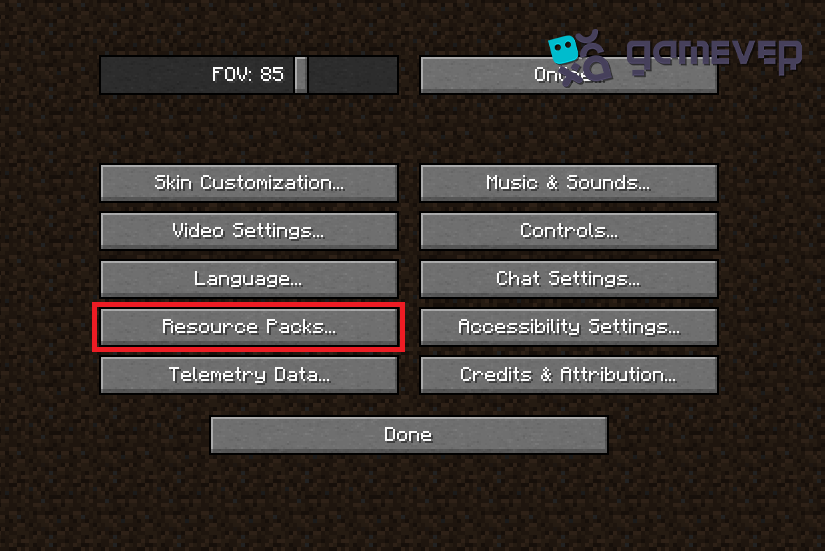
Opening Resource Pack Folder : In the menu, select "Options," then "Resource Packs," and finally "Open Pack Folder." This action will open the folder where Minecraft stores all resource packs.

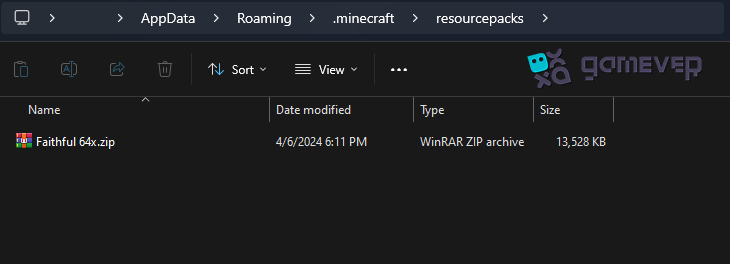
Transferring the Pack : Drag and drop the downloaded resource pack file into the resource pack folder. The file should be in.zip format; there's no need to unzip it.
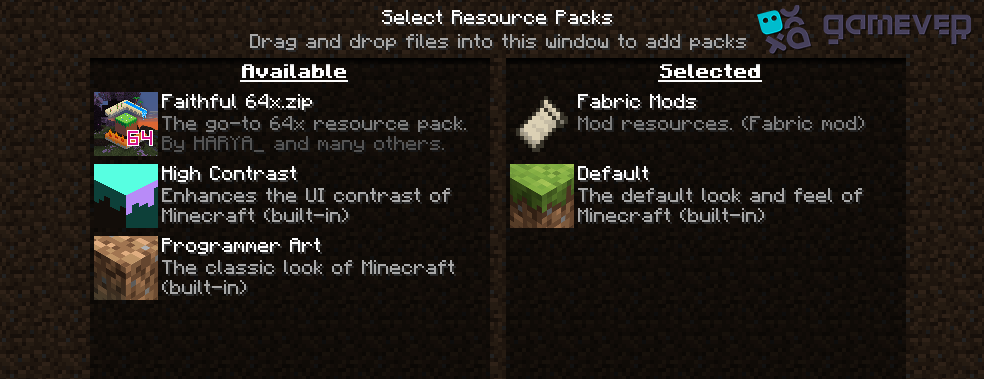
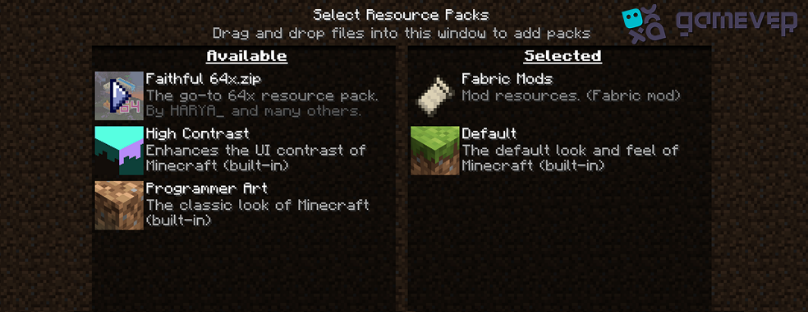
Activating the Pack: Return to the Minecraft resource pack screen, and your new pack should be listed. Click on the pack icon, then click "Done." Minecraft will load the pack, which may take a few moments depending on its size.
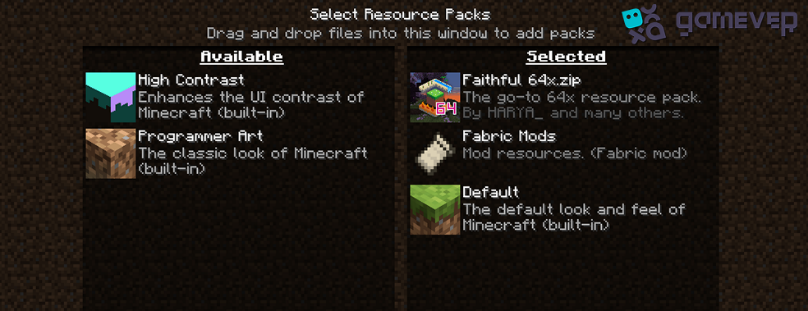
4. Verifying the installation
Confirmation : Once Minecraft has loaded the resource pack, your environment's appearance should reflect the changes. If not, ensure you've activated the pack correctly and check its compatibility with your version of Minecraft.
Maximizing your experience with resource packs
Testing and Tweaking : Spend some time exploring your new game's aesthetics. You might need to adjust Minecraft's graphics settings for optimal performance, especially with high-resolution packs.
Multiple Packs: In Minecraft, you can layer resource packs. Experiment with combining different packs for a unique gaming experience.
Updates and Community Feedback : Keep your resource packs up-to-date, and engage with the Minecraft community for recommendations and troubleshooting tips.
Enhancing Your Gameplay on Gamever Servers
With your resource packs installed, consider elevating your Minecraft experience by joining Gamever servers. Whether you're building, exploring, or engaging in epic adventures, Gamever offers:
Shared Customization: While playing with friends, enjoy your resource pack enhancements. Gamever servers support customizations, allowing everyone to experience Minecraft's visual and auditory enhancements together.
Reliable and Smooth Gameplay : Benefit from Gamever's stable and lag-free servers, ensuring your resource pack enhancements are experienced without interruption.
Community and Collaboration : Join a like-minded community that values customization and creativity. Share resource pack tips, showcase your builds, and collaborate on projects in a supportive environment.
Conclusion
Installing resource packs is a straightforward process that significantly enhances your Minecraft experience, adding depth and personality to the game world. Following this guide allows you to easily integrate new visuals and sounds, refreshing your gameplay. Additionally, consider the benefits of Gamever servers, where you can share this enhanced experience with friends, fostering a more immersive and collaborative Minecraft adventure.