
How to Install Mods on Your V Rising Server
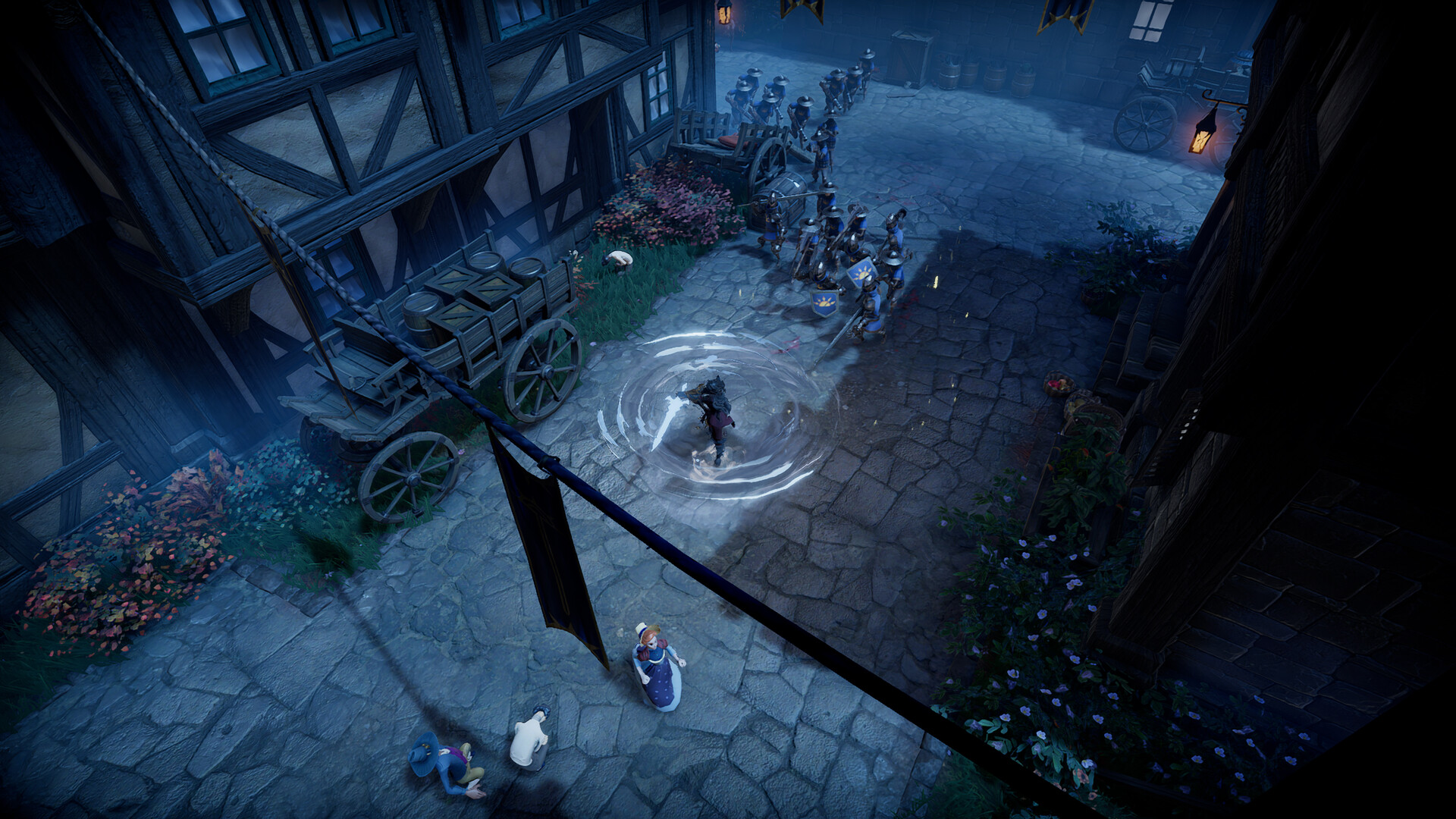
V Rising's mod scene runs on BepInEx, the same loader Unity games across the community use, and the mods themselves are published on Thunderstore (the V Rising modding community page). On a gamever server there's no mod toggle to flip — V Rising's Settings tab is a single page with no Mods section — so you install everything by hand through the File Manager or FTP. This guide covers the loader, where the files go, load order, and the one rule that trips up every first-time modder: client mods.
Step 1 — Install the BepInEx loader
Mods won't load without BepInEx sitting in your server's files first. Download the BepInExPack for V Rising from Thunderstore — use the V Rising pack specifically, not a generic BepInEx build — and extract it. The pack gives you:
| Item | What it is |
|---|---|
BepInEx/ | The loader folder, including an empty plugins/ subfolder your mods go into. |
winhttp.dll | The hook that injects BepInEx at launch — without it at the server root, nothing loads. |
doorstop_config.ini | The loader's startup config. |
Upload these to your server's root folder in the File Manager (or over FTP) so winhttp.dll sits alongside the server executable. Then Stop and Start the server once — the first launch builds out the BepInEx/ folder structure, including the log you'll check later.
Your gameplay config files live separately in
/home/configs/Settings/(see the config JSON guide) — modding doesn't touch those; it adds theBepInEx/tree.
Step 2 — Add plugins to BepInEx/plugins
With the loader in place, every mod is just a file (or small folder) you drop into one directory:
BepInEx/plugins/
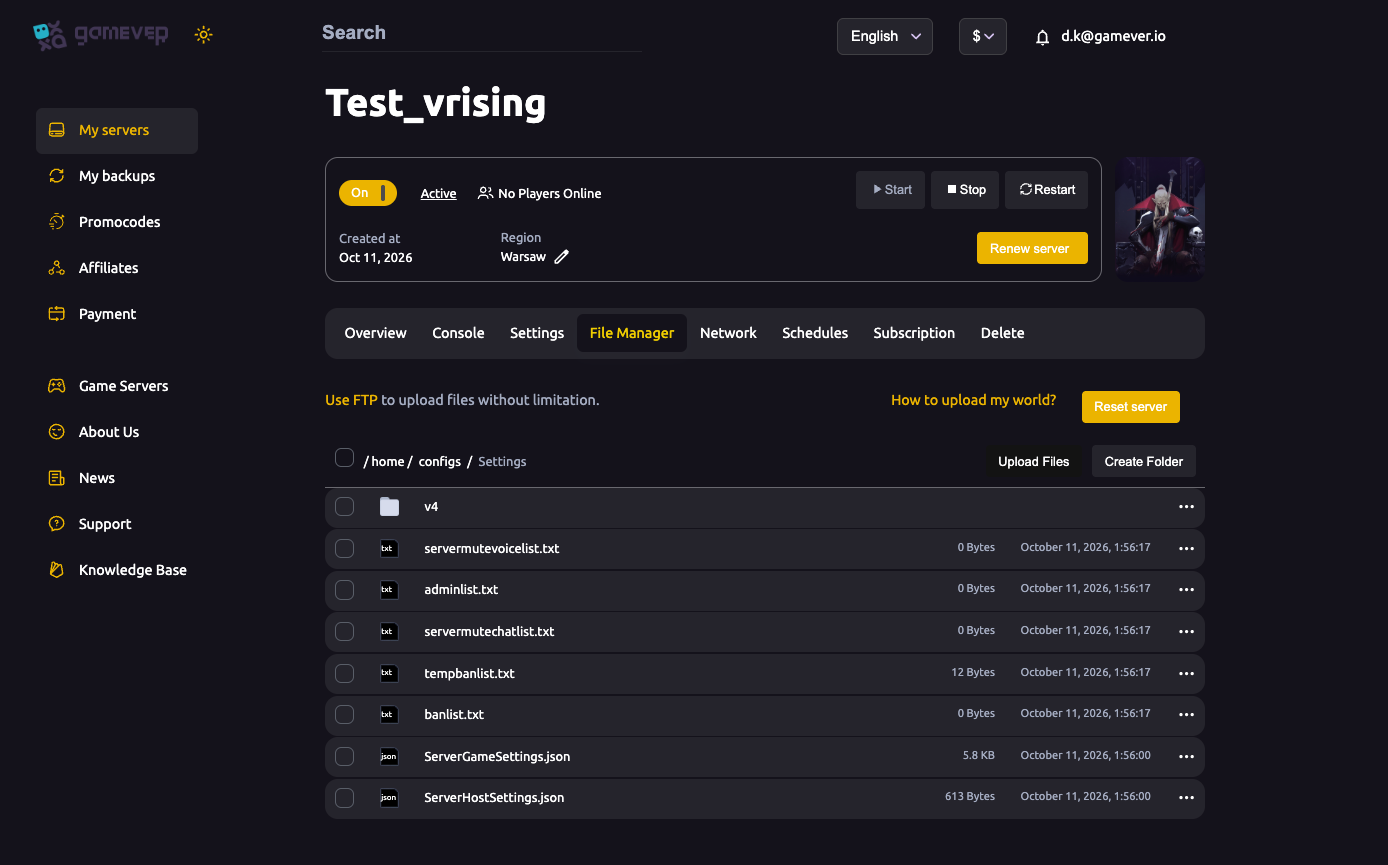
To install a mod:
- Stop the server (Overview → Stop) — never upload mods to a running server.
- Download the mod from its Thunderstore page and extract it. A mod typically unpacks to its own subfolder holding a
.dlland amanifest.json. - Upload that folder (or the loose
.dll) intoBepInEx/plugins/. - Install any dependencies the mod lists on its Thunderstore page — most server mods build on a shared command framework such as VampireCommandFramework, so check the page and add what it names.
- Start the server. BepInEx loads each plugin automatically on boot.
Load order
BepInEx loads plugins by their declared dependencies, not by filename — a mod that depends on a framework waits for that framework to load first, which is why installing the dependencies a Thunderstore page lists is not optional. For the handful of mods that expose an explicit priority or ordering setting, that's configured in the mod's own config file (generated under BepInEx/config/ after the first run), not by renaming files. If two mods genuinely conflict, the fix is to read each one's Thunderstore notes — there's no master order list to edit.
The golden rule: everyone needs matching mods
This is where most V Rising mod setups go wrong:
- Client-side mods (anything changing the UI, visuals or input) must be installed by every player too, at the same version as the server. A player without them — or on a different version — will fail to connect or behave oddly. Share your mod list and versions with your group.
- Server-side mods run only on the server; players don't need to install those.
Many mods are a bit of both, so the safe default is: tell your players exactly which mods and versions you're running, and keep everyone in sync whenever you update. A tool like the Thunderstore mod manager helps your group install the same profile quickly.
If a mod doesn't load
- Check
BepInEx/LogOutput.login the File Manager — it lists every plugin BepInEx found and any that failed, usually with the reason. - A missing dependency is the most common cause — re-read the mod's Thunderstore page and install everything it requires.
- Version mismatch after a game update — a V Rising patch can break older mods until they're updated; see updates & versions if players suddenly can't join.
- Confirm
winhttp.dllis at the server root, not buried inside theBepInEx/folder.
Additional Tips
- Always Stop before adding or removing mods, and Start to apply — same rule as editing the config JSON.
- Use the V Rising-specific BepInExPack, never a generic or 32-bit build.
- Match versions across the whole group for any client-side mod — the number-one join failure.
- Keep a backup of your
BepInEx/folder before a big update so you can roll back — see backup & restore. - Read the log (
BepInEx/LogOutput.log) first whenever something misbehaves — it almost always names the culprit.
Conclusion
Modding a V Rising server is three moves: install the BepInExPack for V Rising at the server root, drop each Thunderstore plugin (plus its dependencies) into BepInEx/plugins/, and make sure every player runs the matching client mods. Do it all with the server stopped, check LogOutput.log on boot, and keep your group's versions in sync.
Rent your V Rising server at gamever.io — a browser file editor and full FTP so you can install BepInEx and your whole mod list yourself, no mod toggle needed. Free trial, promo code WELCOME.