
How to Install Mods on Your Sons of the Forest Server
Sons of the Forest ships with no official mod support from Endnight, so everything runs on community tooling — chiefly the RedLoader mod loader. That changes how modding works on a server: most mods are client-side, so the usual job is making sure the loader and the right files land in the correct folders, and that every player runs the same mods. This guide explains the honest state of Sons of the Forest server modding and how to handle the files through your gamever panel's File Manager and FTP — not how to self-host from scratch.
Read this first. Server-side gameplay modding for Sons of the Forest is still an immature, reverse-engineered ecosystem. Many mods only run on each player's PC; a plain, unmodded server plus matching client mods is the most reliable setup. Treat anything server-side as experimental, test on a throwaway world, and always back up before you start.
The loader: RedLoader (and BepInEx)
The current community loader is RedLoader, a mod loader and SDK for Sons of the Forest that began as a fork of MelonLoader. Mods are defined with a manifest.json and loaded by RedLoader at launch. A second loader, BepInEx, is also used by some mods, which ship as plugin DLLs. Which one you need is decided by the mod — always follow the specific mod's own README, because the two are not interchangeable.
| Loader | Used for | Notes |
|---|---|---|
| RedLoader | Most current Sons of the Forest mods | Fork of MelonLoader; config lives in _RedLoader.cfg; mods carry a manifest.json. |
| BepInEx | Some plugin-style mods | Plugins are DLLs the loader picks up automatically at start. |
Both are community projects, not Endnight releases, so versions and behaviour move quickly — check the mod's current page before you install anything.
Most mods are client-side
This is the single most important thing to understand before you touch the server:
- Client-side mods run on each player's PC. Every player installs the loader and the mod into their own game folder. The server itself stays unmodded.
- Mods marked multiplayer-compatible generally work against a normal, unmodded server as long as everyone runs the same mod and version.
- Server-side mods (ones that actually need files on the host) are the exception, and the least stable part of the ecosystem. Only install these when a mod's README explicitly says a server copy is required.
So for most groups the practical answer is: leave the server clean, have every player install the mods locally, and make sure the versions match. You don't put client mods on the server at all.
If a mod does need files on the server
When a mod's instructions genuinely call for the loader or plugin on the host, you place the files through the panel — no self-install steps required. Your server's files live under /home/server/userdata/ (where you'll see Saves/, dedicatedserver.cfg and ownerswhitelist.txt), reachable from the File Manager or over FTP:
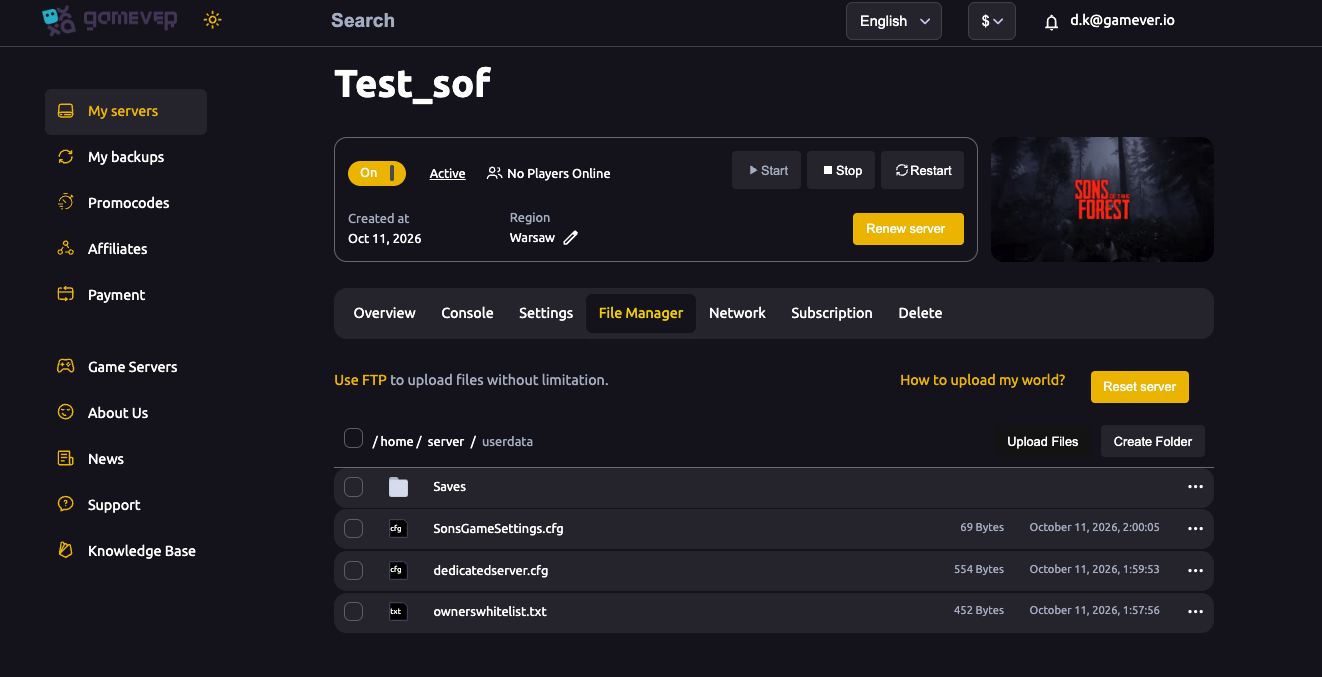
The general, loader-agnostic procedure is:
- Stop the server (Overview → Stop) — files in use won't replace cleanly.
- Upload the loader and mod files into the exact folders the mod's README names, using the File Manager or FTP (get your FTP login from Settings → FTP server settings; see upload an existing save for the FTP walkthrough). RedLoader is extracted into the server's install directory; BepInEx plugins go in the loader's
pluginsfolder. Follow the mod's own layout exactly. - Start the server and watch the Console for a clean load — a loader or version error shows up here.
We deliberately keep the paths general: because these are community tools that change often, and because an exact folder depends on the loader and mod, follow the mod author's current instructions rather than a hard-coded path. If you can't find clear, up-to-date server instructions for a mod, assume it's client-side only.
Everyone needs matching mods
A modded session only works if the host (if modded) and every player run the same loader, the same mods, and the same versions. A mismatch is the usual cause of failed joins, desyncs or crashes. Agree on a mod list with your group, pin the versions, and update together. If a player gets kicked immediately on a modded server, a version mismatch is the first thing to check — before blaming the host.
Additional Tips
- Start unmodded. Confirm the plain server runs and everyone can join before adding a single mod.
- One source of truth for versions. Share a written mod list and version numbers with your group so nobody loads a stale copy.
- Back up first. Take a backup and keep an FTP copy of
/home/server/userdata/before changing anything server-side. - Anti-cheat and mods. If modded clients are being kicked, a private group can turn Enable VAC off under Settings → Server settings; leave it on for public servers.
- Check the README every time. These loaders update fast — a mod that worked last patch may need a new loader build now.
- Keep it reversible. Test new mods on a throwaway world, not your main base.
Conclusion
Modding Sons of the Forest is a community affair: RedLoader (or, for some mods, BepInEx) does the loading, most mods are client-side, and anything that touches the server is experimental. On a gamever server you handle any required files through the File Manager or FTP in /home/server/userdata/ — stop the server, drop the files where the mod's README says, start, and check the Console. Above all, make sure the host and every player run the same mods and versions.
Rent your Sons of the Forest server at gamever.io — full File Manager and FTP access so you're free to experiment, plus one-click restores when a mod misbehaves. Free trial, promo code WELCOME.