
How to Install Mods on Your Project Zomboid Server
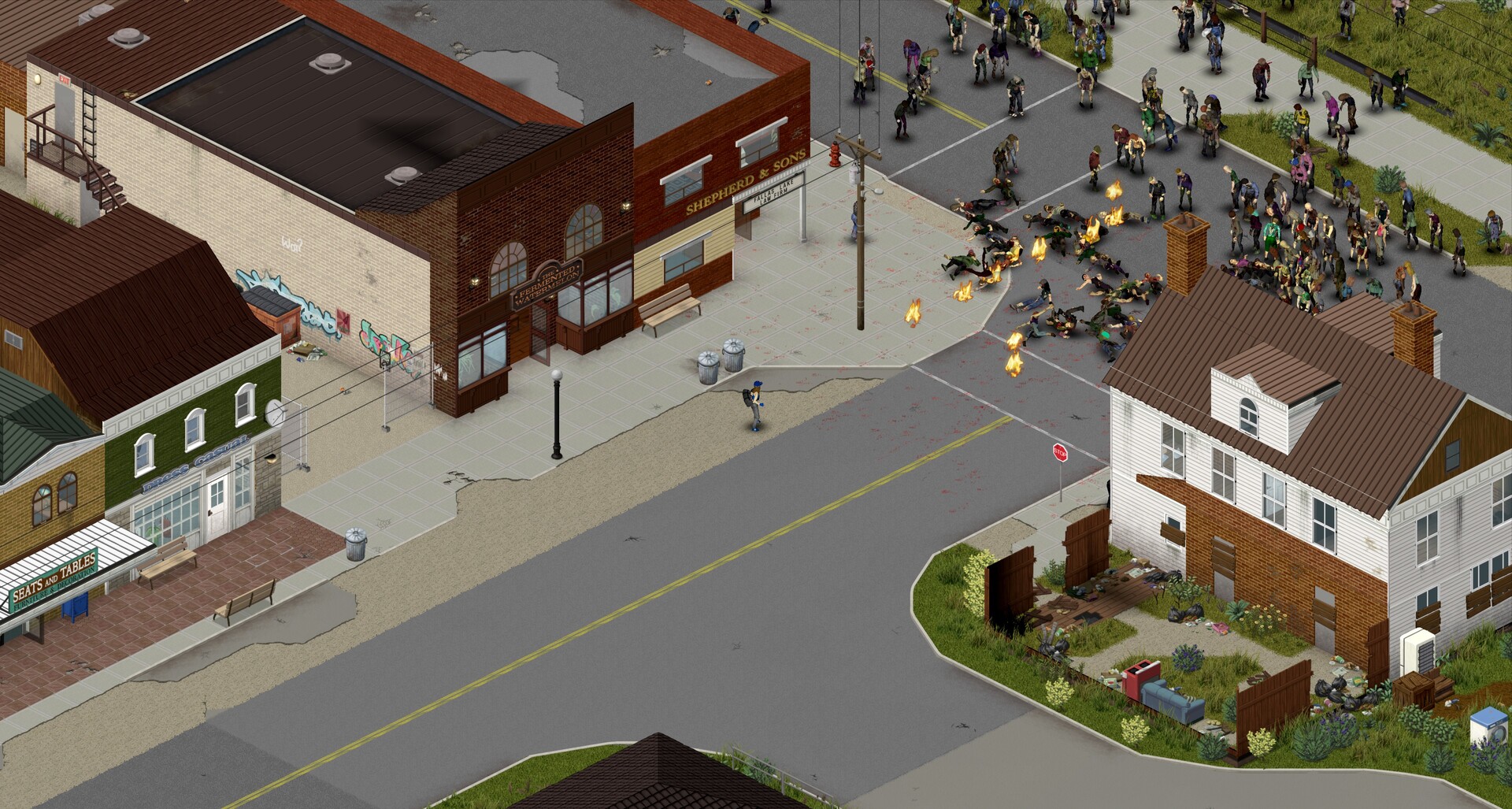
Project Zomboid has one of the richest Steam Workshops in survival gaming — new maps, weapons, vehicles, overhauls and NPC mods. Installing them on your gamever server is simple once you know the one rule that trips everyone up: a mod needs both its Workshop ID and its mod name, in two separate fields, or it won't load. This guide walks through it.
The two fields
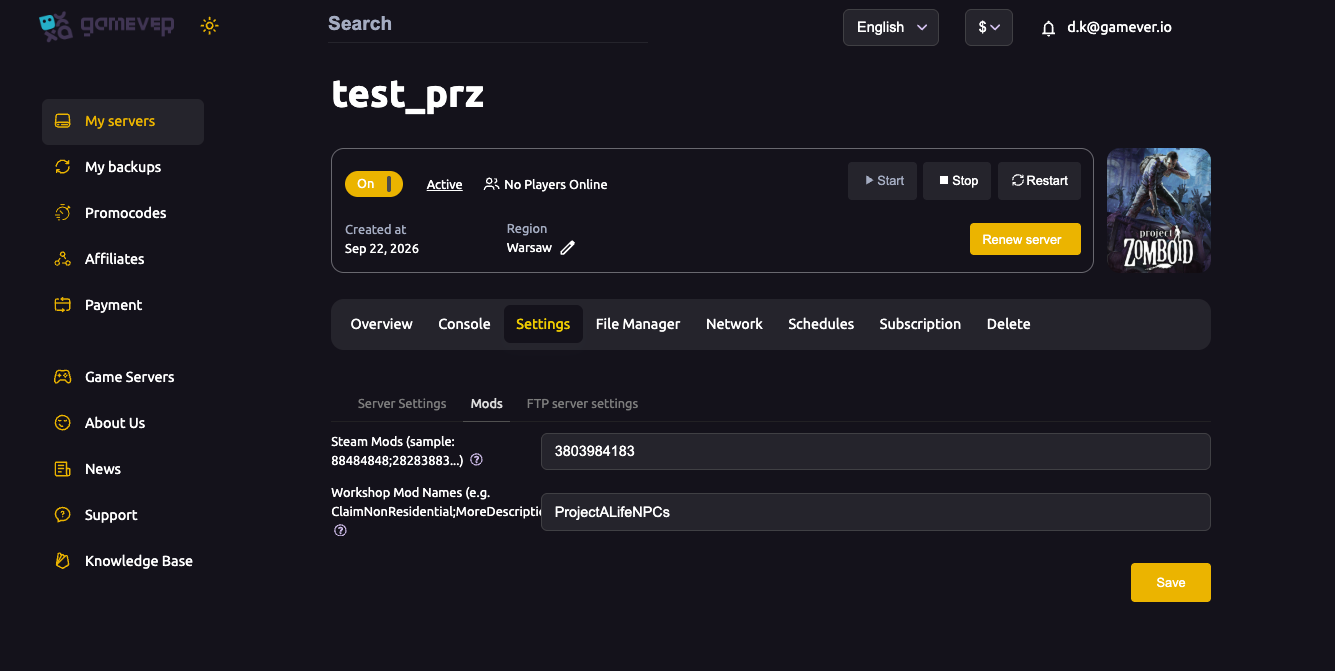
Open Settings → Mods:
| Field | What goes in it |
|---|---|
| Steam Mods | The Steam Workshop IDs, semicolon-separated — for example 88484848;28283883. This is the number that tells Steam which item to download. |
| Workshop Mod Names | The mod names (the internal mod folder names), semicolon-separated — for example ProjectALifeNPCs. This is what tells Project Zomboid which mod to actually enable. |
Both are required for a mod to load. The Workshop ID downloads the files; the mod name switches the mod on. A mod with only one of the two will not work.
Finding the ID and the name
- On a mod's Steam Workshop page, the Workshop ID is the number at the end of the page URL (
.../?id=<number>). - The mod name is listed on the Workshop page too — many pages print a "Workshop ID" and a "Mod ID" (the mod name) directly in the description. Use the Mod ID / mod name value for the Workshop Mod Names field.
- One Workshop item can contain more than one mod name — add each name to Workshop Mod Names.
Order matters
Mods load in the order they're listed, and some mods must load after the ones they depend on. If a mod says it requires another, list the dependency first. For maps especially, load order decides which map "wins" where they overlap — see change map.
Step by step
- Back up first — save a copy of your world over FTP before adding big mods, see backup & restore.
- Add each mod's Workshop ID to Steam Mods (semicolons between them).
- Add each matching mod name to Workshop Mod Names (semicolons between them).
- Put dependencies before the mods that need them.
- Save, then Restart the server so it downloads and enables the mods.
- Every player must subscribe to the same Workshop mods in Steam so their game matches the server.
Additional Tips
- ID and name, always — the single most common reason a mod "won't load".
- Clients must subscribe too — the server and every player need the same mods.
- Back up before big mod changes in case something conflicts.
- Restart to apply — mods are downloaded and enabled on restart.
- Mod maps need the mod loaded before they'll appear in Map Names.
Conclusion
Modding a Project Zomboid server on gamever comes down to two fields that must agree: Steam Mods for the Workshop IDs and Workshop Mod Names for the mod names. Add both, order dependencies first, make sure every player subscribes to the same list, then save and restart. Back up before a big change and your modded Knox County is ready.
Rent your Project Zomboid server at gamever.io — a clean Mods panel and full FTP so you can run any Workshop setup you like. Free trial, promo code WELCOME.