
How to Install Mods on Palworld Single-Player (Client)
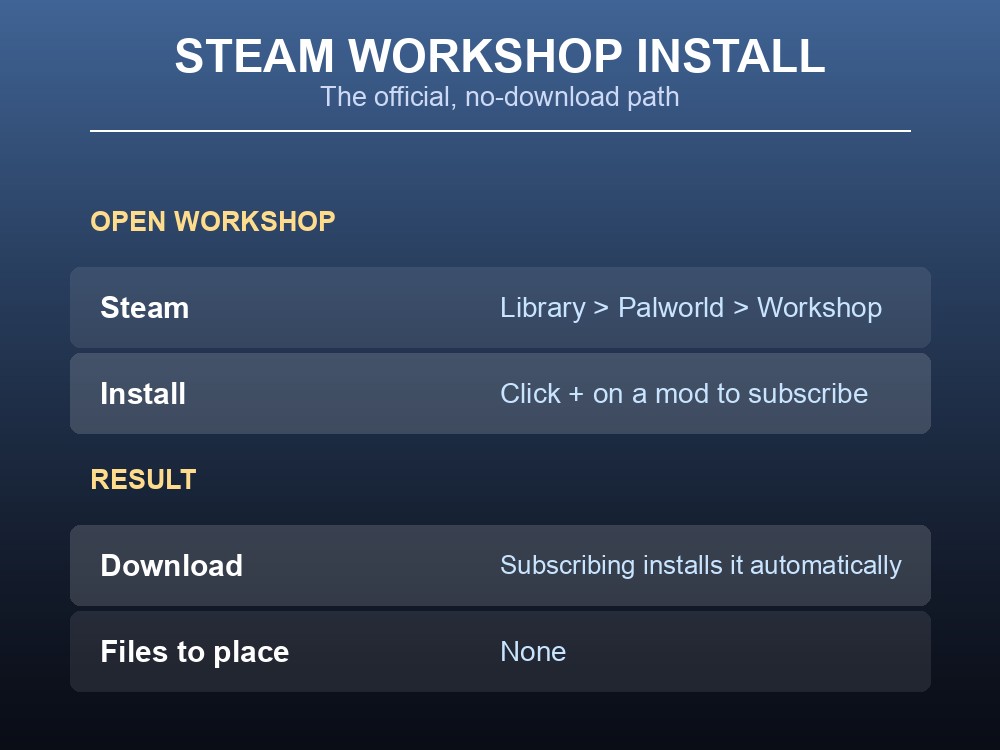
The primary, current way to add client-side mods to Palworld is the Steam Workshop, built into the game itself — no manual downloads, nothing to drop into a game folder. As Shockbyte's client guide (dated 2026-07-20) puts it, "client-side mods are installed through the Workshop with no manual file downloads": you browse, subscribe, and enable everything from inside Steam and the game's Options menu. This guide covers that Workshop flow first, then the manual UE4SS + .pak/Lua route still needed for mods that aren't on the Workshop, such as Nexus Mods content — plus how to back up your save before either path.
Installing Mods Through the Steam Workshop
Open Steam, go to your Library, click Palworld, then click Workshop on the right of the game's page. Browse to the mod you want and click the + button — that single click both subscribes to and installs it. There are no files to place by hand: subscribing is what downloads the mod in the background.
This is the officially integrated path and the recommended starting point now — no third-party file host, no folder-matching, no risk of a re-uploaded archive from an untrusted page. If the mod you want is on the Workshop, this is the only install step before enabling it in-game.
Enabling and Managing Mods In-Game
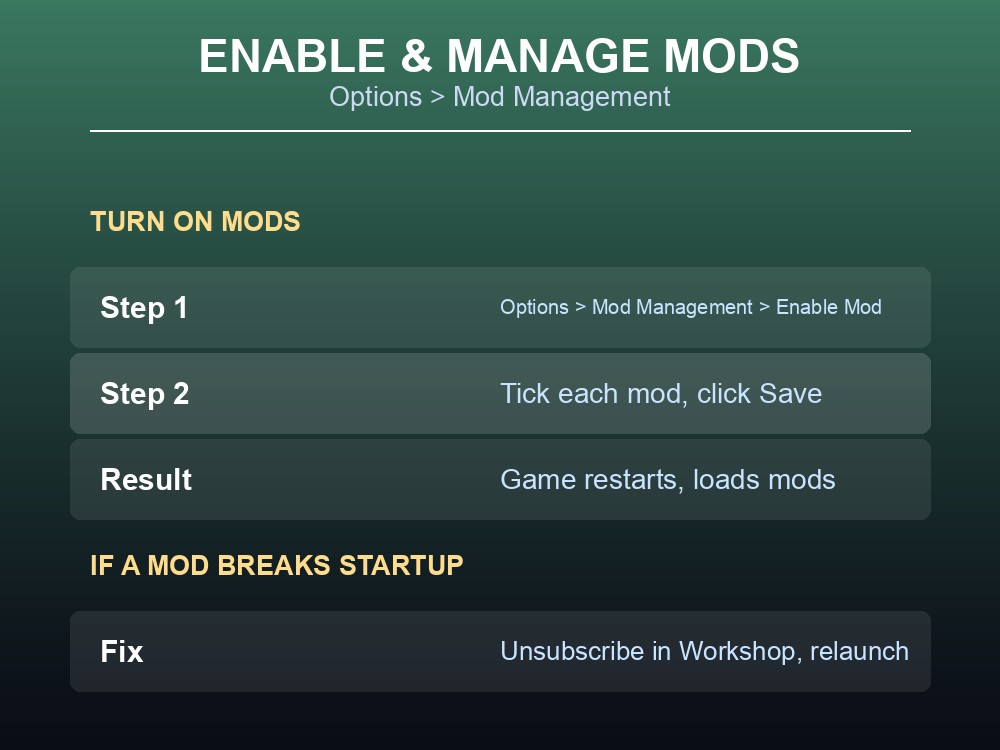
Subscribing doesn't turn a mod on by itself. Launch Palworld, open Options, go to Mod Management, and switch Enable Mod on — the previously greyed-out mod list becomes selectable. Tick the box next to each mod you want active, then click Save. The game restarts on its own and loads with your enabled mods running.
If a mod crashes the game badly enough that you can't even reach Mod Management to untick it, go back to the Workshop and click Unsubscribe — it's removed automatically the next time you launch Palworld. That's the documented recovery path for a mod that breaks startup, and it works even when the game won't open its own settings.
Mods That Aren't on the Workshop: Manual Install
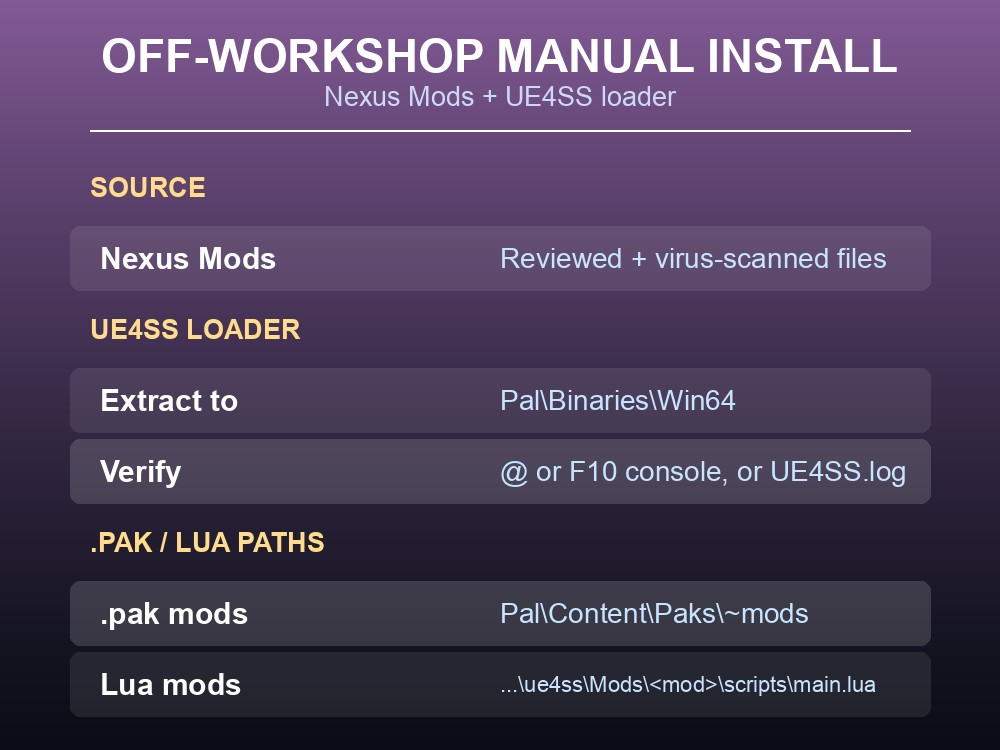
Not every mod is on the Workshop — Nexus Mods is the main community source for the ones that aren't, and it hosts user reviews and virus scans on the files it lists. Only download from a trusted source there; skip re-uploaded archives posted on unknown pages.
One thing up front: this manual route is for the Windows version of Palworld — the folders below (Pal\Binaries\Win64, Pal\Content\Paks, %LOCALAPPDATA%\Pal\Saved) and the dwmapi.dll UE4SS loader are Windows-specific, with no Mac/Linux equivalent. The Steam Workshop method above works wherever the game itself runs.
Off-Workshop mods come in two kinds, and they go in two different folders. Pure .pak mods go inside Pal\Content\Paks, in a folder named ~mods — create it if it doesn't already exist, giving Pal\Content\Paks\~mods. Some .pak mods instead call for Pal\Content\Paks\LogicMods per the author's instructions, so check which applies first. UE4SS Lua/script mods go somewhere else entirely: each in its own folder under Pal\Binaries\Win64\ue4ss\Mods\, containing a scripts\main.lua. Place that folder directly there — ue4ss\Mods\SmartTransport, not double-nested as ...\SmartTransport\SmartTransport, a common mistake that stops the mod loading — then enable it by adding its folder name to ue4ss\Mods\mods.txt followed by : 1 (or : 0 to disable). The two folders aren't interchangeable — match each mod to whichever one its author specifies.
Lua/script mods also need the UE4SS loader installed first, or they simply won't run. Get it from its official GitHub releases or the Palworld UE4SS page on Nexus, extract the archive, and drag its contents into Pal\Binaries\Win64 — the game's own executable directory. A typical package drops a ue4ss folder plus a dwmapi.dll proxy DLL there. The UE4SS docs describe the process exactly this plainly: "drag & drop all the necessary files into the game executable directory." To find that folder in Steam, right-click Palworld, choose Properties, open Installed Files, and click Browse.
To confirm UE4SS actually loaded, launch the game once, then press @ or F10 in-game to open the UE4SS console window — or check Pal\Binaries\Win64 for a UE4SS.log file with a fresh timestamp. Either one confirms the loader initialized.
Then check the game launches cleanly with the mod: load a disposable test world, use the feature it changes, then save, exit fully, and reload. If it crashes on launch, suspect the loader, a duplicate DLL, or the last mod you added — since you install one at a time, that's what to pull out first.
Back Up Your Save and Mod Safely
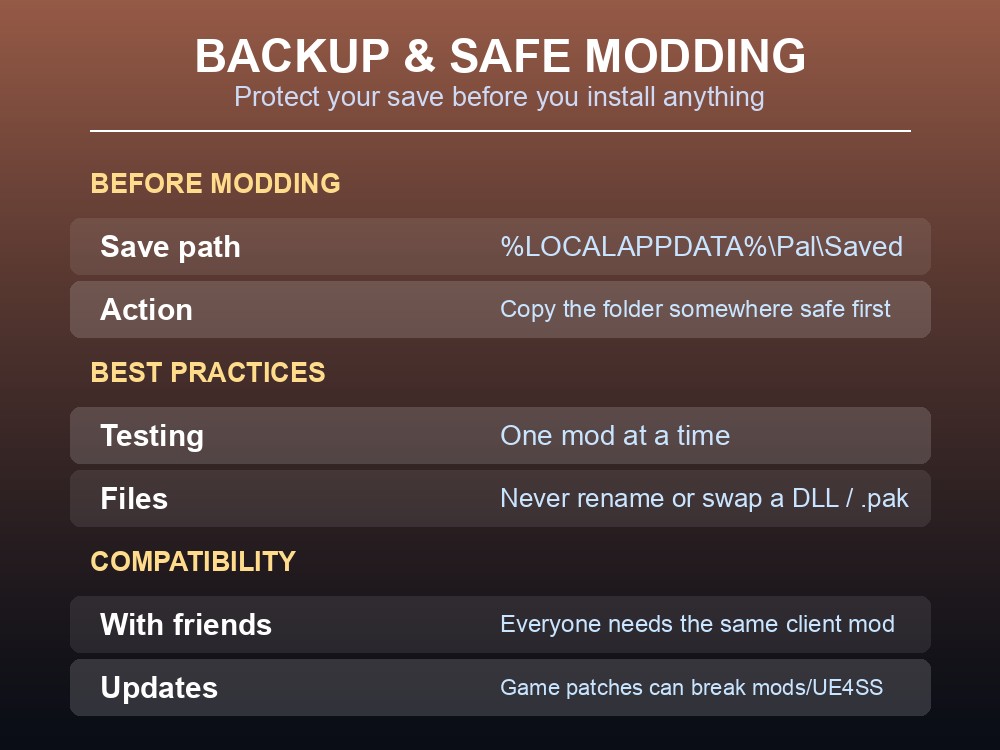
Back up your save before modding either way — Workshop or manual. Palworld single-player saves live at %LOCALAPPDATA%\Pal\Saved; copy that folder somewhere safe first, because a bad or incompatible mod can corrupt a save.
Install and enable one mod at a time so a crash is easy to trace. For manual mods, keep the downloaded archive until the setup works, never rename a DLL, .pak file, or script unless the publisher requires it, and never swap in a random replacement DLL. A startup crash usually points to the loader, a duplicate DLL, or a package loading too early.
Compatibility matters even in single-player if you bring friends in: "client-side only" doesn't mean others are unaffected — it's the opposite, everyone playing together must run that same mod to see its content, or sometimes even to connect. Palworld updates can also break a mod, UE4SS, or both until each is updated to match.
Practical tips
- Check the Steam Workshop first — if the mod's there, it's a two-click subscribe, no manual folders.
- Mod Management stays greyed out until you flip Enable Mod on in Options — the step people miss first.
- A mod that crashes the game before you can reach Mod Management gets fixed from the Workshop side: Unsubscribe, then relaunch.
.pakmods go in~mods(orLogicModsif the author says so); Lua mods go inue4ss\Mods\<mod>and get switched on inmods.txt.- Copy
%LOCALAPPDATA%\Pal\Savedsomewhere safe before installing anything, Workshop or manual.
Running your own Palworld 1.0 server
Everything above covers your own single-player client. Playing a modded save with friends is a different setup — a dedicated Palworld server, not a single-player folder — with one catch: server-side mods are Windows-only (the official docs say they "work only on the dedicated server with Windows edition," no Linux path). On a gamever server you choose the OS, so you can pick Windows and have server-side mods actually run instead of finding out later they don't. Get one going in minutes with code WELCOME for your first month free.
Conclusion
Palworld's client-side modding got a lot simpler once the Steam Workshop became the default path: subscribe in the Workshop, flip Enable Mod on in Options > Mod Management, tick the box, and you're done — no folders, no loader. The manual UE4SS + .pak/Lua route is still there for anything the Workshop doesn't carry, like most Nexus Mods content, but it's the fallback now, not the starting point. Whichever path a given mod needs, back up %LOCALAPPDATA%\Pal\Saved first, install one mod at a time, and you'll always have a clean way back if something breaks.