
How to install modpack on forge server?
Introduction
A modpack install on a Forge server adds additional gameplay features, mechanics, and content to improve the overall Minecraft experience. This detailed tutorial will show you how to use the CurseForge app to download the server pack and install a modpack on a Gamever-hosted Forge server. This tutorial attempts to streamline the process for both novice and seasoned server administrators, so you can start playing with your friends on your modified Minecraft server right away.
Understanding Forge and Modpacks
Forge is a well-liked Minecraft modding API that simplifies the installation and operation of mods. Modpacks, which are collections of mods that combine to change the game, require it in order to function.
A customized Minecraft experience built around particular themes, such as technology, magic, adventure, and more, is provided by modpacks. They have the power to drastically change gameplay, giving it more nuance and challenging new levels.
Prerequisites
Before starting, ensure you have the following:
- A Gamever server: Gamever provides an easy-to-use platform for hosting your Minecraft server.
- The CurseForge app: This app simplifies modpack discovery and installation.
- A Forge-compatible modpack: Choose a modpack that matches the Minecraft version of your server.
Step 1: Setting Up Your Game Server
- Rent a Server : If you haven't already, rent a server from Gamever. Choose a plan that meets the requirements of your desired modpack, considering factors like RAM and storage.
- Install Forge : Log in to your Gamever server dashboard and install Forge for the correct version of Minecraft. Gamever's control panel typically offers a straightforward way to install Forge with just a few clicks.
Step 2: Downloading Your Modpack
- Install the CurseForge App : Download and install the CurseForge app from its official website.
- Browse Modpacks : Open the CurseForge app and navigate to the Minecraft section. Here, you can browse and select from thousands of modpacks.
- Download the Server Pack : Once you've chosen a modpack, look for the "Download Server Pack" option. This option downloads a version of the modpack configured for server use. Save the server pack to a convenient location on your computer.

Step 3: Preparing the Modpack
- Extract the Server Pack : Use a file extraction tool to unzip the downloaded server pack. This will reveal the modpack's server files, including mods, configurations, and scripts.
- Review the Readme : Some modpacks include a Readme file with specific instructions for server setup. Follow these instructions carefully to ensure a smooth installation.
Step 4: Uploading the Modpack to Your Server
- Access Your Server Files : Use an FTP client or Gamever's file manager to access your server's files.
- Upload the Modpack : Upload the extracted server pack files to your server, replacing any existing files if necessary. Make sure to upload the mods and configuration files to their respective directories.
Step 5: Configuring Your Server
- Update server.properties : If your modpack requires specific server settings, modify the server.properties file accordingly. This file controls various aspects of your Minecraft server, like game mode, difficulty, and world settings.
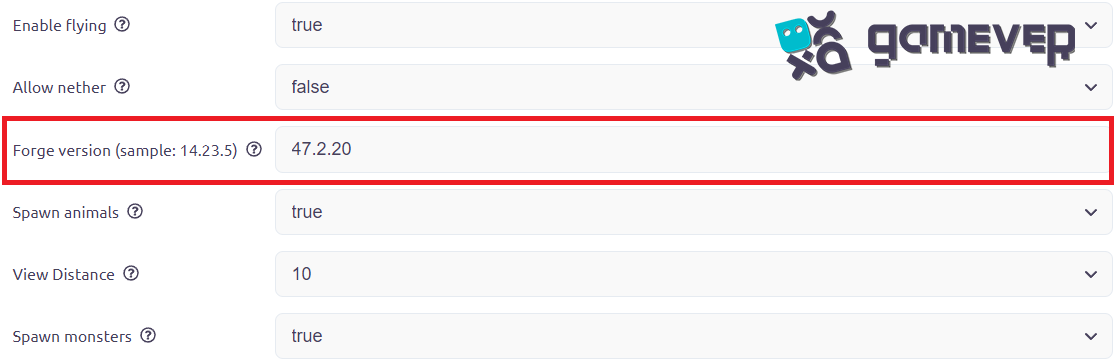
- Set the Correct Forge Version : Ensure your server is set to run the Forge version compatible with your modpack. This is typically handled through the Gamever control panel.
Step 6: Launching Your Server
- Restart the Server : After uploading and configuring your modpack, restart your server through the Gamever control panel.
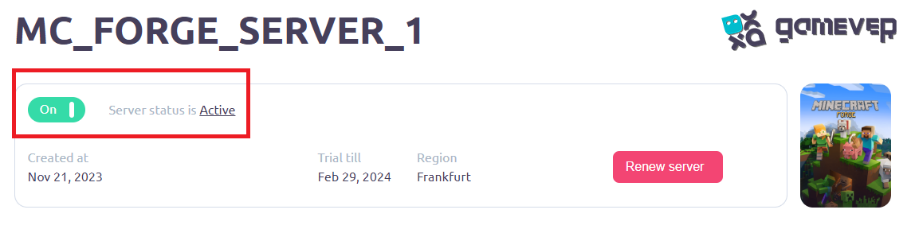
- Verify Installation : Once the server is up, log in to verify that the modpack has been installed correctly and is running smoothly.
Tips for a Successful Modpack Installation
- Backup Your World : Always create backups of your server before installing a modpack, especially if you're working with an existing world.
- Test Locally : Consider testing the modpack on a local server before deploying it to Gamever. This can help identify any issues in a controlled environment.
- Read Modpack Documentation : Familiarize yourself with the modpack's features and any special configuration requirements.
Enjoying Your Modded Server on Gamever
With your modpack installed, you're ready to explore new worlds, tackle unique challenges, and enjoy Minecraft like never before. Gamever servers provide a stable and powerful platform for hosting your modded adventures, allowing you to easily play with friends and create unforgettable memories.
Conclusion
Installing a modpack on a Forge server on Gamever is a straightforward process that opens up a new realm of possibilities for your Minecraft gameplay. By following these steps, you can transform your server into a customized gaming experience tailored to your preferences and interests.
As you embark on this modded journey, remember that Gamever is here to support you, offering easy server management, robust performance, and a friendly community. Join Gamever today and take your Minecraft adventures to the next level with your friends!