
How to Install Minecraft Mods and Plugins on Your Server
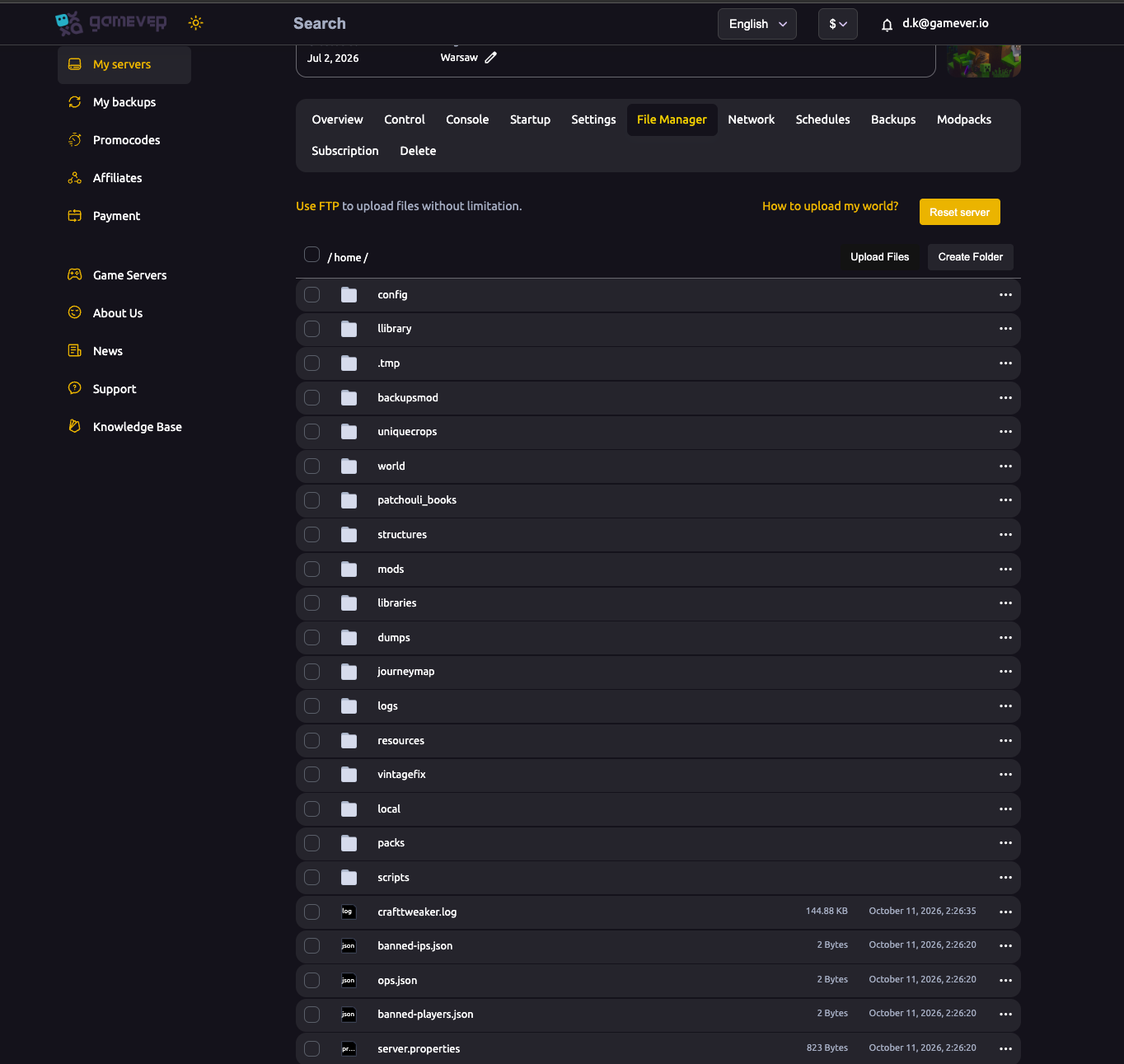
Beyond a full modpack, you'll often want to add individual mods (Forge/Fabric) or plugins (Paper) to your server. gamever gives you full file access to do it — through the panel's File Manager or over FTP. This guide covers both, and the version rules that keep them working.
Mods vs. plugins — know which you need
| Mods (Forge / Fabric) | Plugins (Paper / Spigot) | |
|---|---|---|
| Server type | Forge or Fabric | Paper |
| Folder | mods/ | plugins/ |
| Client needs them? | Yes — every player installs the same mods | No — players join with a vanilla client |
| Good for | New blocks, mobs, dimensions, mechanics | Server admin, economy, permissions, minigames |
Check your server type first — you can't load Forge mods on a Paper server, or Paper plugins on Forge.
Installing Forge/Fabric mods
- Download the mod
.jarfrom CurseForge or Modrinth. Match the version to your server's Minecraft and loader version (e.g. a Forge 1.12.2 mod for a 1.12.2 Forge server). A mismatched mod will crash the server. - Open the File Manager (or connect over FTP — credentials on Settings → FTP server settings, address on the Network tab).
- Go to the
mods/folder and upload the.jar. - Restart the server and watch the Console for load errors.
- Every player installs the same mod in their own
mods/folder — a modded server needs matching clients.
Installing Paper plugins
- Download the plugin
.jar, matching your server version. - In the File Manager (or over FTP), open the
plugins/folder. - Upload the
.jarand Restart. - Plugins are server-side only — players join with a normal client, no install needed.
- Most plugins create a config folder under
plugins/on first run; edit those files, then restart to apply.
Using FTP for bulk uploads
For several mods or plugins at once, FTP is faster than the browser uploader. Grab your FTP User and FTP Password from Settings → FTP server settings, and the FTP address from the Network tab, then connect with any FTP client and drop files straight into mods/ or plugins/.
Additional Tips
- Match the version of every mod/plugin to your server — the top cause of crashes.
- Forge mods need matching clients; Paper plugins don't — pick the right server type for your goal.
- Add mods a few at a time and check the Console, so a bad one is easy to spot.
- Back up before a big mod change — see backup & restore.
- Use FTP for bulk uploads; the File Manager is fine for one or two files.
Conclusion
Adding content is straightforward once you know the split: Forge/Fabric mods go in mods/ and need matching client installs, while Paper plugins go in plugins/ and are server-side only. Match every file to your server version, upload via the File Manager or FTP, restart and check the Console. For a ready-made set of mods, the Modpacks tab does the whole job in one click.
Rent your Minecraft Java server at gamever.io — full File Manager and FTP access, one-click modpacks, and easy switching between Forge, Fabric and Paper. Free trial, promo code WELCOME.