
How to Install and Use the Jade Mod in Minecraft?
The Jade mod is a useful addition to Minecraft that provides a detailed heads-up display (HUD), allowing you to gather in-game information easily. Whether you want to check mob health, crop growth, or even the contents of beehives, Jade gives you a clear and simple way to access this data without having to interact with each block or entity. In this guide, we will walk you through how to install and use the Jade mod, improving your Minecraft experience significantly.
Step 1: Download the Jade Mod
The first step is to download the Jade mod from a reliable source like CurseForge. Here’s how to do it:
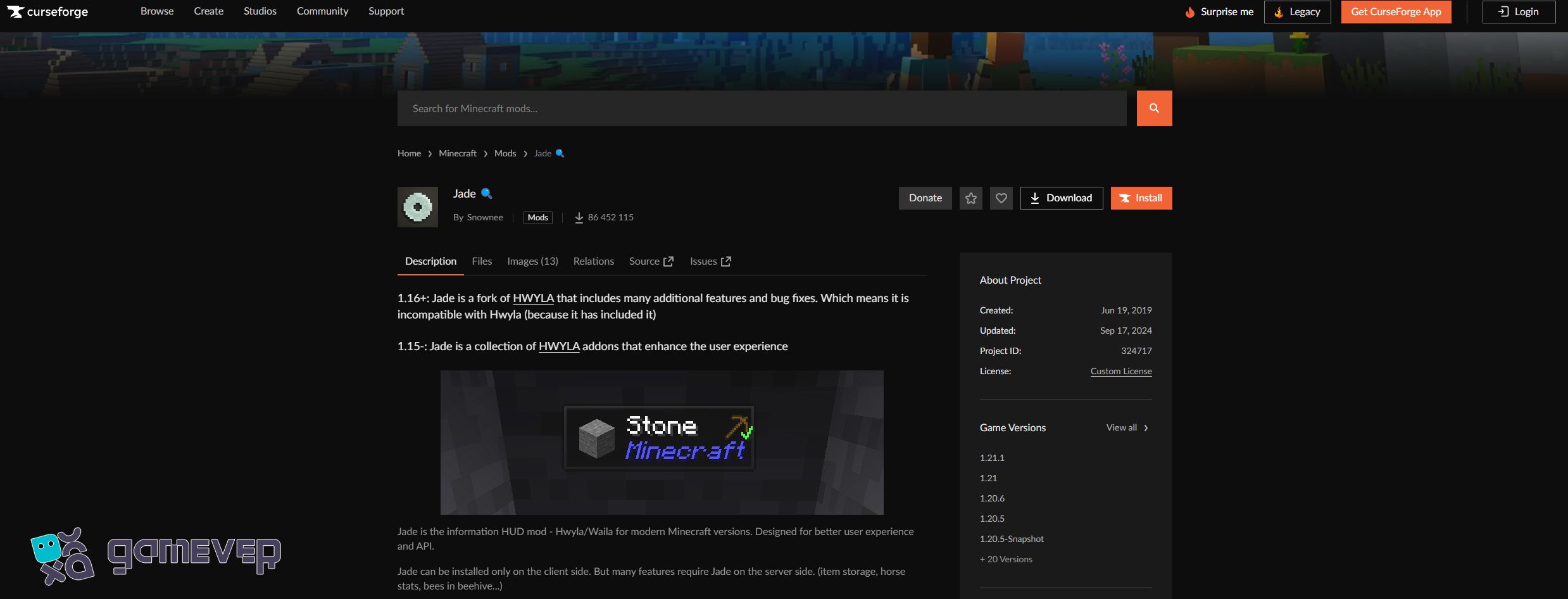
Download the mod version that corresponds to your Minecraft version. Be sure to choose the correct version to avoid compatibility issues.
Step 2: Install Minecraft Forge or Fabric
Before you can install the mod, you need Minecraft Forge or Fabric. These mod loaders are essential for running mods in Minecraft. You can download them from their respective websites.
- Minecraft Forge: Visit Minecraft Forge.

- Fabric: Visit Fabric.
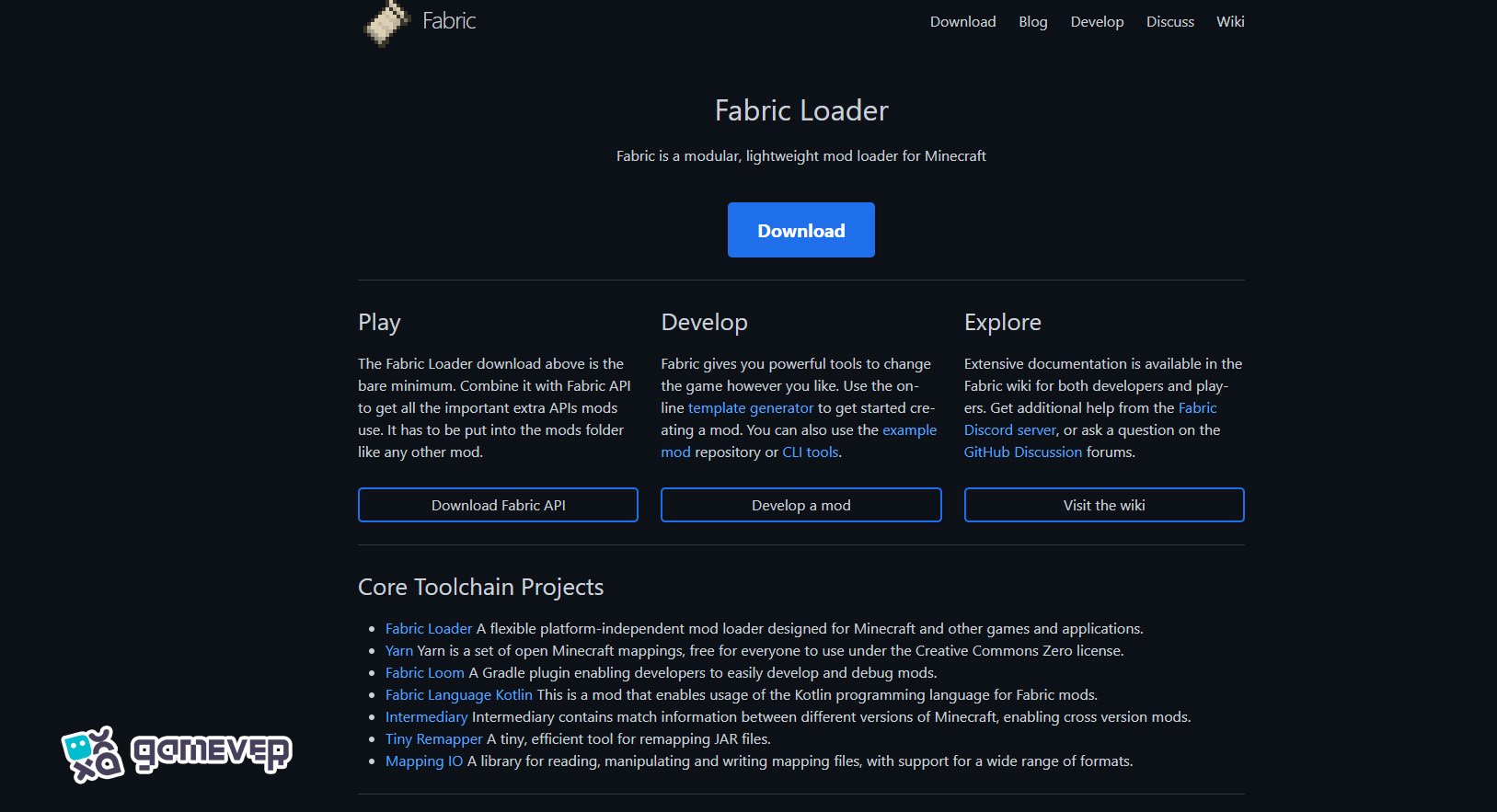
Once installed, launch Minecraft using the Forge or Fabric profile to ensure the mod loader is working correctly.
Step 3: Add Jade Mod to Your ‘Mods’ Folder
After downloading the Jade mod, you need to place the .jar file in your Minecraft mods folder.
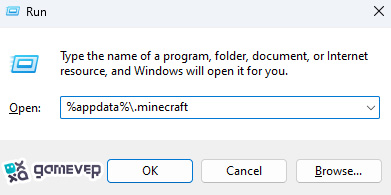
If there isn’t a mods folder, you can create one manually. Place the downloaded Jade .jar file into this folder.
Step 4: Launch Minecraft with Jade
Once you’ve placed the Jade mod file in the mods folder, start Minecraft using your Forge or Fabric profile. Once you've set everything up correctly, the mod should activate and display an information HUD in your game.
Using the Jade Mod in Minecraft
The Jade mod enhances your Minecraft experience by providing detailed information about blocks, entities, and items right in front of you. Here are some of its key features:
1. Mob Information
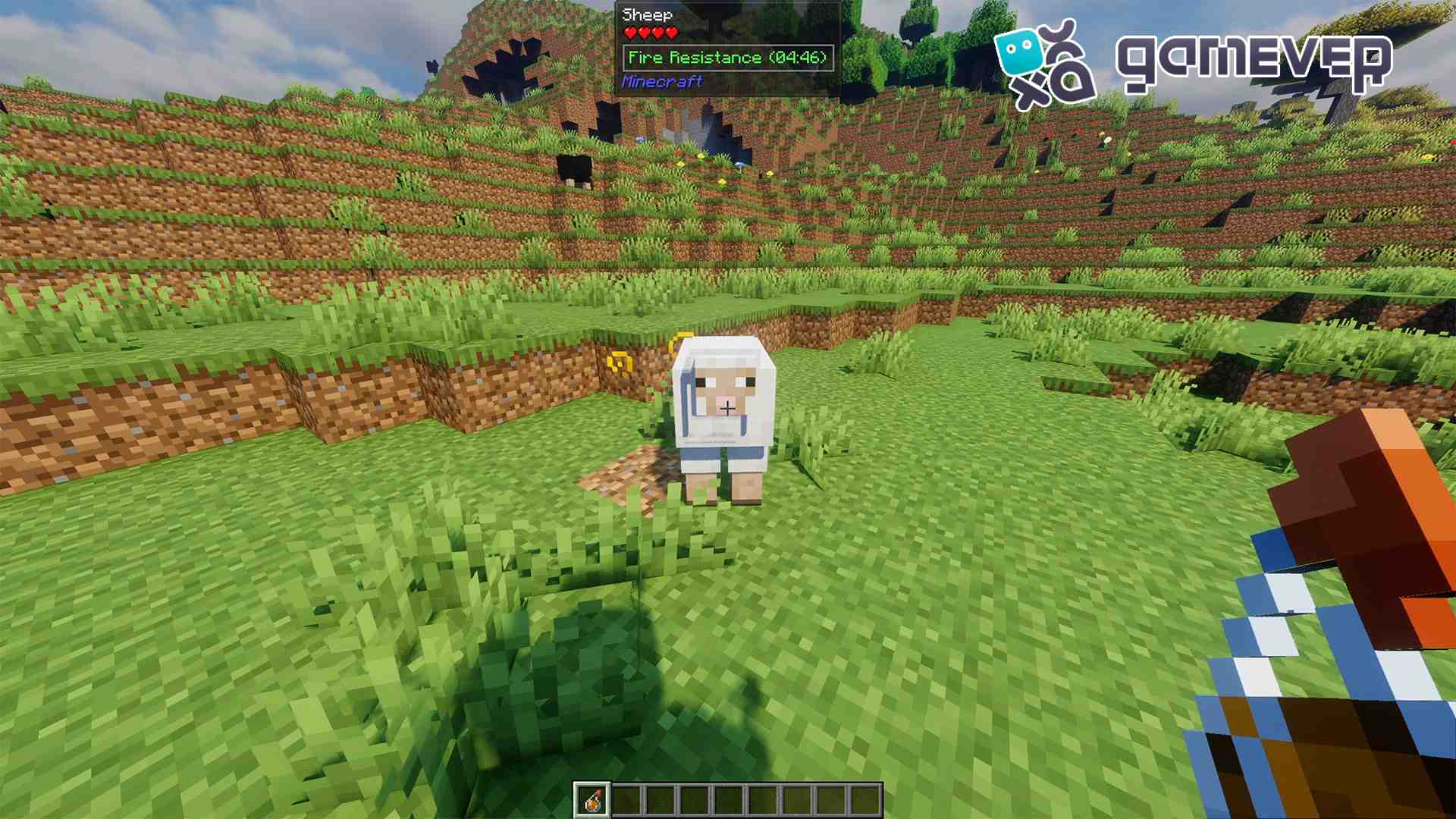
Hover your crosshair over any mob, and you’ll instantly see useful stats like:
- Health bars
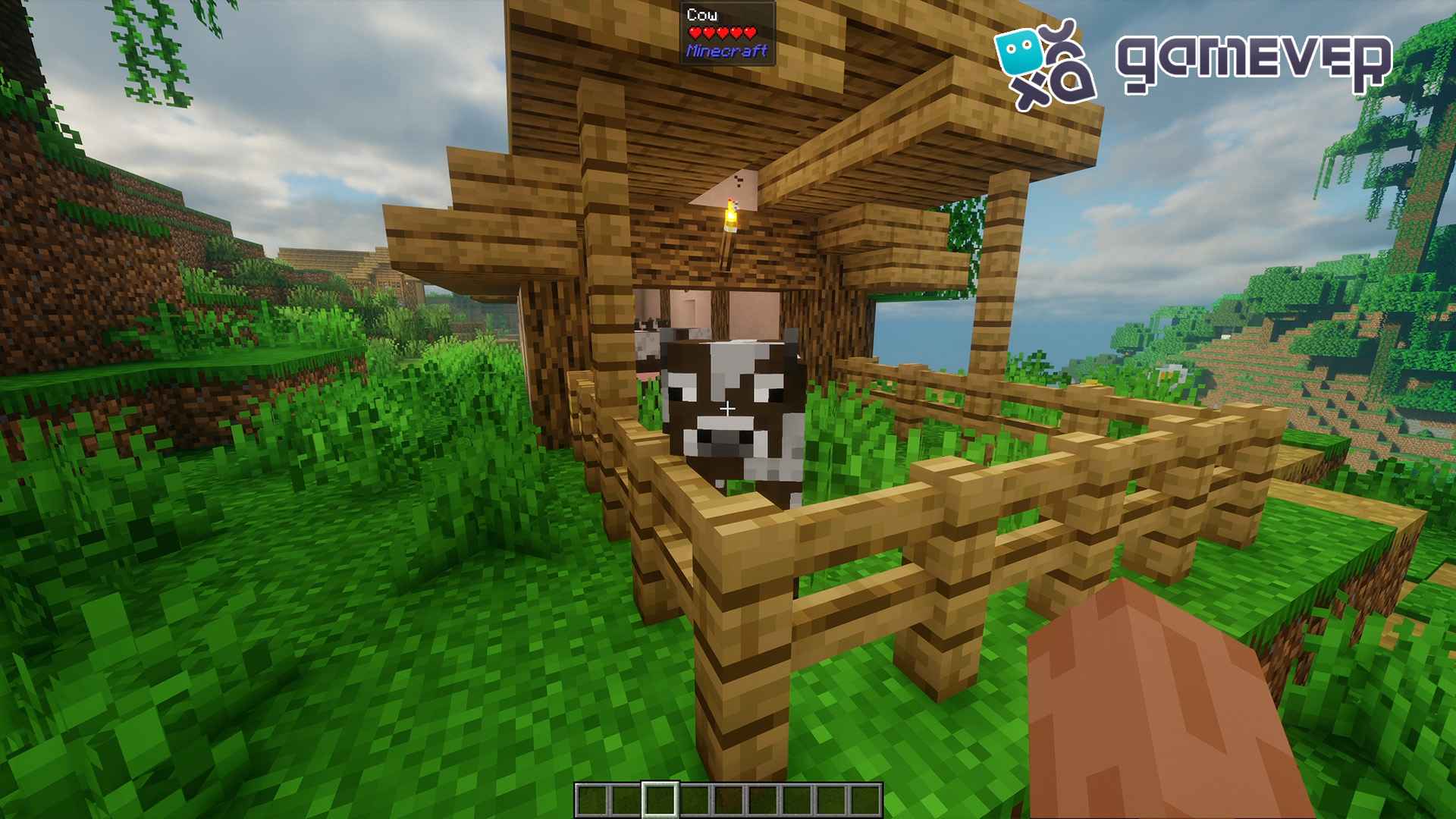
- Status effects (such as poison or fire resistance)
- Horse stats like speed, jump height, and health
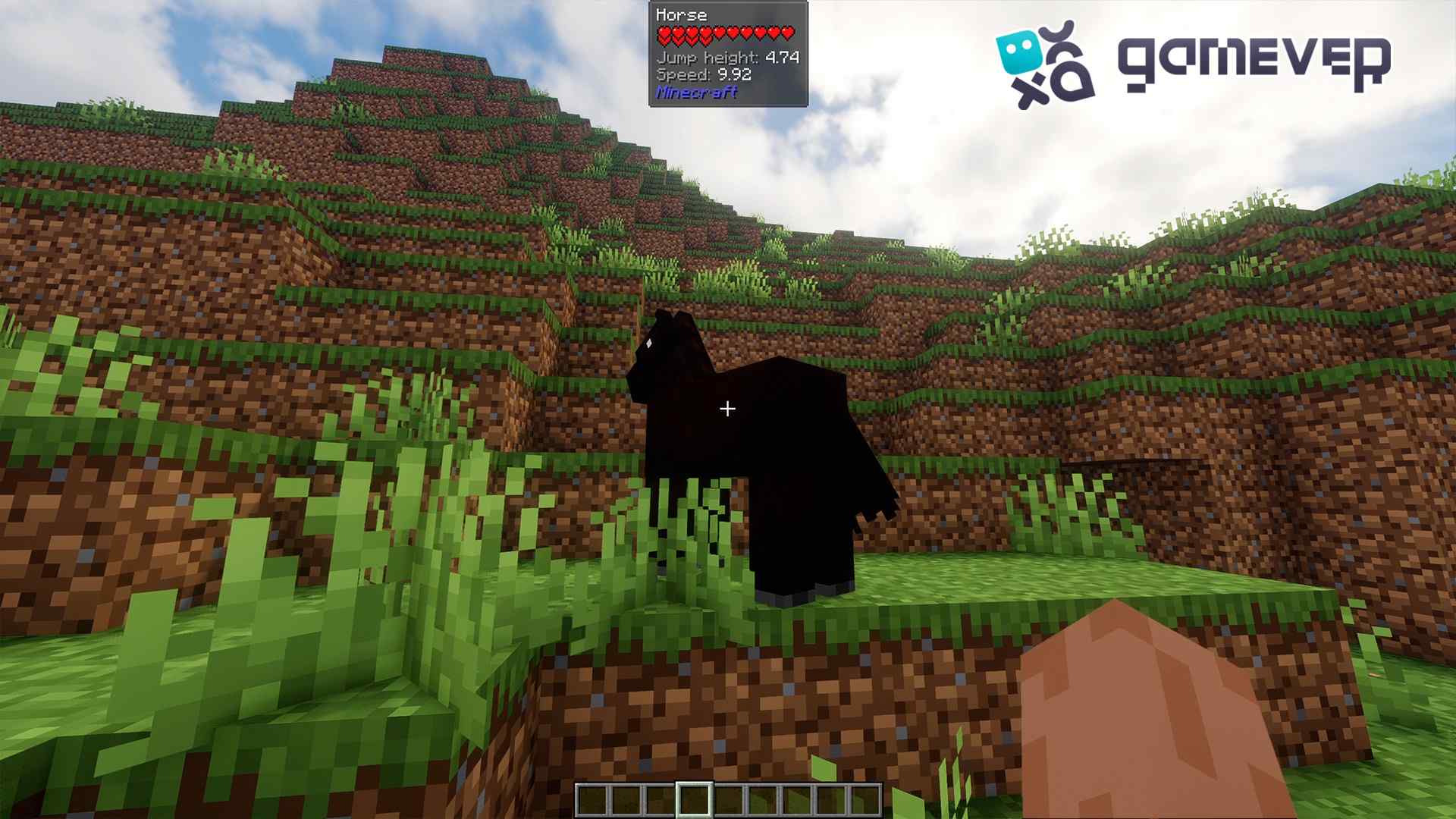
This is especially useful for taming animals or battling mobs.
2. Block Information
Jade provides detailed information about blocks, such as:
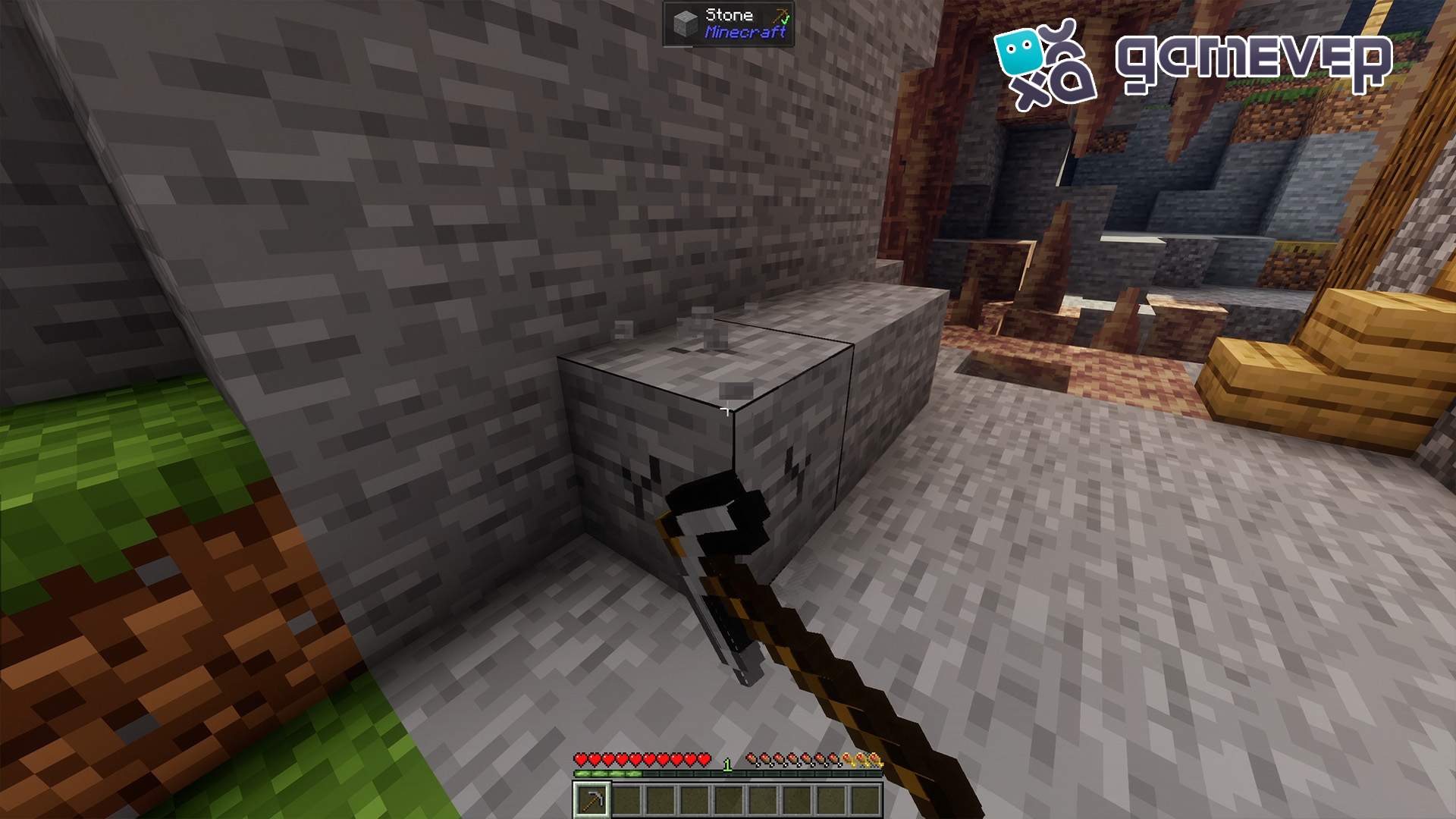
- Block break progress: See how long it will take to break a block.
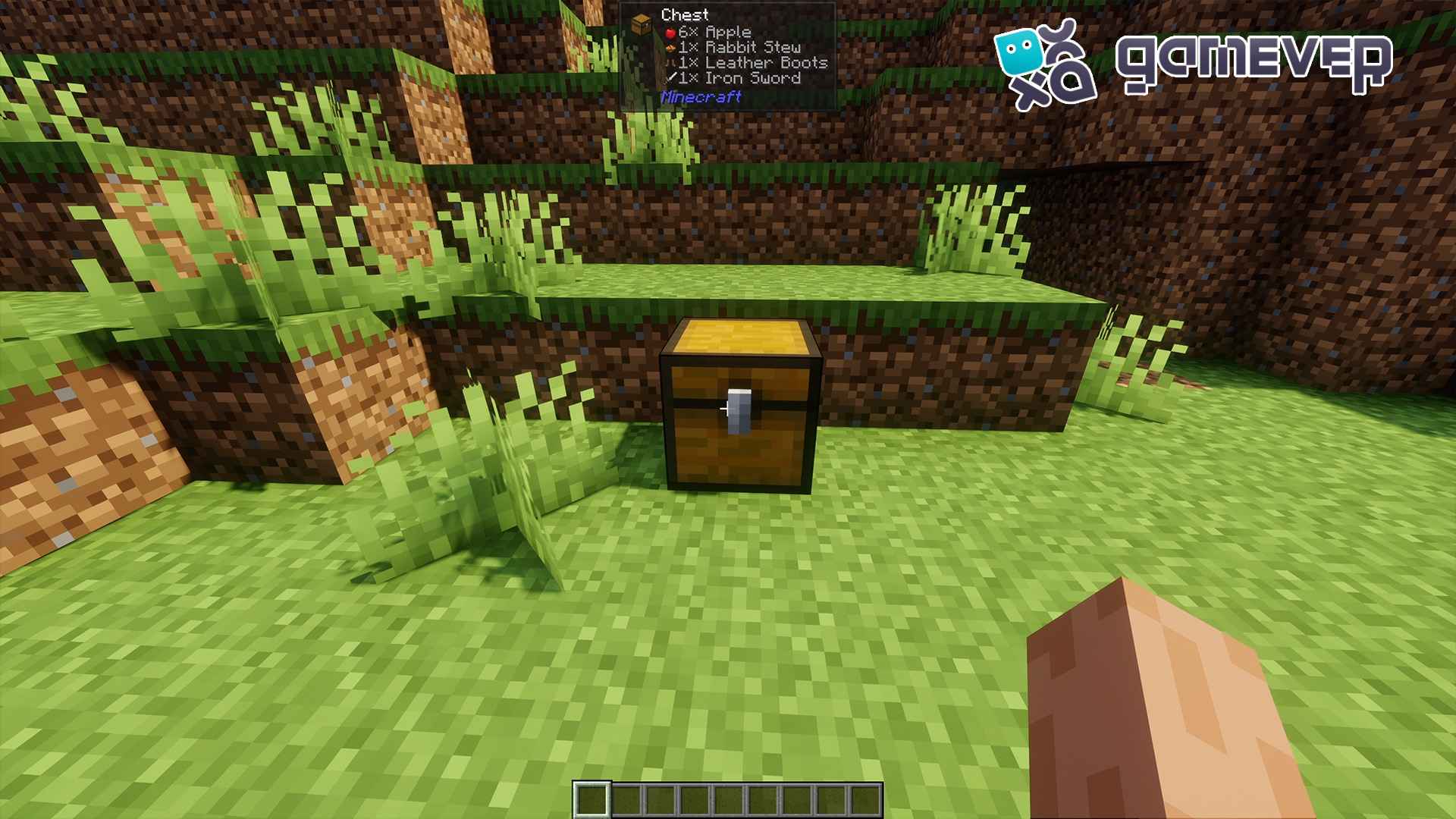
- Item contents: Hover over containers like chests or barrels to see what’s inside without opening them.
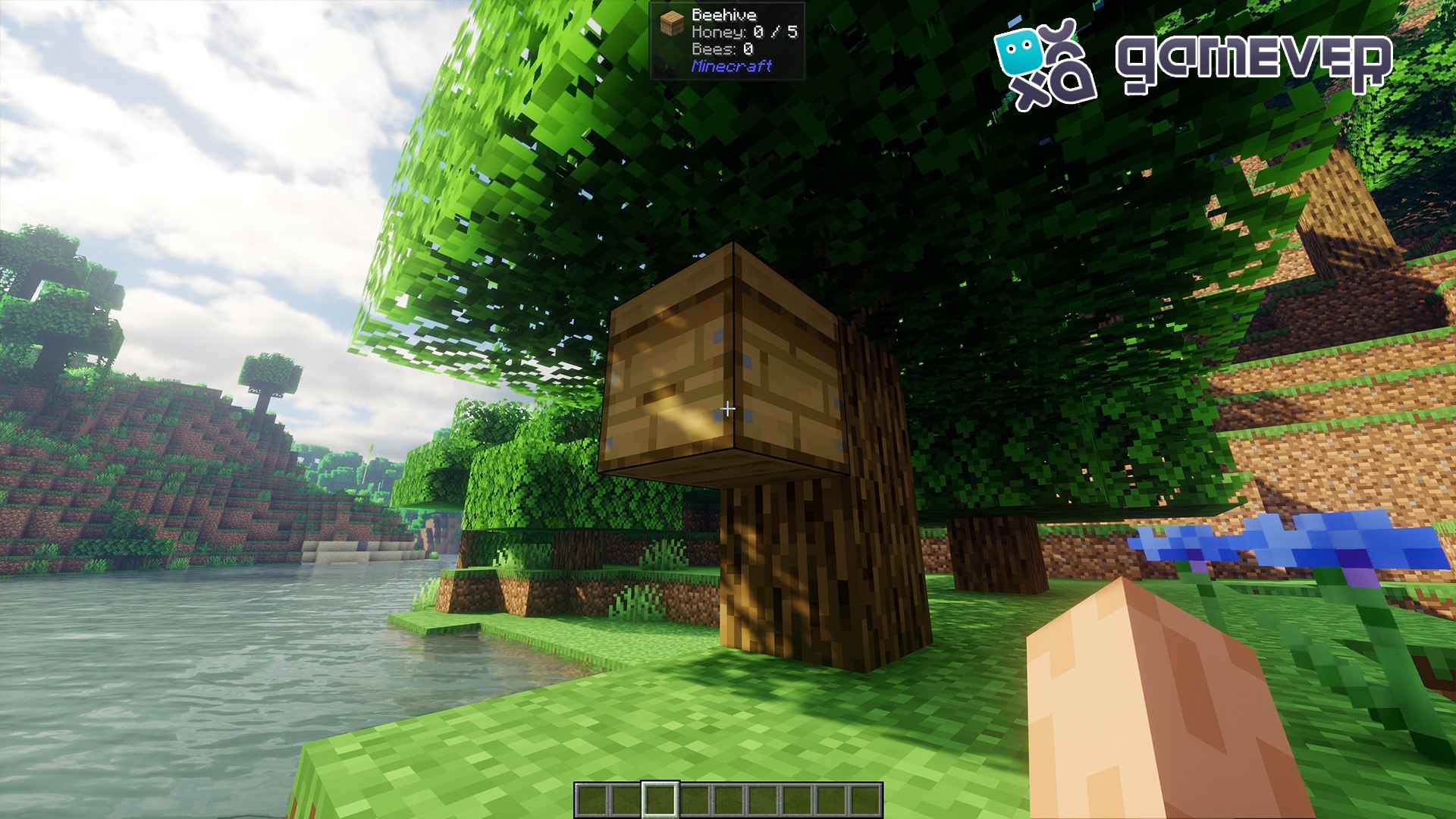
- Beehive Info: Determine how many bees are inside a hive without disturbing them.
3. Growth Progress
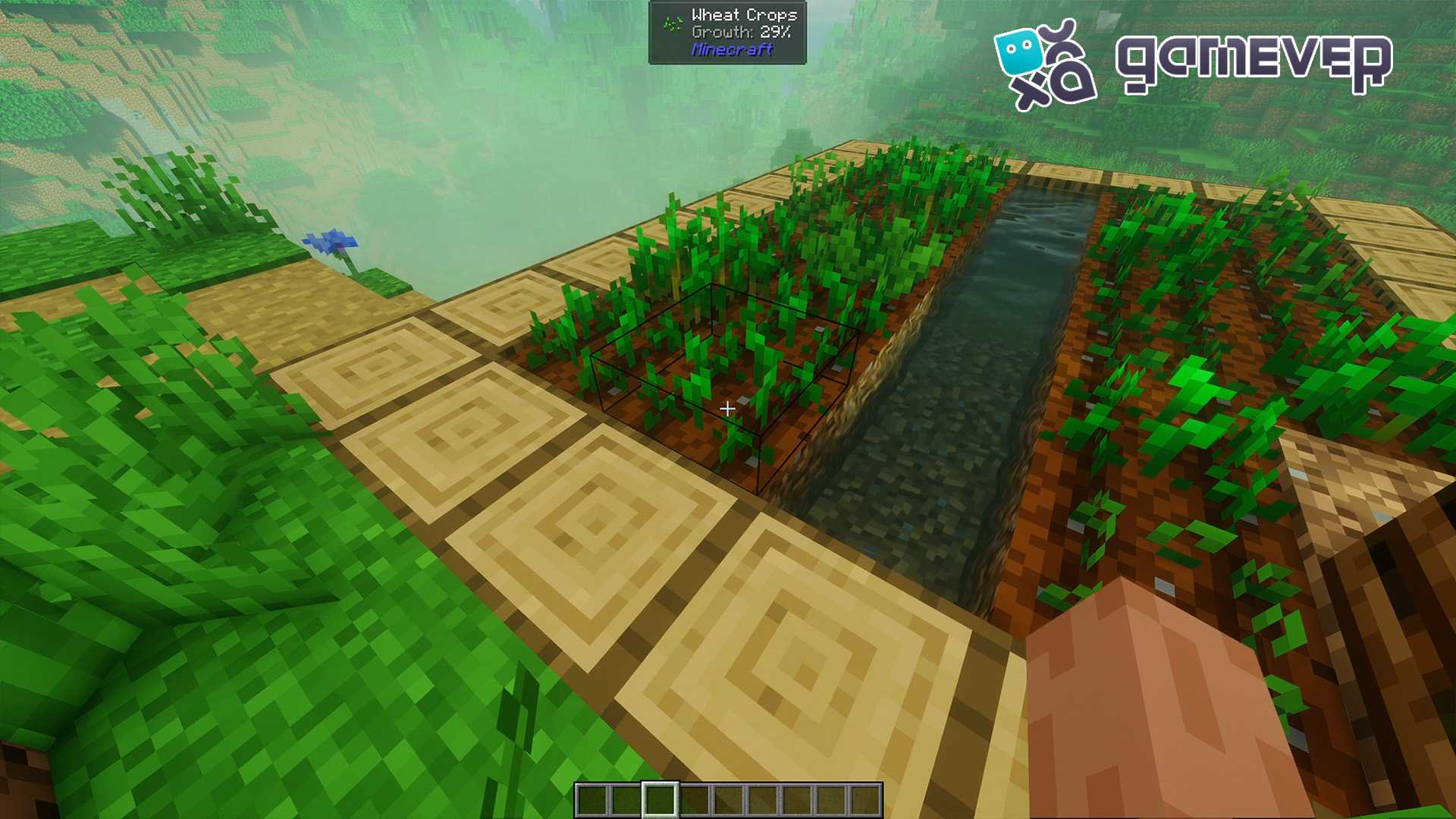
When hovering over crops, Jade displays their growth stage, helping you decide when to harvest or plant more crops. This is particularly helpful in farming and managing large agricultural areas.
Benefits of Using Jade on Gamever Servers
If you play on Gamever servers, using Jade can improve your multiplayer experience:
- Collaborative Play: Easily manage communal farms by tracking crop growth and mob health without the need for constant interaction.
- Better Team Coordination: With Jade’s HUD, you can quickly relay information to teammates, especially in PvE or PvP situations where knowing mob stats can be crucial.
Conclusion
Installing and using the Jade mod in Minecraft gives you an edge by providing detailed, real-time information about mobs, blocks, and items. It's a simple yet powerful tool that enhances both solo and multiplayer gameplay, especially on servers like Gamever, where teamwork and strategy are key to success.