
How to Install and Update Mods on Your Valheim Server

Valheim modding runs on one of two frameworks: BepInEx (the modern standard, used by almost everything on Thunderstore) and the older ValheimPlus (a single large config mod). gamever gives you a toggle for each on the Mods sub-tab — and the golden rule is that server and every player must run the same mods. This guide covers enabling a framework, adding mods, picking good ones, and keeping them updated.
Enable a framework (pick ONE)
Open Settings → Mods:
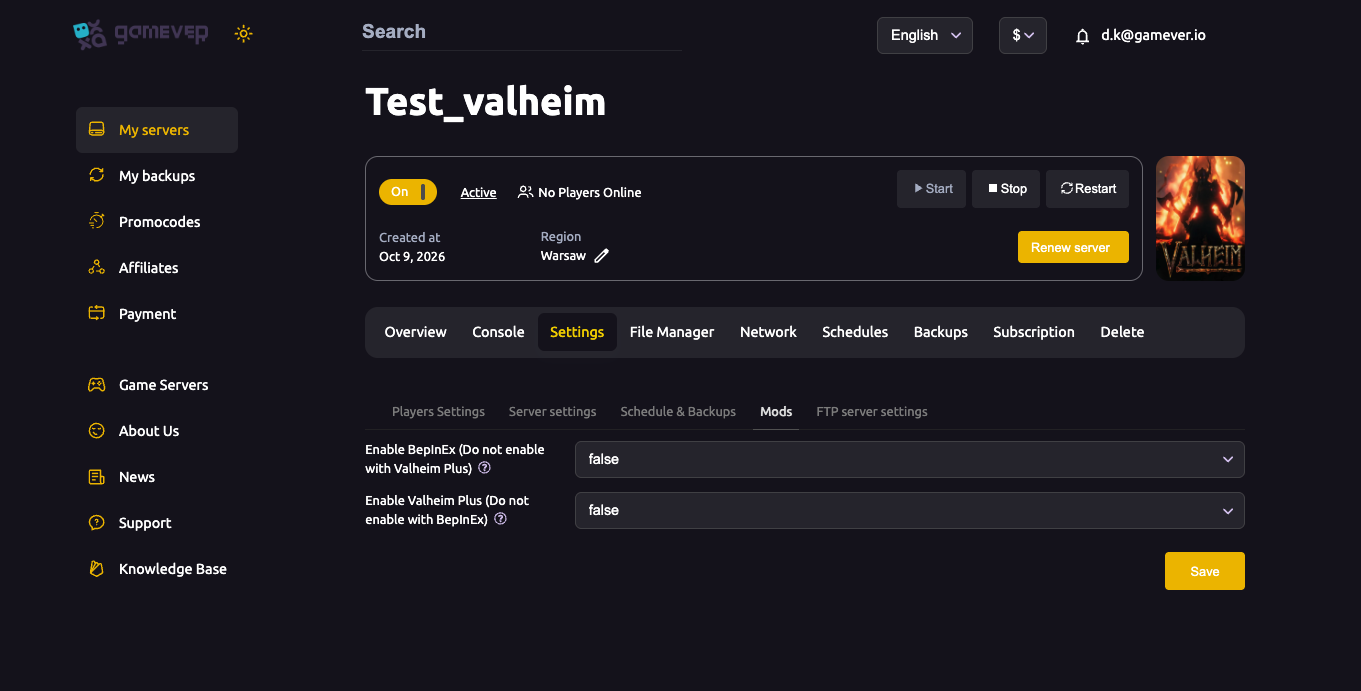
| Toggle | Use it for |
|---|---|
| Enable BepInEx | The modern mod loader — required for virtually all Thunderstore mods. |
| Enable ValheimPlus | The all-in-one tweak mod (gather rates, stamina, build limits…). |
Do not enable both — the panel warns you, and they conflict. For most people, BepInEx is the right choice. Set the toggle, Save, Restart.
Add BepInEx mods
With BepInEx enabled, add individual mods via the File Manager / FTP:
- Download the mod from Thunderstore (the Valheim mod hub).
- Place its
.dllinto the server's plugins folder:
/home/server/BepInEx/plugins/
- Restart. The mod's config appears under
BepInEx/config/after first load — edit it there. - Every player installs the same mods locally (the easy way is the r2modman / Thunderstore Mod Manager app with a shared profile).
Server-and-client parity is everything: a player missing a mod (or on a different version) usually can't connect.
Good server mods to start with (2026, post-1.0)
Popular, widely-compatible picks:
- ValheimPlus (or BepInEx equivalents) — gather/stamina/build tweaks in one.
- Jewelcrafting / EpicLoot — loot and progression depth.
- PlantEverything / Build+ (PlanBuild) — building and farming freedom.
- A map/exploration mod (e.g. shared map) — handy for big groups.
- A player-limit mod if you need more than 10 players.
Always check a mod is updated for the current Valheim build before adding it.
Updating mods
Mods must be kept in step with each other, with players, and with the game:
- Back up first (see backup & restore) — updates can change save data.
- Replace the old
.dllinBepInEx/plugins/with the new version (and update the config if the mod changed it). - Every player updates to the same version — a shared Mod Manager profile makes this one click.
- Restart.
When Valheim itself updates, mods often break until authors catch up — pin the stable branch and hold off updating the server if you need a modded server to keep working.
Additional Tips
- BepInEx OR ValheimPlus — never both.
- Server + all clients must match — same mods, same versions.
- Use a Mod Manager profile (r2modman) so everyone installs identically.
- Back up before any mod change — they touch save data.
- Pin the stable branch when a game update outruns your mods.
Conclusion
Modding a Valheim server on gamever starts with one toggle — BepInEx (recommended) or ValheimPlus — on the Mods sub-tab. Drop BepInEx mods into BepInEx/plugins/, keep the server and every player on the exact same set and versions (a shared Mod Manager profile makes that painless), and back up before every change. Do that and your modded world runs smoothly for the whole crew.
Rent your Valheim server at gamever.io — one-click BepInEx/ValheimPlus and full FTP for your mods. Free trial, promo code WELCOME.