
How to Install Add-Ons (Behavior and Resource Packs) on a Bedrock Minecraft Server
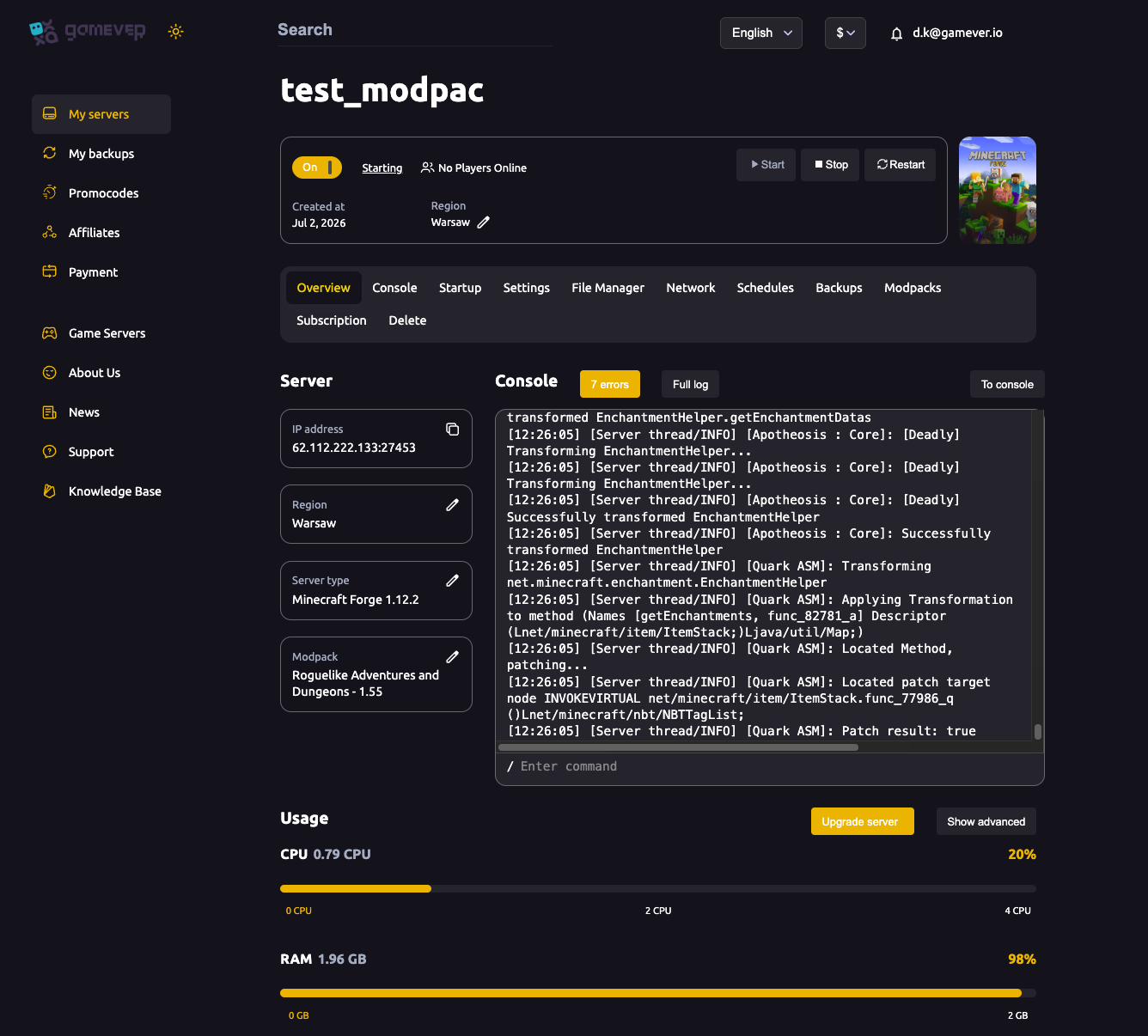
Add-ons are how you reskin and re-script a Bedrock Edition server: a resource pack changes how things look and sound, and a behavior pack changes how they act — custom mobs, loot, crafting, functions. On a Bedrock Dedicated Server you don't install a mod loader; you place the pack folders in the right directories and then switch each pack on for the world you want it in. This guide shows how to do that in your gamever control panel, using the File Manager, so your players download the right look and get the right behavior the moment they connect.
This is a Bedrock-only workflow. If you run a Java Edition server, add-ons don't apply — Java uses mods (Forge/Fabric) and datapacks instead, which we cover in datapacks and resource packs on your server. The same Java-vs-Bedrock split applies to whitelist and bans, where Bedrock uses an allowlist. For getting whole worlds (with their packs) on and off the server, see Bedrock world management.
Step 1 — Know the two pack folders
A Bedrock Dedicated Server ships with two directories in its working folder, and that's where unpacked add-ons go:
| Folder | Holds |
|---|---|
behavior_packs/ | Behavior packs — gameplay logic, entities, loot, scripts. |
resource_packs/ | Resource packs — textures, models, sounds, UI. |
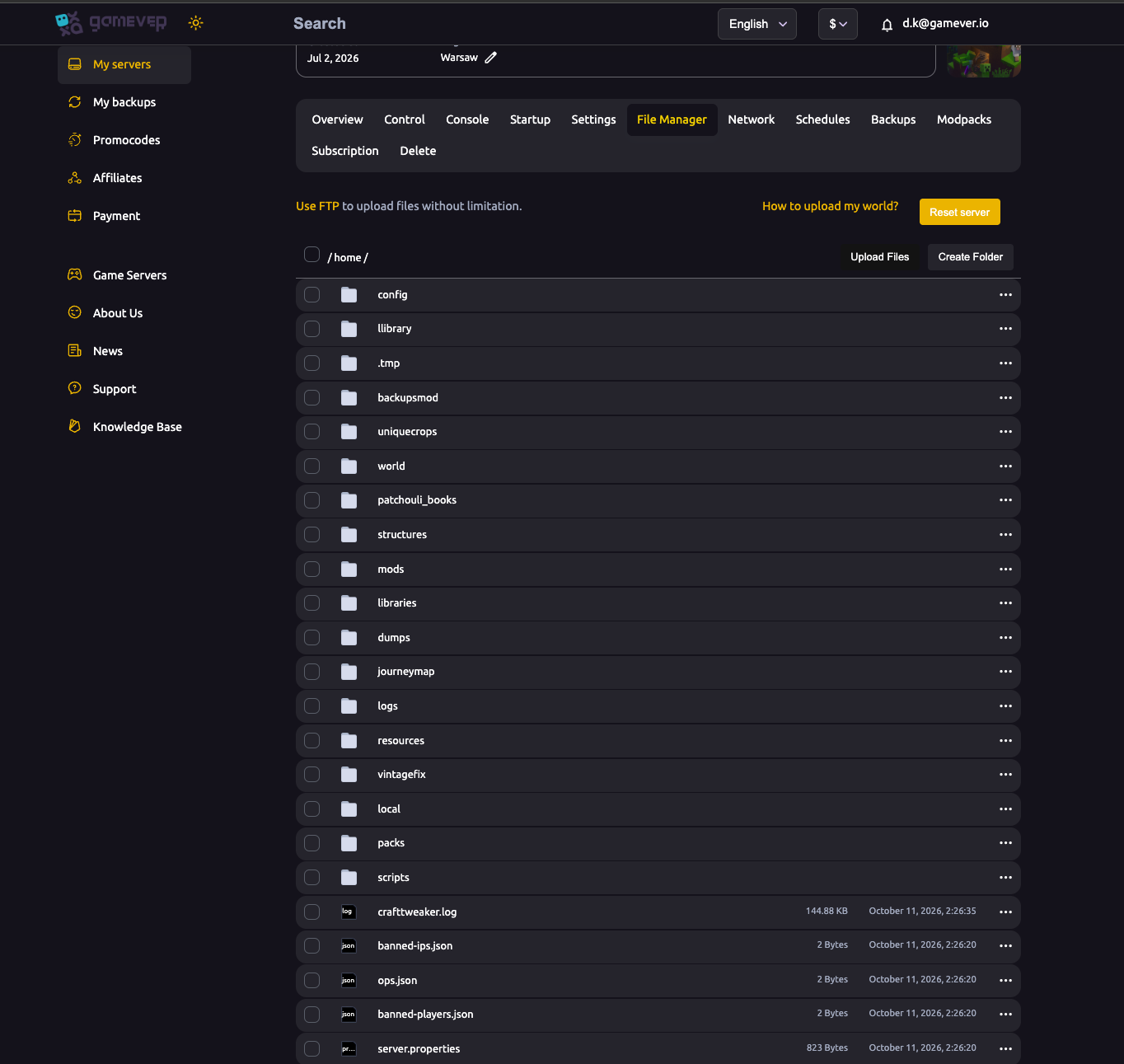
Each add-on lives in its own sub-folder inside one of these — for example behavior_packs/my_pack/. Bedrock reads unpacked folders, not archives, so if your download is a .mcpack or .zip, extract it first and upload the resulting folder (a .mcaddon typically bundles both a behavior pack and a resource pack, so expect two folders). Open the File Manager in your gamever panel, browse to your server's root, and upload the extracted folder into the matching directory.
Step 2 — Read the pack's manifest.json
Every pack folder contains a manifest.json. Inside its header are the two values you'll need to activate the pack — a UUID and a version:
"header": {
    "name": "My Behavior Pack",
    "uuid": "a1b2c3d4-e5f6-4a1b-8c2d-3e4f5a6b7c8d",
    "version": [1, 0, 0],
    "min_engine_version": [1, 21, 0]
}
| Field | What it is |
|---|---|
uuid | A unique ID in the form xxxxxxxx-xxxx-xxxx-xxxx-xxxxxxxxxxxx (hex digits). This is the header UUID — not a module UUID further down the file. |
version | The pack's version, written as three numbers [major, minor, patch]. |
Open manifest.json in the File Manager's text editor and copy those two values exactly — you'll paste them in the next step. A behavior pack and its matching resource pack each have their own UUID, so note both if you're installing a pair.
Step 3 — Activate the pack for your world
Placing the folder isn't enough — a pack only loads when it's listed for a specific world. Each world has its own activation files inside its world folder (worlds/<your-world-name>/):
| File | Activates |
|---|---|
world_behavior_packs.json | Behavior packs for that world. |
world_resource_packs.json | Resource packs for that world. |
Each file is a JSON array of pack entries. Add one object per pack, using the pack_id (the header UUID) and the version array you copied from the manifest:
[
    {
        "pack_id": "a1b2c3d4-e5f6-4a1b-8c2d-3e4f5a6b7c8d",
        "version": [1, 0, 0]
    }
]
If the file already exists in the world folder, add your entry to the existing array (mind the comma between objects). If it doesn't exist, create it. Do the same in world_resource_packs.json for any resource pack. The pack_id must match the manifest's header UUID character for character, and the version must match the manifest's version — a mismatch is the single most common reason a pack silently fails to load.
Step 4 — Restart and verify
Stop and start the server from the panel so it re-reads the packs and the world activation files. Watch the Console on boot: Bedrock logs each pack it loads and reports packs it can't find or can't match. Join the world to confirm textures appear and behaviors work.
Additional Tips
- Order matters for resource packs. Entries later in
world_resource_packs.jsonsit higher in the apply order and can override earlier ones — list them deliberately if two packs touch the same textures. - Behavior packs often need their resource pack. Many add-ons ship as a pair and will throw dependency errors (or show invisible/missing items) if you activate only the behavior half. Install and activate both.
- Edit while the server is stopped. Make File Manager changes to packs and the
world_*_packs.jsonfiles with the server off, then start it — editing live files can be overwritten or ignored. - Keep a copy before you edit. Download the world folder (or back it up) before adding packs, so a bad edit doesn't cost you the save — see Bedrock world management.
- Updating a pack? Bump the
versionin both the pack'smanifest.jsonand the matchingworld_*_packs.jsonentry, or the server keeps loading the old one. - Valid JSON only. A stray comma or bracket breaks the whole file and drops every pack in it. Use the File Manager editor and keep the array tidy.
Conclusion
Installing Bedrock add-ons comes down to three things: drop the unpacked folder into behavior_packs/ or resource_packs/, copy the uuid and version out of its manifest.json, and list them as pack_id + version in your world's world_behavior_packs.json or world_resource_packs.json. It's all file work you can do straight from the panel — no loader, no command line.
Rent your Minecraft server at gamever.io and manage Bedrock and Java servers alike from one panel, with a built-in File Manager, Console and one-click restarts — no FTP client required to get started. Free trial, promo code WELCOME.