
How to Install a CurseForge Modpack on Your Minecraft Server
Modpacks are the reason a lot of people rent a Minecraft server — packs like Roguelike Adventures and Dungeons, All the Mods or RLCraft turn Minecraft into a whole new game. On gamever you don't have to wrestle with jars and config files: the Modpacks tab installs and switches CurseForge modpacks straight from the panel. This guide shows how.
Install a modpack from the panel
- Open the Modpacks tab in the tab bar.
- Find the CurseForge modpack you want and choose to install it.
- Confirm. The panel downloads the pack, sets the server type to the one the pack needs (usually Forge, sometimes Fabric), and pins the correct Minecraft and loader version.
- Wait for the install to finish — progress scrolls in the Console. A full pack can take several minutes.
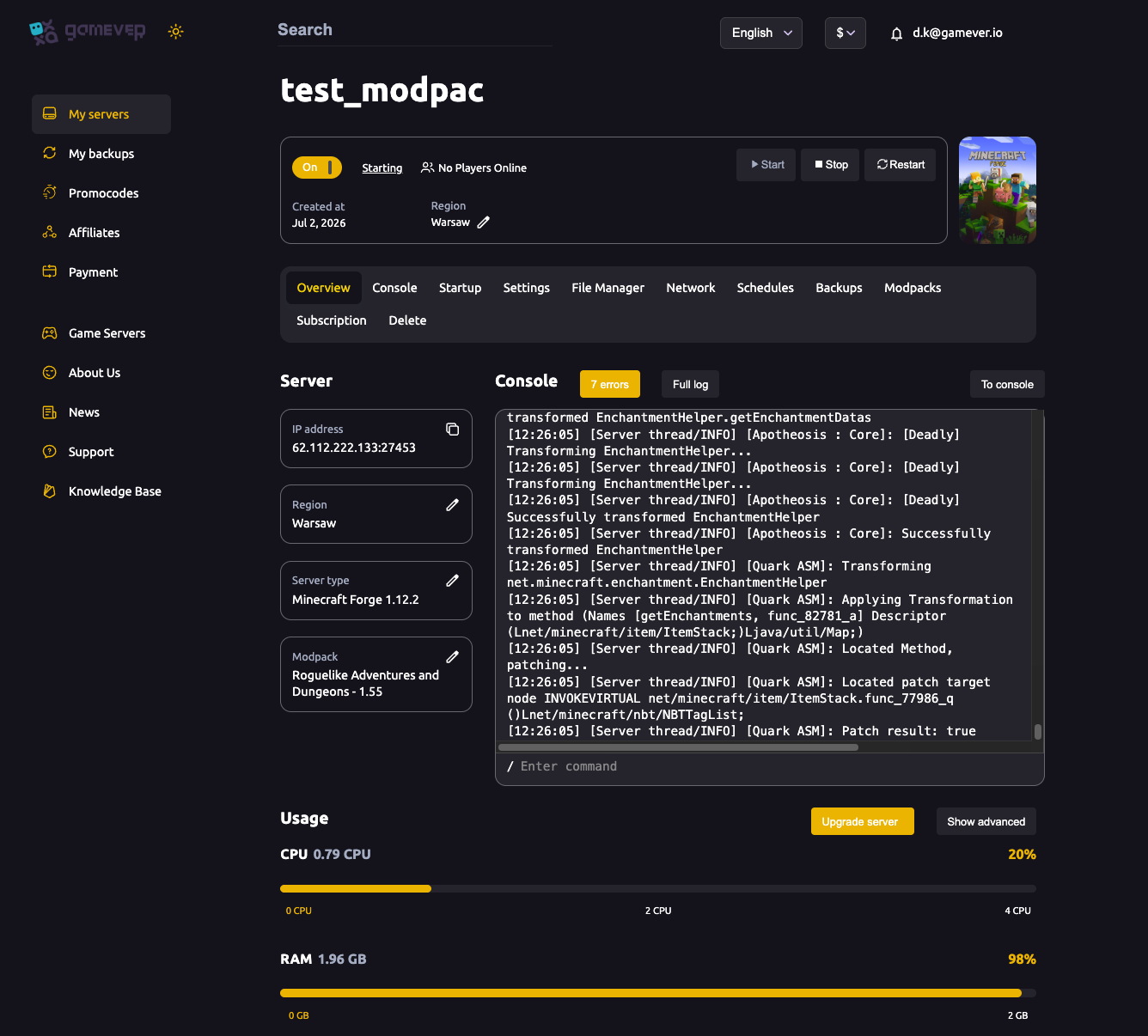
When it's done, the Overview tab shows the pack in the Modpack box (e.g. Roguelike Adventures and Dungeons - 1.55) and the matching Server type (e.g. Minecraft Forge 1.12.2).
Switching to a different modpack
To change packs, install the new one from the Modpacks tab the same way. Because a new pack brings a different mod set (and often a different Minecraft version), your existing world usually won't be compatible. Before switching:
- Back up your current world from the Backups tab or over FTP.
- Install the new pack.
- Reset the world if the old one won't load — see reset world. A fresh world is generated with the new pack's mods.
Players must install the matching pack
A modded server needs a matching modded client. Every player joins using the same CurseForge modpack and version as the server — a vanilla client can't connect to a Forge/Fabric modpack server. Share the exact pack name and version (e.g. Roguelike Adventures and Dungeons - 1.55) with your group so everyone installs the same thing from the CurseForge app.
Modpacks are RAM-heavy
Modpacks load hundreds of mods, so they use far more RAM than vanilla. If the server struggles:
- Check Overview → Usage — a small plan can sit near 98% RAM on a big pack.
- Use Upgrade server for more memory.
- Make sure Aikar's Flags are on and
MaxRAMPercentageis set — see startup & Java and fixing lag.
Additional Tips
- Install from the Modpacks tab, not by hand — it sets type and version for you.
- Back up before switching packs — a new pack usually means an incompatible world.
- Every player needs the same pack and version from CurseForge.
- Give the install time — big packs take several minutes; watch the Console.
- Size your RAM for the pack — modpacks are memory-hungry; Upgrade if you sit near the limit.
Conclusion
The Modpacks tab makes CurseForge packs a one-click affair: pick the pack, confirm, and the panel installs it, sets the server type and pins the right version — no manual jar juggling. Back up before you switch packs, make sure every player installs the matching pack, and give your server enough RAM, and your modded world is ready to explore.
Rent your Minecraft Java server at gamever.io — one-click CurseForge modpacks, automatic version matching and an Upgrade button for RAM-heavy packs. Free trial, promo code WELCOME.