
How to Increase FPS in Icarus Update
If Icarus is running like a slideshow on your system, don’t worry—you’re not alone. With its stunning visuals and demanding system requirements, the game can be a challenge for even high-end PCs. But you don’t need to endure low FPS and stuttering gameplay. Follow this guide to optimize both your system and in-game settings to squeeze every drop of performance out of your hardware.
Step 1: Optimize Your System Settings
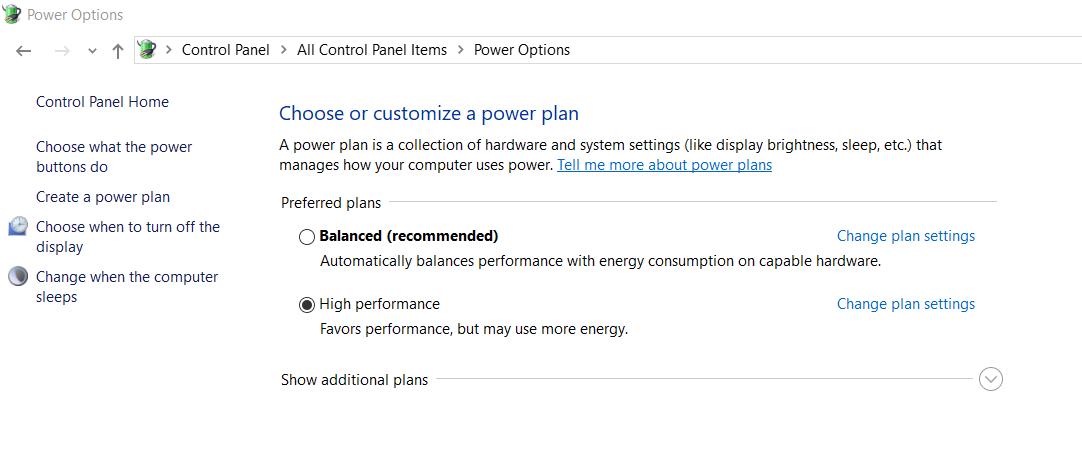
Start by tweaking your system to create the best environment for gaming. Begin with your power settings: open the Power Options in your Control Panel and select the High Performance or Ultimate Performance mode.
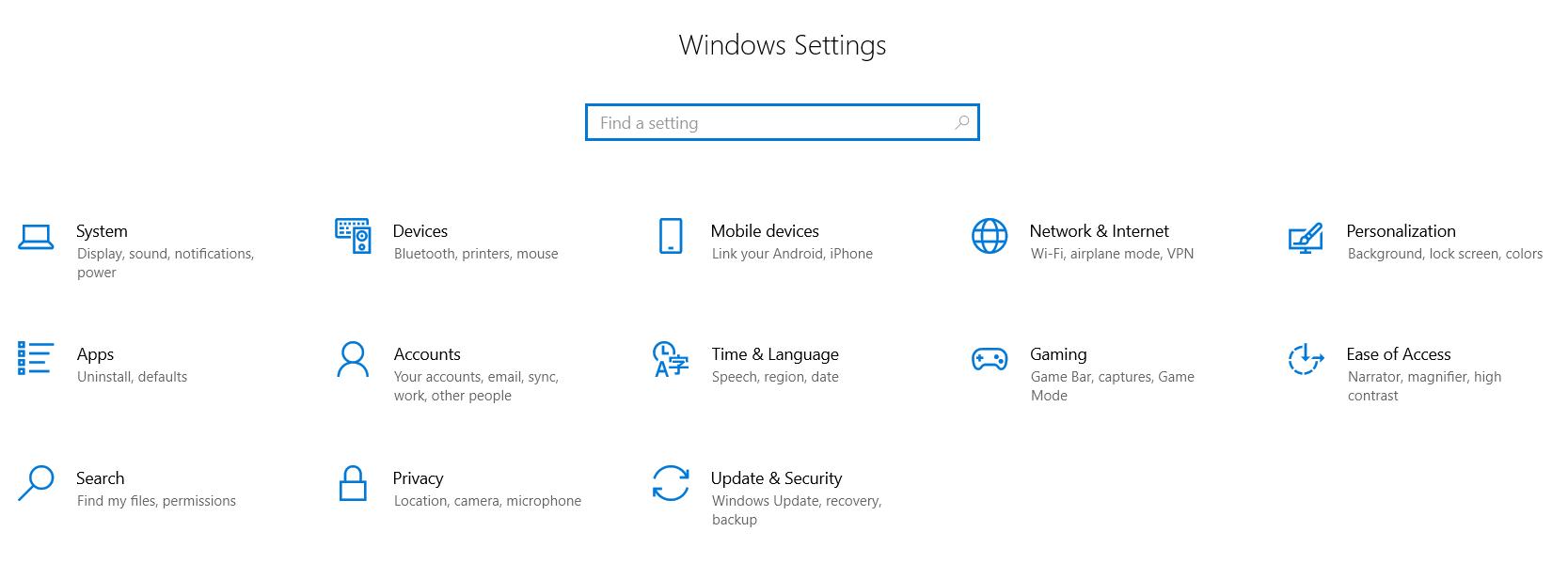
Next, enable Game Mode in Windows. Search for “Game Mode” in your Start menu, open the settings, and toggle it on. While you’re at it, disable the Xbox Game Bar and any background recording features, as these can eat up valuable system resources.
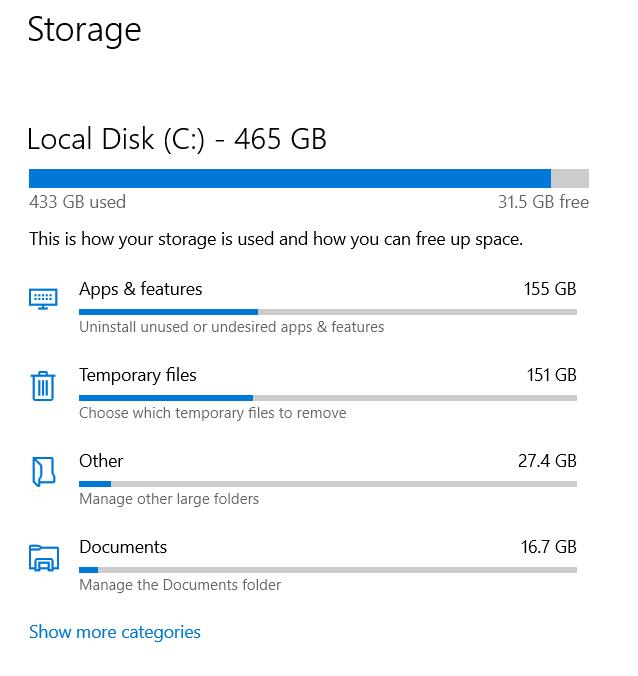
Clear out junk files by searching for “Storage Settings” and using the Cleanup Recommendations tool. Additionally, open the `%TEMP%` folder, select all files, and delete them to free up space and reduce system clutter.
Step 2: Update Graphics Drivers
Keeping your graphics card drivers up to date is critical. Open Device Manager, find your display adapter, and click “Update Driver.” While this method is quick, it may not always fetch the latest driver. Instead, visit your graphics card manufacturer’s website (e.g., Nvidia, AMD, or Intel), download the latest driver, and install it manually.
For Nvidia users, open GeForce Experience, go to the Drivers tab, and check for updates. AMD users can use the Radeon Software, while Intel users should visit Intel’s support page for the latest integrated GPU drivers.
Step 3: Adjust Graphics Card Settings
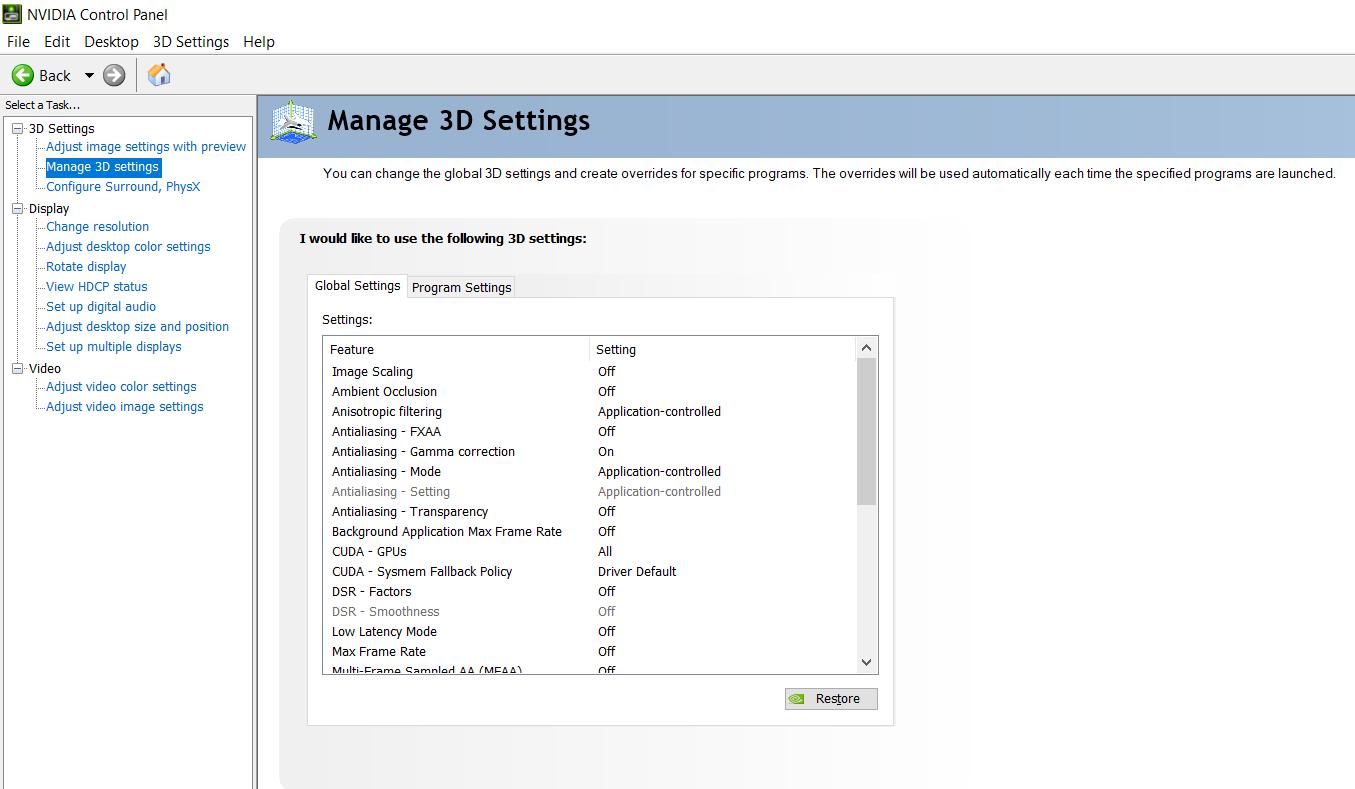
For Nvidia users, open the Nvidia Control Panel and go to “Manage 3D Settings.” Set “Power Management Mode” to “Prefer Maximum Performance,” and adjust “Texture Filtering” to “High Performance.” Turn off Vertical Sync and tweak other settings to prioritize performance. AMD and Intel users can make similar adjustments in their respective control panels.
Enable Hardware-Accelerated GPU Scheduling if your system supports it. Search for “Graphics Settings” in Windows, and toggle this feature on to reduce latency and improve performance slightly.
Step 4: In-Game Graphics Settings
Head into Icarus and start tweaking the graphics settings for the best performance-to-visuals balance. Set your display mode to Fullscreen for stability and ensure the resolution matches your monitor’s native resolution. Avoid lowering the resolution directly; instead, adjust the Resolution Scale slider to 85–90% for a smoother experience without sacrificing too much clarity.
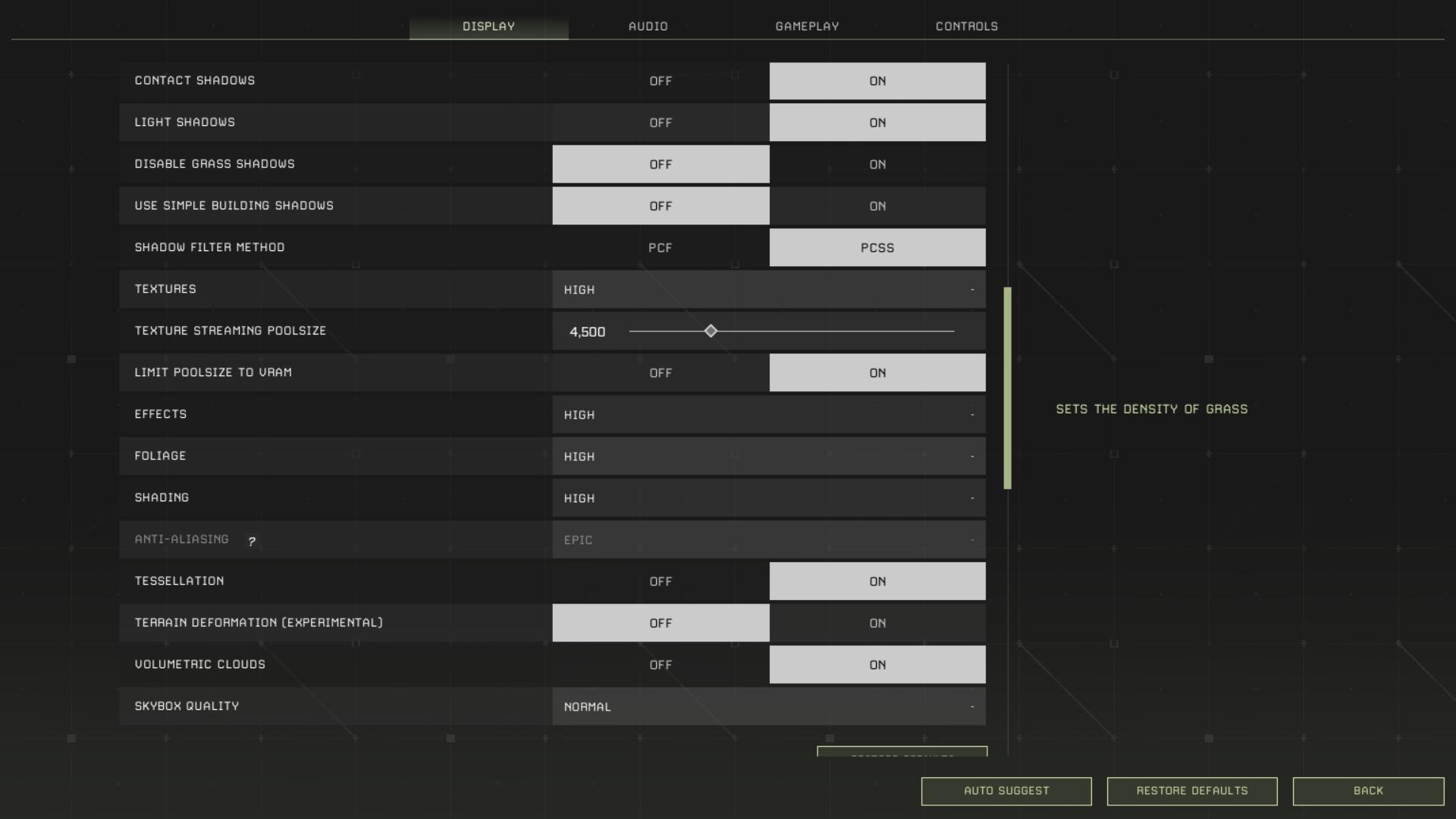
Turn off Motion Blur and reduce View Distance to Medium to save resources while maintaining visibility. Shadows have the most significant impact on FPS, so set them to Low and reduce the Max Shadow Cascade setting to one. Textures should be adjusted based on your GPU’s VRAM capacity—set them to Medium if you have less than 4GB of VRAM.
Lower Post Processing, Effects, Foliage, and Shading settings to Medium or Low to gain extra frames. Disable unnecessary features like Volumetric Clouds, Player Shadows, and Ray Tracing. For anti-aliasing, use the lowest setting that doesn’t make the game look too blurry—Low or Medium is often sufficient.
Step 5: Utilize DLSS or AMD FSR
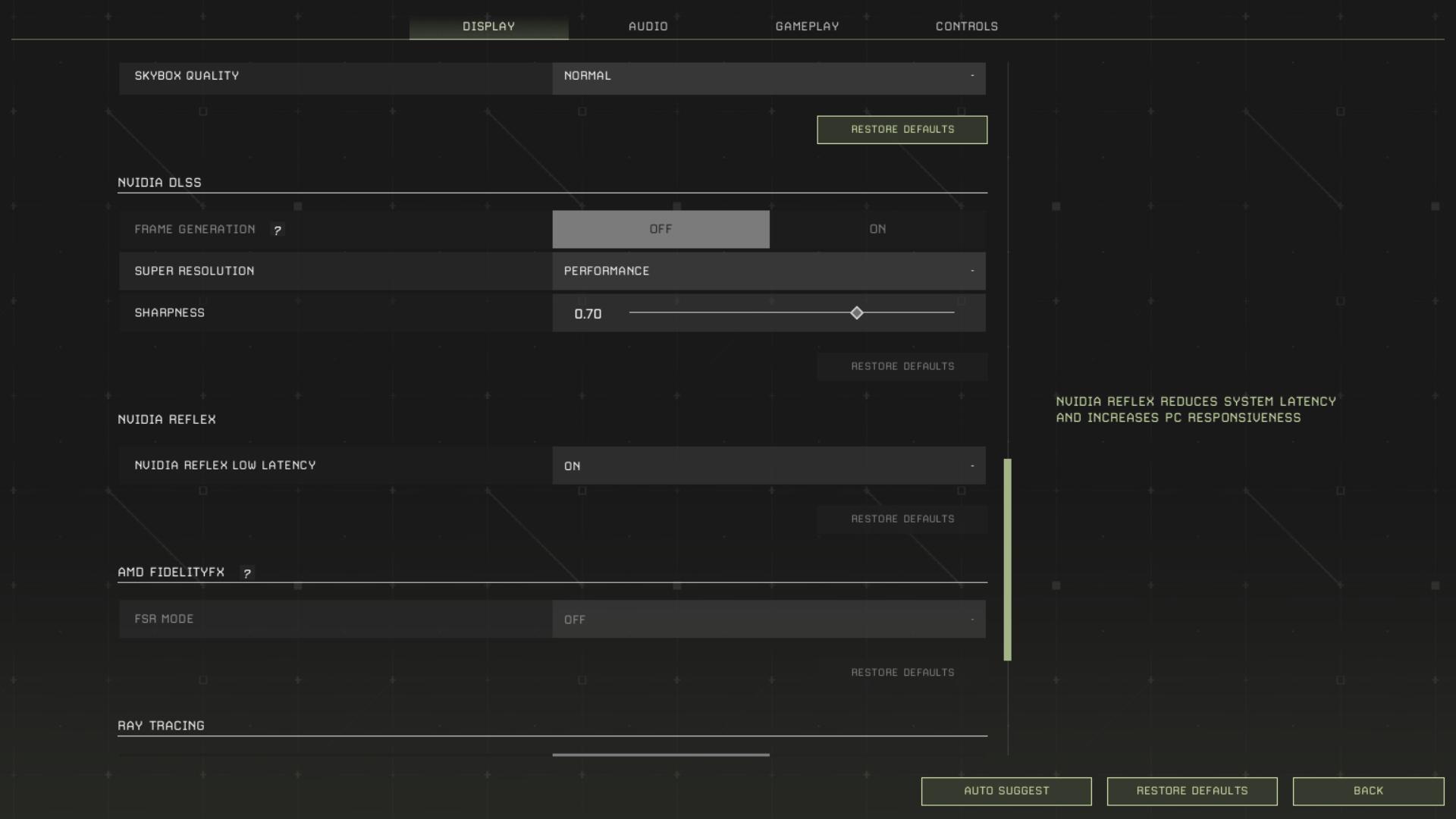
If your GPU supports Nvidia DLSS or AMD FidelityFX Super Resolution (FSR), enable these features in the game settings. DLSS provides a significant FPS boost for Nvidia users, while AMD FSR works across most GPUs. Use the Quality or Ultra Quality preset for the best balance between performance and visual fidelity.
Step 6: Advanced Tweaks
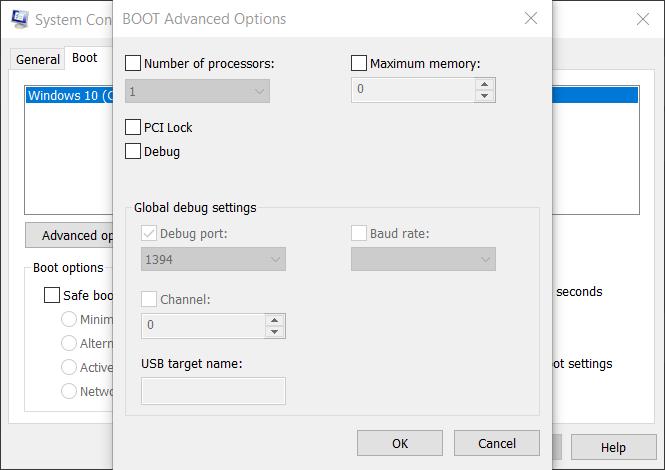
For additional performance gains, adjust the number of processors used by your system. Search for “System Configuration,” go to the Boot tab, and click “Advanced Options.” Enable the number of processors and set it to the highest available. Apply and restart your computer.
Lastly, adjust the Windows performance settings by searching for “Adjust the Appearance and Performance of Windows.” Choose the “Adjust for Best Performance” option, which disables unnecessary visual effects, freeing up resources for gaming.
Improving your FPS in Icarus Update is a combination of system tweaks, driver updates, and in-game optimizations. By following these steps, you can enjoy a smoother, more immersive experience even on older hardware. Regular maintenance, such as keeping your drivers updated and clearing system junk, will ensure your performance stays consistent over time. Remember, every frame counts when you’re battling the elements on an alien planet.