
How to Grant Admin on Your Valheim Server with adminlist.txt

Admin rights on a Valheim dedicated server are controlled by a single plain-text file, adminlist.txt, which holds one player ID per line. On a gamever server you never have to touch FTP or a file path to manage it — there's a dedicated panel field for it — but it helps to understand what's actually being written. This guide covers both ways to grant admin in the panel, the two kinds of ID you'll need (a Steam64 ID for Steam players and a Platform User ID for Xbox / Game Pass crossplay players), and the in-game commands admin unlocks. Valheim has no RCON, so this ID file is how server management is delegated.
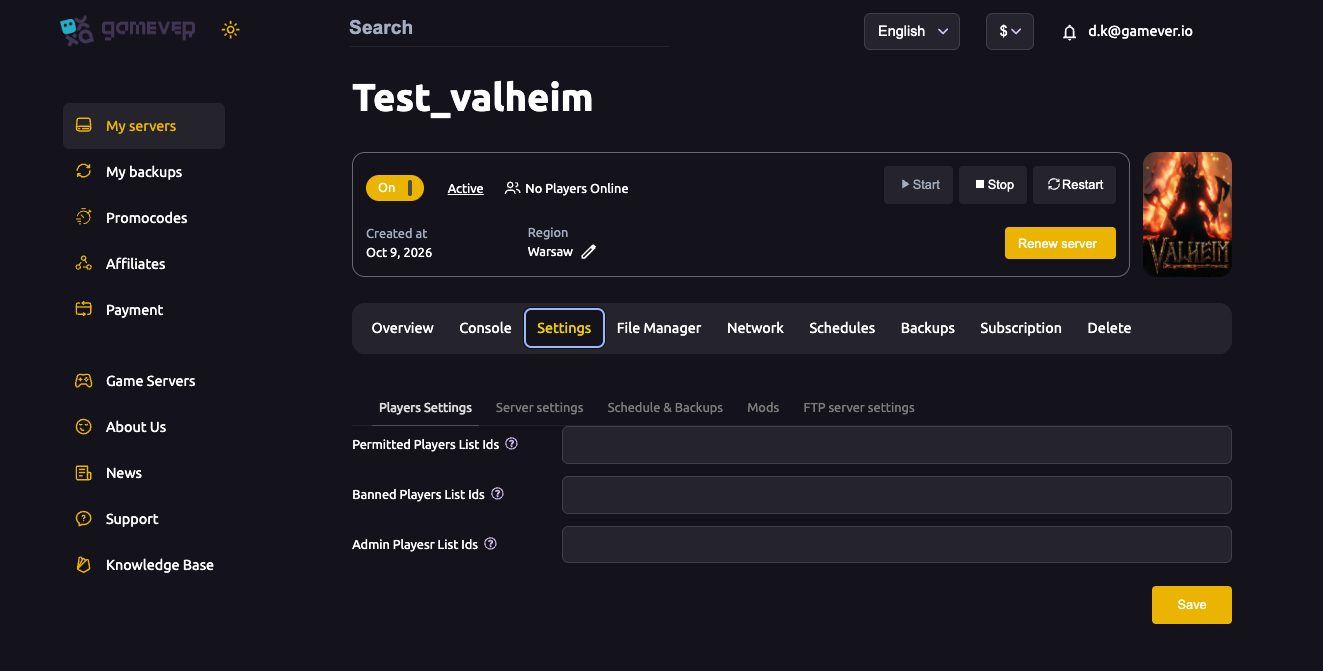
Two ways to grant admin in the panel
Everything happens inside your gamever control panel — pick whichever is more convenient:
| Method | Where | Best for |
|---|---|---|
| Players Settings field | Settings → Players Settings → Admin Players List Ids | The quick way — add an ID and Save, no file editing. |
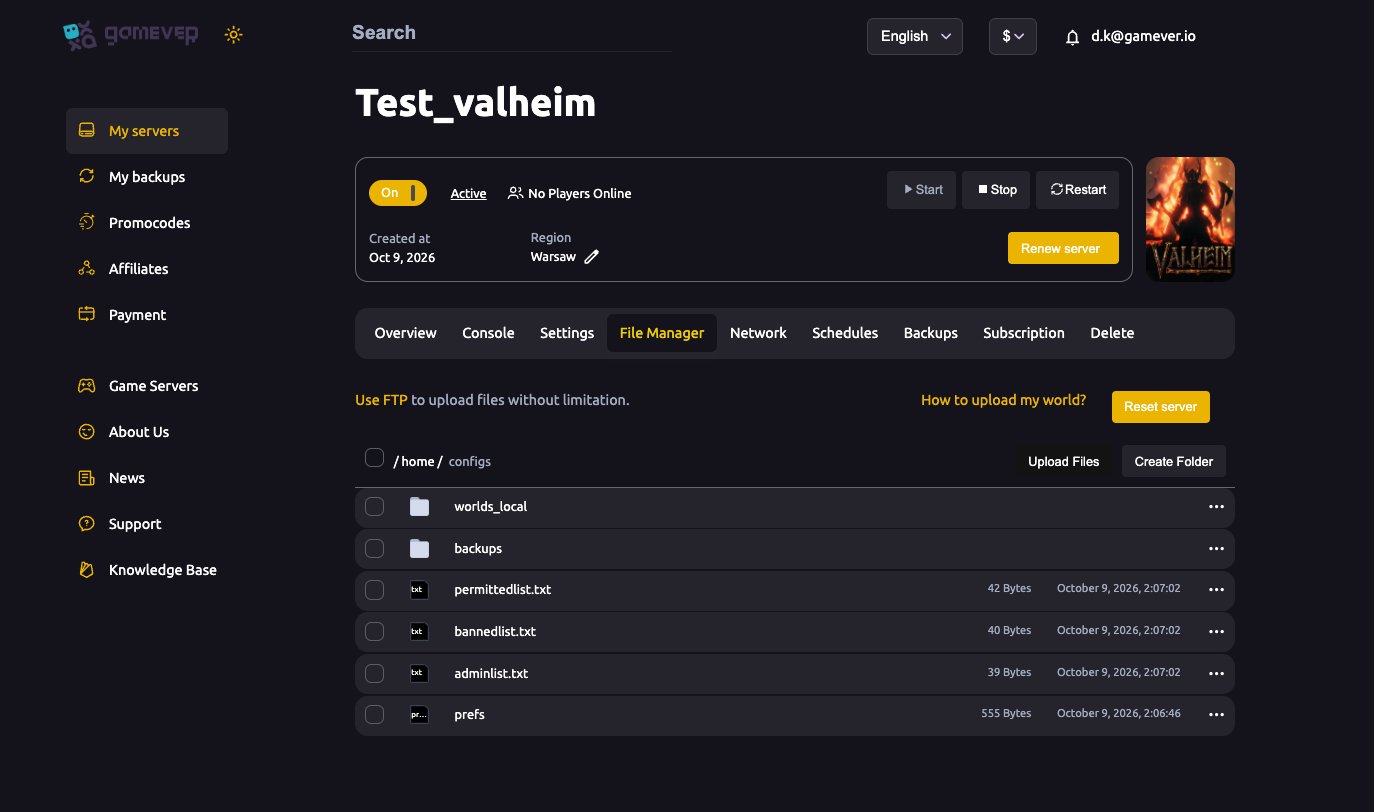
| Edit the file | File Manager → /home/configs/adminlist.txt | Managing several admins at once, one ID per line. |
For the file method, open File Manager, go to /home/configs/, and you'll see adminlist.txt alongside permittedlist.txt (the whitelist) and bannedlist.txt (the ban list). Each is plain text with one ID per line — no commas, no quotes, no player names, no comments.
Either way, restart the server and have the player reconnect before admin takes effect. If you edit the file directly, stop the server first so the running process doesn't overwrite your change on shutdown.
The ID you need: Steam64 vs Platform User ID
This is the part that trips everyone up: Valheim identifies players by ID, not by display name. Putting a name in adminlist.txt does nothing — silently, with no error. Which ID you need depends on how the player connects:
| Player type | ID to use | What it looks like |
|---|---|---|
| Steam | Steam64 ID | A 17-digit number. |
| Xbox / PC Game Pass (crossplay) | Platform User ID | A string that may carry a platform prefix — copy it whole. |
Xbox and Game Pass players have no Steam64 ID, so a 17-digit number won't exist for them. Valheim 1.0 can identify and elevate players across platforms, and for a crossplay player you use the Platform User ID the game reports instead. The safe rule for every ID: copy it exactly as Valheim shows it — keep any prefix, underscore and capitalisation, and never trim it down to just the digits. The IDs are case-sensitive.
Note: Xbox / Game Pass players can only reach your server when crossplay is enabled in the first place — see the crossplay flag. If they can't join at all, that's the setting to check before worrying about admin.
How to find a player's ID
The reliable source is the player themselves while they're connected:
- In-game player list (F2). While the player is on your server, press F2 to open the players panel. It lists everyone online with their ID — Steam64 for Steam players, Platform User ID for crossplay players. Match by character name and copy the full value.
- The server log / Console. When a player connects, their ID appears in the server connection log — useful for grabbing the ID of someone who was on earlier. The gamever Console tab shows this live log.
Have the player copy their own ID from the F2 list and send it to you — that's the least error-prone route, and it works identically for Steam and crossplay players.
What admin unlocks
Being on adminlist.txt grants server-management commands, run from the in-game console (open with F5) once you're connected as an admin:
| Command | What it does |
|---|---|
kick <name> | Disconnects a player (they can rejoin). |
ban <name> | Disconnects a player and adds them to bannedlist.txt. |
unban <name> | Removes a player from the ban list. |
banned | Lists everyone currently banned. |
Admin does not turn on cheats. god, fly, spawn and tod are devcommands — a separate system that adminlist.txt does not touch — so "I'm an admin but fly does nothing" is working as designed. If that distinction matters to your group, see admin vs devcommands. For how all three list files relate, see the three Valheim list files.
Additional Tips
- ID, never a name. A display name in
adminlist.txtfails silently — always use the Steam64 or Platform User ID. - Copy the whole string. For crossplay IDs especially, keep any prefix and capitalisation; don't shorten it to the number.
- Add yourself first. Make sure your own ID is on the admin list before you hand out rights to anyone else.
- Restart and reconnect. Admin takes effect after a server restart and the player rejoining — not instantly.
- Stop before editing the file. If you edit
adminlist.txtin File Manager, stop the server first so your change survives shutdown. - Verify in game. Confirm admin by having the player run an admin command, not by re-reading the file — a trailing space can break an otherwise-correct ID.
Conclusion
Granting admin on a Valheim server comes down to one file, adminlist.txt, holding one player ID per line — and on gamever you manage it straight from Settings → Players Settings or File Manager → /home/configs/, no RCON required. Use a Steam64 ID for Steam players and a Platform User ID for Xbox / Game Pass crossplay players, grab it from the in-game F2 list, copy it exactly, save, restart and reconnect. Admin unlocks kick, ban, unban and banned — server management, not cheats.
Rent your Valheim server at gamever.io and manage admins, whitelist and bans from one panel — crossplay-ready, with instant setup and automatic backups. Free trial, promo code WELCOME.