
How to Fix YAML and JSON Config Errors on Your Minecraft Server
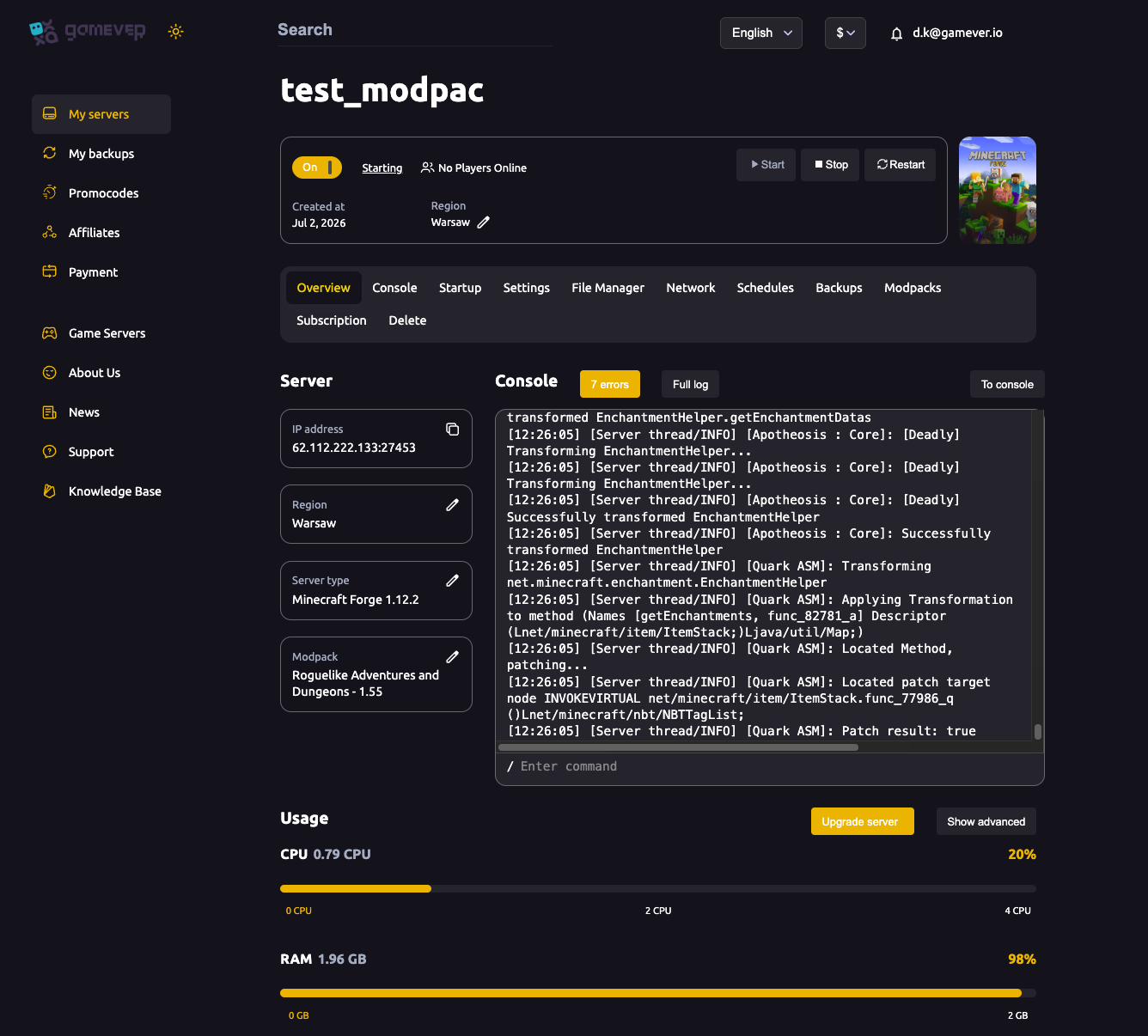
A single stray character in a config file is one of the most common reasons a Minecraft server refuses to start, or starts but silently skips a plugin. Most Minecraft config files are either YAML (plugin config.yml files and files like bukkit.yml/spigot.yml/paper.yml) or JSON (ops.json, whitelist.json, banned-players.json, and many mod configs), and both formats are strict about punctuation and spacing. The good news: on a gamever server you don't need any special tools to fix them — the Console tells you what broke, and the File Manager lets you edit the file in place. This guide shows how to read the error, fix the usual mistakes, and get back to a working copy.
Step 1: Read the error in the Console
When a config is malformed, the server reports it as it loads. On your gamever panel, open the Overview tab (or the dedicated Console tab) and read the live log after a restart. A good error does two things for you: it names the file that failed to parse, and it usually points to a line and column (or a nearby snippet) where the parser gave up.
Two patterns to recognise:
- The whole server won't start. A broken core file (for example a server-wide YAML file) can abort startup entirely — the log stops with a parse error instead of reaching "Done".
- The server starts but a plugin is missing. If one plugin's
config.ymlis invalid, that plugin fails to enable while the rest of the server runs. Look for a message naming that plugin as it loads.
If the live Console scrolls past too fast, open the log file itself (next step) and read it at your own pace.
Step 2: Open the log file in the File Manager
Your server keeps its logs in the logs/ folder. Open the File Manager from the panel and browse to logs/ — the current run is in latest.log. Older runs are dated and compressed in the same folder, so latest.log is almost always the one you want right after a failed start.
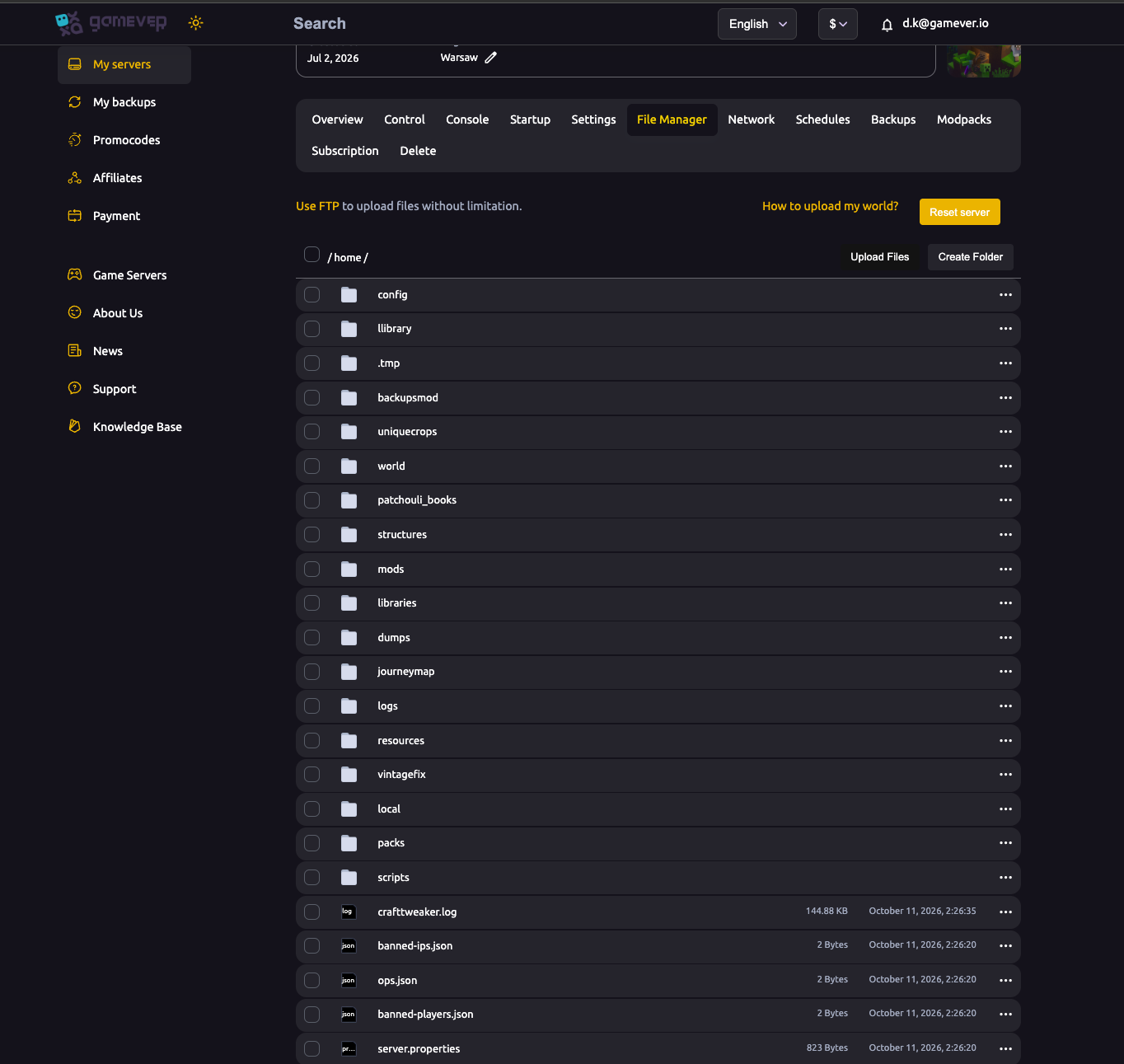
Scroll to the bottom of latest.log to find the last error before the server gave up. Note the filename and the line number it mentions, then open that file in the File Manager to fix it.
Step 3: Fix the usual YAML mistakes
YAML is whitespace-sensitive, which is exactly why it trips people up. The rules that catch most people:
| Mistake | Why it breaks | Fix |
|---|---|---|
| A tab character for indentation | YAML forbids tabs for indentation — only spaces are allowed | Replace every tab with spaces |
| Inconsistent indentation | Nested keys must line up by the same number of spaces | Keep each level aligned; don't mix 2- and 4-space levels |
| No space after the colon | key:value is read as one token | Write key: value with a space |
| An unquoted special value | Characters like :, # or a leading & confuse the parser | Wrap the value in quotes: motd: "Welcome & enjoy" |
A YAML parse error in the log that mentions "mapping", "could not find expected key", or a character it "cannot start" is almost always one of the above — start by checking for a hidden tab on the line it names.
Step 4: Fix the usual JSON mistakes
JSON is less about whitespace and more about punctuation. It has no comments and is strict about commas and quotes:
| Mistake | Why it breaks | Fix |
|---|---|---|
| A trailing comma | JSON does not allow a comma after the last item in a list or object | Remove the comma before ] or } |
| A missing comma | Items in a list/object must be comma-separated | Add the comma between entries |
| Single quotes or no quotes | JSON strings must use double quotes | Use "like this" for every key and string |
| An unclosed brace or bracket | Every { needs a } and every [ a ] | Match them up; count opens and closes |
A JSON error that says it expected a , or }, or found an "unexpected" character, points straight at a comma or quote near the line it names.
Step 5: Validate before you restart
Rather than restart repeatedly to test guesses, check the file first. Copy the file's contents into a YAML or JSON validator — an online validator or the built-in linting in a code editor both flag the exact line — and only save it back through the File Manager once it reads clean. Editing the file on your own machine, validating it there, then uploading the corrected copy over FTP works just as well for bigger files.
Step 6: Restore a working copy
If you can't spot the problem, go back to a version that worked:
- Restore from a backup. The Backups tab holds restore points — bring back the server (or pull the single file over FTP from a backup) as it was before the edit. See backup & restore.
- Let a plugin regenerate its config. For a plugin
config.ymlyou can't repair, rename or delete it in the File Manager and restart — most plugins write a fresh default config on the next start, which you can then edit carefully.
Additional Tips
- Always read the log first — it names the file and the line, so you rarely have to guess.
- Edit configs in the File Manager (or over FTP), then restart and watch the Console for a clean load.
- Change one thing at a time. After a bad edit, revert to the last working copy before trying again.
- Keep a backup before editing a config so a broken file is a one-click restore, not a rebuild.
- This is a different problem from a version mismatch — if the server won't boot after a version or Java change, see startup & Java; if a mod or plugin is the wrong version, see install mods & plugins.
Conclusion
Config errors look alarming but follow a short routine: read the error in the Console, open logs/latest.log in the File Manager to find the file and line, fix the usual culprit — a tab or bad indent in YAML, a trailing comma or missing quote in JSON — validate it, and restart. If it still won't behave, restore a working copy from a backup or let a plugin regenerate its config. Work that list and a server stuck on a startup error comes back online in minutes.
Rent your Minecraft Java server at gamever.io — a live browser console, full File Manager access and one-click backups make tracking down a bad config quick and painless. Free trial, promo code WELCOME.