
How to Fix Wrong Connection Protocol in Rust
Encountering the "Wrong Connection Protocol" error in Rust can be frustrating, especially when you're eager to join a server. This issue typically arises from mismatches between client and server versions or incorrect configurations. Here’s how you can resolve it efficiently.
This error indicates a mismatch between the game version you're running and the version expected by the server. Such discrepancies often occur after an update when either the client or the server hasn't been fully synchronized.
Update the Rust Client
To begin, ensure your client is running the latest version of the game. Open Steam, navigate to your library, and check for any pending updates for Rust. If your game shows as up-to-date but the issue persists, clear your download cache by doing the following:
1. Open Steam and go to ‘Settings > Downloads’.
2. Click ‘Clear Download Cache’.
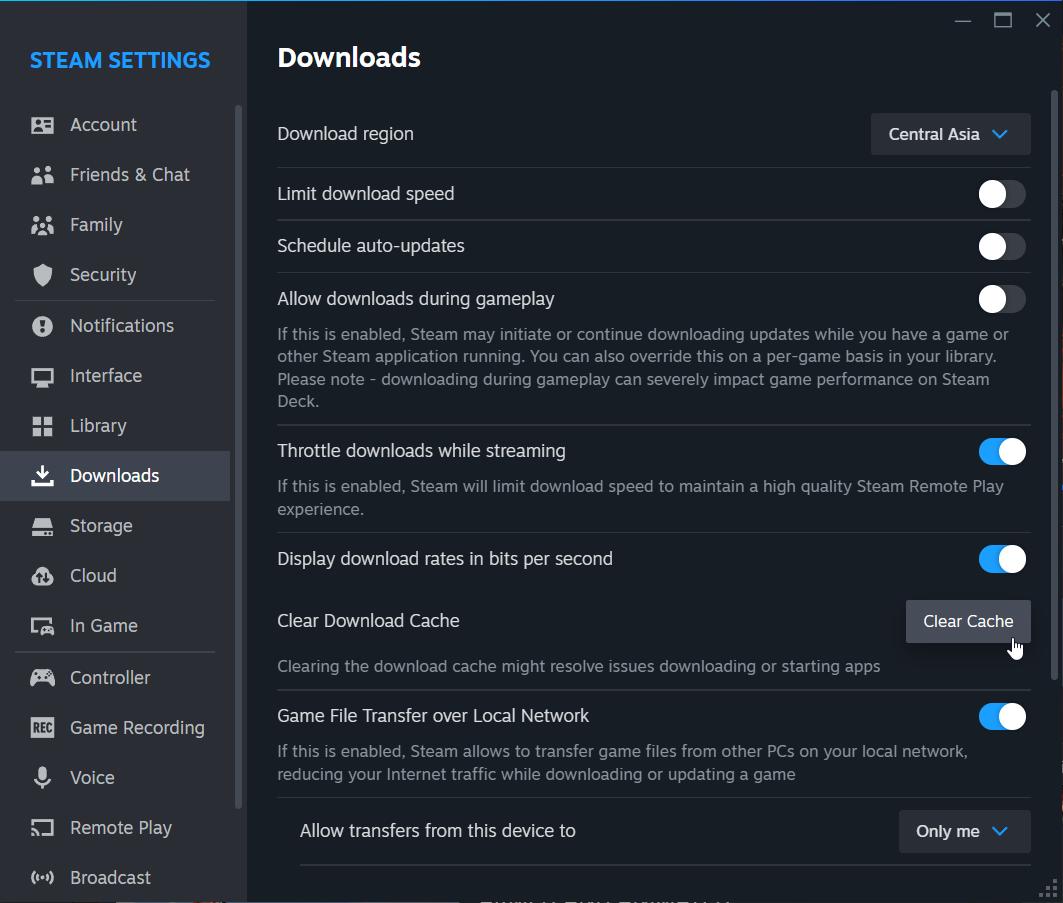
3. Restart Steam and try updating again.
Update Your Server
For server operators, it's essential to match the server version to the latest client update. Use SteamCMD to apply the update:
1. Stop the server.
2. Run the following commands in SteamCMD:
- ‘force_install_dir [server_directory]’ (e.g., ‘force_install_dir c:\rustserver’).
- ‘app_update 258550 validate’.
3. Restart the server.
Verify that the update applies to the correct directory. Misconfigured paths can result in updates being applied to the wrong folder, which is a common oversight.
Manage Plugins and Beta Branches
If you're using plugins like Oxide, ensure they’re compatible with the latest Rust version. You might need to temporarily remove them and test connectivity without them.
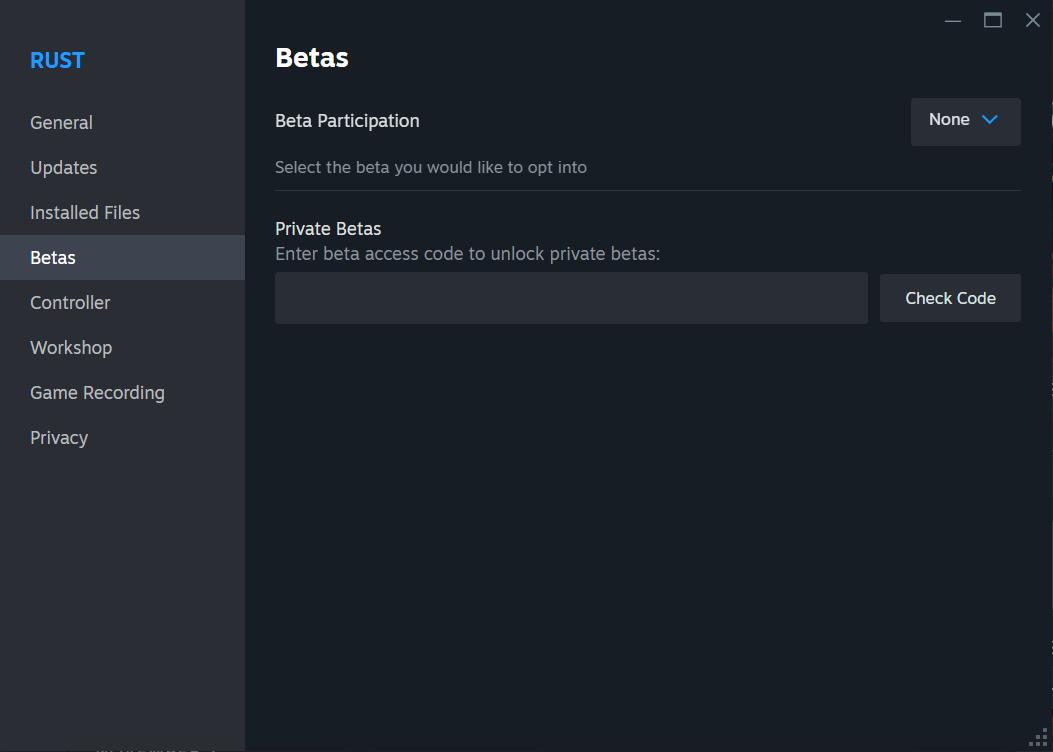
Additionally, verify that both client and server are on the same beta branch:
1. Right-click Rust in your Steam library.
2. Go to ‘Properties > Betas’.
3. Select the same branch as the server, such as "None" for the stable version.
Clear Cached Data
Clearing unnecessary cached files can often help:
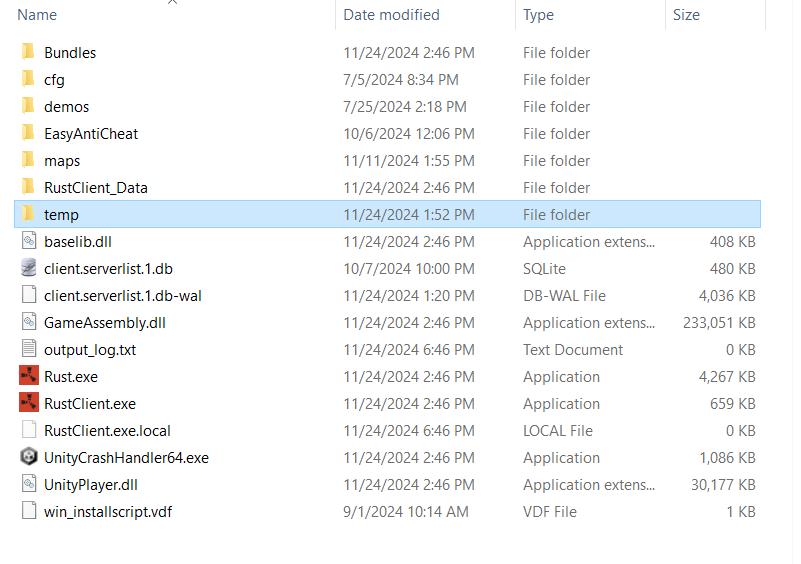
1. Locate your Rust installation folder.
2. Delete temporary files in the ‘cache’ and ‘logs’ directories.
By aligning client and server versions, managing configurations, and addressing cached files, you can eliminate the "Wrong Connection Protocol" error effectively. Use these practical methods to get back into the game without unnecessary delays.