
How to Fix V Rising Won't Launch Issue
Are you facing trouble launching V Rising after an update? Don't worry; we've got you covered with several solutions to force the game to launch.
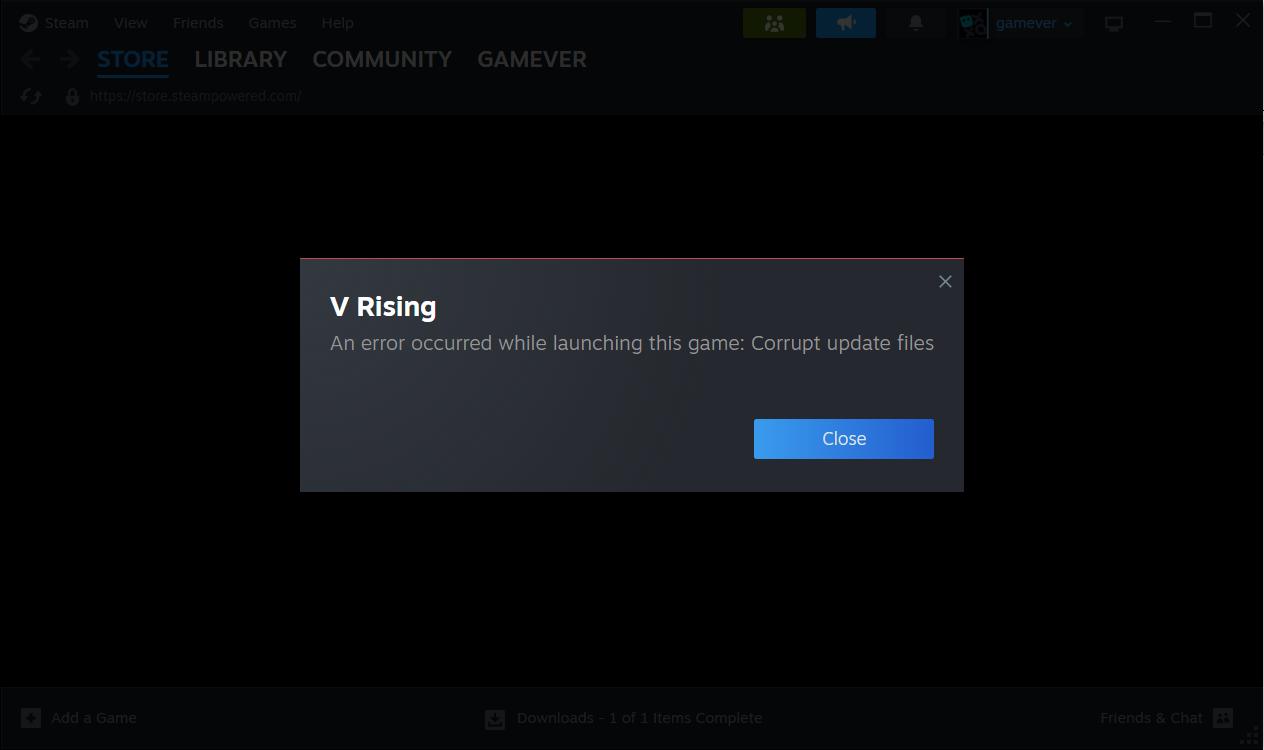
Why Won’t V Rising Launch?
Several factors could contribute to V Rising not launching, including temporary PC issues, hardware compatibility, Windows permissions, firewall settings, outdated GPU drivers, corrupted game files, or missing dependencies.
Pre-launch Checks and Basic Fixes
Start by performing a straightforward restart, as it can resolve temporary issues that might be preventing V Rising from launching.
Make sure your PC meets the minimum system requirements for V Rising. You can find these details on the game's official website or Steam page.

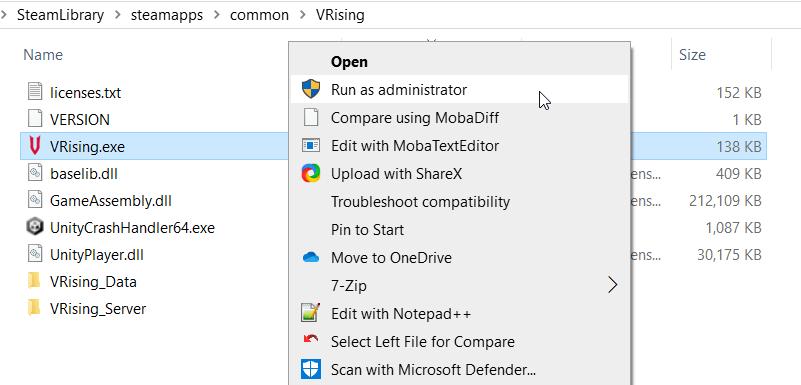
Right-click on the V Rising executable file, navigate to Properties > Compatibility tab, and check "Run this program as an administrator." This step ensures smoother launches by granting the necessary permissions to the game.
Troubleshooting Advanced Issues
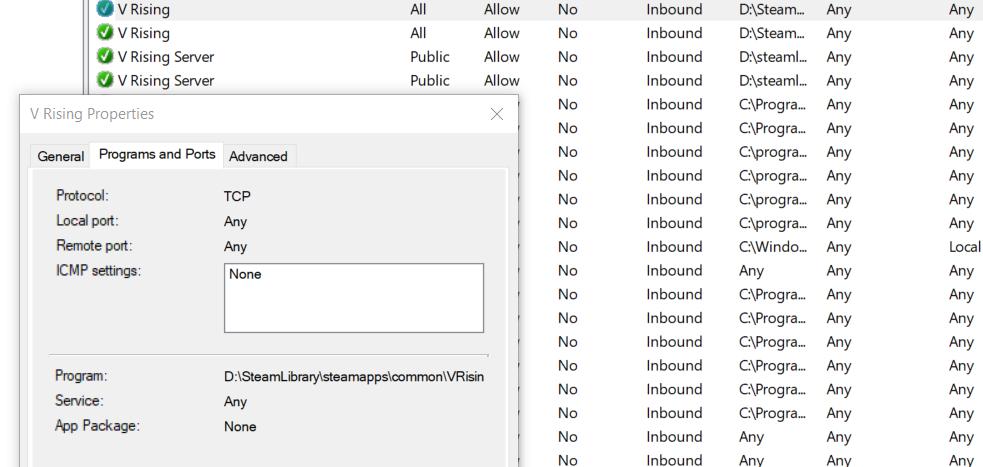
Access your Windows Defender Firewall settings, allow V Rising through the firewall, and then restart your PC to ensure the changes take effect.
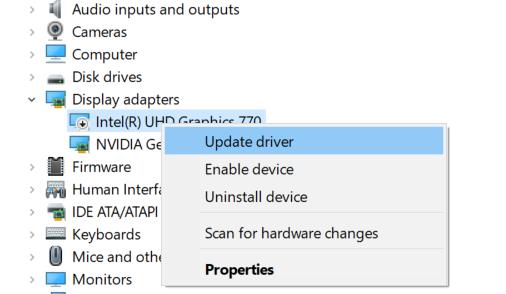
Check for the latest GPU drivers manually or use a driver updater tool to ensure your graphics card is up to date. This step helps maintain smooth performance and compatibility with V Rising.
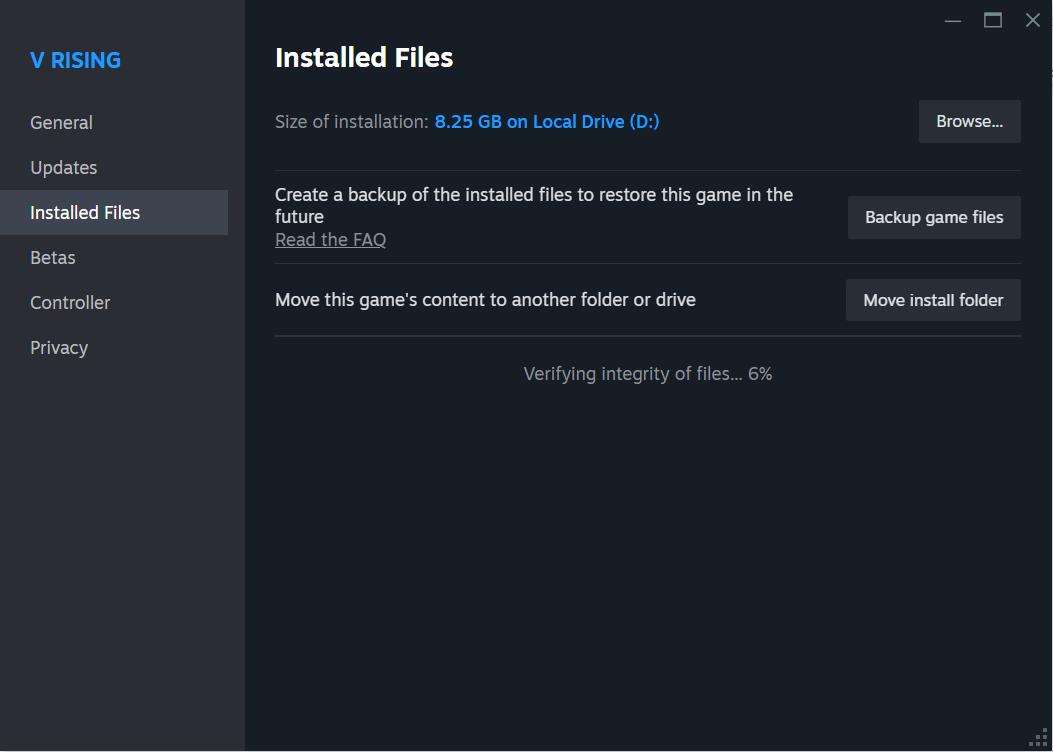
In the Steam client, right-click on V Rising, select Properties > Local Files, and click "Verify integrity of game files." This action checks for and fixes any corrupted data within V Rising, ensuring it launches correctly.
Download and install the Visual C++ Redistributable Packages that are compatible with your system architecture. These dependencies are necessary for V Rising to run smoothly.
Optimizing System Performance for V Rising
Use Task Manager by pressing Ctrl+Shift+Esc to close unnecessary background tasks, freeing up system resources and potentially resolving any conflicts that could be hindering V Rising's launch.
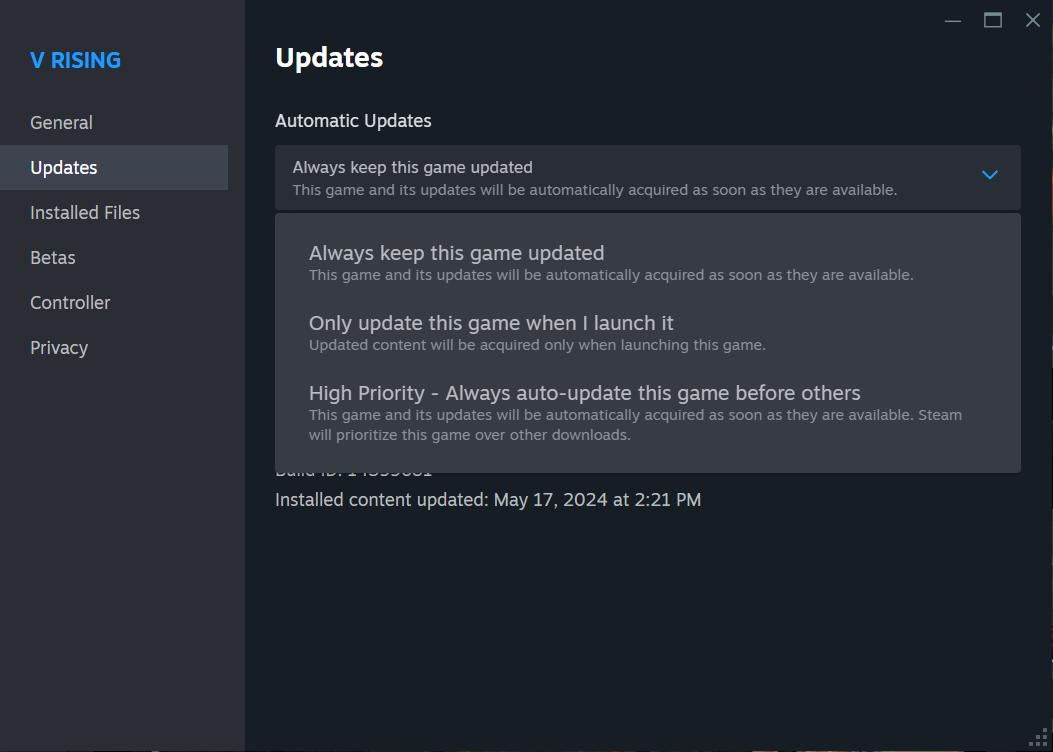
Ensure that V Rising is updated to the latest version through the Steam client. Regular updates often include bug fixes and optimizations that can address launch issues.
Check for Windows Updates: Install any pending Windows updates to maintain system stability and compatibility with V Rising.
Disable Overlay Apps
To disable Discord overlay, open Discord, click the gear icon, go to App Settings > Overlay, disable "Enable in-game overlay," select "V Rising" in the Games tab, and turn off the overlay. Reboot your PC to apply changes.
For Xbox Game Bar, go to Windows Settings > Gaming > Game Bar, and turn off "Record game clips, screenshots, and broadcast using Game bar." If you can't find it, use the search function. To disable Nvidia GeForce Experience overlay, open the app, go to Settings > General, and turn off "In-Game Overlay." Restart your PC and ensure other overlay apps like MSI Afterburner are disabled for optimal gaming performance.
Perform a Clean Boot
Use System Configuration to disable non-essential startup services and programs, ensuring a clean environment for V Rising to launch without interference.
To initiate this process, press the Windows and R keys simultaneously to prompt the Run dialog box. Within this dialog box, input "msconfig" and hit Enter, which will open the System Configuration window. Once in System Configuration, navigate to the Services tab. Here, ensure that you've enabled the option labeled "Hide all Microsoft services" to prevent accidental disabling of essential system processes. Following this, click on "Disable all" to deactivate all non-Microsoft services currently running on your system. Confirm these changes by clicking on Apply, then OK.
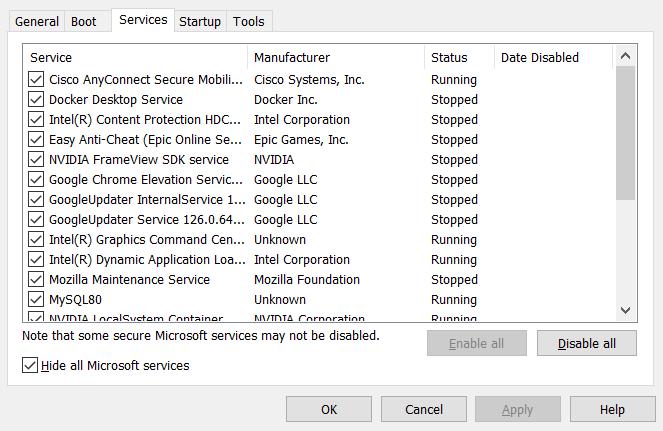
After configuring the services, switch to the Startup tab within the System Configuration window. Here, locate and click on "Open Task Manager." This action will launch Task Manager, where you'll navigate to its Startup tab. Within Task Manager, identify programs with a higher startup impact, typically denoted by their impact on system performance during startup. For each of these programs, click on them to select, then proceed to click "Disable" to prevent them from launching automatically during system startup. Once you've disabled all unnecessary startup programs, ensure to restart your computer for the changes to take effect.
With these detailed steps, you can troubleshoot and fix the V Rising won't launch issue efficiently. Hopefully, you'll soon be back to enjoying your vampire survival adventures hassle-free! If you still encounter problems, feel free to reach out for further assistance.