
How to Fix V Rising Steamworks Initialisation Failed Error
Encountering the dreaded "V Rising Steamworks Initialisation Failed" error can really put a damper on your gaming experience. But fear not! We've got your back with some tried-and-tested solutions to get you back into the vampire-infested world of V Rising in no time.
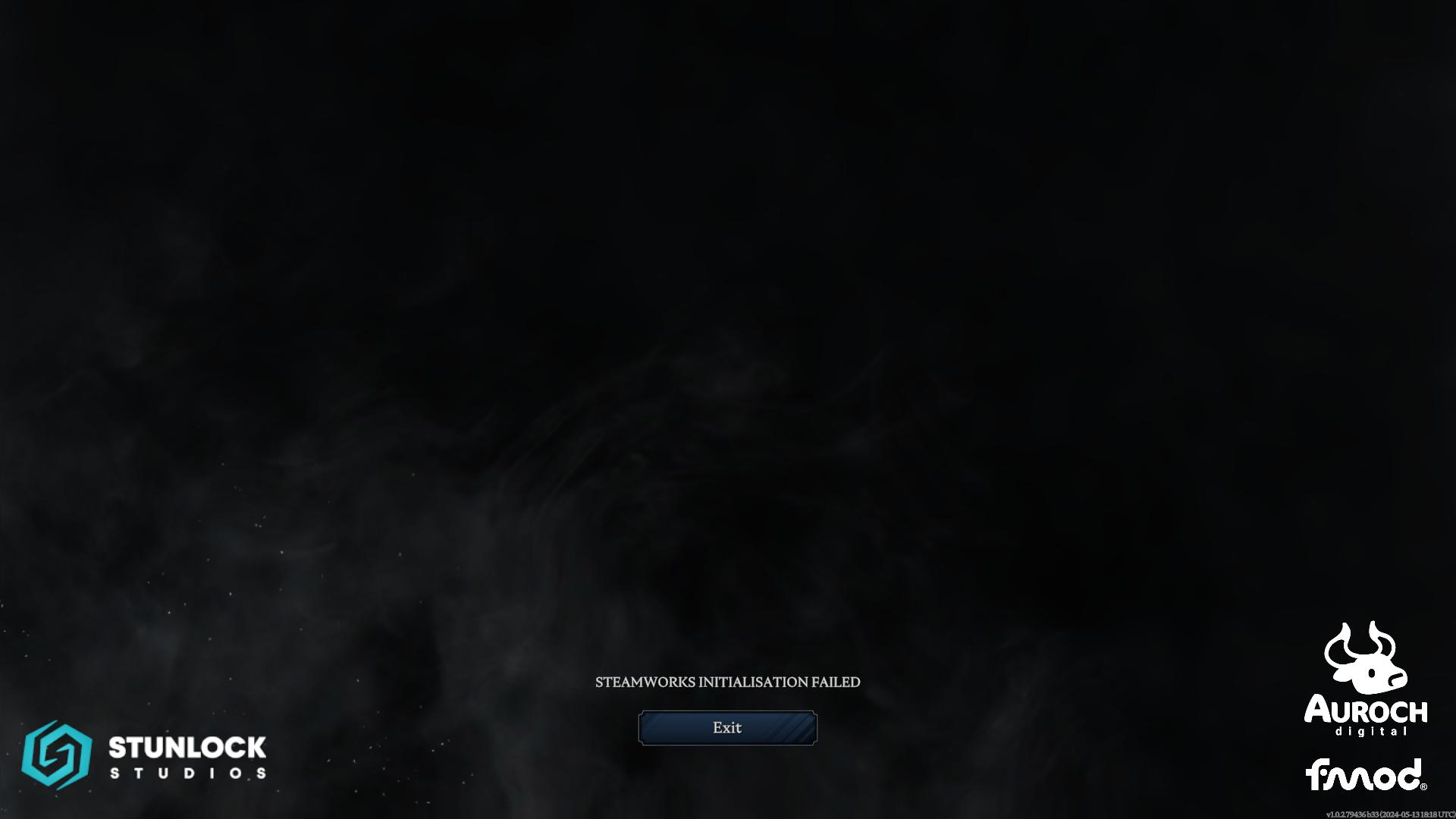
Restart Steam
- Click on Steam at the top left corner of the Steam window.
- Select "Exit" to completely close Steam.
- Sign in again and relaunch the game to see if the issue is resolved.

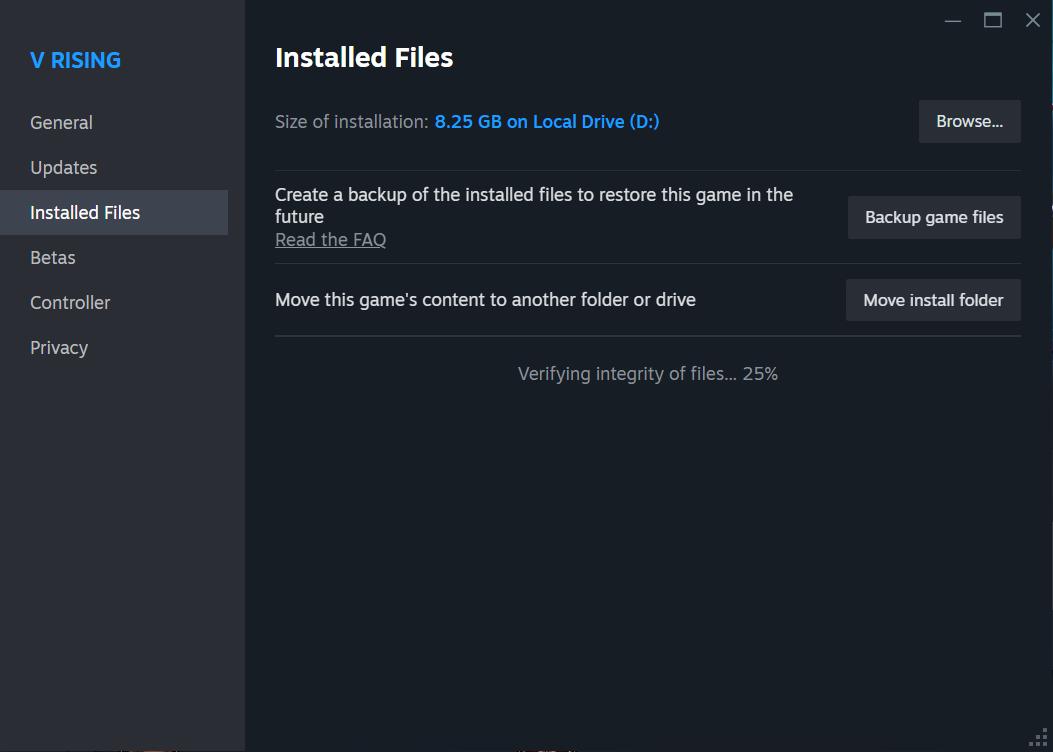
Verify Game Files
- Open Steam and navigate to your library.
- Right-click on V Rising and select "Properties."
- In the "LOCAL FILES" tab, click on "Verify Integrity of local files..."
- Let the scan complete, and any corrupted or missing files will be fixed automatically.
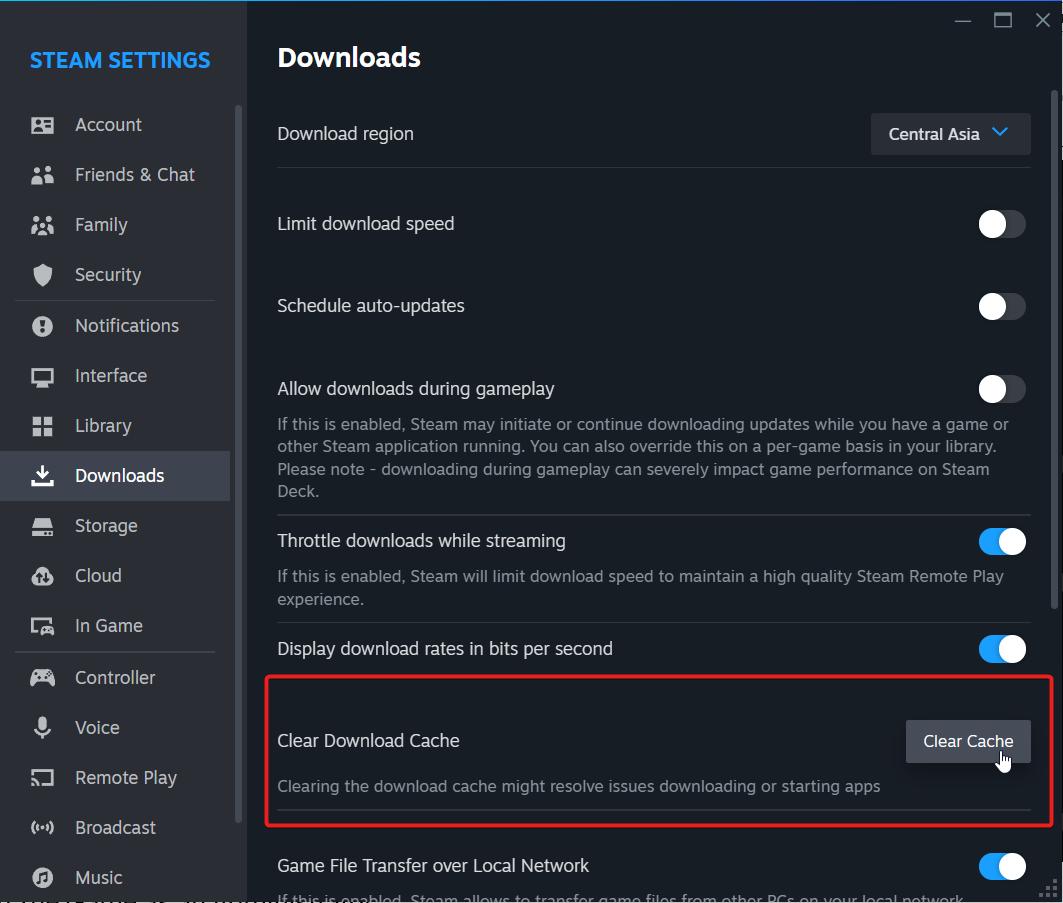
Clear Download Cache
- Open Steam and click on the Steam menu at the top left corner.
- Select "Settings" or "Preferences."
- Under the Downloads section, click on "Clear Download Cache."
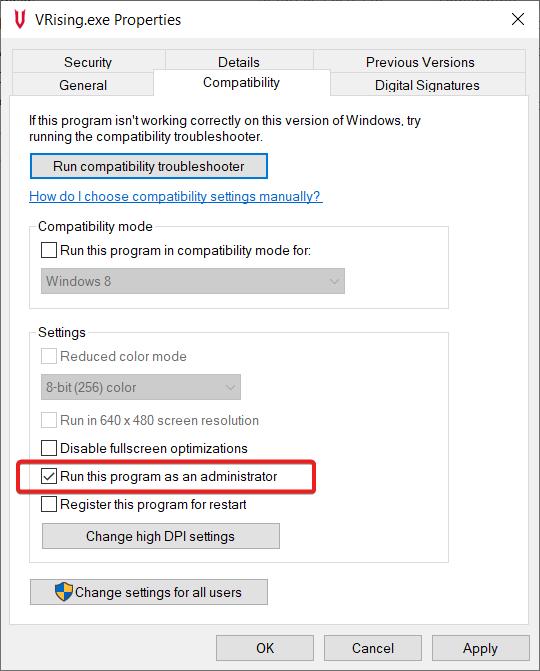
Run as an Administrator
- Right-click on the VRising.exe file.
- Select "Properties" and go to the "Compatibility" tab.
- Check the box that says, "Run This Program as Administrator."
- Hit "Apply" and then "Ok."
Don't let the V Rising Steamworks Initialisation Failed error keep you from immersing yourself in the thrilling world of vampires and survival. With these simple steps, you can troubleshoot and resolve the issue quickly, getting back to your gameplay in no time!