
How to Fix V Rising Server Error
Experiencing the dreaded V Rising server error can be frustrating, disrupting your immersion in the game world. But fear not! With a few quick fixes, you'll be sinking your fangs back into the action in no time.
What Is V Rising Server Error?
The V Rising server error is a common issue where players are unable to connect to the game server, preventing them from enjoying the game as intended. This error can occur due to server downtime or connection issues.
Check the Server Status
- Visit the official V Rising X page to check for any announcements regarding server downtime or maintenance.

- If servers are down, be patient and wait for them to come back online.
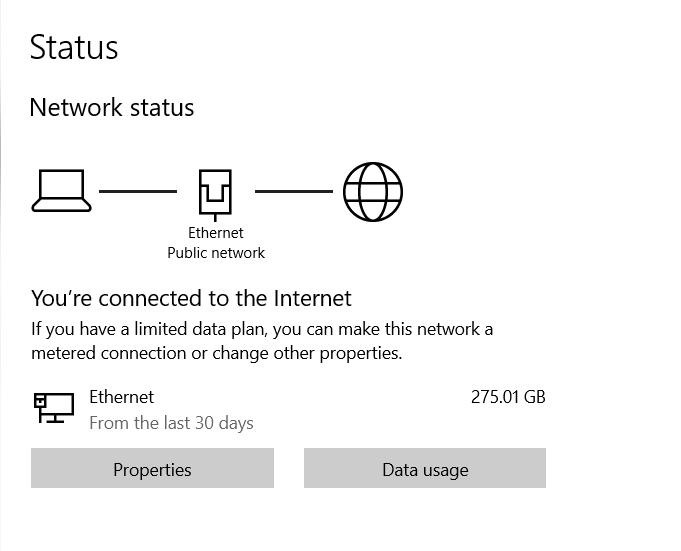
Check the Connection
- Ensure a stable internet connection by restarting your router or modem.
- Move closer to the internet source to improve signal strength.
- Disable any VPN services that may be interfering with your connection.
- Use a wired connection with an Ethernet cable for optimal stability.
Allow the Game through the Firewall
- Temporarily disable Windows Firewall to check if it's blocking the game.
- Navigate to Start > Settings > Update & Security > Windows Security > Virus & threat protection.
- Under Virus & threat protection settings, choose Manage settings and add an exclusion for the V Rising game executable (.exe) file.
Verify Integrity of V Rising’s Files
- Open Steam and go to your Library.
- Right-click on V Rising and select Properties.
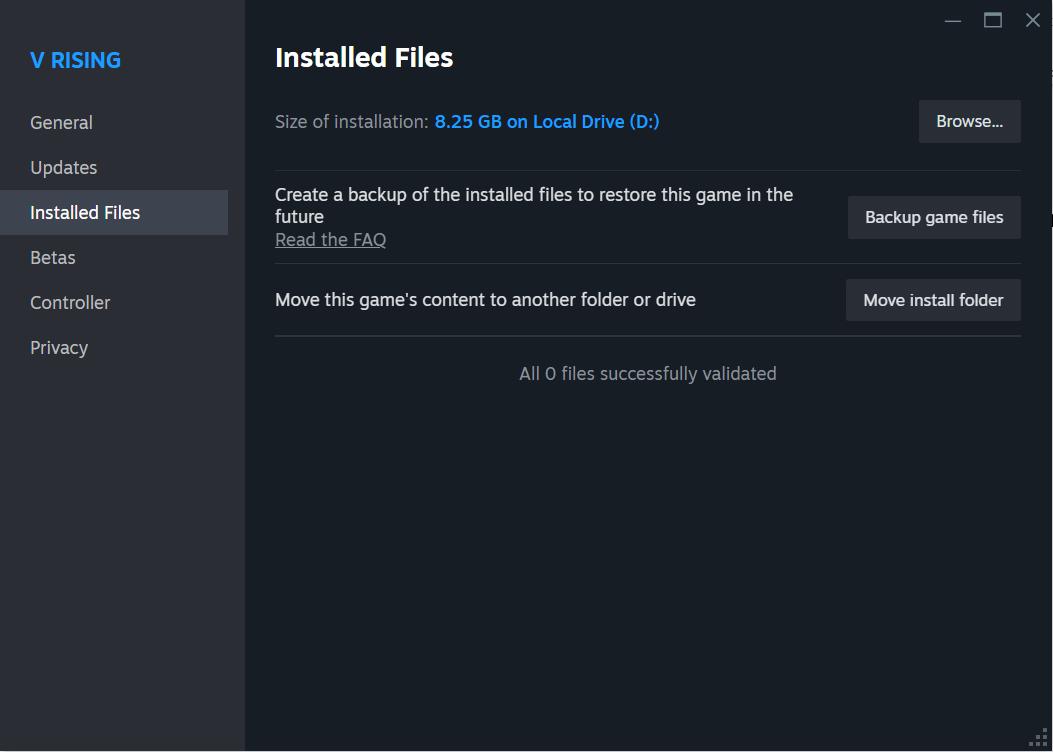
- Go to the Local Files tab and click on Verify Integrity of Game Files.
Delete Autosaved Files
- Navigate to the AppData folder on your PC by pressing WIN + R and typing "appdata".
- Access the LocalLow > Stunlock Studios > VRising > Saves > v1 folder.
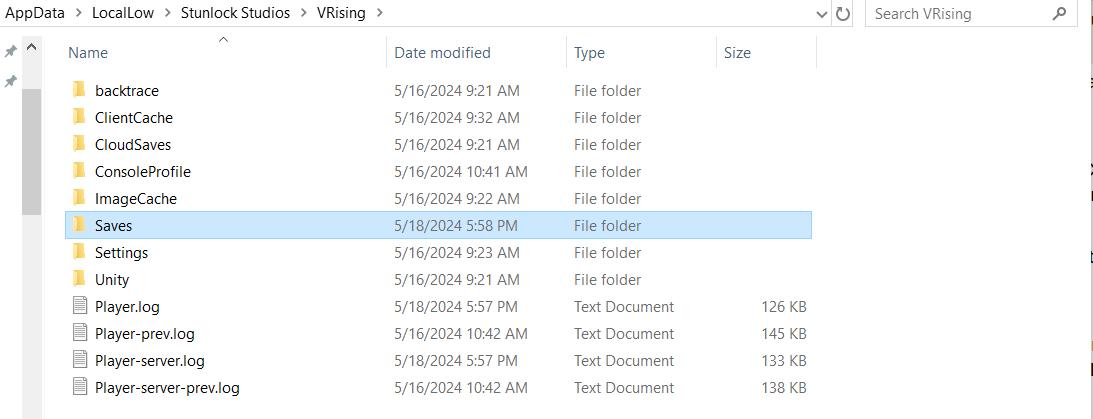
- Delete the most recent autosave file (AutoSave_X) to potentially resolve corrupted save issues.
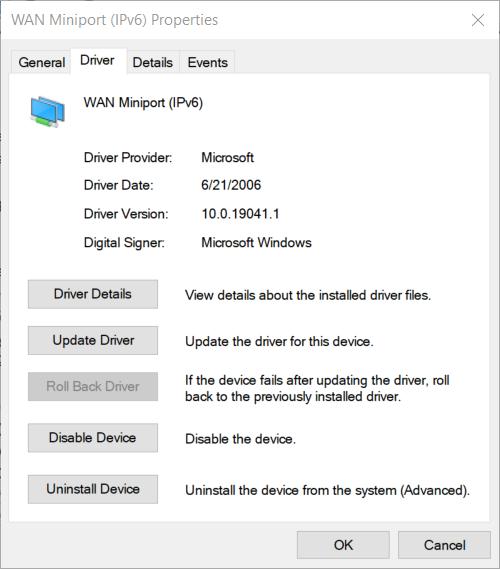
Disable IPv6
- Open your device’s Settings app and go to Network and Internet.
- Click on Change adapter options and select your active connection.
- Open its Properties and uncheck Internet Protocol Version 6 (IPv6) to force IPv4 usage.
Use the Command Prompt
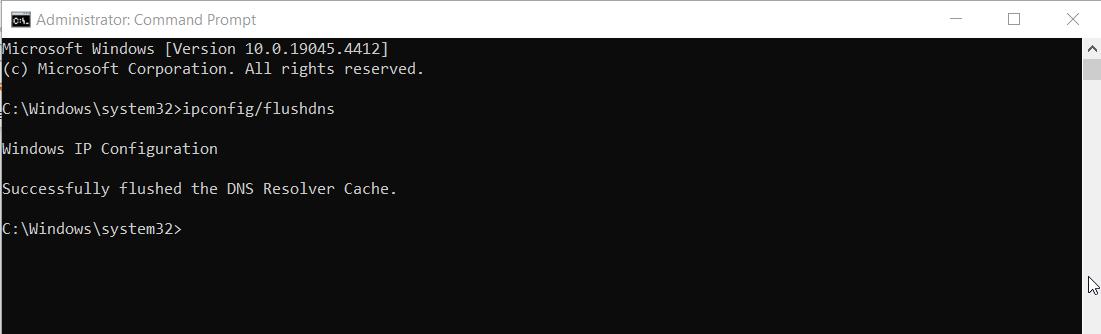
- Open Command Prompt as an administrator and run the command "ipconfig /flushdns" to refresh DNS information.
Don't let the V Rising server error keep you from enjoying this thrilling MMORPG. Follow these easy steps to troubleshoot and fix server connection issues, and dive back into the vampire-infested world of V Rising! With these simple fixes, you'll be back in the game in no time, ready to conquer the night and unleash your vampiric powers upon your enemies. Happy hunting, fellow vampires!