
How to fix V Rising is not installed issue
Encountering problems with installing or launching V Rising? Don't worry; we've got you covered with these troubleshooting steps.
Basics
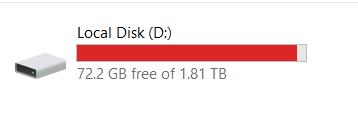
Check Disk Space: Ensure you have enough space on your HDD for installation. You need the declared volume plus 1-2 GB of extra space. Keep at least 2 GB free on your system drive for temporary files.
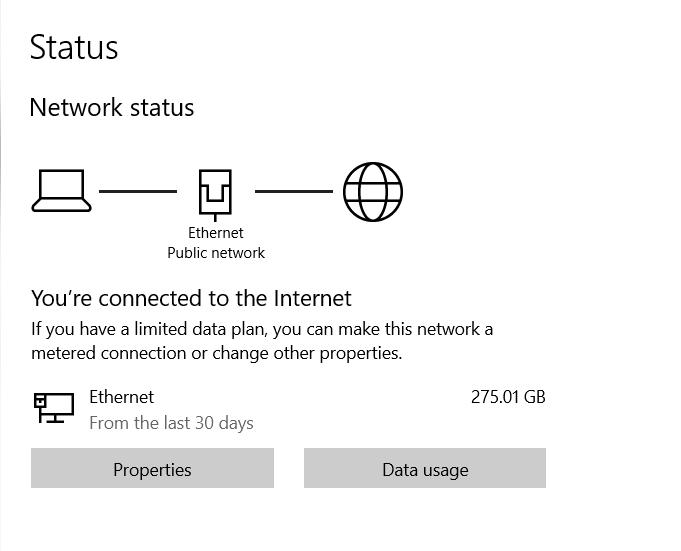
Stable Internet Connection: Confirm a stable internet connection. Instability or lack of connection can hinder the installation process.
Disable Antivirus: Temporarily disable your antivirus during installation. Sometimes, it may interfere with file copying or mistakenly delete files.
Advanced Steps
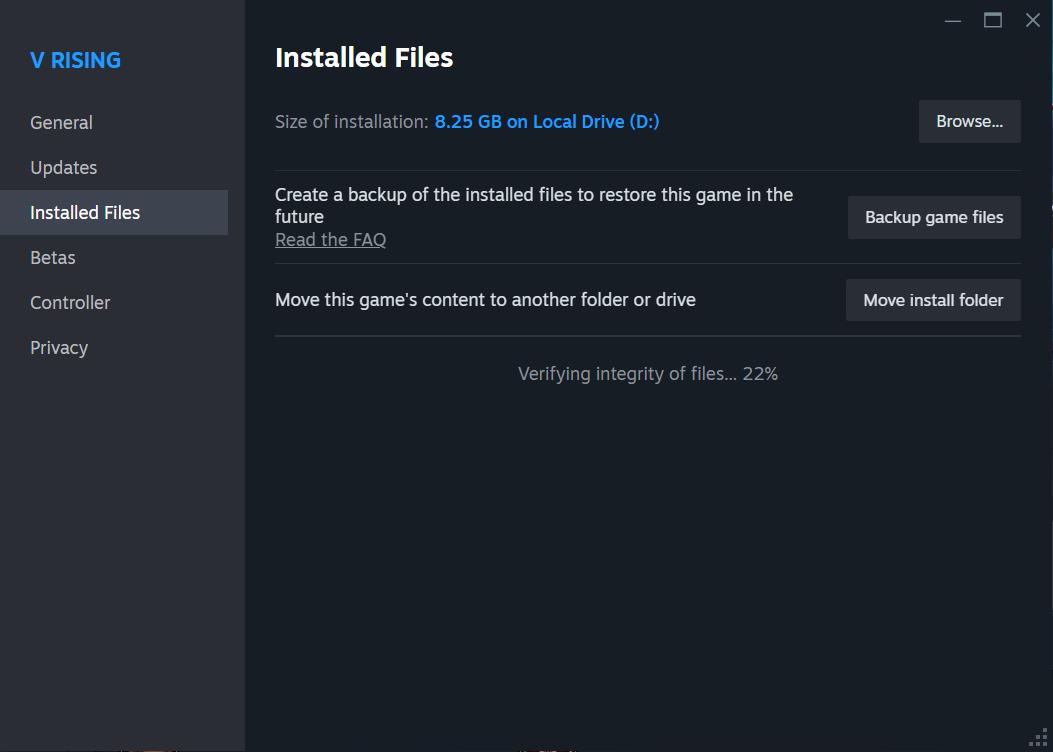
If V Rising Won't Start After Update, try verify game files through your Steam Library. This ensures all necessary files are present and uncorrupted.
Rename Problematic Files: Rename or remove specific files causing issues. For instance, renaming "lib_burst_generated.dll" in the specified folder might resolve startup problems.

Remove Mods: If using mods, remove or deactivate them. Mods can sometimes conflict with game updates and cause startup issues.
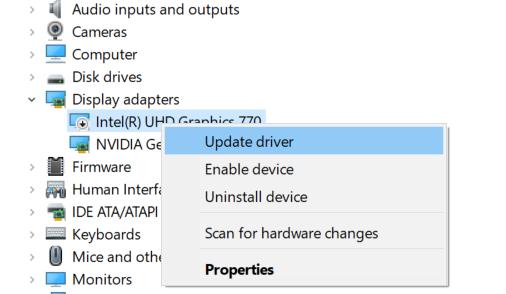
Update Drivers: Ensure your graphics card drivers are up to date. Updating drivers, particularly video card drivers, might resolve shader-related problems.
Troubleshoot Compatibility
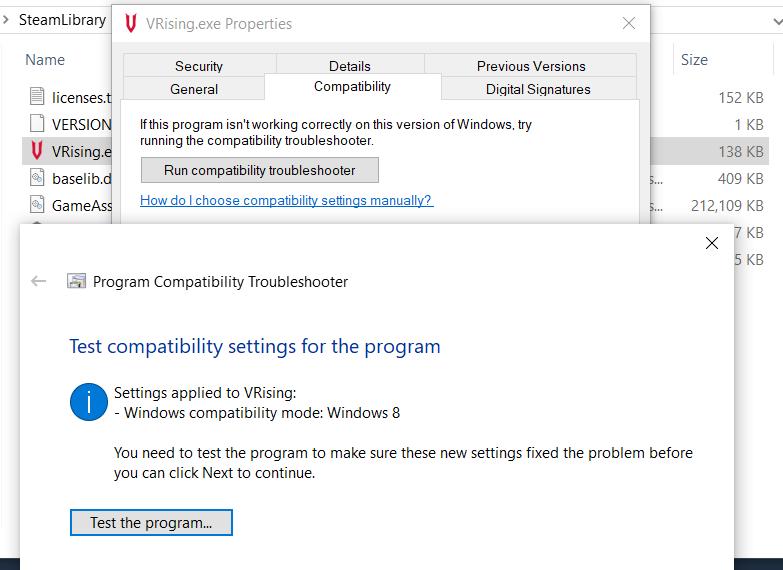
Run compatibility troubleshooter for V Rising executable file. This can help resolve compatibility issues with your system.
Clear Steam Cache
To access Steam settings, open your Steam app, located on your desktop. In the top left corner of the Steam window, click on the Steam menu. From the dropdown menu, select "Settings" or "Preferences."
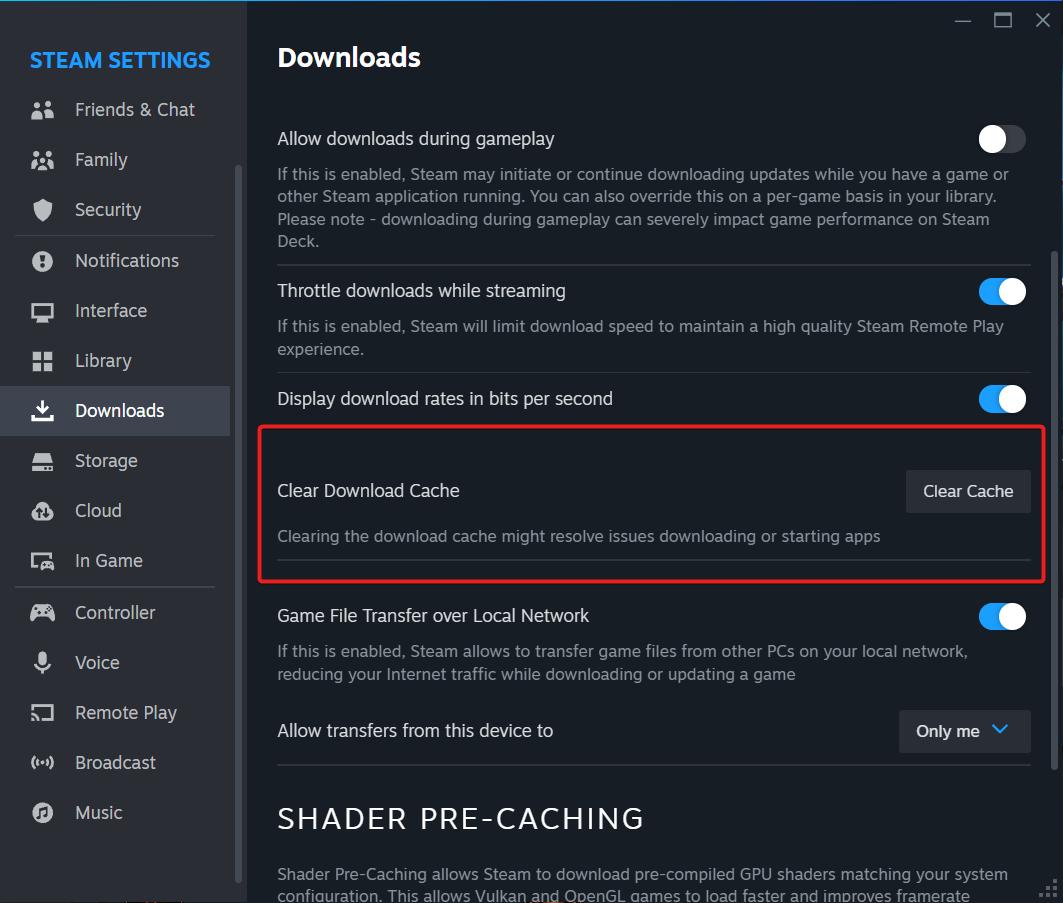
This action will open a new sub-menu within the Steam window. In this sub-menu, locate and click on the "Downloads" option to proceed with adjusting your download settings.
As a temporary solution, try running the game twice. Launch the game once, then launch it again from the local files. Closing the first instance may allow the game to run properly on the second attempt.
By following these steps, you can potentially resolve installation and startup issues with V Rising, ensuring you can delve back into the vampire-infested world without further delays.