
How to Fix Stuttering and Lagging in Farming Simulator 25
If you’re playing Farming Simulator 25 and find the gameplay plagued by stuttering, lag, or performance dips, you're not alone. This edition of the series, though highly realistic and visually engaging, has been a challenge for many systems, even powerful setups. This guide covers tested methods to help optimize performance, reduce stutters, and stabilize frame rates, so you can enjoy the game without constant hiccups.
Enjoy farming with improved stability in Farming Simulator 25
Allow the Shader Cache to Build Smoothly
A significant factor behind stuttering is shader cache building, which happens when the game loads textures and graphical details as you play. To minimize this, avoid changing graphics settings mid-game. When you first load into the map, remain in place for around 10-15 minutes to allow the cache to complete its initial build. Changing graphics settings mid-session restarts the shader cache process, causing stutters to persist longer.

Allow the shader cache to build in Farming Simulator 25
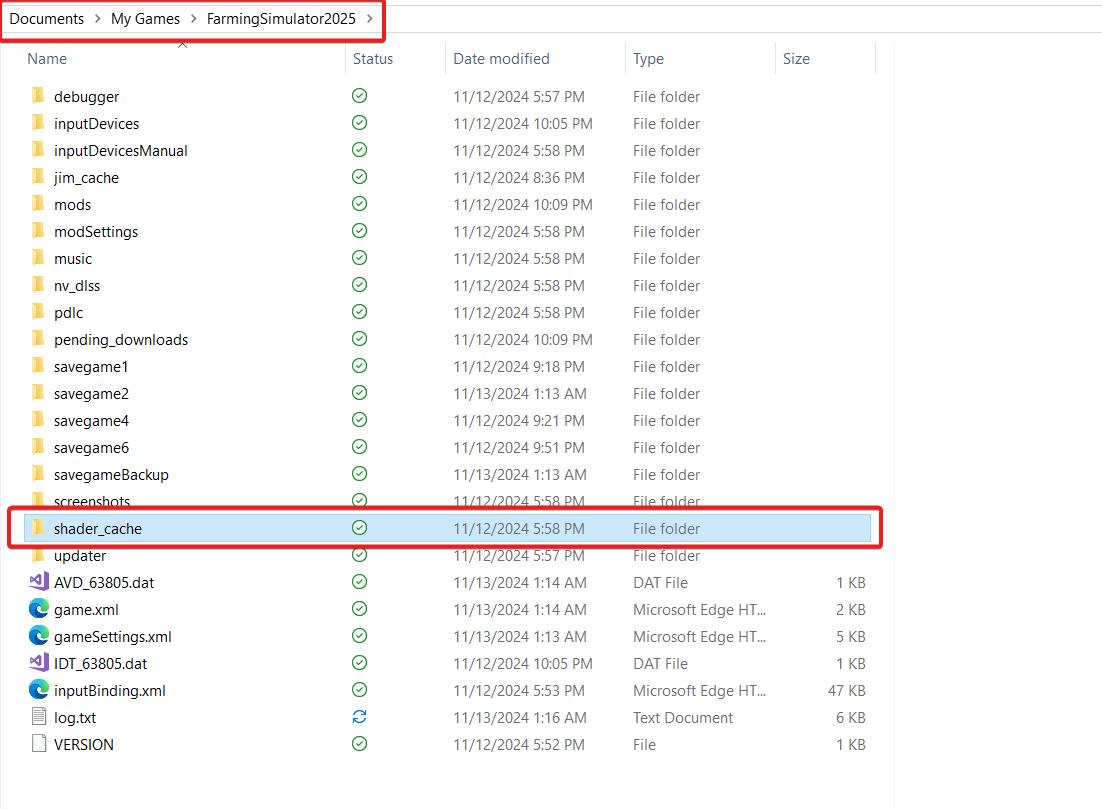
The shader cache itself can sometimes cause issues, especially if it has stored outdated or corrupt files. To clear it, go to `Documents\My Games\Farming Simulator 25` and delete the shader cache folder. When you restart the game, a fresh cache will be built, which often helps stabilize gameplay by reducing stutters.
Adjust Graphics Settings to Ease System Load
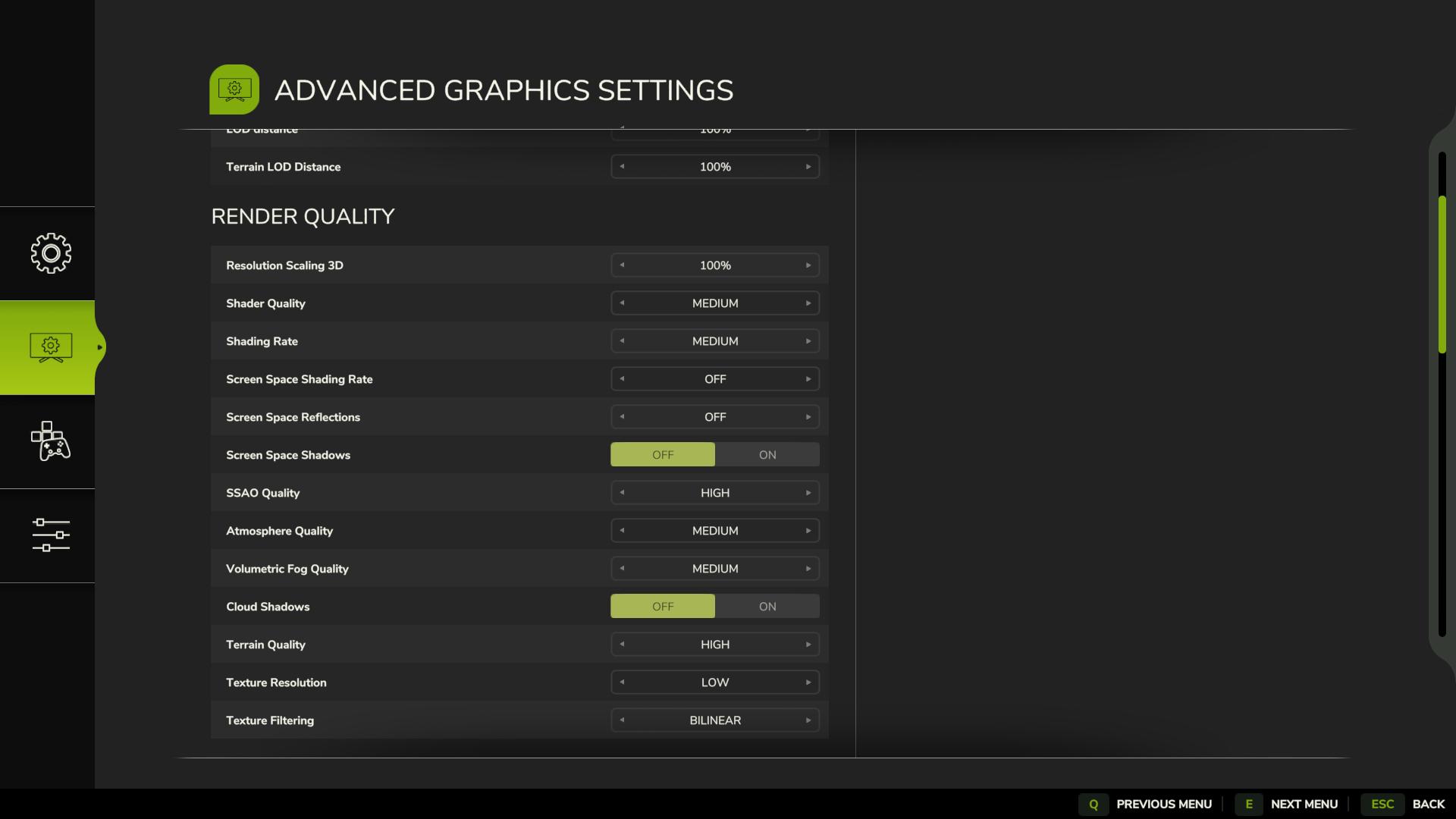
Running the game at ultra settings with all sliders maxed out can stress even high-end hardware, resulting in frame drops and stutters. Reducing specific settings like shadow quality, vegetation detail, and view distance can relieve some of this load without major impact on visual quality. Many players suggest setting these options to “High” instead of “Ultra” for better performance, along with using AMD’s FidelityFX Super Resolution (FSR) or NVIDIA’s DLSS for a performance boost.
Cap FPS and Enable V-Sync for Stability
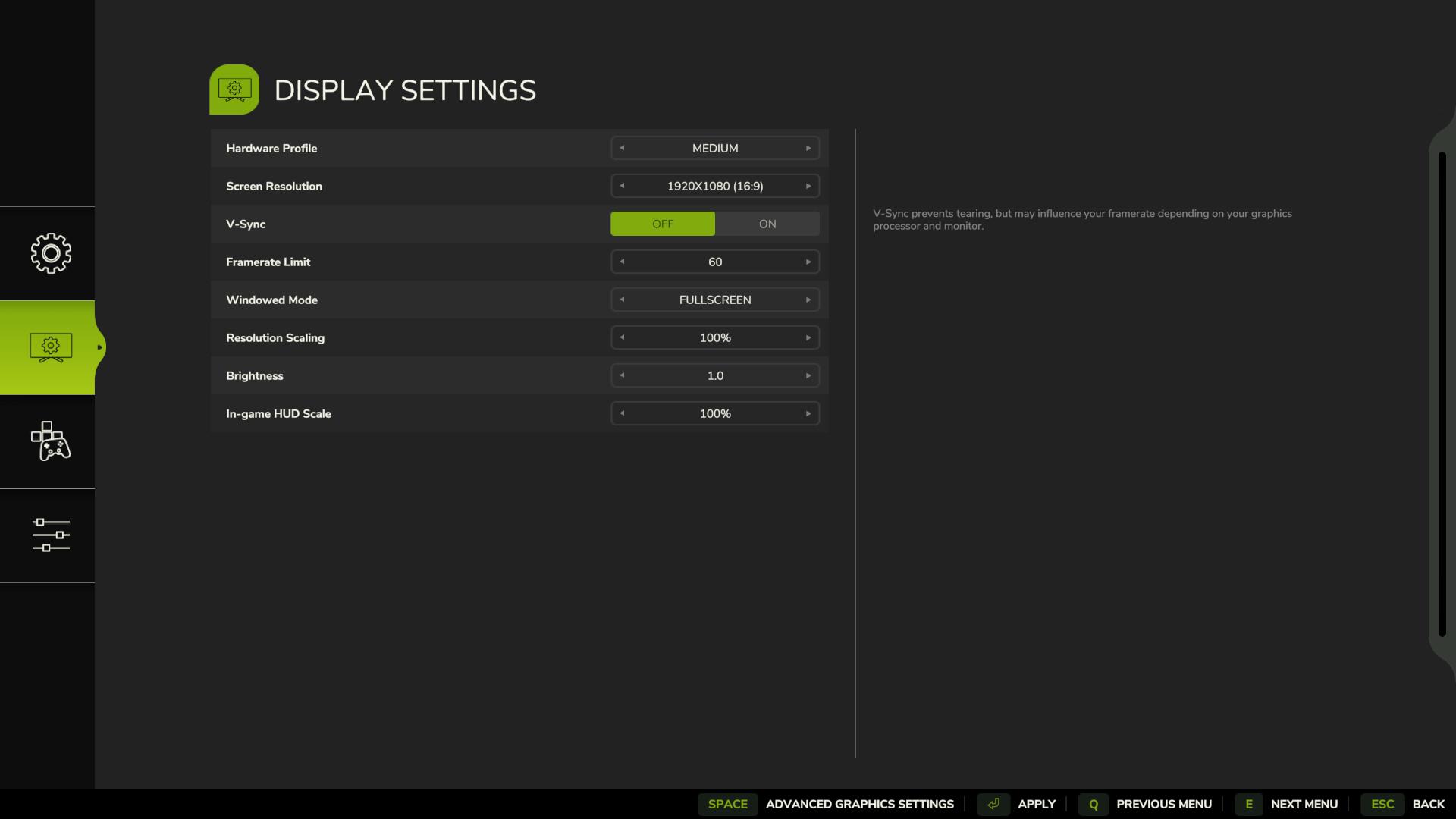
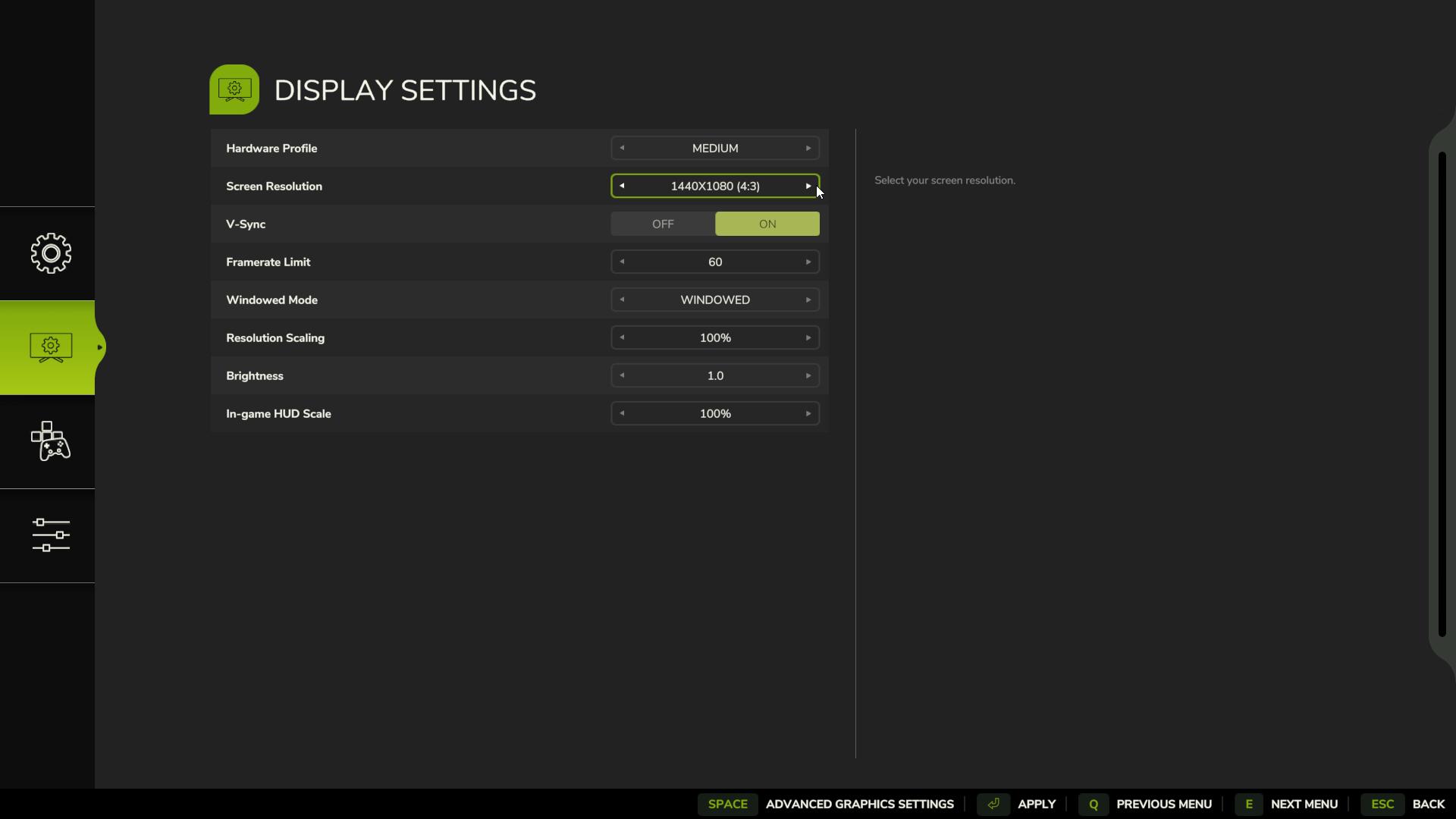
Setting a frame rate limit can help balance system load, and it’s often more effective than allowing the game to run at maximum FPS. Try capping the FPS to 60 or 120, which can help your GPU handle rendering more consistently. Enabling V-Sync also reduces screen tearing and smooths out performance by syncing frame rates with the monitor’s refresh rate. However, if you’re using G-Sync and experiencing issues, disabling it temporarily could yield better results, as reports have been mixed for Farming Simulator 25.
Update GPU Drivers and Try Studio Drivers if Needed
Updated drivers can make a difference in performance for new game releases. Both NVIDIA and AMD periodically release updates that optimize games, including Farming Simulator 25. If you’re still having trouble after updating, some users have found that switching to NVIDIA’s “Studio” drivers instead of “Game Ready” drivers offers a smoother experience.
Use FSR or DLSS on Balanced Mode
For those with AMD or NVIDIA GPUs, enabling FSR or DLSS can provide smoother performance. Setting FSR to “Balanced” mode rather than “Quality” can improve frame rates without a noticeable decrease in visuals. Similarly, DLSS on Balanced mode may enhance performance for NVIDIA users, though players have reported varying results. Experimenting with these settings may help find the best balance between quality and performance.
Avoid Changing Graphics Settings Mid-Session
Switching graphics settings during gameplay is known to restart the shader cache build, which can cause repeated stuttering. Instead, choose settings before starting a session, allowing the shader cache to stabilize. Sticking to a single setup prevents constant cache rebuilding and reduces the likelihood of stuttering.
Test Full-Screen vs. Windowed Modes
Some players have reported performance improvements by switching between full-screen and borderless windowed modes. Try both to see which one works better with your setup. Borderless windowed mode may work smoother for setups involving multi-tasking, while full-screen mode often runs more efficiently by dedicating system resources exclusively to the game.
Lower Resolution if Needed
If running at 4K or 3440x1440 resolution, consider temporarily reducing it to 1440p or 1080p. Lowering the resolution can reduce the strain on your GPU and improve FPS. Once gameplay stabilizes, you may choose to increase the resolution again as system resources allow.
While Farming Simulator 25 has its performance quirks, these methods can help you adjust settings to reduce lag and stuttering. Trying a mix of shader cache management, frame rate caps, driver updates, and resolution adjustments should result in a better gaming experience. Watch for any future updates from the developers that may further enhance stability, and enjoy the improved farming sessions.