
How to Fix Lag on Your Minecraft Server (RAM, View Distance, Aikar's Flags)
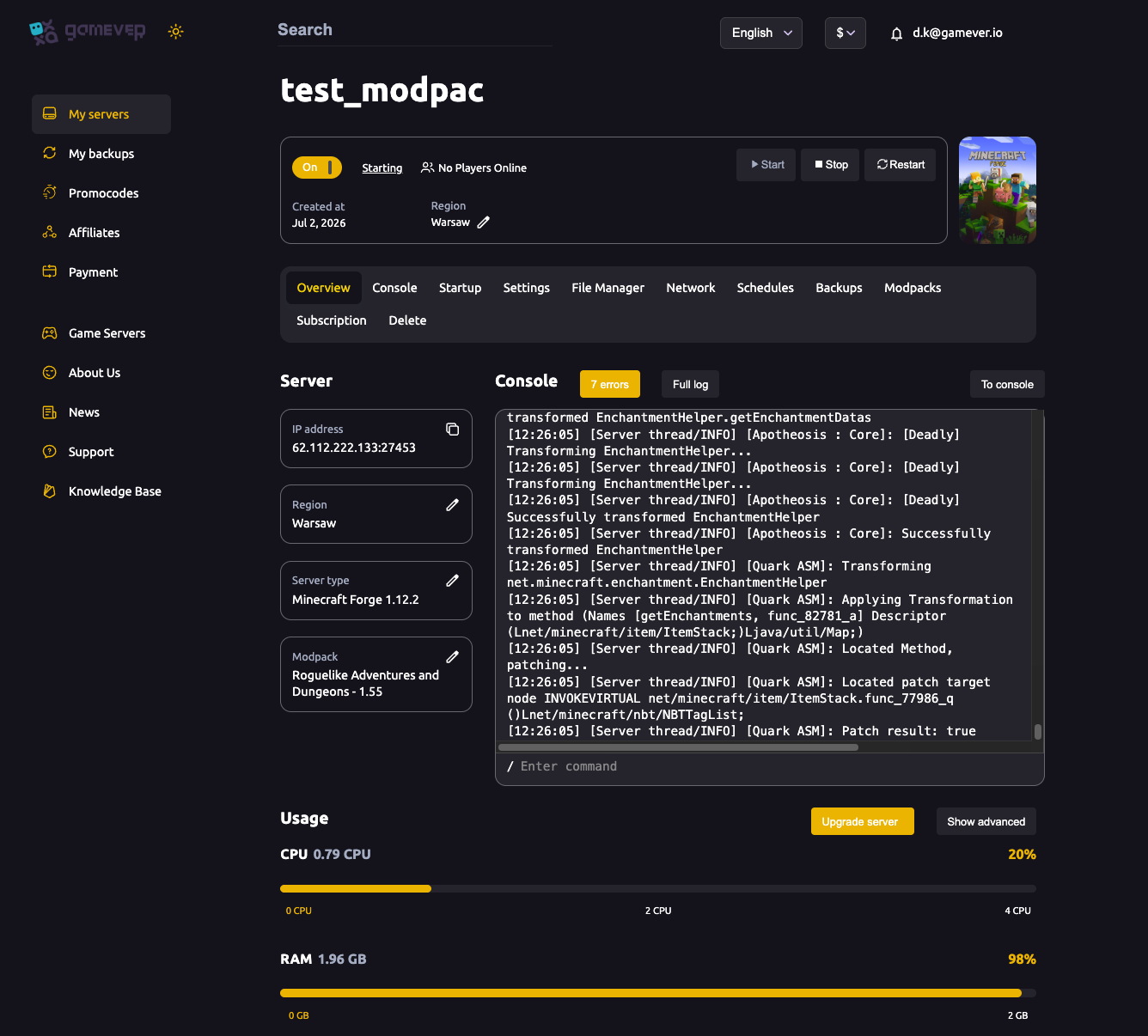
Lag — stuttering, rubber-banding, blocks taking a second to break — almost always comes down to the server running out of headroom. The good news: your gamever panel shows you exactly which resource is the bottleneck, and gives you the levers to fix it. This guide is a practical order of operations for a smooth Minecraft server.
Step 1: Read the Usage meters
Start on the Overview tab and look at Usage with players online:
- RAM near 100% — the most common Minecraft problem, especially on modpacks. A heavy pack can sit at 98% on a 2 GB plan before anyone even joins. This is your signal to free up or add memory.
- CPU pinned — often too high a view distance, too many loaded chunks, or a heavy mod/plugin.
The meter that's maxed tells you where to aim.
Step 2: Lower View Distance
View Distance (on Settings → World Settings) is the highest-impact single setting. Each extra chunk multiplies what the server tracks and sends. Dropping it from 10 to 6–8 often clears lag immediately with little visible difference to players. See world settings.
Step 3: Enable Aikar's Flags and set RAM percentage
On Settings → Startup Settings:
| Setting | Do this |
|---|---|
| Enable Aikar's Flags | Set true — tuned garbage-collection flags that cut lag spikes, especially on modpacks. |
| JVM Options | Set -XX:MaxRAMPercentage=95.0 so the JVM can use most of your plan's RAM instead of a conservative default. |
See startup & Java for the full Startup settings.
Step 4: Restart regularly
Long-running servers accumulate loaded chunks and entity clutter. A scheduled restart clears it:
- Use the Schedules tab to automate a daily (or more frequent) restart.
- A quick Restart from Overview also clears a server that's bogged down right now.
Step 5: Upgrade the server
If RAM stays pinned after trimming view distance and tuning flags — common with big modpacks and larger groups — you've simply outgrown the plan. The Upgrade server button on Overview raises CPU and RAM without rebuilding. For modpacks this is often the real fix: they're memory-hungry by design. See sizing your server.
Quick triage table
| Symptom | First thing to try |
|---|---|
| RAM at ~100% | Enable Aikar's Flags + MaxRAMPercentage, then Upgrade server |
| CPU pinned | Lower View Distance; check heavy mods/plugins |
| Lag builds up over hours | Schedule a restart |
| Modpack lags from the start | More RAM — Upgrade server |
Additional Tips
- Check the Usage meters first — fix the resource that's actually maxed.
- View Distance is the top CPU lever — lower it before anything else.
- Aikar's Flags + MaxRAMPercentage are the two must-do JVM tweaks.
- Schedule restarts to stop lag creeping in over long sessions.
- Modpacks need RAM — if it's pinned, Upgrade rather than fight it.
Conclusion
Fixing Minecraft lag is a short checklist: read the Usage meters to find the bottleneck, lower View Distance for CPU, turn on Aikar's Flags and set MaxRAMPercentage for RAM, schedule restarts to keep things clean, and Upgrade server when a big modpack has simply outgrown the plan. Work down that list and a stuttering server turns smooth.
Rent your Minecraft Java server at gamever.io — live usage meters, Aikar's Flags in a click, scheduled restarts and one-click upgrades to keep even heavy modpacks running smooth. Free trial, promo code WELCOME.