
How to fix “Invalid signature for profile public key” in Minecraft?
Encountering the "Invalid Signature for Profile Public Key" error in Minecraft can be frustrating, but fear not! In this guide, we will walk you through the steps to resolve this issue. We will start with the recommended solution and, if that doesn't work, provide alternative methods to fix the problem. Let's get started!
Solution 1: Set enforce-secure-profile to false in server.properties:
1. Locate the server.properties file in your Minecraft server directory.
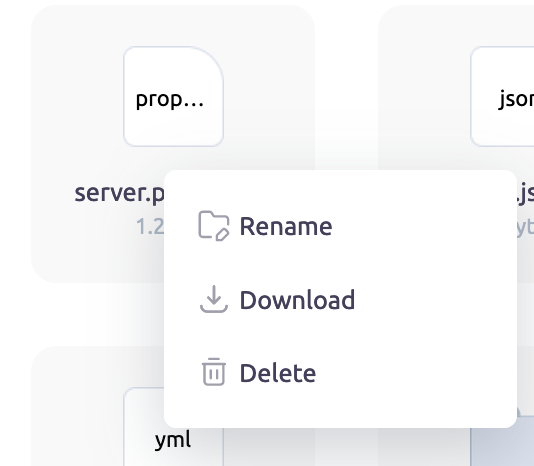
2. Open the server.properties file using a text editor.
3. Look for the line that says "enforce-secure-profile=true" and change it to "enforce-secure-profile=false".
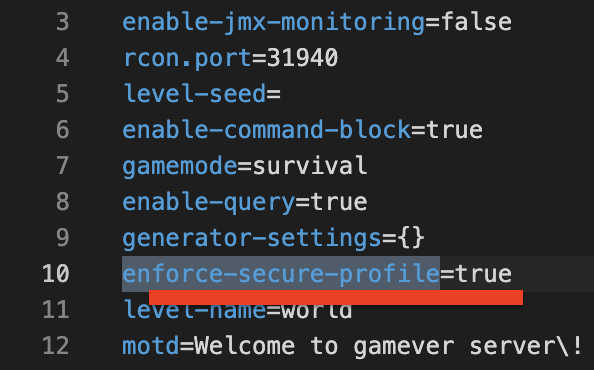
4. Save the changes and restart your Minecraft server.
5. Attempt to connect to the server again and check if the error is resolved.
If the above solution does not resolve the issue, you can try the following alternatives:
Alternative 1: Downgrade to Minecraft version 1.18:
1. Access the Minecraft launcher and click on "Installations" at the top.
2. Create a new installation by clicking on "New Installation" and select version 1.18 from the dropdown menu.
3. Launch the game using the newly created installation and attempt to connect to the server again.
Alternative 2: Disable Chat Filter on Minecraft Google Page:
1. Visit the Minecraft Google page and log in to your account.
2. Navigate to your account settings and locate the "Chat Filter" option.
3. Turn off the "Chat Filter" option and save the changes.
4. Restart Minecraft and try connecting to the server once more.